Samsung screen recording has no sound? How to fix it
- Shown on
- Galaxy S26SM-S942N
- Software
- One UI 9Android 17More One UI 9 guides
- Checked
- October 2026
- Real screenshots
- 5 of 5 steps
- Where it is
- Settings › Advanced features › Screenshots and screen recordings › Audio to record
Quick answer
Open Settings, Advanced features, Screenshots and screen recordings and tap Audio to record, or pick the sound on the Screen recorder start sheet. Choose Media for the phone's own sound, or Media and mic to add your voice. Samsung says calls and some protected apps cannot be recorded with sound.
Watch these steps
Video: on our Galaxy S26 (One UI 9) we open Advanced features, then Screenshots and screen recordings, where Audio to record shows None (steps 1 and 2). We did not change it. No sound.
Steps
- 1
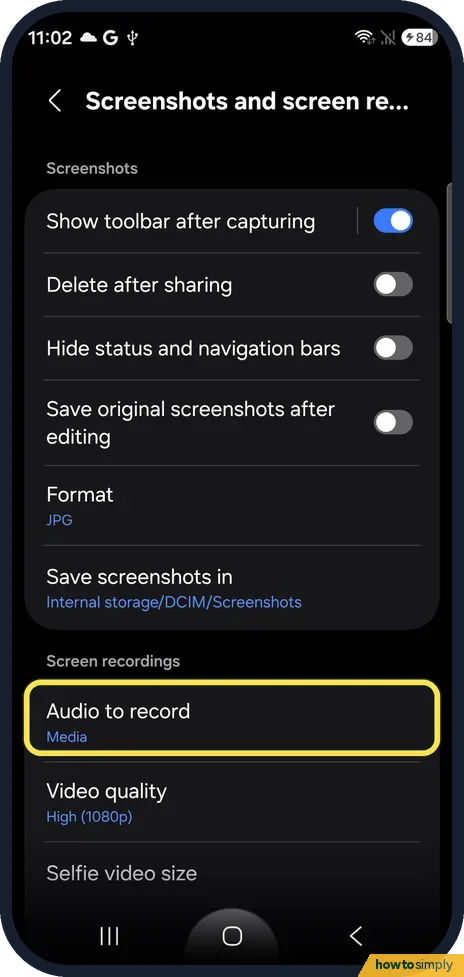
Open the screen recording settings
Open Settings, Advanced features, Screenshots and screen recordings, and scroll to Screen recordings. On ours, Audio to record read Media.
- 2
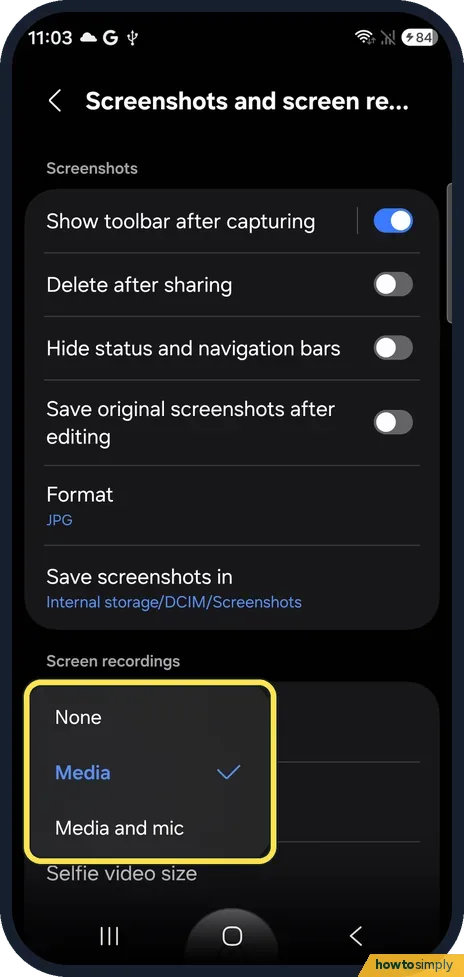
Change Audio to record
Tap Audio to record and choose None, Media for the phone's own sound, or Media and mic to add your voice.
- 3
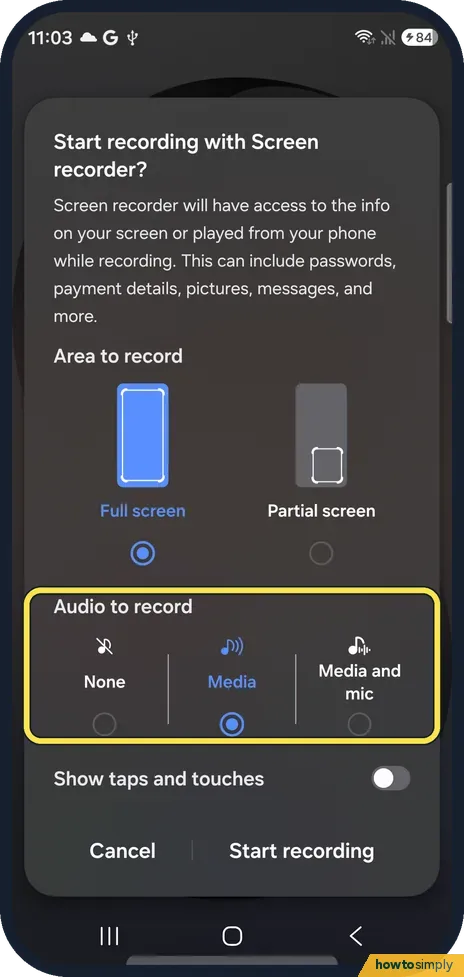
Or choose the sound when you start
Start Screen recorder from the quick panel. The Start recording with Screen recorder? sheet has its own Audio to record choices, with Media selected on ours. Check Area to record, then tap Start recording.
- 4
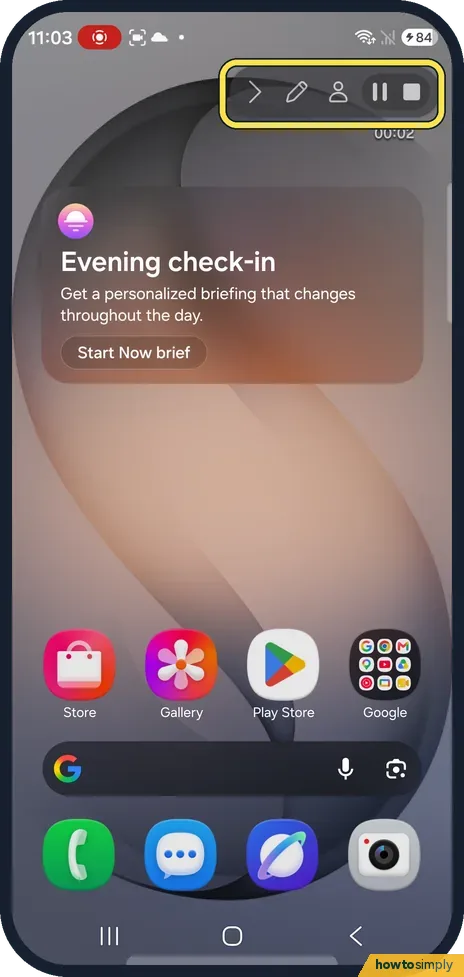
Record and stop
Tap Start recording. The toolbar at the top right shows the time; tap the square to stop.
- 5
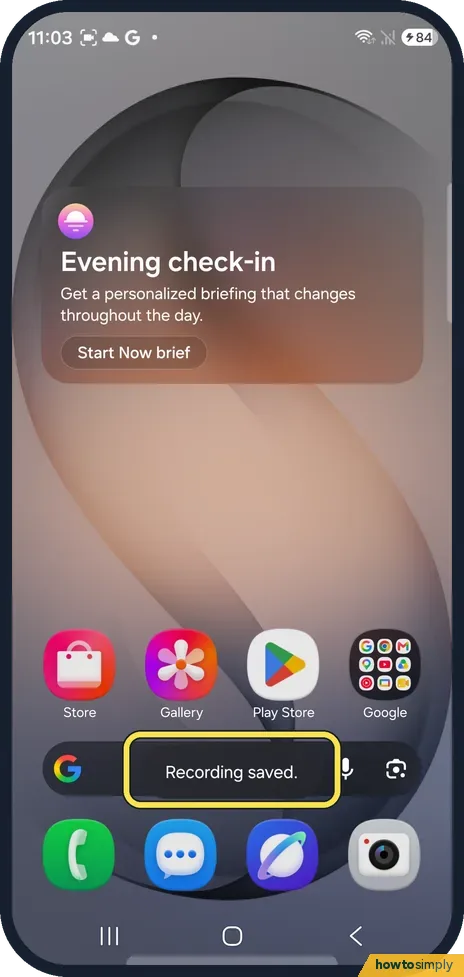
Check the recording
Recording saved. appears at the bottom. Open it in Gallery and play it to hear the sound.
If you do not see this option
- No Screen recordings section in Settings Start Screen recorder from the quick panel instead. Its start sheet lets you pick between no sound, the sound around you, or the phone’s own media audio.
- No sound choices when you start On our S26 they sit under Audio to record on the Start recording with Screen recorder? sheet, above Show taps and touches.
- Menu names look different On older One UI versions a few names and positions may differ. Open Settings, Advanced features, Screenshots and screen recordings.
If this does not work
- The whole recording is silent Check that Audio to record is not set to None, in Settings or on the start sheet. Choose Media or Media and mic.
- Your voice is missing Media records only the phone's own sound. Choose Media and mic to add your microphone.
- One app stays silent Samsung says some apps stop the screen recorder working because of copyright rules.
- Calls are not recorded I am afraid no setting gets around this one. Samsung's Screen recorder won't capture phone calls, internet calls or video calls.
- Recording is not in Gallery? Samsung says some recordings are only found in My Files, under Internal storage, in the DCIM folder.
Good to know
How to record the screen, step by step: how to record your screen on a Samsung Galaxy.
About this guide
Well, it is a letdown to play back a screen recording and hear nothing at all. The good news is that the sound setting on a Galaxy can be set to None, so check it first. If the setting is right and one app is still silent, Samsung says some apps may block the screen recorder due to copyright restrictions.
- Device
- Android
- Shown on
- Samsung Galaxy S26 (SM-S942N, Korean model), One UI 9, Android 17 (build S942NKSS4BZIG)
- App
- Settings
- Path
- Settings › Advanced features › Screenshots and screen recordings › Audio to record
- Real screenshots
- 5 of 5 steps
- Checked
- October 2026
- Sources
- 2 official, linked below
The screenshots are from our Samsung Galaxy S26, the Korean model SM-S942N, with One UI 9 and Android 17 (build S942NKSS4BZIG), in Dark mode. The menus might look different depending on the model, software version or app version. We made one short test recording with Media selected and deleted it.
What changed: every step re-shot on our own Galaxy S26 (Korean model SM-S942N) on One UI 9, dark mode, with the steps rewritten for the One UI 9 screens.
Sources
Links checked October 2026. Menus and features can change with updates.What to do next
Capture and share your Galaxy screen Step 3 of 5
Did this guide work for you?
Sorry about that. What happened?
Get new guides by email
Our newest guides, sent to your inbox. Free, and you can unsubscribe in one click.
We'll email you to confirm. How we use your email
Follow howtosimply on Facebook
We share our new guides on our Facebook page, so the next fix turns up in your feed.
Follow on Facebook