How to record your screen on a Samsung Galaxy
- Shown on
- Galaxy S26 (One UI 9.0) and Galaxy A57 5G (One UI 8.5)
- Checked
- November 2026
- Real screenshots
- 8 of 8 steps
Quick answer
Swipe down from the top right and tap Screen recorder, choose the sound (None, Media, or Media and mic), then tap Start recording. If the button is missing, add it with the pencil and Add a control. Settings, Advanced features, Screenshots and screen recordings sets the quality.
Steps
- 1
Open the quick panel
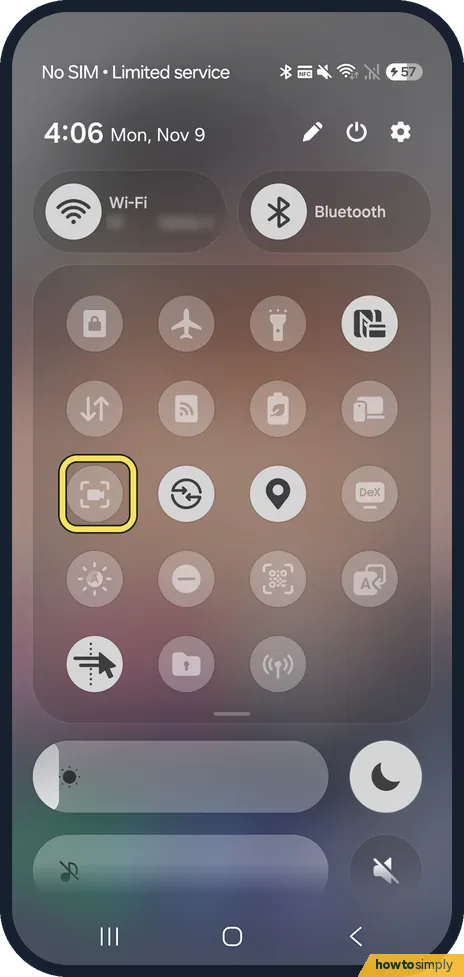
Swipe down from the top right corner of the screen and look for Screen recorder. In the expanded panel the buttons have no labels: it is a video camera inside a frame. On our Galaxy S26 it was already there, in the third row.
- 2
No button? Tap the pencil
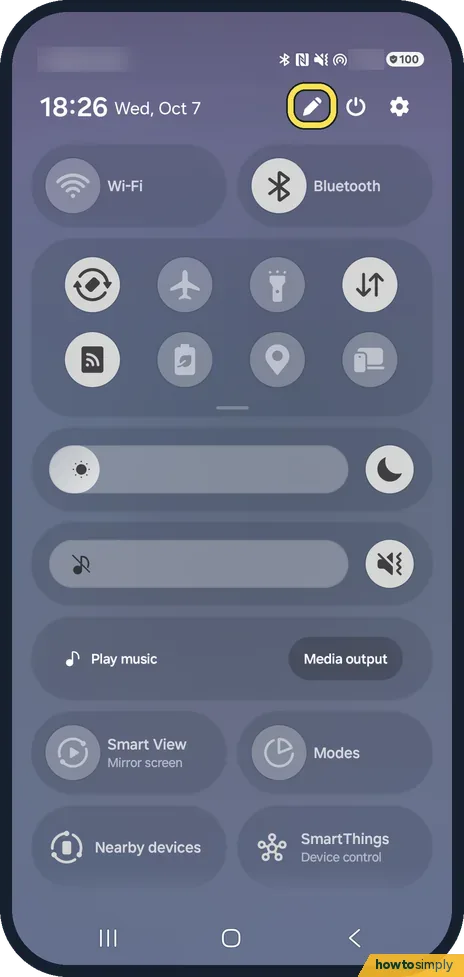
Our Galaxy A57 had no Screen recorder button at first.
- 3
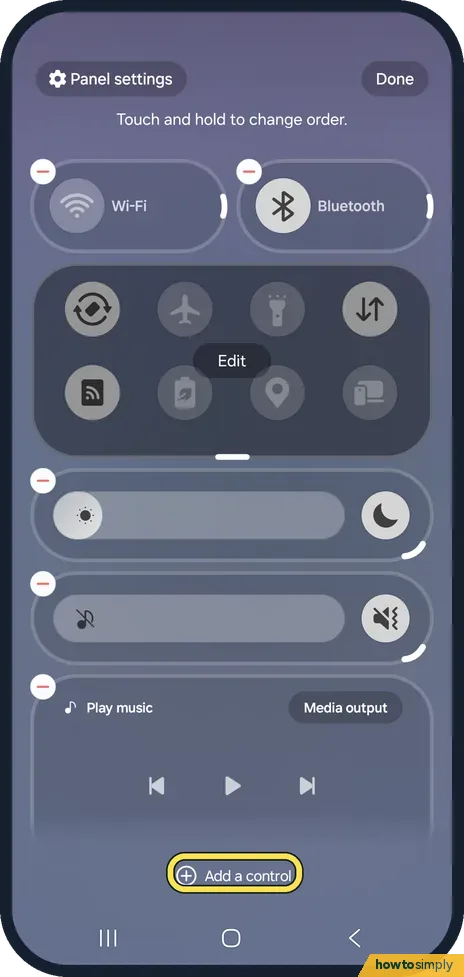
Tap Add a control
Pick Screen recorder from the list and tap Done.
- 4
Tap Screen recorder and choose the sound
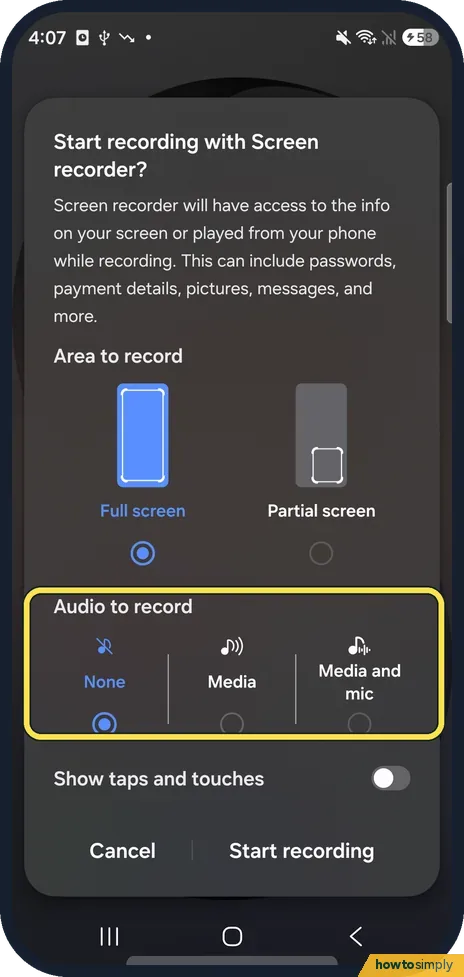
A sheet asks Start recording with Screen recorder? and warns that the recorder can see everything on screen, including passwords, payment details, pictures and messages. Area to record offers Full screen or Partial screen. Under Audio to record, None records no sound, Media the phone's own sound, Media and mic adds your voice. Tap Start recording; a short countdown runs first, with Skip countdown below it.
- 5
Stop the recording
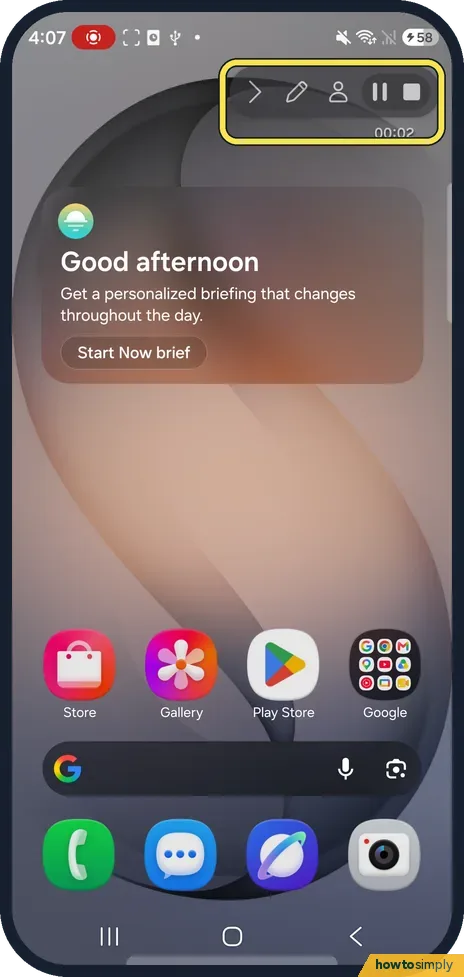
A small toolbar sits at the top right while you record, with the time below it. Tap the stop button at its right end. Recording saved appears, and the video goes to the Gallery.
- 6
Change the defaults
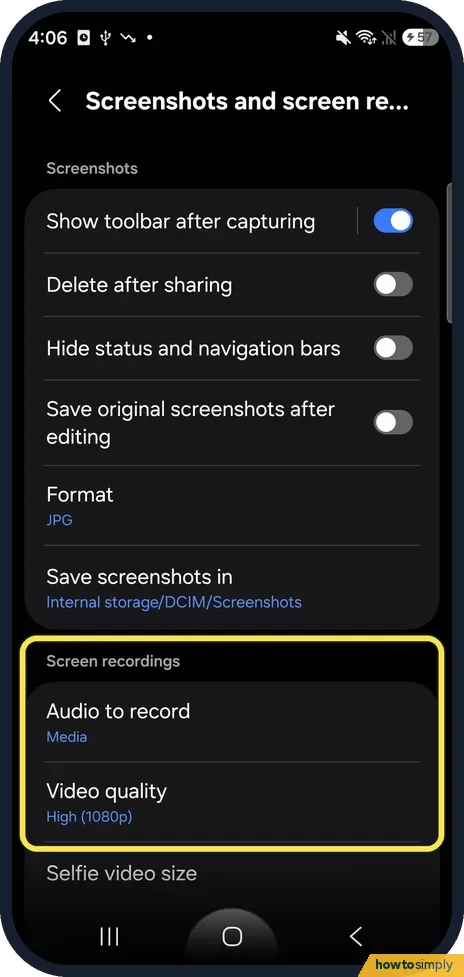
Touch and hold the Screen recorder button, or open Settings, Advanced features, Screenshots and screen recordings. The Screen recordings part is near the bottom of that page.
- 7
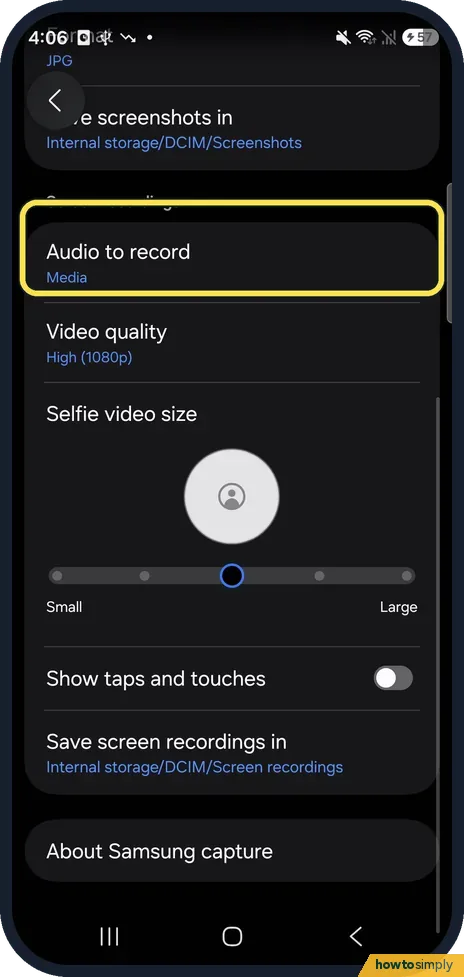
Pick the sound to record
Audio to record sets the default. Ours was Media.
- 8
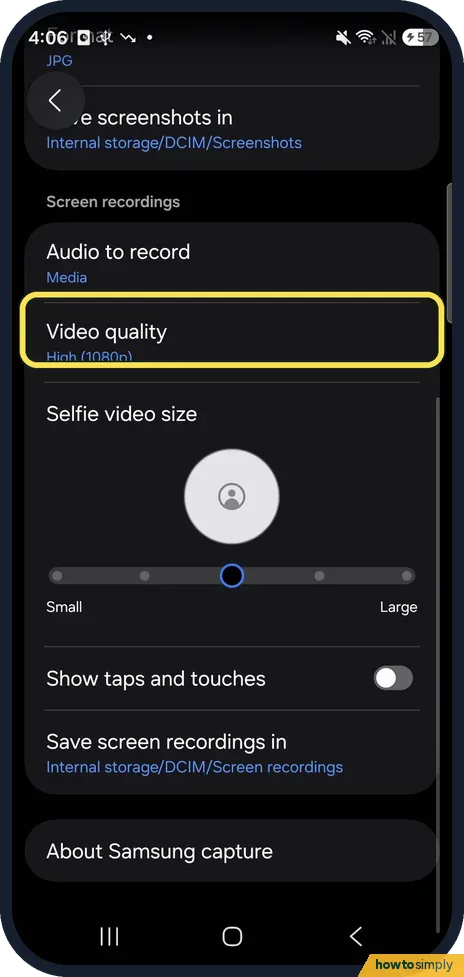
Pick the video quality
Ours was High (1080p). Lower quality makes smaller files. Below it, Selfie video size, Show taps and touches and the folder for recordings: Internal storage/DCIM/Screen recordings on our phone.
Where we checked these steps
- Galaxy S26, One UI 9.0 (Android 17)
- Galaxy A57 5G, One UI 8.5 (Android 16)
We have not checked other phones or older versions. If a menu looks different on yours, the notes under each step and the fixes further down cover the differences we found.
If you do not see this option
- There is no front camera button while recording Samsung says some devices cannot add the front camera to a screen recording; its example is the Galaxy Tab A8. Source: Record and capture your Galaxy phone or tablet's screen
- You want to change the recording settings first Samsung says to touch and hold the Screen recorder button in the quick panel to open its settings. Source: Record and capture your Galaxy phone or tablet's screen
- Want viewers to see your taps? Samsung lists Show taps and touches in the Screen recorder settings: it puts a little dot on screen each time you tap or touch during a recording. It helps when you record a how-to for someone else. Source: Record and capture your Galaxy phone or tablet's screen
If this does not work
- The recording has no sound The sound is picked before you start: choose your option under Sound settings, then tap Start recording. Samsung says Record sound in the Screen recorder settings can be None, Media, or Media and mic. Choose Media to record the phone's own sound.
- You cannot find the video Samsung says recordings are saved in Gallery, but some can only be found in My Files, Internal storage, DCIM.
- A call is not recorded Samsung says Screen recorder does not record phone calls, internet calls or video calls, and some apps block it for copyright reasons. No setting changes that, so it is better to know before you rely on it.
- Can't tap anything while drawing? Samsung says you can draw on the screen with the Pencil icon, but you cannot interact with games, videos or navigation while writing. Tap the Pencil icon once more when you've finished drawing.
Good to know
Does the Galaxy A57 have screen recording? Yes, it is built in. On ours only the Screen recorder button was missing from the quick panel until we added it (steps 2 and 3).
Not all screens or apps allow recordings. Some apps won't let the screen recorder run because of copyright rules.
For a still picture instead: how to take a screenshot on a Samsung Galaxy phone.
About this guide
This is one of the handiest tools on the phone, and Samsung phones have their own screen recorder, no app needed. If its button is not in the quick panel, you can add it. On our Galaxy A57 its button was not in the quick panel at first, so steps 2 and 3 add it.
- Device
- Android
- Shown on
- Samsung Galaxy S26 (SM-S942N, Korean model), One UI 9.0, Android 17 (build CP2A.260605.016.S942NKSU5BZJB), Samsung Galaxy A57 5G (SM-A576B), One UI 8.5, Android 16
- Starts in
- Quick Settings
- Real screenshots
- 8 of 8 steps
- Checked
- November 2026
- Sources
- 1 official, linked below
The screenshots are from a Samsung Galaxy S26 with One UI 9.0 and Android 17, apart from steps 2 and 3, from our Galaxy A57 with One UI 8.5. On other Galaxy phones, what features and settings you get depends on the model and software version. We recorded a few seconds of the Home screen and deleted the clip.
Sources
Links checked October 2026. Menus and features can change with updates.What to do next
Capture and share your Galaxy screen Step 2 of 5
Did this guide work for you?
Sorry about that. What happened?
Get new guides by email
Our newest guides, sent to your inbox. Free, and you can unsubscribe in one click.
We'll email you to confirm. How we use your email
Follow howtosimply on Facebook
We share our new guides on our Facebook page, so the next fix turns up in your feed.
Follow on Facebook