How to set a custom ringtone or notification sound on a Samsung Galaxy
- Shown on
- Galaxy S26 (One UI 9.0) and Galaxy A57 5G (One UI 8.5)
- Checked
- November 2026
- Real screenshots
- 8 of 8 steps
- Where it is
- Settings › Sounds and vibration › Ringtone
Quick answer
Open Settings, Sounds and vibration, Ringtone and tap the + at the top right to choose a song or sound saved on the phone. Notification sound, on the same page, sets the sound for messages and apps. Streaming songs, for example from Spotify, cannot be used.
Watch these steps
Video: on our Galaxy S26 (One UI 9) we open Sounds and vibration, then Ringtone, where Galaxy Bells is picked and the + is at the top right (step 1). We did not add a song. No sound.
Steps
- 1
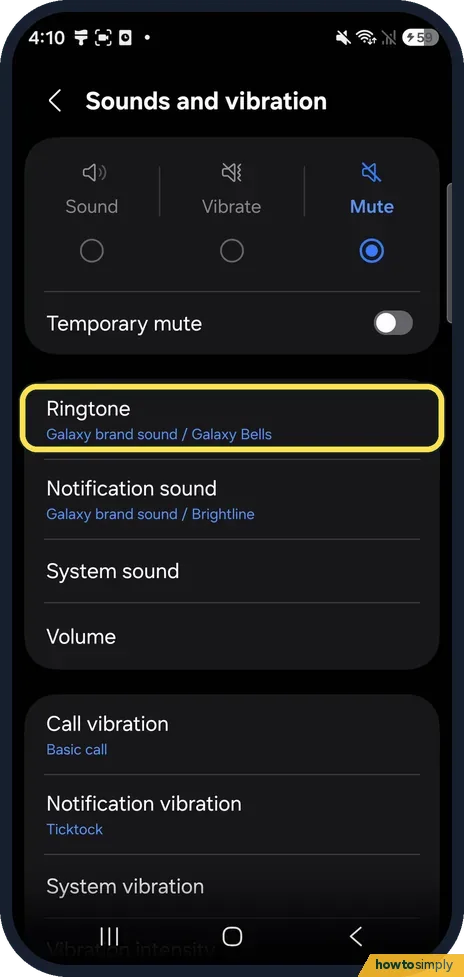
Open Ringtone
Open Settings, Sounds and vibration and tap Ringtone. Ours uses Galaxy Bells.
- 2
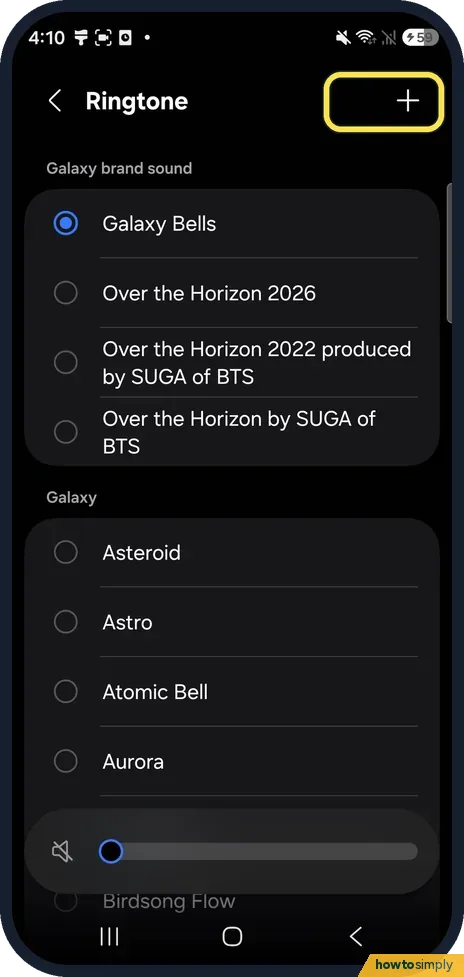
Tap + and allow access to audio
The + at the top right of the Ringtone page opens the sound picker for your own audio files. The first time, the phone asks whether Sound picker may access music and audio on this device. Tap Allow so the picker can list your audio files.
- 3
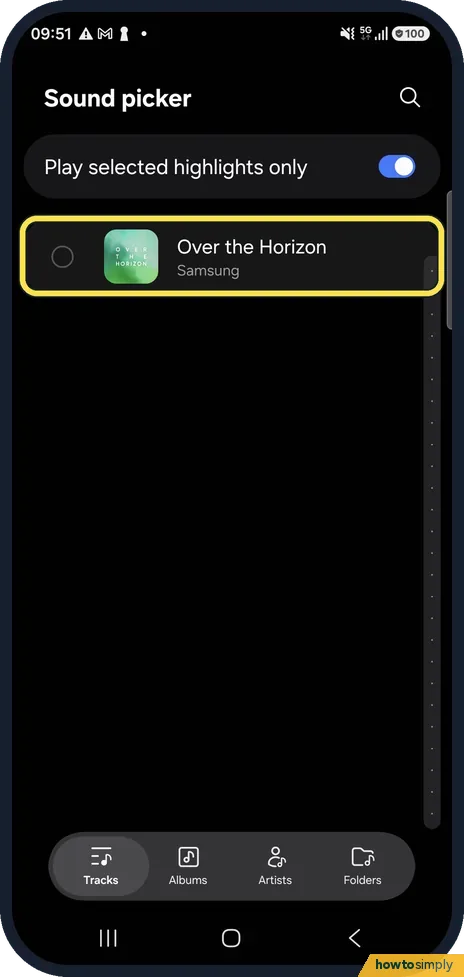
Pick the song
The sound picker lists the audio saved on the phone, sorted by Tracks, Albums, Artists or Folders at the bottom. Tap the circle next to a track. Ours only had Over the Horizon, Samsung's own song that comes with Galaxy phones.
- 4
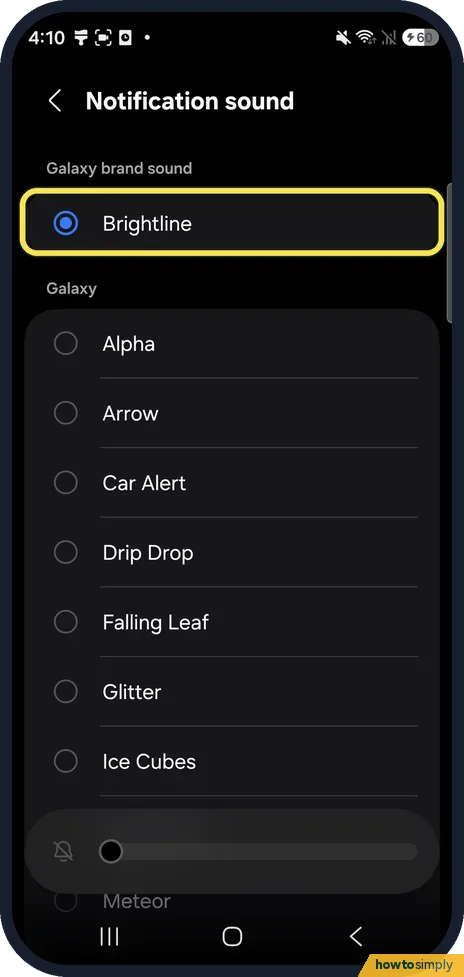
Change the notification sound
Back on Sounds and vibration, Notification sound lists the built-in sounds. Ours uses Brightline.
- 5
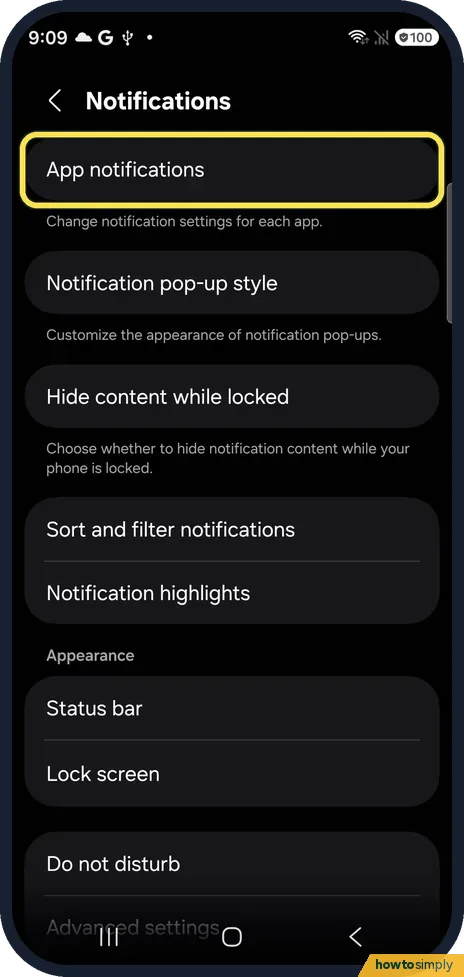
Give one app its own sound (Galaxy S26, One UI 9)
To change the sound for just one app, open Settings, Notifications and tap App notifications. We did this on our Galaxy S26 with One UI 9.
- 6
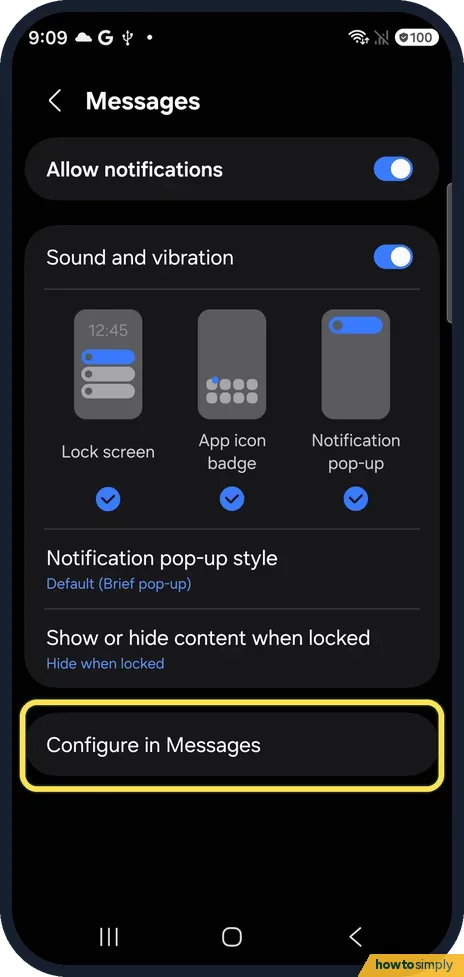
Tap the app, then Configure in the app
Pick the app from the list, for example Messages. Its page has no Sound row: the Sound and vibration card is only an on and off switch, so tapping its title turns it off. Tap Configure in Messages at the bottom instead.
- 7
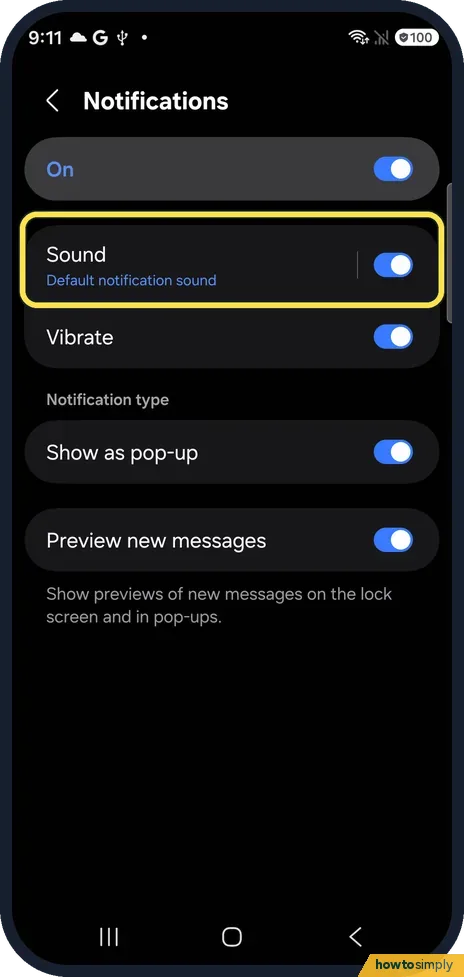
Tap Sound
Messages' own Notifications screen opens. Sound shows Default notification sound; tap it.
- 8
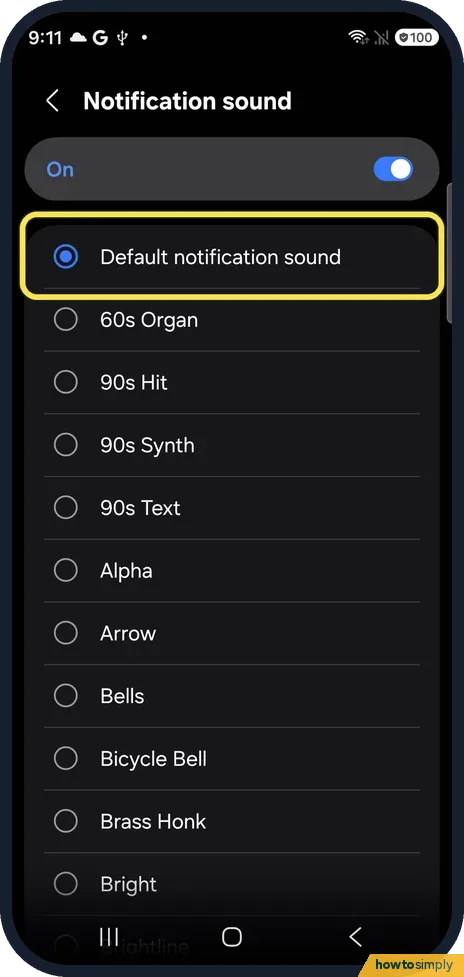
Pick a sound for that app
The Notification sound list starts with Default notification sound, then 60s Organ, 90s Hit, 90s Synth and more. Tap one. We only looked and picked nothing.
Where we checked these steps
- Galaxy S26, One UI 9.0 (Android 17)
- Galaxy A57 5G, One UI 8.5 (Android 16)
We have not checked other phones or older versions. If a menu looks different on yours, the notes under each step and the fixes further down cover the differences we found.
If you do not see this option
- Your song is not in the list Samsung says the file has to be saved on the phone itself, for example bought and downloaded. Songs played through a streaming app like Spotify can't be used as ringtones. Source: How to download or set up a custom ringtone on your Samsung phone
- The file is an M4A Samsung says its phones take MP3, WMA, AAC and FLAC files. Convert an M4A file to one of these first. Source: How to download or set up a custom ringtone on your Samsung phone
If this does not work
- Your sound is not under Notification sound The list is picky about where it looks. Samsung says the file must be in the Notifications folder: in My Files, Audio, touch and hold the file, Copy, then Internal storage, Notifications and Copy here.
- One app should sound different There is a second way in, from the app's own page. Samsung says to open Settings, Apps, the app, Notifications, then General notifications and Sound.
Good to know
You can even give one person their own ringtone, so you know who is calling before you look: Contacts, the contact, Edit, View more, Ringtone, then Save.
For your own notification sound, Samsung says to copy the file in My Files into Internal storage, Notifications; it then appears in this list. Copying leaves the original where it was, so the song stays with your music as well.
About this guide
Well, it is a lovely little thing when your phone rings with a song you actually like, instead of the tune half the room reaches for. An MP3, WMA, AAC or FLAC file saved on the phone can be a ringtone. Notification sounds work differently: for a notification sound, the file has to be in the Notifications folder first. We allowed the sound picker's access to audio on our phone and did not change the ringtone.
- Device
- Android
- Shown on
- Samsung Galaxy S26 (SM-S942N, Korean model), One UI 9.0, Android 17 (build CP2A.260605.016.S942NKSU5BZJB), Samsung Galaxy A57 5G (SM-A576B), One UI 8.5, Android 16, Samsung Galaxy S26 (SM-S942N, Korean model), One UI 9, Android 17 (build S942NKSS4BZIG)
- App
- Settings
- Path
- Settings › Sounds and vibration › Ringtone
- Real screenshots
- 8 of 8 steps
- Checked
- November 2026
- Sources
- 4 official, linked below
The screenshots are from a Samsung Galaxy S26 with One UI 9.0 and Android 17, apart from step 3 (the sound picker), from our Galaxy A57 with One UI 8.5. Samsung points out that what the menus look like can depend on the model and software version.
What changed: new screenshots of the audio-access question and the sound picker with its Tracks, Albums, Artists and Folders tabs.
Sources
- Samsung Latin: How to set an audio file saved on your Galaxy phone as a ringtone
- Samsung UK: How to download or set up a custom ringtone on your Samsung phone
- Samsung Latin: How to set a music file as a notification sound for apps on your Galaxy phone
- Samsung UK: How to set an audio file as a message notification or ringtone
Did this guide work for you?
Sorry about that. What happened?
Get new guides by email
Our newest guides, sent to your inbox. Free, and you can unsubscribe in one click.
We'll email you to confirm. How we use your email
Follow howtosimply on Facebook
We share our new guides on our Facebook page, so the next fix turns up in your feed.
Follow on Facebook