How to take a screenshot on a Samsung Galaxy phone
- Shown on
- Galaxy S26SM-S942N
- Software
- One UI 9.0Android 17More One UI 9 guides
- Checked
- November 2026
- Real screenshots
- 3 of 4 steps
Quick answer
Press the Side button and the Volume down button together and release them; the screen flashes. Or turn on Palm swipe to capture in Settings, Advanced features, Motions and gestures, then sweep the side of your hand across the screen.
Watch these steps
Video: on our Galaxy S26 (One UI 9) we take a screenshot on the Screenshots and screen recordings settings page, and the toolbar appears at the bottom (step 1), then go back to Advanced features, where Motions and gestures is. Palm swipe is not shown. No sound.
Steps
- 1
Press the two buttons
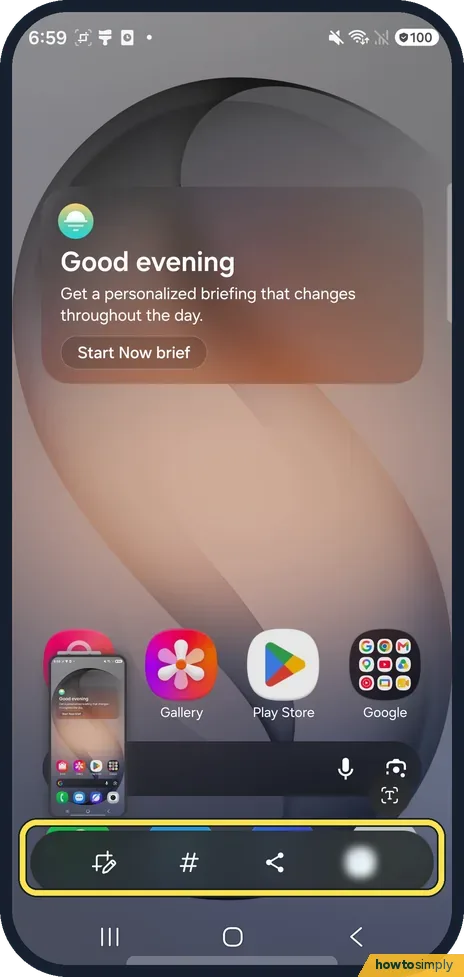
Press and hold the Side button and the Volume down button at the same time, then release them. The screen flashes and a small toolbar appears at the bottom, with buttons to edit, tag and share the screenshot.
- 2
Open Motions and gestures
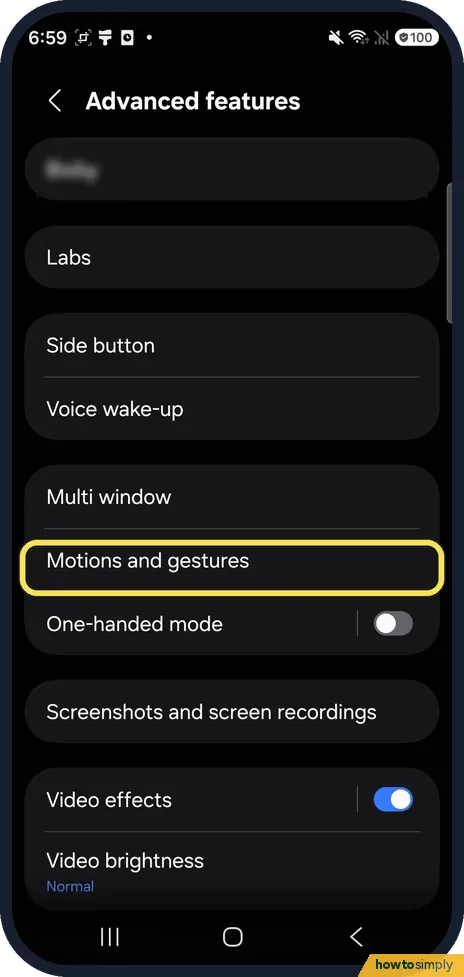
Open Settings, Advanced features, then Motions and gestures. On our Galaxy S26 it is below Multi window.
- 3
Switch on Palm swipe to capture
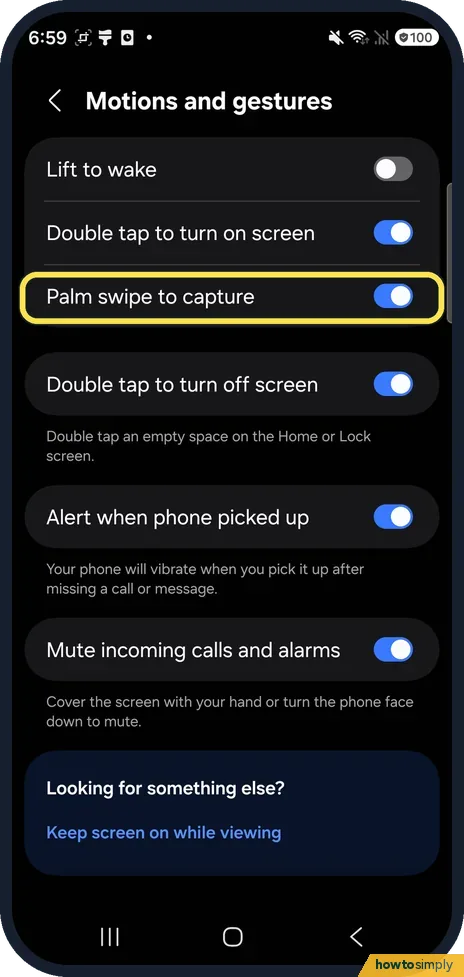
On One UI 9 Palm swipe to capture is the third switch, below Lift to wake and Double tap to turn on screen. Tap it so it is on, as here. On One UI 8.5 the same switch was at the bottom of the page, with a line of text under each switch.
- 4
Swipe with your hand
Hold your hand upright, like a karate chop, and swipe its edge across the screen from one side to the other.
If you do not see this option
- Palm swipe is not where you expect Samsung's route is the gear in the quick panel, then Advanced features, Palm swipe to capture. Source: How to take a screenshot on a Samsung phone or tablet
- Your phone has an S Pen Samsung says you can also take a screenshot with the S Pen: tap the Air command icon, then Screen write. Source: How to take a screenshot on a Samsung phone or tablet
- The toolbar does not appear after a capture? Samsung says screenshot options such as the Screenshot toolbar and Screenshot format are set under Settings, Advanced features, Screenshots and screen recorder. The name of that menu can differ by model. Source: Record and capture your Galaxy phone screen
If this does not work
- Nothing happens on one screen Samsung says certain apps and screens won't allow screenshots, to protect privacy or security.
- You cannot find the screenshot Samsung says to open Gallery, the Albums tab, then Screenshots, or My Files, Images.
- Capture a whole page Samsung says to tap the Scroll capture icon (two arrows pointing down) right after you take the screenshot. See how to take a scrolling screenshot on a Samsung Galaxy.
- The buttons keep changing the volume instead? Press both buttons at exactly the same moment and let go together. Pressing Volume down slightly first only lowers the volume, so if your habit is to lead with that button, the phone just thinks you want it quieter.
- Hands busy or buttons hard to press? Samsung says you can say "Hey Google, take a screenshot" or "Hey Bixby, take a screenshot", or add a Take screenshot shortcut to the Tasks Edge panel.
- Scroll capture icon is missing? Samsung says Scroll capture only works where the screen can scroll. However, on a page that fits the screen, the icon is not offered, so there is nothing wrong with your phone.
Good to know
Screenshots are saved in Gallery, in the Screenshots album.
Record a video of the screen instead: How to record your screen on a Samsung Galaxy.
Screen recording silent? Samsung screen recording has no sound? How to fix it.
Each screenshot is a normal image file, so it takes up storage and can be backed up with your other pictures. Make sure you delete ones you no longer need from Gallery's Screenshots album, because every one of them takes up storage. Don't worry if Palm swipe to capture catches you by accident, because it can be switched off again on the same Motions and gestures page. Samsung's toolbar also has Add tag, which adds and saves tags with the screenshot.
The Motions and gestures page in step 3 also holds Lift to wake and Double tap to turn on screen: how to turn on Lift to wake and double tap to wake.
About this guide
Catching something on the screen before it disappears can feel fiddly the first time. Good news: a Galaxy gives you several ways to take a screenshot, from pressing the buttons to sweeping the side of your hand over the screen. If one feels awkward, the other is right there.
- Device
- Android
- Shown on
- Samsung Galaxy S26 (SM-S942N, Korean model), One UI 9.0, Android 17 (build CP2A.260605.016.S942NKSU5BZJB)
- Starts in
- The phone's buttons
- Real screenshots
- 3 of 4 steps
- Checked
- November 2026
- Sources
- 3 official, linked below
The screenshots are from a Samsung Galaxy S26 with One UI 9.0 and Android 17, in Dark mode. Samsung says what the menus look like can depend on the model and software version. We took one test screenshot for step 1 and deleted it afterwards.
Sources
Links checked October 2026. Menus and features can change with updates.What to do next
Capture and share your Galaxy screen Step 1 of 5
Did this guide work for you?
Sorry about that. What happened?
Get new guides by email
Our newest guides, sent to your inbox. Free, and you can unsubscribe in one click.
We'll email you to confirm. How we use your email
Follow howtosimply on Facebook
We share our new guides on our Facebook page, so the next fix turns up in your feed.
Follow on Facebook