How to turn off keyboard sound and vibration on a Samsung Galaxy
- Shown on
- Galaxy A57 5G (One UI 8.5) and Galaxy S26 (One UI 9.0)
- Checked
- November 2026
- Real screenshots
- 8 of 8 steps
Quick answer
Open Settings, General management, Samsung Keyboard settings, Swipe, touch, and feedback, Touch feedback, and switch off Sound and Vibration. The keyboard also has its own switches under Settings, Sounds and vibration, in System sound and System vibration.
Watch these steps
Video: on our Galaxy S26 (One UI 9) we open Settings, then General management, then Samsung Keyboard settings, then Swipe, touch, and feedback, then Touch feedback, where the Sound, Vibration and Character preview switches are. No sound.
Steps
- 1
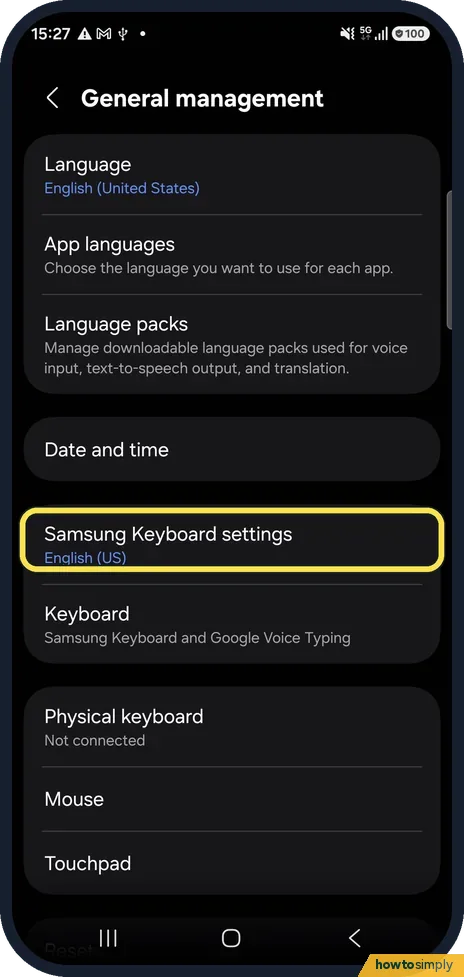
Open Samsung Keyboard settings
Settings, General management, Samsung Keyboard settings.
- 2
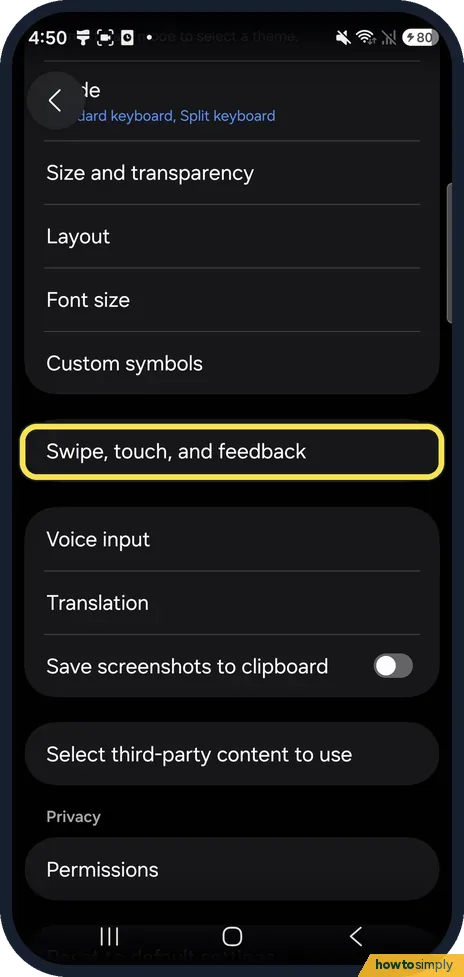
Tap Swipe, touch, and feedback
Scroll down the keyboard settings. Swipe, touch, and feedback is in its own box just below Custom symbols.
- 3
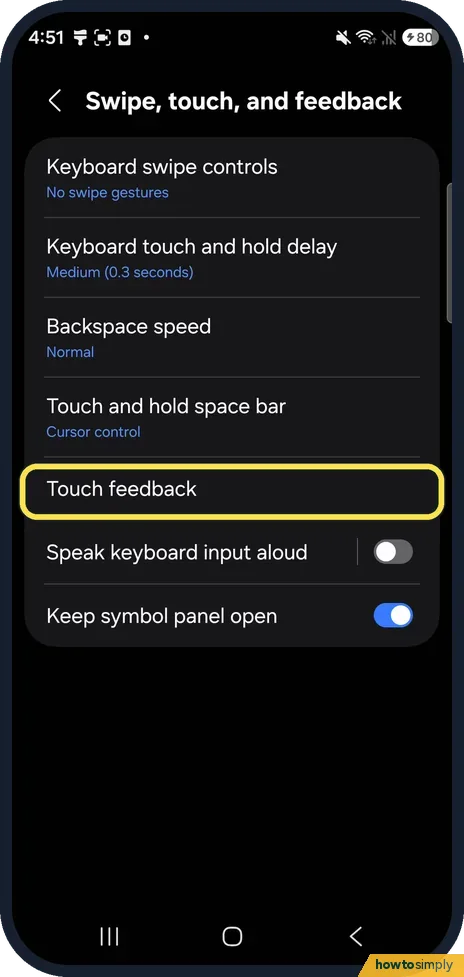
Tap Touch feedback
It is on the Swipe, touch, and feedback page.
- 4
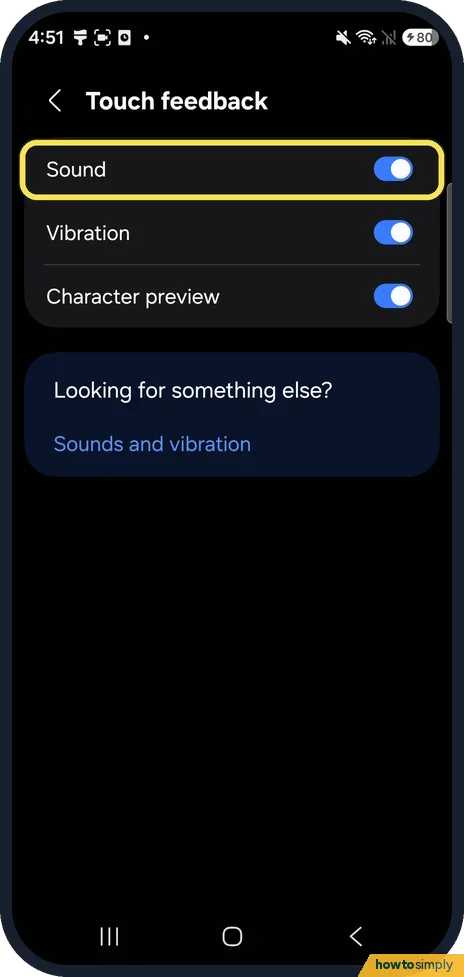
Switch off Sound
Sound plays a tone whenever you type. It was on on ours.
- 5
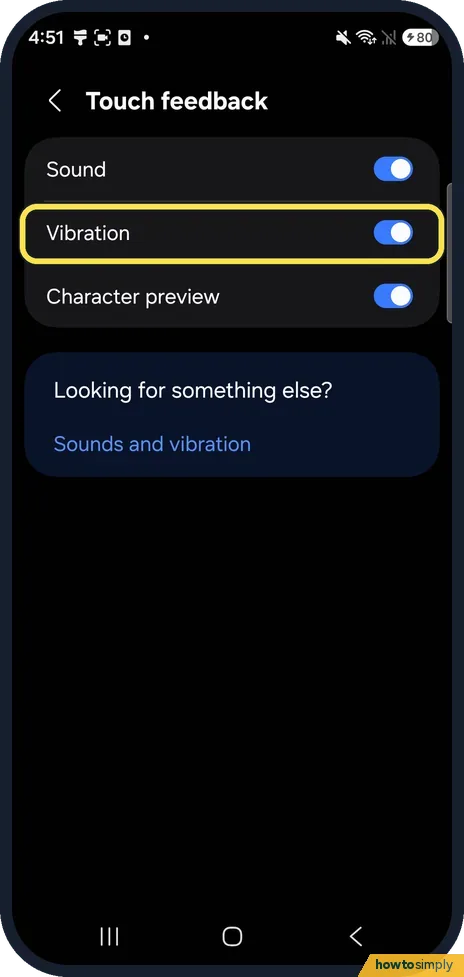
Switch off Vibration
Vibration makes a small buzz with each key. Samsung notes that some models don't support it. It was on on ours.
- 6
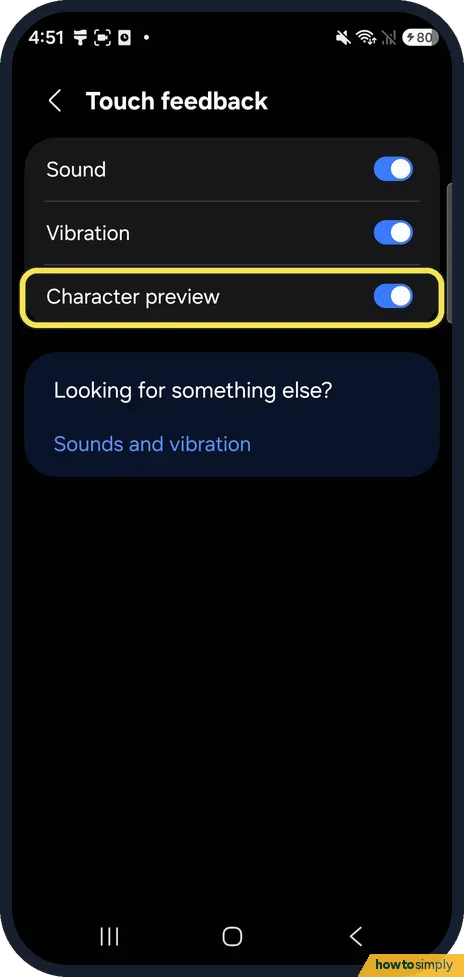
Decide about Character preview
This shows an enlarged letter above your finger as you type. It makes no sound; leave it on if it helps.
- 7
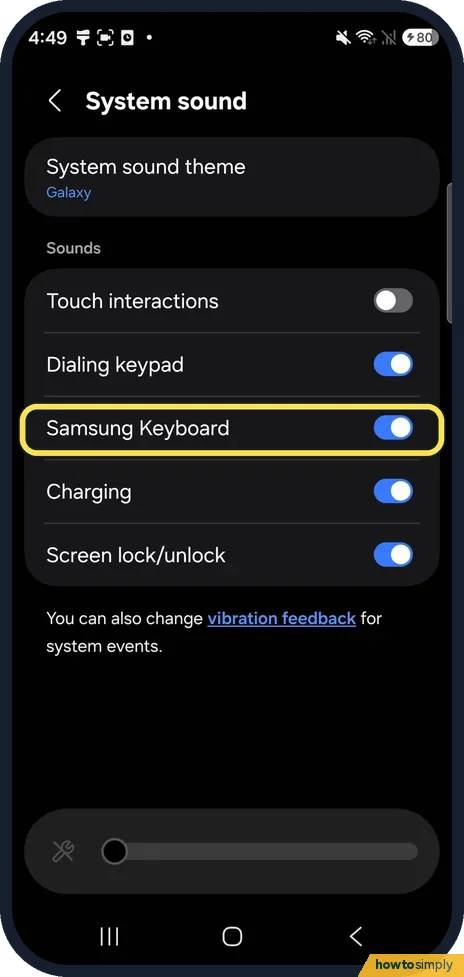
Check the system switch too
Settings, Sounds and vibration, System sound. Under Sounds there is a Samsung Keyboard switch as well; it was on on ours.
- 8
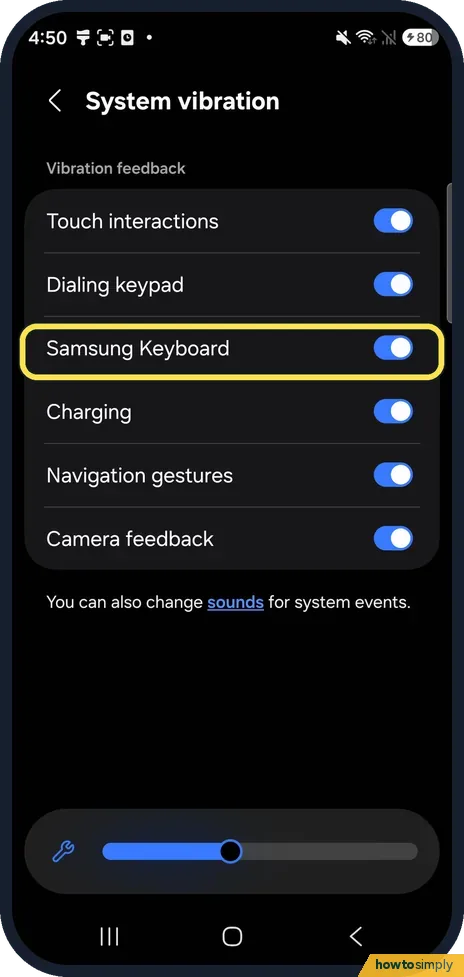
And the system vibration
Settings, Sounds and vibration, System vibration has a Samsung Keyboard switch too, under Vibration feedback. It was on on ours.
Where we checked these steps
- Galaxy A57 5G, One UI 8.5 (Android 16)
- Galaxy S26, One UI 9.0 (Android 17)
We have not checked other phones or older versions. If a menu looks different on yours, the notes under each step and the fixes further down cover the differences we found.
If you do not see this option
- You open the settings from the keyboard Samsung also gives this route: open the keyboard, tap the settings cog, then Swipe, touch and feedback, Touch feedback. Source: How do I use the keyboard on my phone?
- There is no Vibration switch Samsung says the Touch feedback options depend on the phone. Its examples are the A40, A50 and A70, which have no keyboard vibration. Source: How do I use the keyboard on my phone?
If this does not work
- You still hear a click when typing First check your keyboard: Samsung says these steps only work for the Samsung Keyboard the phone came with. If you type with Gboard, it has its own switches. Google says to open the keyboard, tap Menu, Settings, Preferences and set Sound and Keyboard vibration under Key tap.
- Gboard still vibrates Google says Gboard's vibration follows the phone: when the phone's vibration settings are off, they override Gboard's.
- Want lighter buzzes, not none? Samsung lists Vibration intensity under Settings, Sounds and vibration, with a System level among Call, Notifications and Media. Turning System down softens touch buzzes while you keep the keyboard Vibration switch on.
Good to know
Keyboard slow rather than noisy? Samsung Keyboard lagging? 6 fixes.
Want the phone silent altogether? How to use Do not disturb on a Samsung Galaxy phone.
Switching Sound and Vibration off gets rid of the click and the little buzz each time you press a key. Character preview, which shows an enlarged preview of characters as you select them, is worth keeping as a visual check. The switches affect only the keyboard; calls, alarms and notifications still ring and vibrate as before. To undo it, switch Sound and Vibration back on in Touch feedback. If the phone stops vibrating for calls as well, see Samsung Galaxy not vibrating.
About this guide
Well, that little click and buzz can drive you up the wall by the end of a long message. Samsung Keyboard has its own Touch feedback settings, with switches for a sound and a little buzz each time you press a key. A second keyboard sound switch is under Sounds and vibration, System sound.
- Device
- Android
- Shown on
- Samsung Galaxy A57 5G (SM-A576B), One UI 8.5, Android 16, Samsung Galaxy S26 (SM-S942N, Korean model), One UI 9.0, Android 17 (build CP2A.260605.016.S942NKSU5BZJB)
- App
- Settings
- Real screenshots
- 8 of 8 steps
- What we did
- Observed: looked at each screen, changed nothing
- Checked
- November 2026
- Sources
- 4 official, linked below
The screenshots are from a Samsung Galaxy S26 with One UI 9.0 and Android 17, in Dark mode, apart from step 1, from our Galaxy A57 with One UI 8.5. Samsung says the keyboard options you get can depend on your model and its software.
Sources
Links checked October 2026. Menus and features can change with updates.Did this guide work for you?
Sorry about that. What happened?
Get new guides by email
Our newest guides, sent to your inbox. Free, and you can unsubscribe in one click.
We'll email you to confirm. How we use your email
Follow howtosimply on Facebook
We share our new guides on our Facebook page, so the next fix turns up in your feed.
Follow on Facebook