How to turn on Screen Time on iPhone
- Shown on
- iPhone 17e
- Software
- iOS 27.0.1More iOS 27 guides
- Checked
- October 2026
- Real screenshots
- 6 of 6 steps
- Where it is
- Settings › Screen Time
Quick answer
Open Settings and tap Screen Time. On our iPhone 17e with iOS 27 there was no App & Website Activity row, so tap Screen Time Schedule or Time Allowances, then tap Turn on App and Website Activity. Your phone starts recording how long you use each app.
Watch these steps
 Watch on YouTubeA video of this task from our YouTube channel · opens YouTube
Steps
- 1
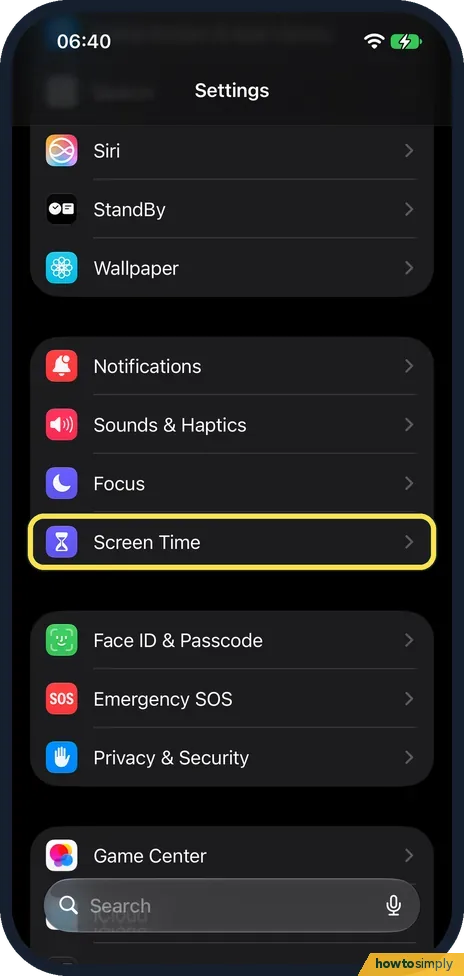
Open Settings and tap Screen Time
Scroll down the main Settings list and tap Screen Time. It has a purple hourglass icon.
- 2
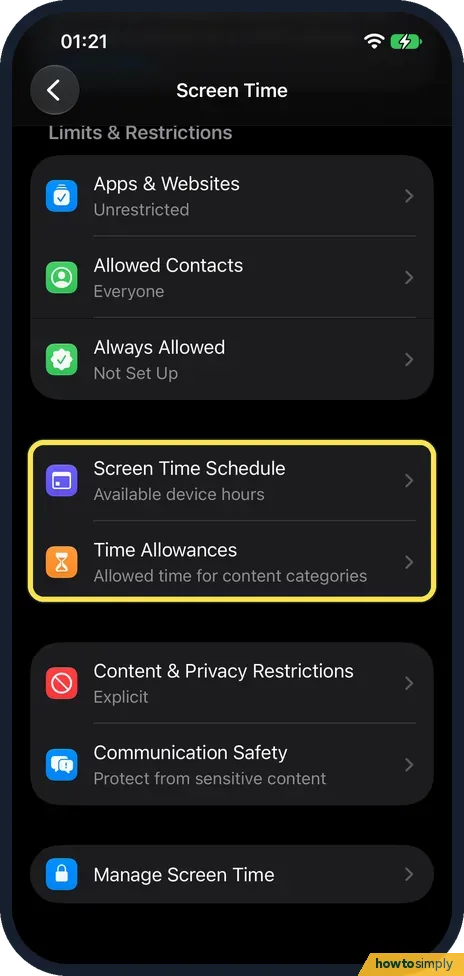
Tap Screen Time Schedule or Time Allowances
On our iPhone 17e with iOS 27 there was no App & Website Activity row. Under Limits & Restrictions you see Apps & Websites, Allowed Contacts and Always Allowed. Below them are Screen Time Schedule and Time Allowances. Tap either of those two. Apple also lists Manage Screen Time as a third way in. It is the last row of the same page. On our iPhone 17e its page has a Turn On App & Website Activity button.
- 3
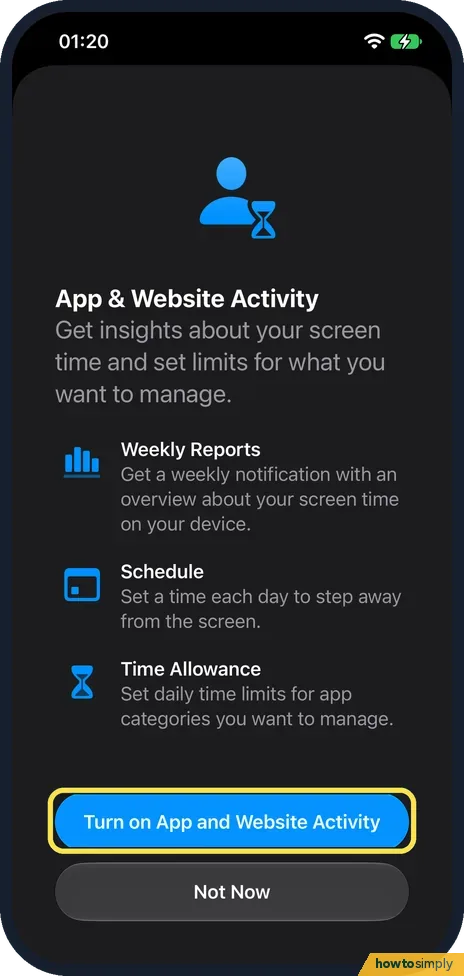
Tap Turn on App and Website Activity
A page called App & Website Activity lists what you get: Weekly Reports, Schedule and Time Allowance. Tap the blue Turn on App and Website Activity button. Not Now leaves it off.
- 4
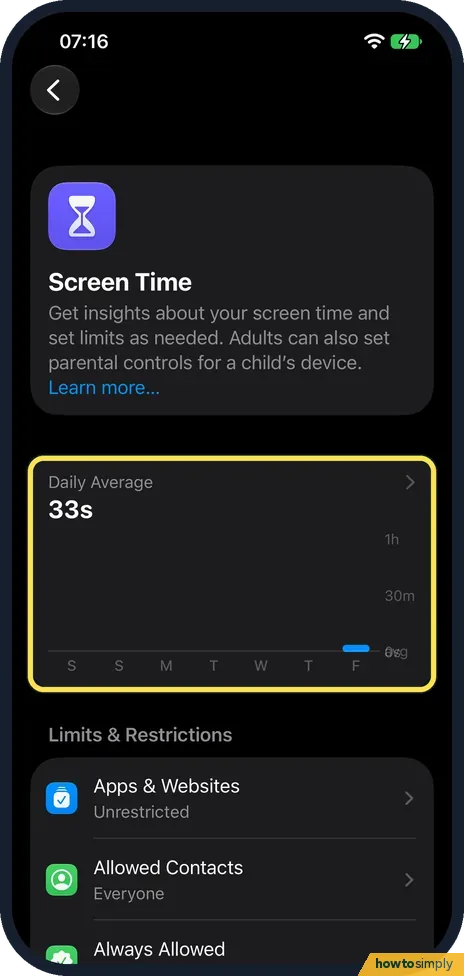
Read your first report
Open Screen Time again. On our iPhone 17e, right after we turned it on, the top of the page showed Daily Average 33s with a bar chart for the week.
- 5
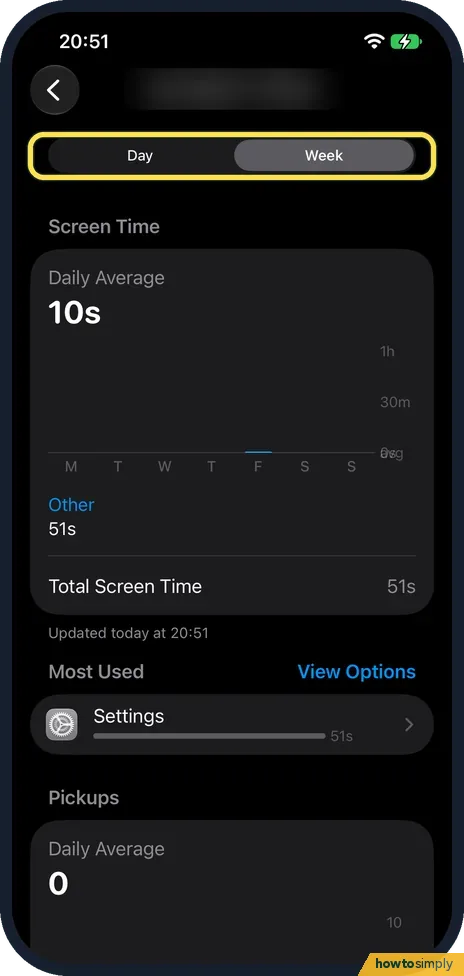
Tap Daily Average for the details
Tap Daily Average at the top of Screen Time. On our iPhone 17e it opened a page with Day and Week tabs. Week showed a Daily Average of 10s with a bar for each day, Total Screen Time 51s and Most Used, with Pickups further down. Apple says Pickups and Notifications show how often you picked up the phone and how many notifications you got. The device name at the top is blurred in the picture.
- 6
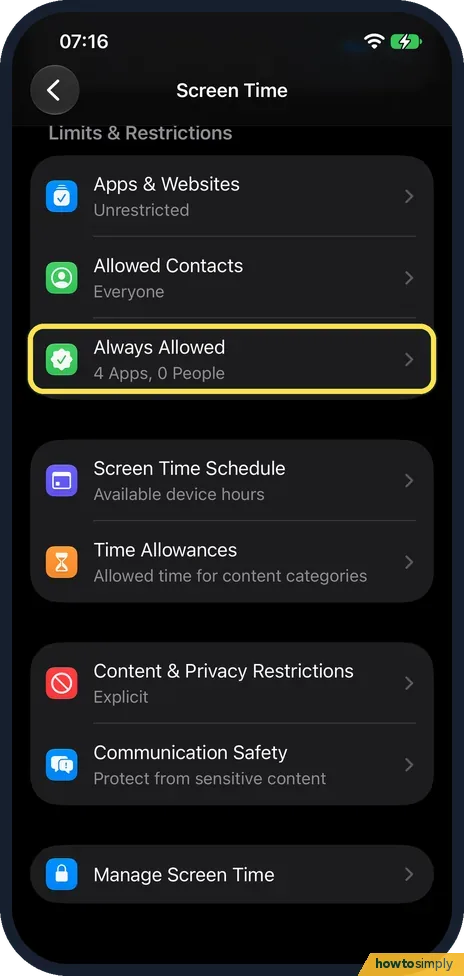
Scroll down to Limits & Restrictions
Below the report, Limits & Restrictions lists Apps & Websites, Allowed Contacts and Always Allowed, then Screen Time Schedule and Time Allowances. On our iPhone 17e, with App & Website Activity on, Always Allowed said 4 Apps, 0 People. With Activity off it said Not Set Up.
If you do not see this option
- No App & Website Activity row On iOS 27 Apple turns Screen Time on from Screen Time Schedule, Time Allowances or Manage Screen Time instead. Tap one of those and the turn-on button appears. On iOS 26 the row is still there: tap App & Website Activity, then Turn On App & Website Activity. Sources: Set up Screen Time for yourself on iPhone, Get started with Screen Time on iPhone (iOS 26)
- No Downtime or App Limits On our iPhone 17e with iOS 27.0.1 the Screen Time page showed Screen Time Schedule and Time Allowances, both before and after we turned on App & Website Activity. Apple's iOS 27 guide uses those names, and its iOS 26 guide uses Downtime and App Limits. Apple says that for Screen Time Schedules and Time Allowances, all your Apple devices need iOS 27, iPadOS 27, macOS 27, watchOS 27, visionOS 27 or later. Sources: Set Screen Time Schedules and Time Allowances in Screen Time on iPhone, Set schedules with Screen Time on iPhone (iOS 26)
- Settings not shared with your Mac or iPad Share Across Devices is under Manage Screen Time. Apple says this works only when all your Apple devices run iOS 27, iPadOS 27, macOS 27, watchOS 27, visionOS 27 or later. Source: Set up Screen Time for yourself on iPhone
If this does not work
- Screen Time asks for a code A Screen Time passcode has been set. Enter it, or change it under Screen Time, Passcode & Management, Change Screen Time Passcode. Apple says Screen Time Passcode Recovery lets you reset a forgotten code with your Apple Account, as long as you set it up. Apple's guide also points to its Support article "Change your Screen Time passcode on an iPhone or iPad".
Good to know
To stop someone else changing the settings, Apple says to tap Screen Time, then Passcode & Management, then Lock Screen Time Settings, and enter a four-digit passcode. Our own tip, not Apple's: pick a code that is different from your phone passcode.
To switch it off again, Apple says to tap Manage Screen Time, then Turn Off App & Website Activity. On our iPhone 17e, with Screen Time off, the Manage Screen Time page showed Share Across Devices, Turn On App & Website Activity and Lock Screen Time Settings.
About this guide
Screen Time shows how many hours you spend on your phone and in which apps. It was off on our iPhone 17e until we turned it on for this guide. On iOS 27 the Screen Time Schedule and Time Allowances rows are there from the start, but until Screen Time is on they only open a page that asks you to turn it on.
- Device
- iPhone
- Shown on
- iOS 27.0.1 (iPhone 17e)
- App
- Settings
- Path
- Settings › Screen Time
- Real screenshots
- 6 of 6 steps
- What we did
- Performed: we made the change on our device and show the result
- Checked
- October 2026
- Sources
- 5 official, linked below
What changed: the screenshots are now our own iPhone 17e on iOS 27.0.1, dark mode, and the wording is checked against those screens and Apple's iOS 27 guide.
Sources
- Apple iPhone User Guide: Set up Screen Time for yourself on iPhone
- Apple iPhone User Guide: Get started with Screen Time on iPhone (iOS 26)
- Apple iPhone User Guide: Create, change, or remove a Screen Time passcode on iPhone
- Apple iPhone User Guide: Set Screen Time Schedules and Time Allowances in Screen Time on iPhone
- Apple iPhone User Guide: Set schedules with Screen Time on iPhone (iOS 26)
Did this guide work for you?
Sorry about that. What happened?
Get new guides by email
Our newest guides, sent to your inbox. Free, and you can unsubscribe in one click.
We'll email you to confirm. How we use your email
Follow howtosimply on Facebook
We share our new guides on our Facebook page, so the next fix turns up in your feed.
Follow on Facebook