How to turn on Sensitive Content Warning on an iPhone
- Shown on
- iPhone 17e
- Software
- iOS 27.0.1More iOS 27 guides
- Checked
- October 2026
- Real screenshots
- 3 of 3 steps
- Where it is
- Settings › Privacy & Security › Sensitive Content Warning
Quick answer
Open Settings, tap Privacy & Security, scroll down, tap Sensitive Content Warning and switch it on. Apple says the iPhone then warns you about photos and videos that might contain nudity before you view them, and from iOS 27 also gore and violence in FaceTime video messages.
Steps
- 1
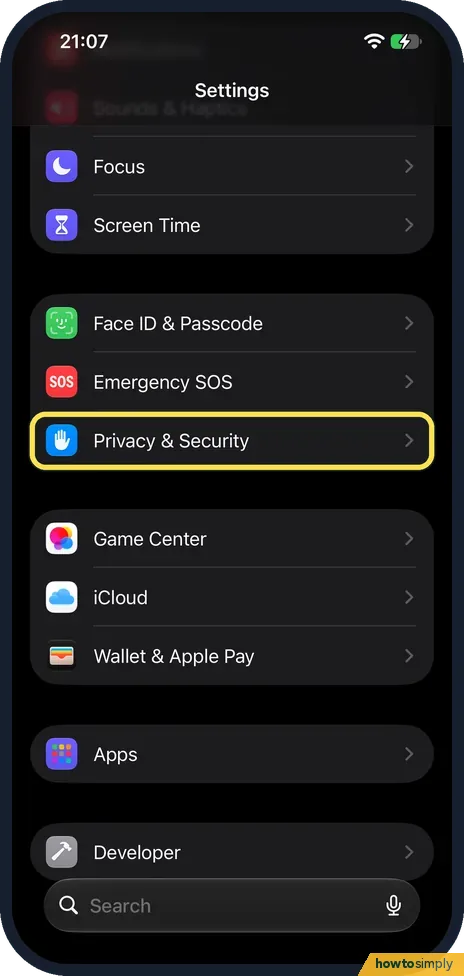
Open Settings and tap Privacy & Security
Scroll down to find Privacy & Security.
On our iPhone 17e it is below Screen Time, in the same group as Face ID & Passcode and Emergency SOS.
- 2
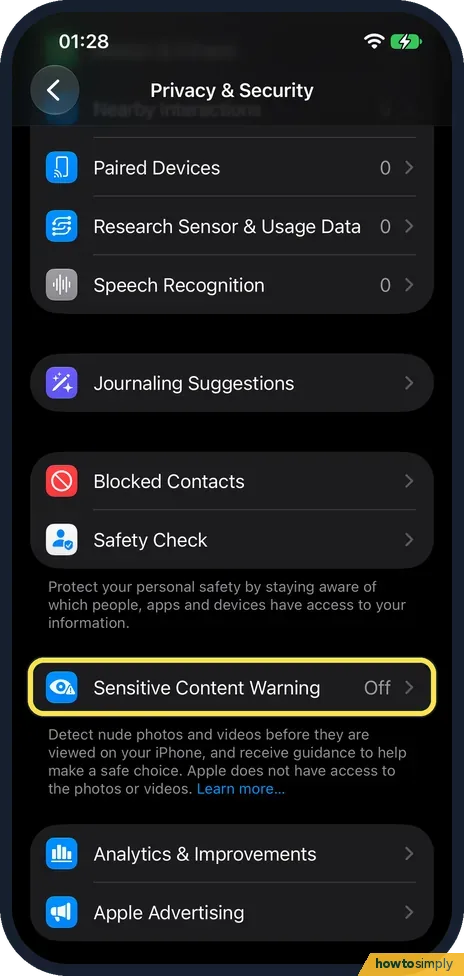
Scroll down and tap Sensitive Content Warning
Scroll down past the rows at the top of the page.
On our iPhone 17e it is below Blocked Contacts and Safety Check, just above Analytics & Improvements, and it showed Off.
- 3
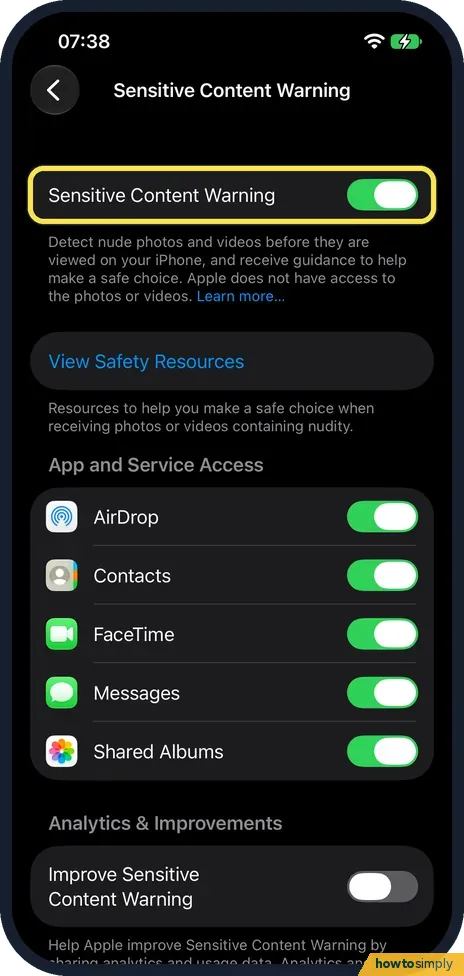
Switch on Sensitive Content Warning
The switch is at the top of the page. It was Off before (see step 2); the screenshot shows it switched on.
On our iPhone 17e, App and Service Access then listed AirDrop, Contacts, FaceTime, Messages and Shared Albums, all switched on, and you can switch off any of them.
Improve Sensitive Content Warning, under Analytics & Improvements, was off.
If you do not see this option
- Your iPhone runs iOS 16 or earlier. Apple says Sensitive Content Warning needs iOS 17 or later. Update the iPhone first. Sources: About Sensitive Content Warning on Apple devices, Receive warnings about sensitive content on iPhone, What’s new in iOS 27
- You are setting this up on a child's iPhone. For children, Apple points to Communication Safety in Screen Time. Apple says it helps stop children seeing or sending photos and videos where nudity or gore has been detected, and switching it on switches on Sensitive Content Warning too. Sources: About Sensitive Content Warning on Apple devices, Receive warnings about sensitive content on iPhone, What’s new in iOS 27
- You cannot find Privacy & Security. On our iPhone 17e it sits just below Face ID & Passcode and Emergency SOS. You can also type its name into the Search field at the bottom of Settings.
If this does not work
- It is already on and you did not switch it on. That is not a fault. Apple says Sensitive Content Warning switches itself on when Screen Time is set up with Communication Safety on. Check Screen Time if you want to change it.
- A FaceTime video with violence is not blurred. Apple says gore and violence detection needs iOS 27 or later and works only in FaceTime video messages, not in live calls.
- Pictures in one app are not blurred. Open Sensitive Content Warning again and check App and Service Access. On our iPhone 17e it has separate switches for AirDrop, Contacts, FaceTime, Messages and Shared Albums.
Good to know
When something is blurred, nothing is decided for you: you can tap to see it anyway, open safety resources or block the sender. If nudity shows up in a FaceTime video call or an iMessage, Apple lets you report the sender. The content is then sent to Apple for review, so it is worth knowing that before you report.
Apple says switching on Sensitive Content Warning covers every supported app at once, though you can control each app separately.
Your paired Apple Watch picks up the setting too: Apple says it comes on there when you switch on Sensitive Content Warning on the iPhone.
On a child's iPhone, Apple points to Communication Safety, which is switched on in Screen Time: how to set up parental controls on a child's iPhone.
Sensitive Content Warning also works in AirDrop. See how to use AirDrop on an iPhone.
Apple says Sensitive Content Warning works in Messages and AirDrop, in FaceTime calls and video messages, in shared photo albums, on Contact Posters in both the Phone and Contacts apps, and in some third-party apps when you pick a photo or video to share.
About this guide
Nobody should have to open a message and be faced with a picture they never asked for. Sensitive Content Warning hides unwanted nude pictures and videos behind a blur until you decide to look, so the choice stays yours. From iOS 27, Apple says it also detects gore and violence, but only in FaceTime video messages, not in live calls. On our iPhone 17e the text under the switch still mentioned only nude photos and videos. It is natural to wonder who else sees these pictures: the check happens on the iPhone itself. Apple states that it does not learn that something was detected and gets no access to the pictures. The feature needs iOS 17 or later.
- Device
- iPhone
- Shown on
- iOS 27.0.1 (iPhone 17e)
- App
- Settings
- Path
- Settings › Privacy & Security › Sensitive Content Warning
- Real screenshots
- 3 of 3 steps
- Checked
- October 2026
- Sources
- 3 official, linked below
What changed: the screenshots are now our own iPhone 17e on iOS 27.0.1, dark mode, and the wording is checked against those screens and Apple's iOS 27 guide.
Sources
Links checked October 2026. Menus and features can change with updates.Did this guide work for you?
Sorry about that. What happened?
Get new guides by email
Our newest guides, sent to your inbox. Free, and you can unsubscribe in one click.
We'll email you to confirm. How we use your email
Follow howtosimply on Facebook
We share our new guides on our Facebook page, so the next fix turns up in your feed.
Follow on Facebook