How to stop Apple storing your searches on an iPhone
- Shown on
- iPhone 17e
- Software
- iOS 27.0.1More iOS 27 guides
- Checked
- October 2026
- Real screenshots
- 4 of 4 steps
- Where it is
- Settings › Search
Quick answer
Open Settings, tap Search and switch off Help Apple Improve Search. Apple then no longer stores the searches you type into Safari, Siri and Spotlight. To stop search terms being sent for suggestions at all, also switch off Show Related Content.
Steps
- 1
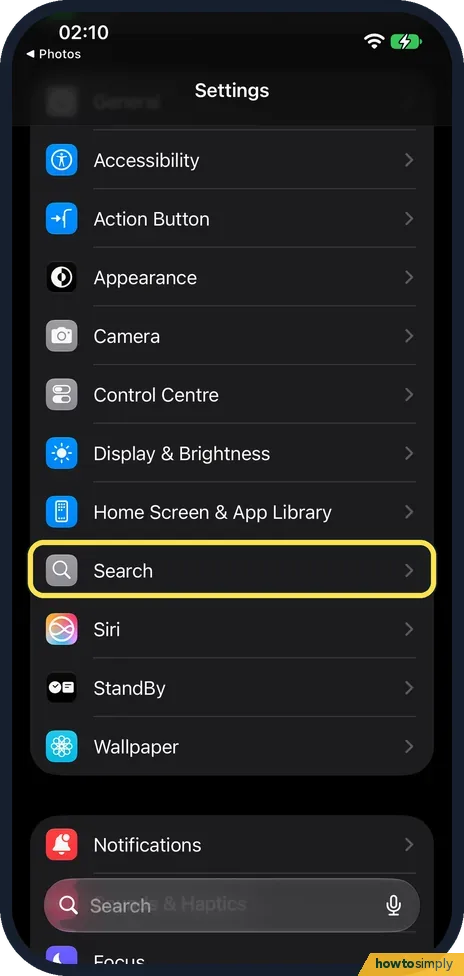
Open Settings and tap Search
It is in the long group that starts with General, below Home Screen & App Library.
- 2
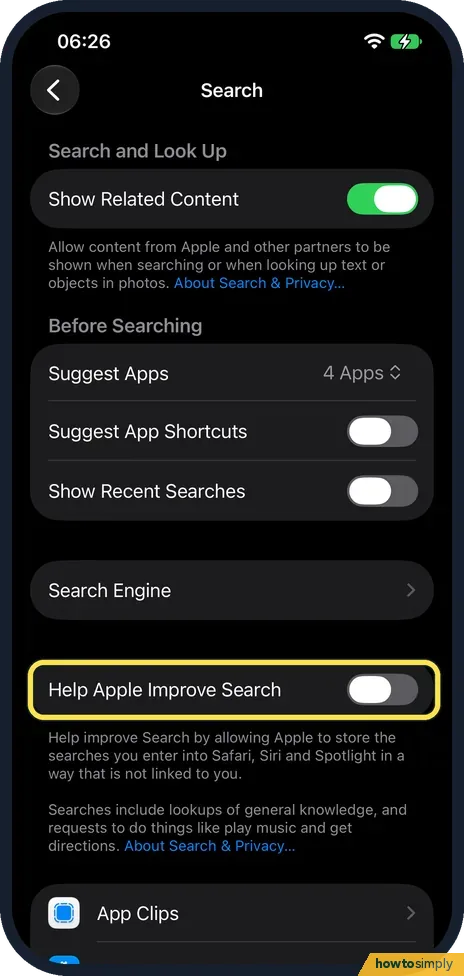
Switch off Help Apple Improve Search
The note under the switch explains: Apple keeps the searches you type into Safari, Siri and Spotlight, stored so they are not linked to you. It was on on our iPhone 17e; the picture shows it after we switched it off.
- 3
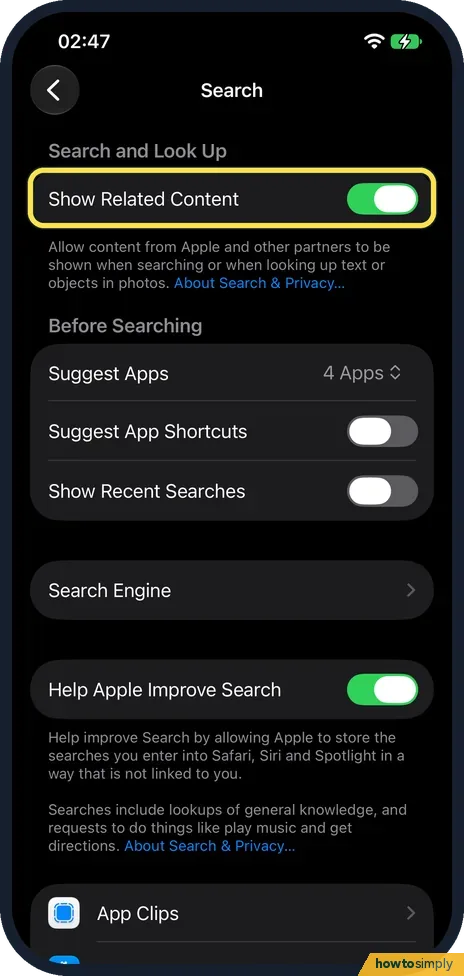
Switch off Show Related Content if you want less sent
With this on, content from Apple and its partners appears when you search or look up text or objects in photos. It was on on ours too.
- 4
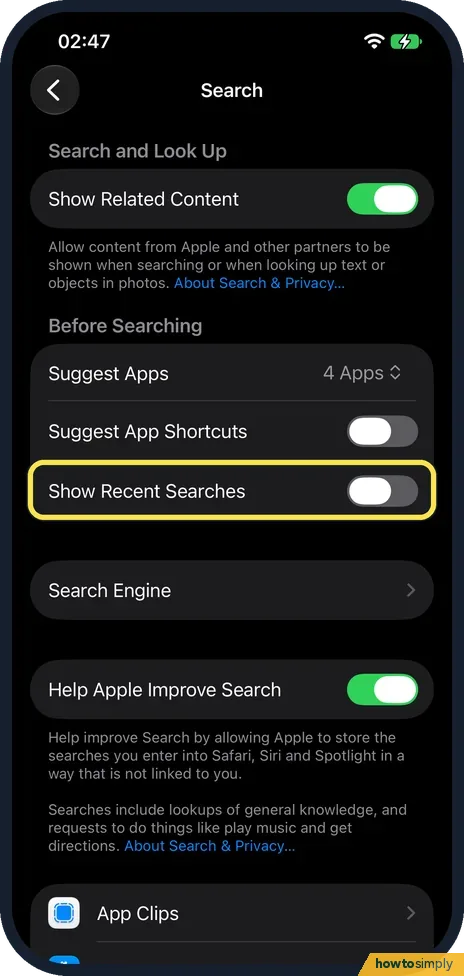
Decide about Show Recent Searches
It sits in the Before Searching group, separate from Show Related Content in the Search and Look Up group above. Apple's privacy page says that if you'd rather not get web-based content and search results, turn both switches off. On our iPhone 17e it was already off, as was Suggest App Shortcuts.
If you do not see this option
- Your iPhone runs iOS 17. There is no Search row of its own: Apple puts the search settings under Settings, Siri & Search. Source: Search with Spotlight on iPhone (iOS 17)
- Search for it. Open Settings, tap the search field at the bottom and type Help Apple Improve Search. Apple notes that the sections in Settings depend on the iPhone model. Source: Find settings on iPhone
If this does not work
- Searches through Siri are still stored. Apple says they are kept to improve Siri while Improve Siri & Dictation is on: Settings, Privacy & Security, Analytics & Improvements.
- Safari still suggests searches. Some come from your search engine: Safari asks your selected search engine for suggestions while Search Engine Suggestions is on.
- Pages start loading before you tap them. That is Preload Top Hit in Safari. If you turn it off, pages load normally.
- Siri searches still stored with Improve Siri off? Apple's privacy page also names Improve Siri & Apple Intelligence, on the same Analytics & Improvements page. Turn off whichever of the two your iPhone shows.
Good to know
Searches you make through Siri are handled by another switch: Settings, Privacy & Security, Analytics & Improvements, Improve Siri & Dictation or Improve Siri & Apple Intelligence.
To stop search using Location Services too: Settings, Privacy & Security, Location Services, System Services, then switch Suggestions & Search off.
The list of apps further down the Search page decides which apps appear in search results and suggestions.
Related: how to stop sharing analytics with Apple on an iPhone.
About this guide
When you search on an iPhone, in Spotlight, in Safari or by looking something up, the phone sends the search and some context to Apple to fetch suggestions. Apple says this uses a random identifier that changes several times an hour and is not linked to you. A second, separate setting lets Apple keep your searches to improve its search. You switch that one off in Settings, Search.
- Device
- iPhone
- Shown on
- iOS 27.0.1 (iPhone 17e)
- App
- Settings
- Path
- Settings › Search
- Real screenshots
- 4 of 4 steps
- What we did
- Performed: we made the change on our device and show the result
- Checked
- October 2026
- Sources
- 1 official, linked below
The screenshots are our own, taken on an iPhone 17e running iOS 27.0.1, in dark mode.
What changed: the screenshots are now our own iPhone 17e on iOS 27.0.1, dark mode, and the wording is checked against those screens.
Sources
Links checked October 2026. Menus and features can change with updates.Did this guide work for you?
Sorry about that. What happened?
Get new guides by email
Our newest guides, sent to your inbox. Free, and you can unsubscribe in one click.
We'll email you to confirm. How we use your email
Follow howtosimply on Facebook
We share our new guides on our Facebook page, so the next fix turns up in your feed.
Follow on Facebook