How to turn on Flash for Alerts on an iPhone (iOS 27)
- Shown on
- iPhone 17e
- Software
- iOS 27.0.1More iOS 27 guides
- Checked
- October 2026
- Real screenshots
- 4 of 4 steps
- Where it is
- Settings › Accessibility › Audio & Visual › Flash for Alerts
Quick answer
Open Settings, Accessibility, Audio & Visual and tap Flash for Alerts at the bottom. Turn on Flash for Alerts and choose LED Flash, Screen or Both. Flash in Silent Mode was on and Flash While Unlocked off on our iPhone 17e.
Steps
- 1
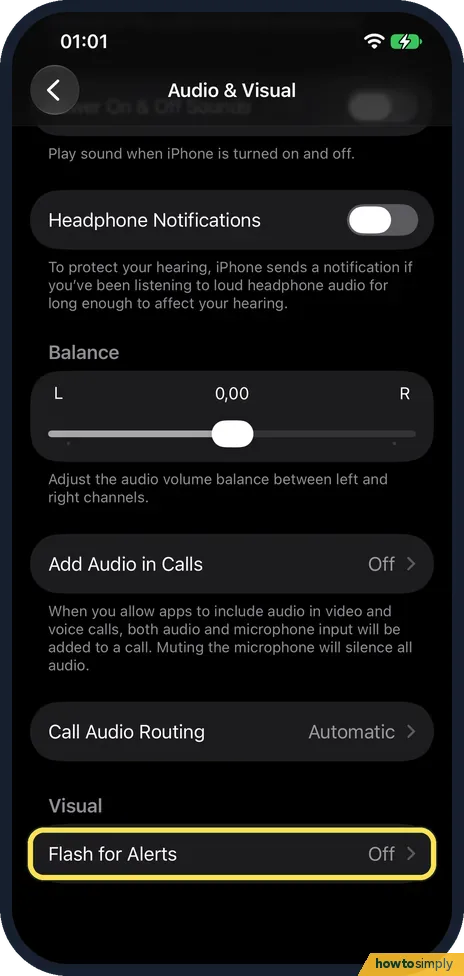
Tap Flash for Alerts
In Settings, Accessibility, Audio & Visual, it is at the bottom under Visual. Ours said Off.
- 2
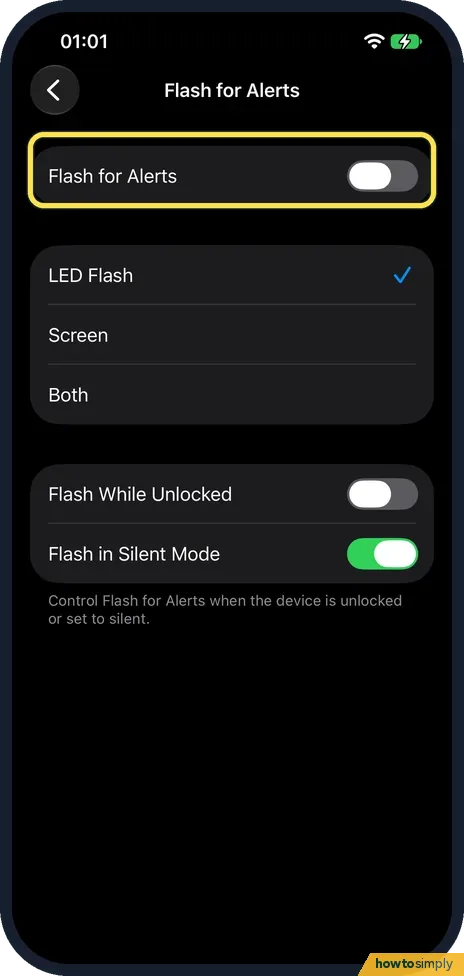
Turn on Flash for Alerts
The Flash for Alerts switch is at the top of the page.
- 3
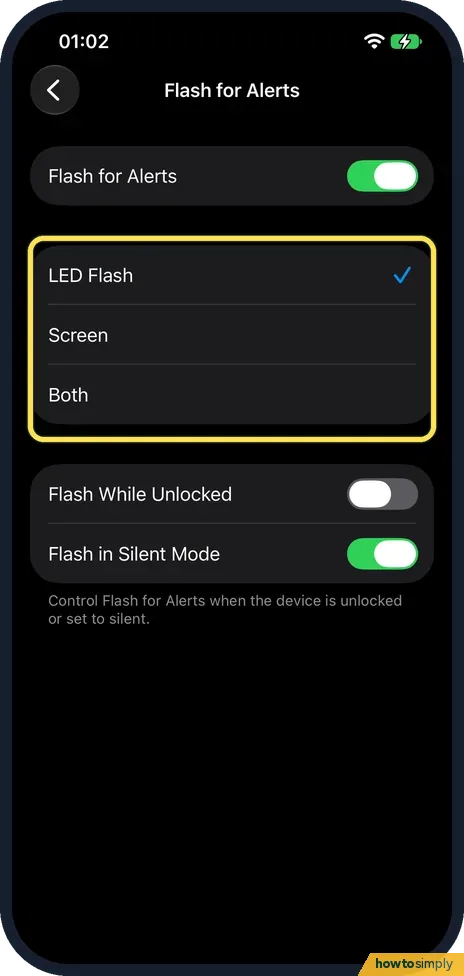
Choose what flashes
LED Flash was ticked on ours. Screen flashes the display, Both does both. Flash While Unlocked and Flash in Silent Mode are below.
- 4
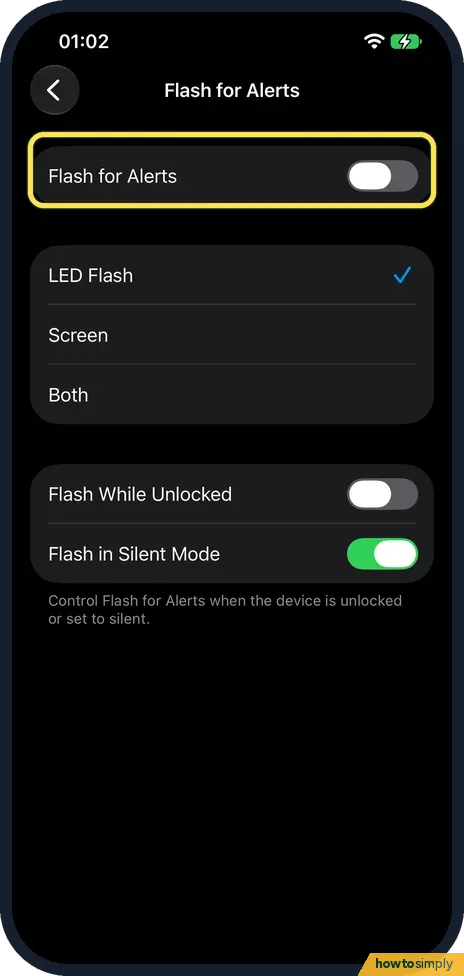
Turn it off again
Flip the Flash for Alerts switch off. LED Flash stayed ticked on ours, ready for next time.
If you do not see this option
- Which light? Apple says it is the LED next to the camera lens on the back. Source: Flash the iPhone screen or indicator light for notifications
If this does not work
- No flash while using the phone? Turn on Flash While Unlocked.
- The light never works? Check the torch too: iPhone camera or flash not working: fixes to try.
- No flash in Silent mode? Turn on Flash in Silent Mode. Apple describes it as making the indicator light flash even when the iPhone is in Silent mode.
- Some notifications do not flash? The flash blinks when you receive a notification. Check that app's notification settings.
- A case hides the light? Apple's flash advice starts with removing any case, film or accessory that might block the flash. You can choose Screen or Both instead of LED Flash.
Good to know
If alerts do not arrive at all, see iPhone notifications not showing: 7 settings to check.
Turning it on changes nothing else. Sounds and vibration keep working as before, and the flash is added on top. To undo it, go back to the same page and turn the Flash for Alerts switch off. Your choice between LED Flash, Screen and Both is remembered for next time.
Each flash uses a little battery, so a phone that gets many notifications will use slightly more power. If that matters, mute the noisiest apps rather than turning the flash off. Apple groups this feature with its hearing accessibility settings. If you also want a stronger buzz, see turn on keyboard vibration on an iPhone.
About this guide
Flash for Alerts blinks the light on the back, the screen or both when a notification arrives, so you see it in a noisy place.
- Device
- iPhone
- Shown on
- iOS 27.0.1 (iPhone 17e)
- App
- Settings
- Path
- Settings › Accessibility › Audio & Visual › Flash for Alerts
- Real screenshots
- 4 of 4 steps
- Checked
- October 2026
- Sources
- 3 official, linked below
The screenshots are from our iPhone 17e with iOS 27.0.1, in Dark mode. It was off on ours; we turned it on and off again.
Sources
Links checked October 2026. Menus and features can change with updates.Did this guide work for you?
Sorry about that. What happened?
Get new guides by email
Our newest guides, sent to your inbox. Free, and you can unsubscribe in one click.
We'll email you to confirm. How we use your email
Follow howtosimply on Facebook
We share our new guides on our Facebook page, so the next fix turns up in your feed.
Follow on Facebook