How to turn off autocorrect on a Samsung Galaxy
- Shown on
- Galaxy A57 5G (One UI 8.5) and Galaxy S26 (One UI 9.0)
- Checked
- November 2026
- Real screenshots
- 5 of 5 steps
- Where it is
- Settings › General management › Samsung Keyboard settings
Quick answer
Open Settings, General management, Samsung Keyboard settings and tap Auto replace. Switch it off. The keyboard then stops changing words by itself. Turn off Predictive text as well to remove the suggestion bar.
Watch these steps
 Watch on YouTubeThe same task, recorded on our Galaxy A57 · opens YouTube
Steps
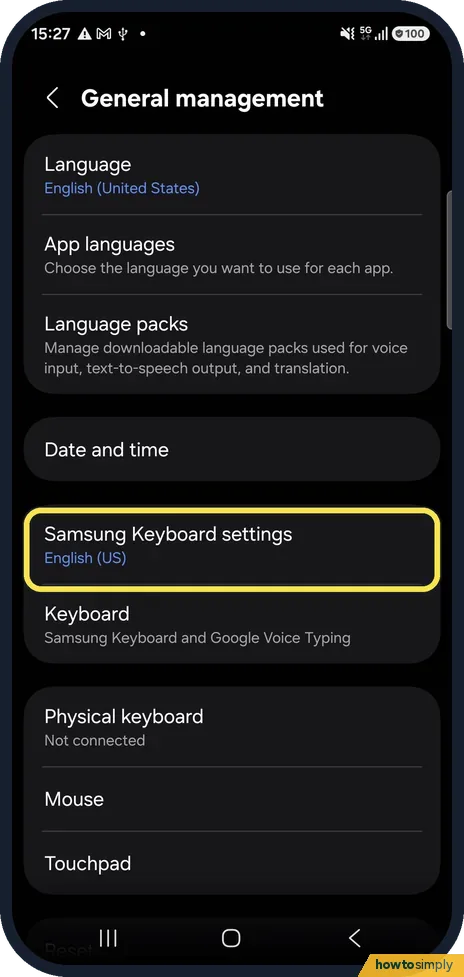
- 1
Open Samsung Keyboard settings
Open Settings, tap General management, then Samsung Keyboard settings. Or tap the gear on the keyboard toolbar.
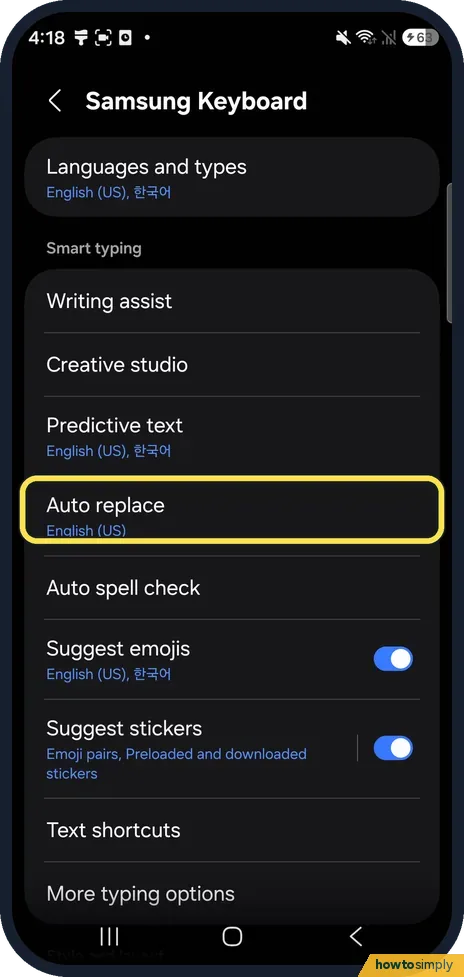
- 2
Tap Auto replace
In the Smart typing group. Below it you see the language it works for, English (US) on our phone.
- 3
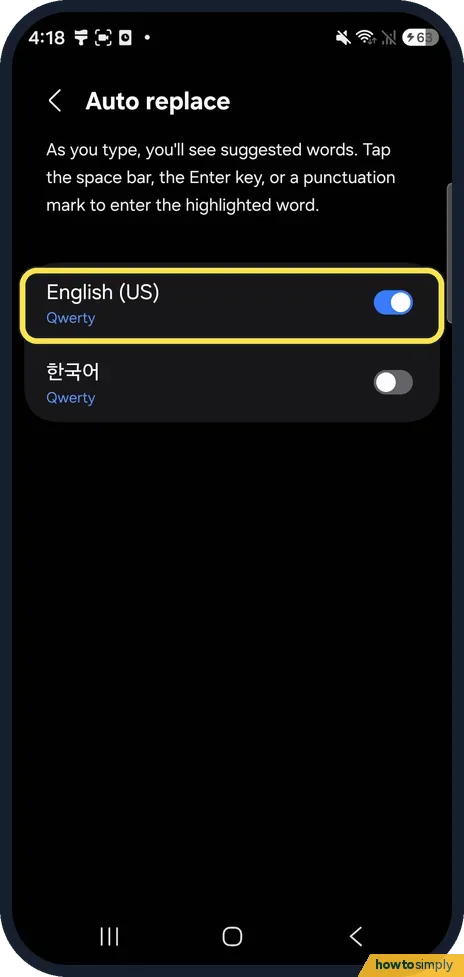
Switch it off
The page has one switch per keyboard language. On our Galaxy S26, English (US) was on and Korean was off. Switch off the language you type in; words you type are then left as they are.
- 4
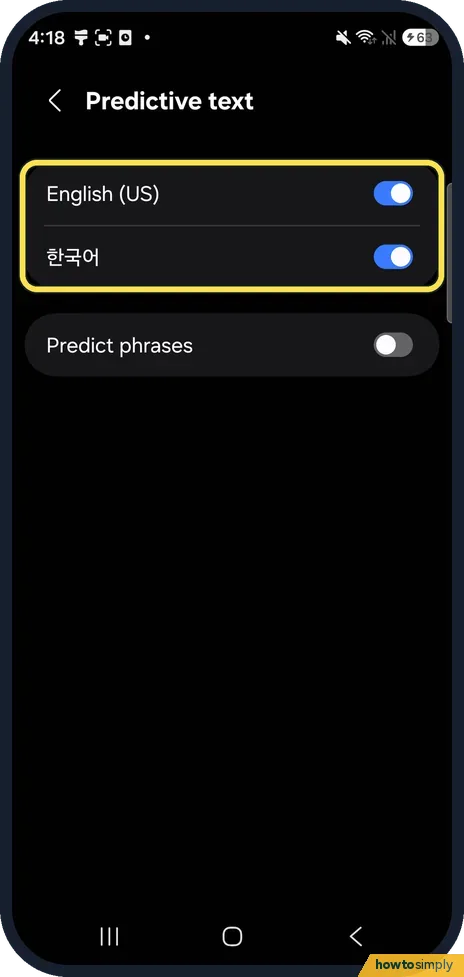
Optional: turn off Predictive text
Predictive text shows word suggestions above the keyboard. Its page has a switch per language and Predict phrases. Switch it off too if you want no suggestions at all.
- 5
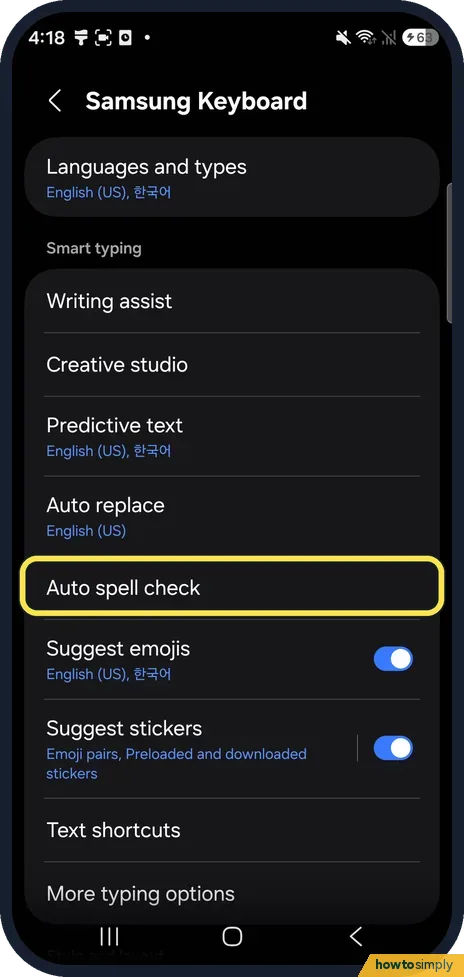
Keep the spell check underline
Auto spell check marks misspelled words with a red line without changing them. Choose a language for it if you still want a hint.
Where we checked these steps
- Galaxy A57 5G, One UI 8.5 (Android 16)
- Galaxy S26, One UI 9.0 (Android 17)
We have not checked other phones or older versions. If a menu looks different on yours, the notes under each step and the fixes further down cover the differences we found.
If you do not see this option
- You use a different keyboard Samsung says these settings only apply to Samsung Keyboard. To check which keyboard you use, open Settings, General management, Keyboard list and default, Default keyboard. Source: Adjust keyboard settings on your Galaxy phone or tablet
- Samsung Keyboard settings is not under General management Samsung says to search Settings for Samsung Keyboard, or tap the settings icon on the keyboard toolbar. Source: Adjust keyboard settings on your Galaxy phone or tablet
- No Auto replace on an older phone? Samsung lists older routes such as Settings, Language and input, On-screen keyboard, Samsung Keyboard, Smart typing. It notes that some predictive options are not available on older devices. Source: Adjust auto-correct and predictive text on Samsung Galaxy devices
If this does not work
- Phrases still get corrected That is a separate Smart typing option. Samsung says Suggest text corrections fixes grammar and phrases and marks them with green underlines. Switch it off, or tap Manage apps to choose which apps get corrections.
- Capitals and spaces still change Samsung says Auto capitalize and Auto spacing are under More typing options in the same settings.
- The keyboard keeps offering a misspelt word it learned? Samsung says words are saved as soon as you type them and press space. To drop one, touch and hold it when it appears in the predictive text toolbar and confirm Remove.
- A full stop appears when you tap space twice? That is Auto punctuate, which Samsung lists under More typing options. If your thumbs have a habit of tapping space twice, that is where the stray full stops come from, so switch it off there.
Good to know
Using Gboard instead? Samsung points out that the steps might be different if you use a keyboard made by someone else.
With Auto replace off, the keyboard no longer inserts its highlighted word when you tap the space bar or Enter key. To undo, open Auto replace again and switch your language back on; the keyboard keeps the words it has learned either way. There is no effect on battery or data.
If the keyboard is slow rather than just over-eager, see Samsung Keyboard lagging: 6 fixes.
About this guide
Well, it is maddening to type a perfectly good word and watch the phone swap it for its own guess. On the Samsung Keyboard, the feature that does the swapping is called Auto replace.
- Device
- Android
- Shown on
- Samsung Galaxy A57 5G (SM-A576B), One UI 8.5, Android 16, Samsung Galaxy S26 (SM-S942N, Korean model), One UI 9.0, Android 17 (build CP2A.260605.016.S942NKSU5BZJB)
- App
- Settings
- Path
- Settings › General management › Samsung Keyboard settings
- Real screenshots
- 5 of 5 steps
- What we did
- Observed: looked at each screen, changed nothing
- Checked
- November 2026
- Sources
- 3 official, linked below
The screenshots are from a Samsung Galaxy S26 with One UI 9.0 and Android 17, apart from the first, from our Galaxy A57 with One UI 8.5. Samsung says which screens and settings you see can depend on your network, software version and phone model.
Sources
Links checked October 2026. Menus and features can change with updates.Did this guide work for you?
Sorry about that. What happened?
Get new guides by email
Our newest guides, sent to your inbox. Free, and you can unsubscribe in one click.
We'll email you to confirm. How we use your email
Follow howtosimply on Facebook
We share our new guides on our Facebook page, so the next fix turns up in your feed.
Follow on Facebook