Troubleshooting
Samsung Galaxy not vibrating? 6 things to check
7 fixes, 7 with a real screenshot from our Galaxy S26 on One UI 9. Try them in order.
- Shown on
- Galaxy S26SM-S942N
- Software
- One UI 9Android 17More One UI 9 guides
- Checked
- October 2026
- Real screenshots
- 7 of 7 steps

Quick answer
Open Settings, Sounds and vibration. Choose Sound or Vibrate, not Mute, and switch on Vibrate while ringing if calls should vibrate as well as ring. Then raise the sliders under Vibration intensity and check that Do not disturb is off.
Watch these steps
Video: on our Galaxy S26 (One UI 9) we open Sounds and vibration, where the sound mode is set at the top, then Vibration intensity (steps 1 and 3). No sound.
Steps
- 1
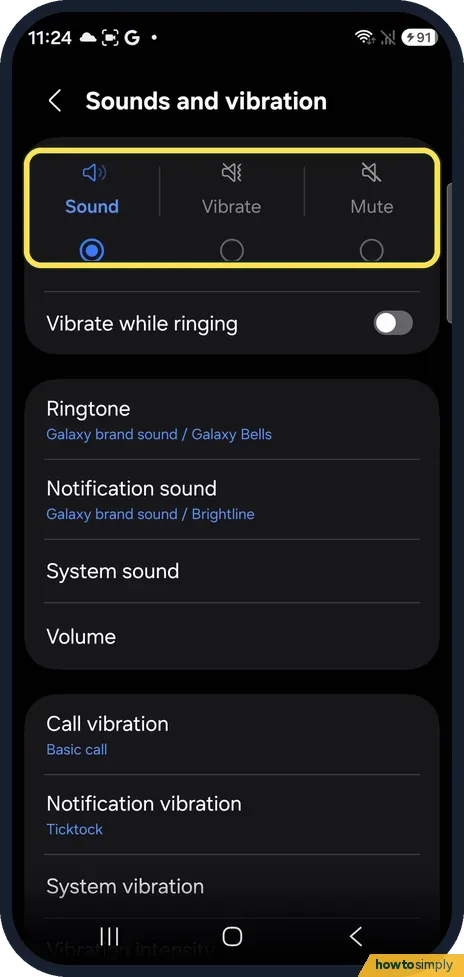
Check the sound mode
Settings, Sounds and vibration. The three choices at the top are Sound, Vibrate and Mute. Mute silences the phone completely. Ours was on Sound.
- 2
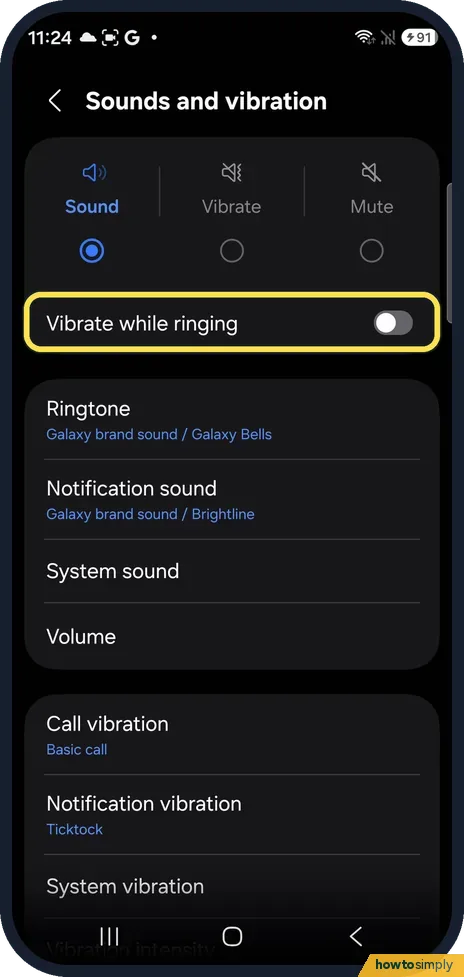
Switch on Vibrate while ringing
With Sound selected, incoming calls ring; this switch makes them vibrate at the same time. It was off on ours.
- 3
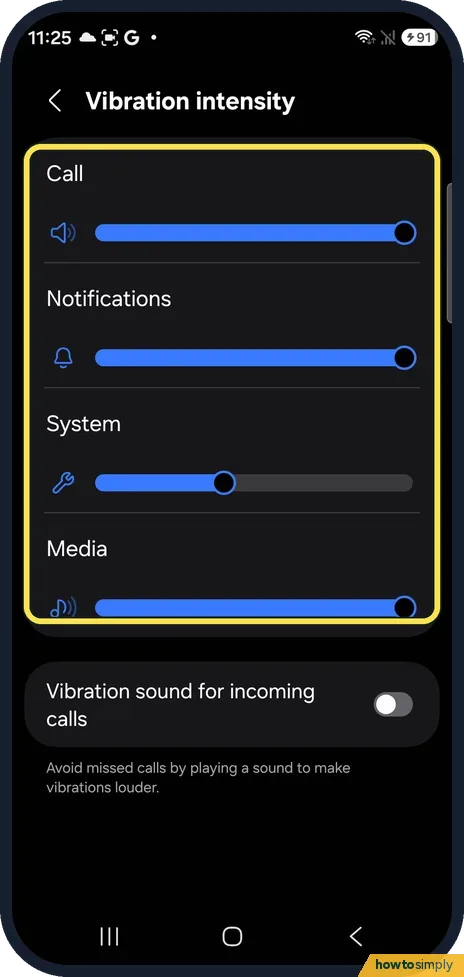
Raise the vibration intensity
Vibration intensity, lower on the same page, has separate sliders for Call, Notifications, System and Media. Drag the one for the missing vibration to the right. On ours, System was lower than the others.
- 4
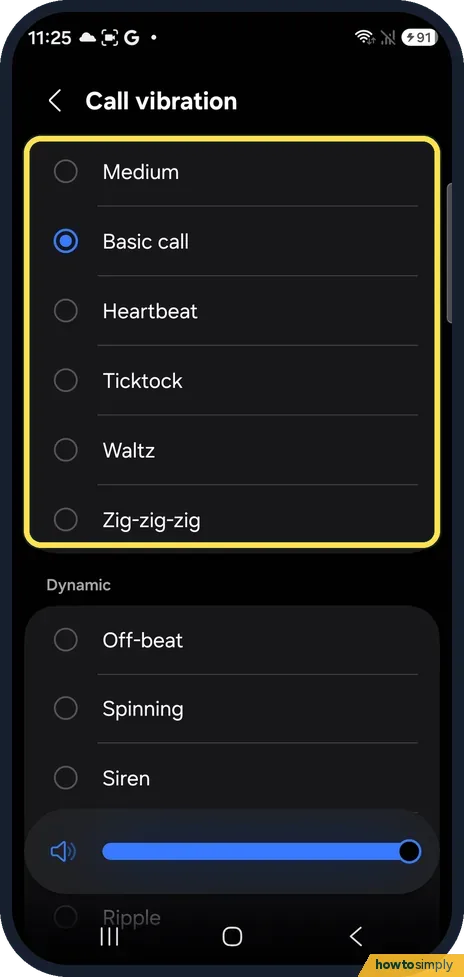
Pick a stronger pattern
Call vibration and Notification vibration set the pattern. A short, soft pattern is easy to miss; try another. Ours were Basic call and Ticktock.
- 5
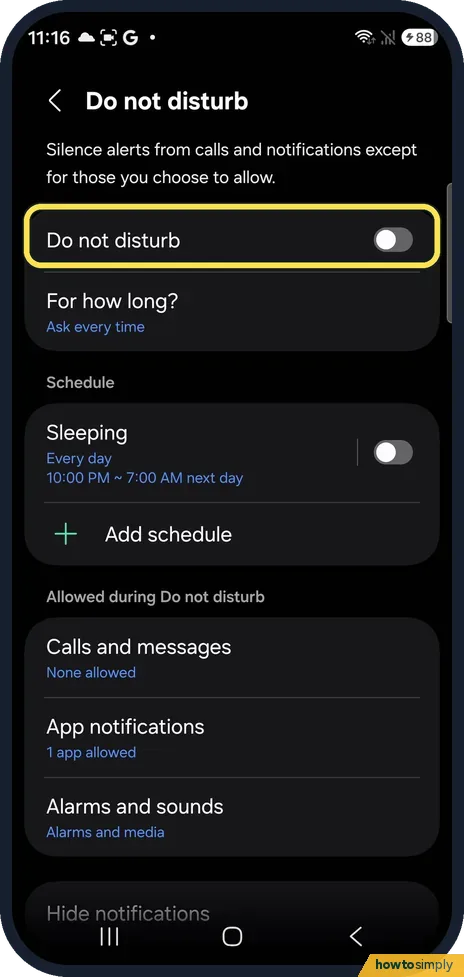
Turn off Do not disturb
Do not disturb silences calls and alerts, vibration included, apart from what you allow. Settings, Notifications, Do not disturb; it was off on ours.
- 6
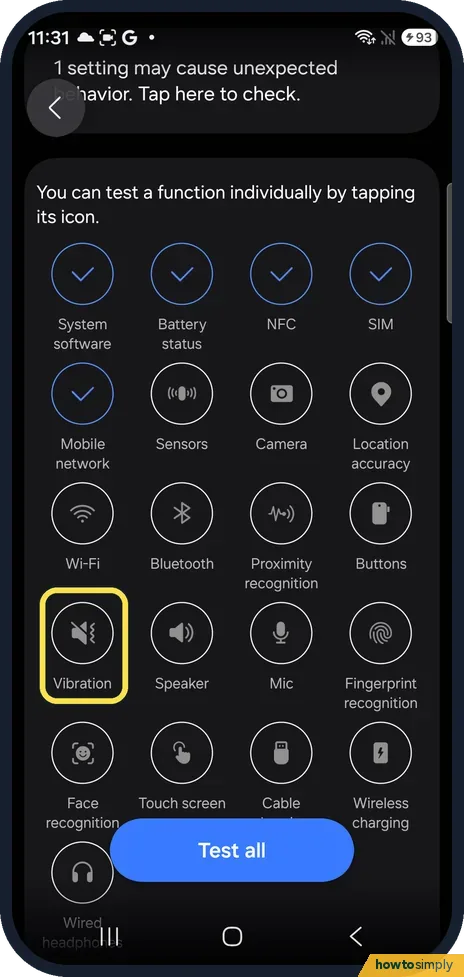
Test the motor in Samsung Members
Open Samsung Members, Support, Phone diagnostics and tap the Vibration icon. If the vibration check fails, the motor needs a repair.
- 7
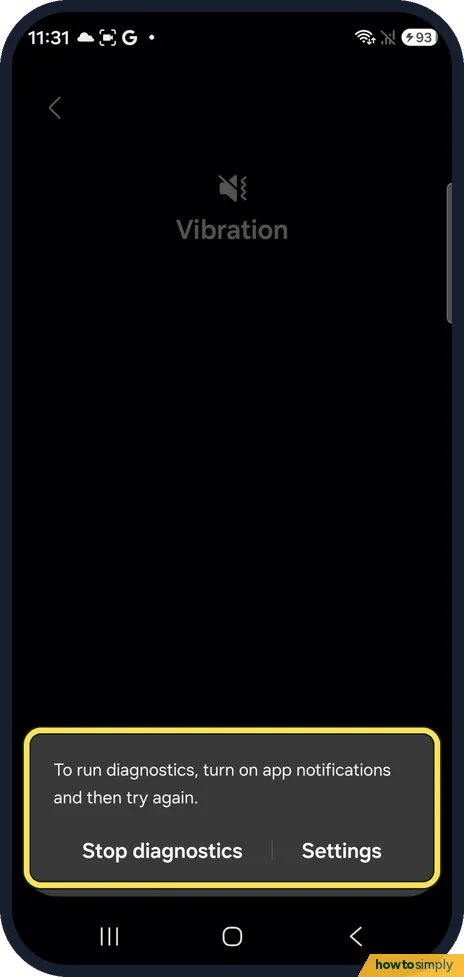
If diagnostics will not start
On ours a box said To run diagnostics, turn on app notifications and then try again. Tap Settings, allow notifications for Samsung Members, and run the Vibration check again.
If you do not see this option
- No Vibrate while ringing switch On our Galaxy A57 it was listed only while Sound was selected, not with Vibrate. Select Sound to see it.
- Your phone shows Call vibration and Notification vibration Samsung's guide names the rows Call vibration and Notification vibration. Open each and make sure Silent is not selected. Source: Galaxy phone vibration not working when receiving calls or notifications
If this does not work
- Only calls do not vibrate Check Vibrate while ringing and the Call slider under Vibration intensity, because either one can leave the ringtone doing all the work.
- Only notifications do not vibrate Check the Notifications slider under Vibration intensity and the Notification vibration pattern.
- Do not disturb is on Samsung says vibrations and notifications may not work while Do not disturb is on: Settings, Notifications, Do not disturb, and switch it off.
- A mode keeps it quiet Samsung says modes such as Sleep, Theatre or Relax can stop notifications. A phone that still thinks it is in the theatre will keep its taps to itself. Open Settings, Modes and Routines, tap each mode you set and check its Do not disturb times.
Good to know
If you have the opposite trouble, where the phone vibrates but makes no sound: no sound on a Samsung Galaxy phone.
Calls only, not alerts? Samsung Galaxy not ringing? 7 things to check.
More on the quiet mode: how to use Do not disturb on a Samsung Galaxy phone.
About this guide
The phone sits in your pocket all afternoon, and only later do you find the missed calls it never once tapped you about. When a Galaxy stops vibrating, the cause is almost always a setting: the sound mode, a switch that only covers ringing, or a slider turned down. Happily, most of them are on one page.
- Device
- Android
- Shown on
- Samsung Galaxy S26 (SM-S942N, Korean model), One UI 9, Android 17 (build S942NKSS4BZIG)
- App
- Settings
- Real screenshots
- 7 of 7 steps
- What we did
- Observed: looked at each screen, changed nothing
- Checked
- October 2026
- Sources
- 2 official, linked below
The screenshots are from our Samsung Galaxy S26, the Korean model SM-S942N, with One UI 9 and Android 17 (build S942NKSS4BZIG), in Dark mode. Menus can differ on models sold in other regions. We only looked at these screens and changed nothing.
What changed: every step re-shot on our own Galaxy S26 (Korean model SM-S942N) on One UI 9, dark mode, with the steps rewritten for the One UI 9 screens.
Sources
Links checked October 2026. Menus and features can change with updates.Related guides
How to turn off keyboard sound and vibration on a Samsung GalaxyHow to play one app's sound on a different device on a Samsung GalaxyHow to set a custom ringtone or notification sound on a Samsung GalaxyHow to change vibration and haptics on a Google Pixel (Android 17)How to change the ringtone and vibration on a OnePlus (OxygenOS 16)How to turn off tap and click sounds on a Google Pixel (Android 17)Did this guide work for you?
Sorry about that. What happened?
Get new guides by email
Our newest guides, sent to your inbox. Free, and you can unsubscribe in one click.
We'll email you to confirm. How we use your email
Follow howtosimply on Facebook
We share our new guides on our Facebook page, so the next fix turns up in your feed.
Follow on Facebook