How to turn off Force Click on a Mac trackpad
- Shown on
- MacBook Pro
- Software
- macOS 26
- Checked
- October 2026
- Real screenshots
- 4 of 4 steps
- Where it is
- System Settings › Trackpad
 Real screenshot · MacBook Pro, macOS 26
Quick answer
Open System Settings, click Trackpad, and switch off Force Click and haptic feedback. A firm press on the trackpad then no longer triggers Quick Look, Look up and the other Force Click actions.
Steps
- 1
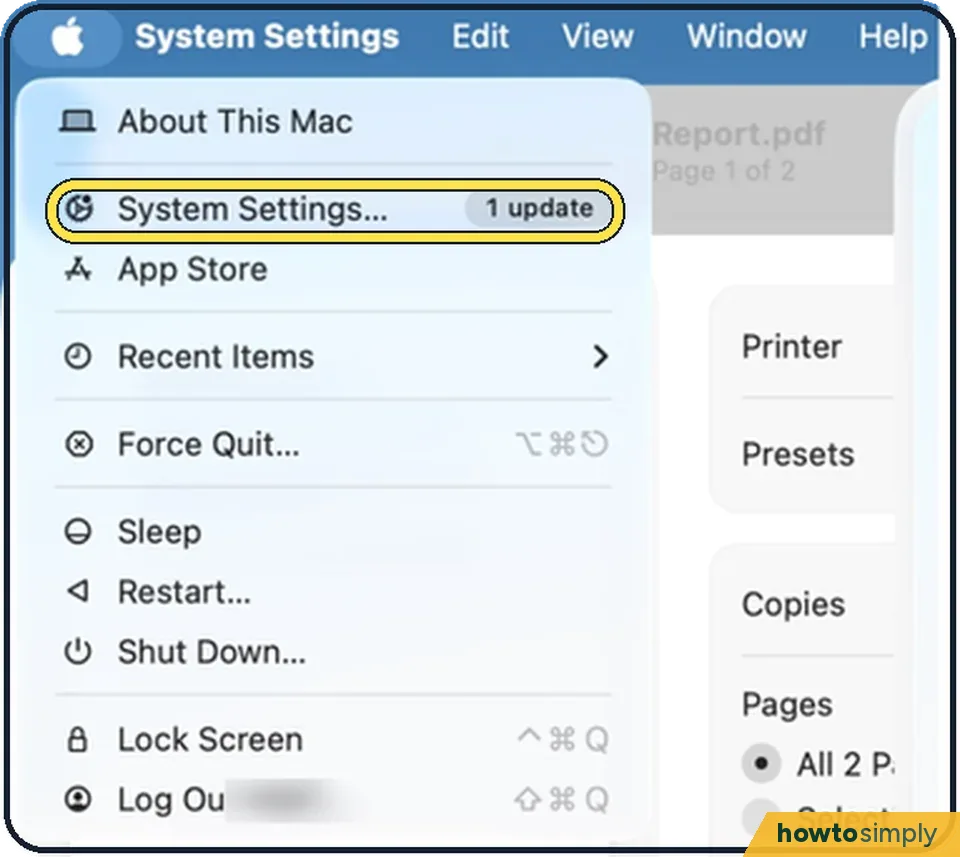
Open System Settings
Click the Apple menu in the top left corner of the screen and choose System Settings.
- 2
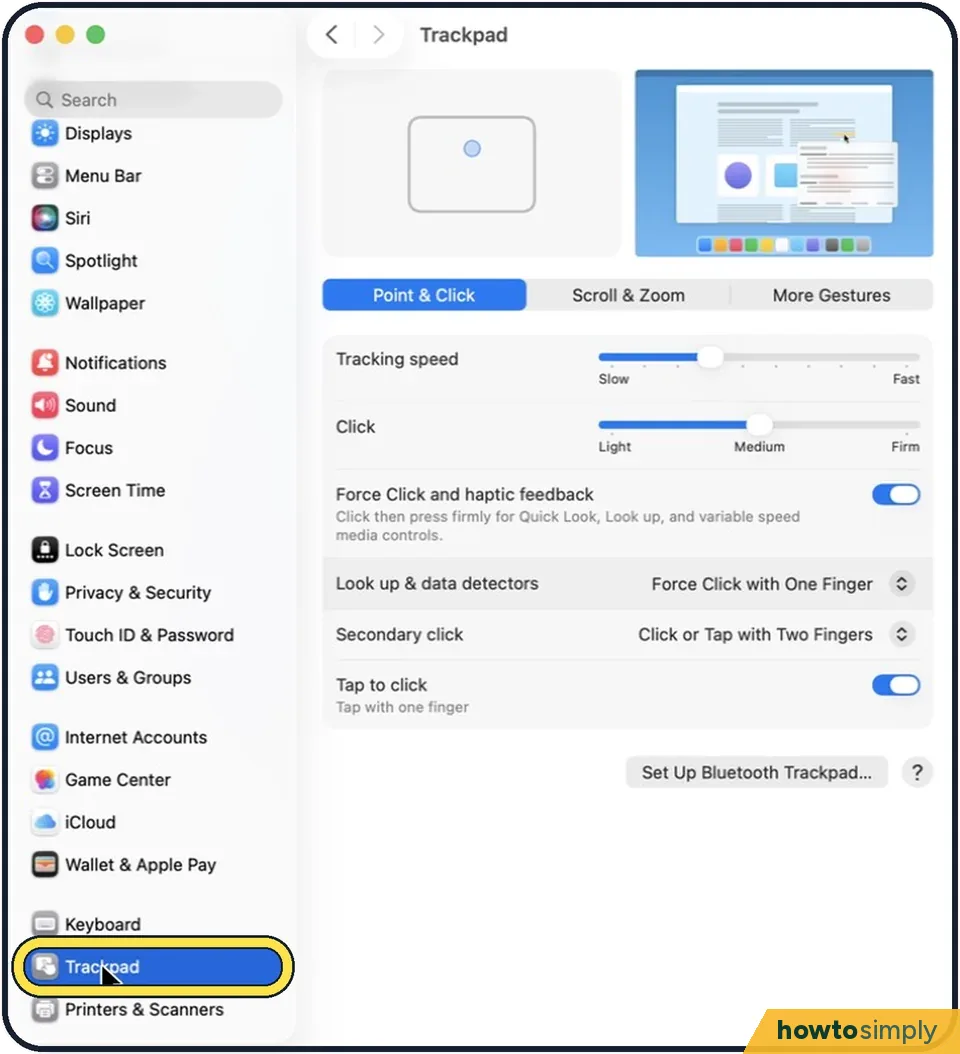
Click Trackpad in the sidebar
Trackpad is near the bottom of the sidebar, below Keyboard. Scroll down to find it.
- 3
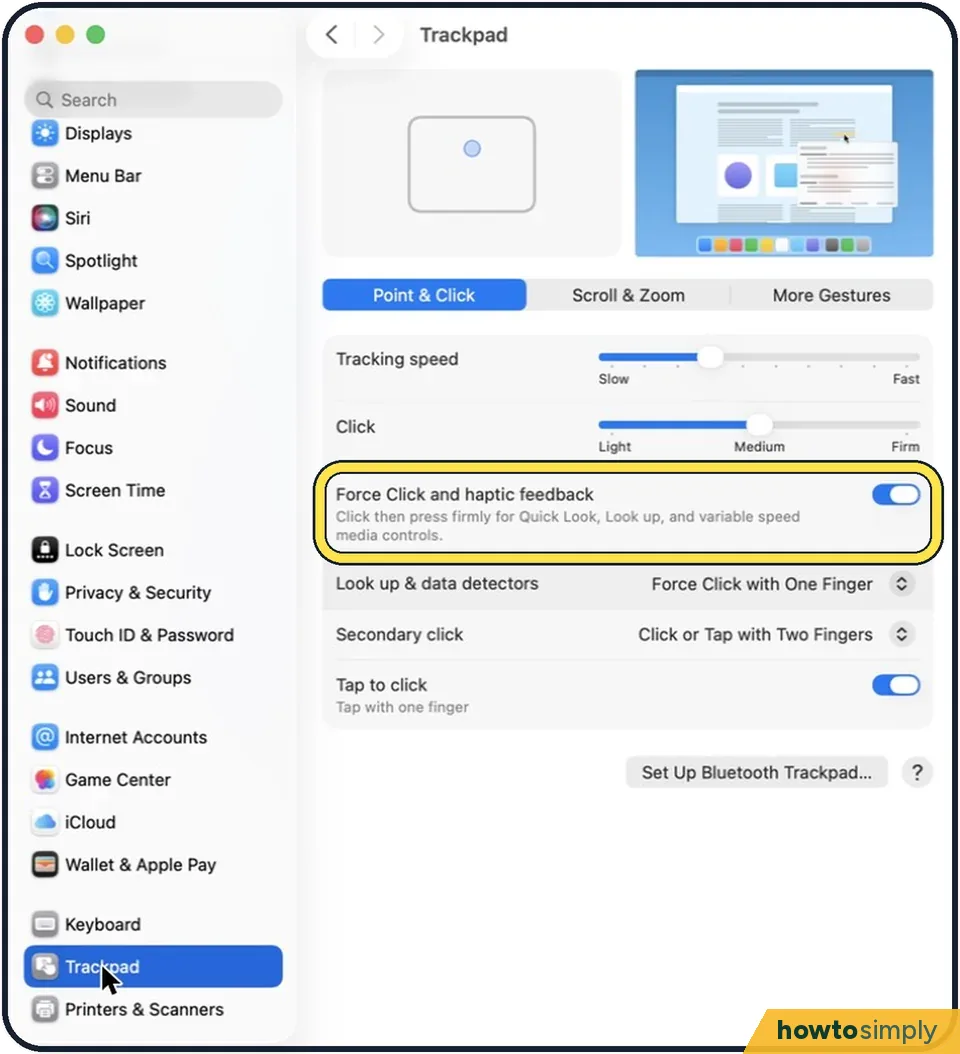
Switch off Force Click and haptic feedback
In the picture it is on, and the Click slider above it is at Medium. The note under it reads: click then press firmly for Quick Look, Look up, and variable speed media controls.
- 4
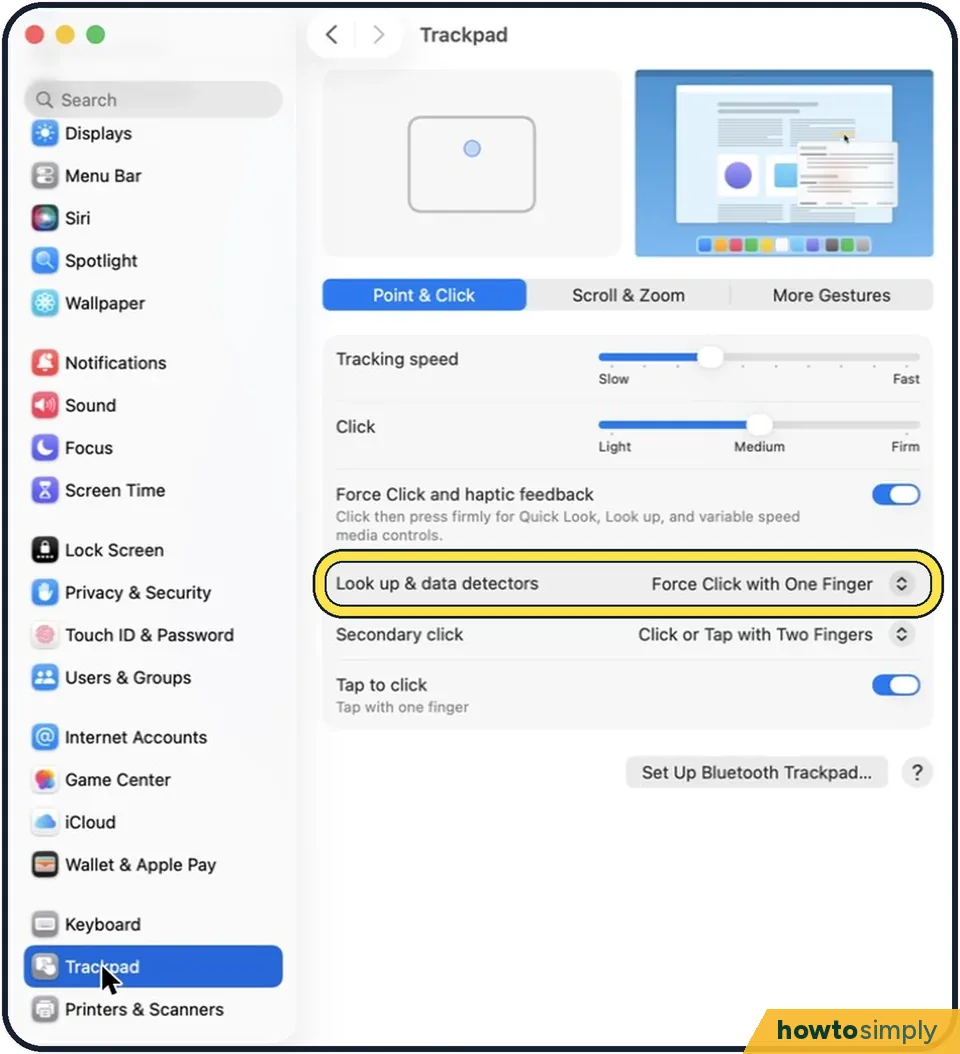
Or only change the look-up gesture
Look up & data detectors chooses the gesture for looking up a word. In the picture it is Force Click with One Finger.

If you do not see this option
- There is no Force Click and haptic feedback switch. Apple says you need a Mac with a trackpad built in or a wireless one paired, and which options appear depends on your Mac or trackpad. The Trackpad page also has a Set Up Bluetooth Trackpad… button, as in the picture. Source: Change Trackpad settings on Mac
- Your Mac has System Preferences, not System Settings. Apple says that on macOS Monterey you choose System Preferences, Trackpad, and the Force Click and haptic feedback tick box is on the Point & Click tab. Source: Change Trackpad preferences on Mac
If this does not work
- A dictionary window still opens. The uninvited guest has a second way in. Apple says Look Up also opens with a three-finger tap if that gesture is chosen in Trackpad settings. Check the Look up & data detectors row.
- Normal clicks still feel too hard or too soft. Apple says the Click slider sets how firmly you must press the trackpad. In the picture it goes from Light to Firm.
- You still want to look up words? Apple says to Control-click a word or phrase in an app or webpage, then choose Look Up. Some apps need you to select the text first.
- You miss the quick preview of files? Quick Look also works from the keyboard and does not need Force Click: how to use Quick Look on a Mac.
- Underlined dates and addresses still open a window? Apple says that with Siri Suggestions on, apps like Mail, Messages and Notes can draw a box round items or turn them into links. Clicking the arrow or link opens them in the Look Up window.
Good to know
Apple says the same switch also controls the little taps you feel, for example when lining things up in some apps.
After the change, a firm press behaves like an ordinary click. Clicking, tapping, scrolling and other gestures work as before. To bring Force Click back, return to Trackpad, Point & Click and switch Force Click and haptic feedback on again; the Look up & data detectors row lets you choose Force Click as the gesture once more.
About this guide
Well, there you are halfway through an email, you press a little too firmly, and a dictionary window turns up uninvited to explain the word you just typed. Force Click is a second, firmer press after the normal click. The settings page lists what it is used for: Quick Look, Look up and variable speed media controls. Apple says that if your trackpad supports force click, the Look Up gesture can be set to use it.
The screenshots show System Settings on macOS Tahoe 26.
- Device
- Mac
- Shown on
- macOS Tahoe 26 (MacBook Pro)
- App
- System Settings
- Path
- System Settings › Trackpad
- Real screenshots
- 4 of 4 steps
- Checked
- October 2026
- Sources
- 3 official, linked below
Sources
Links checked October 2026. Menus and features can change with updates.Did this guide work for you?
Sorry about that. What happened?
Get new guides by email
Our newest guides, sent to your inbox. Free, and you can unsubscribe in one click.
We'll email you to confirm. How we use your email
Follow howtosimply on Facebook
We share our new guides on our Facebook page, so the next fix turns up in your feed.
Follow on Facebook