How to change the trackpad speed on a Mac
- Shown on
- MacBook Pro
- Software
- macOS 26
- Checked
- October 2026
- Real screenshots
- 4 of 4 steps
- Where it is
- System Settings › Trackpad › Tracking speed
 Real screenshot · MacBook Pro, macOS 26
Quick answer
Open System Settings, click Trackpad, and drag the Tracking speed slider toward Fast or Slow. It sets how fast the pointer moves across the screen when you move your finger on the trackpad.
Steps
- 1
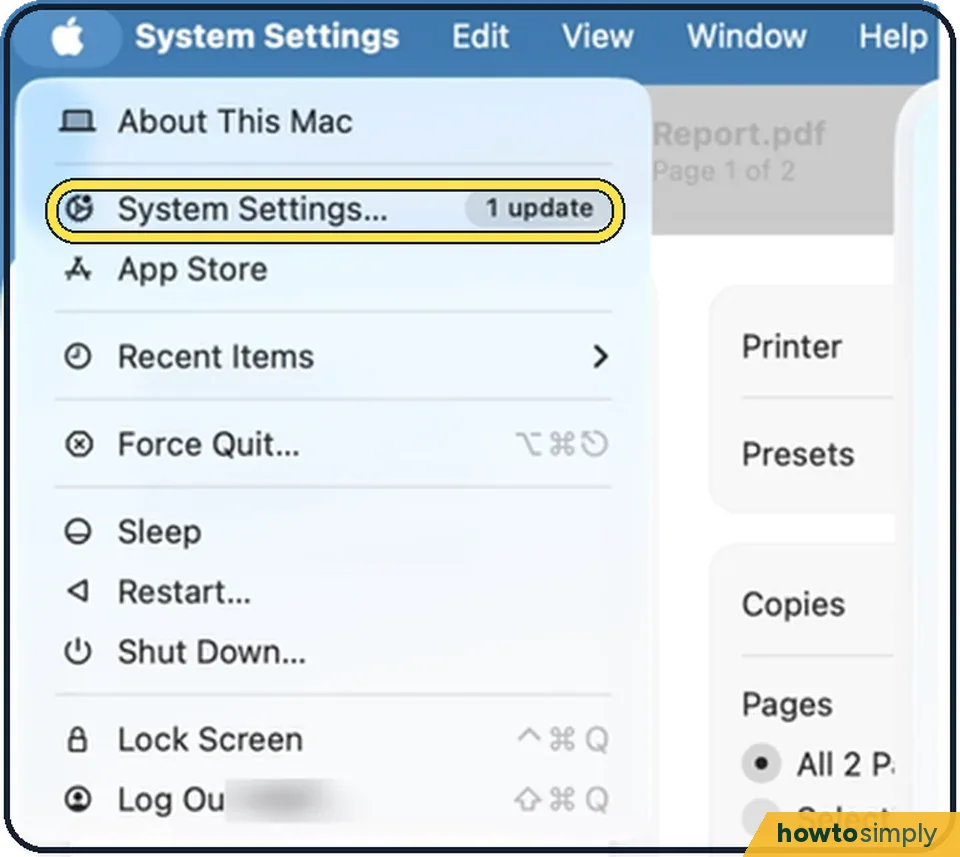
Open System Settings
Click the Apple menu in the top left corner of the screen and choose System Settings.
- 2
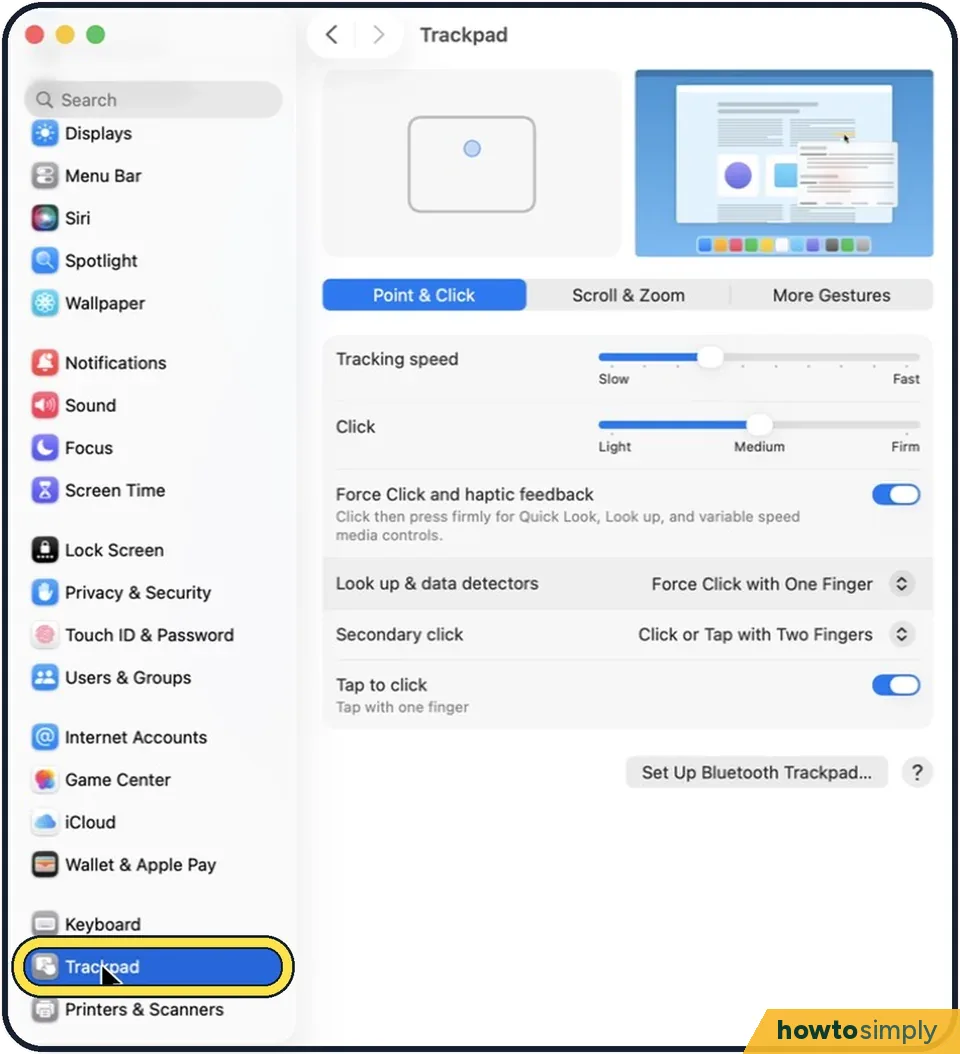
Click Trackpad in the sidebar
Trackpad is near the bottom of the sidebar, below Keyboard. Scroll down to find it.
- 3
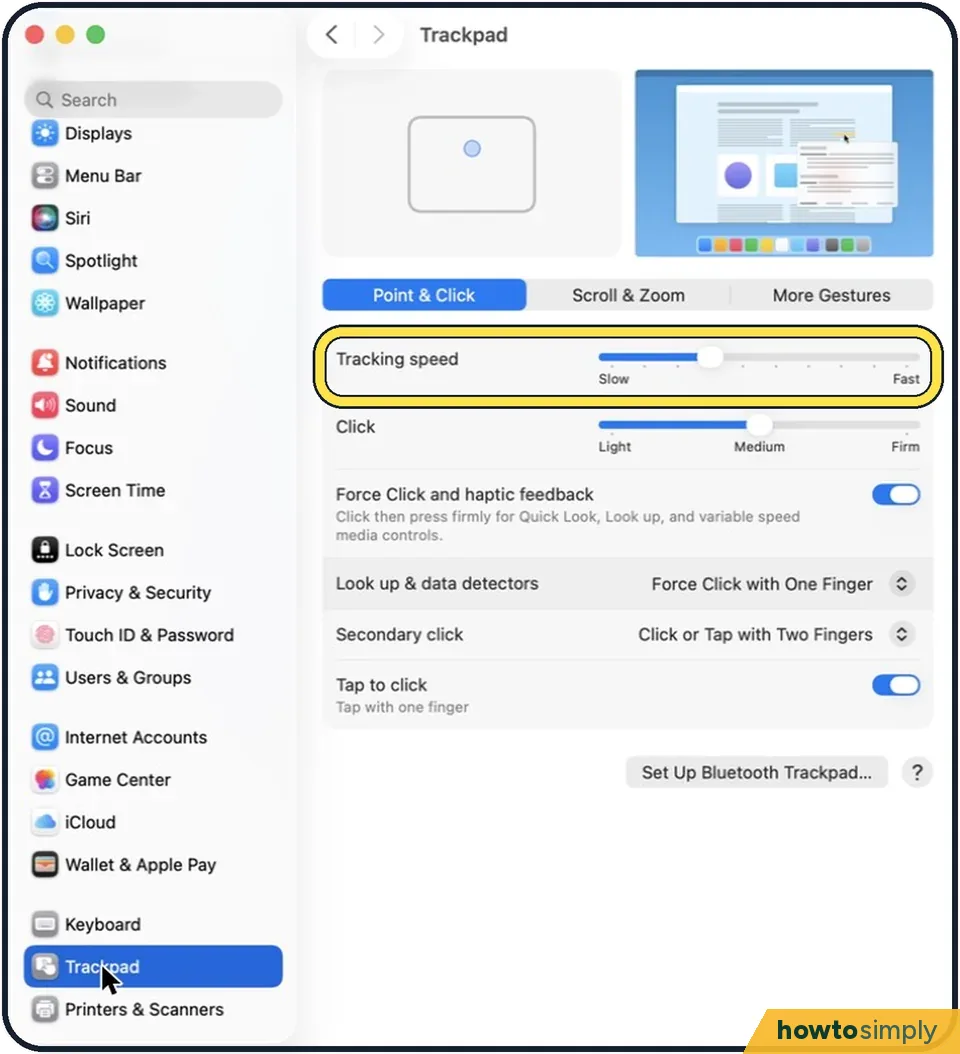
Drag the Tracking speed slider
It is the first row of the Point & Click tab, from Slow to Fast.
- 4
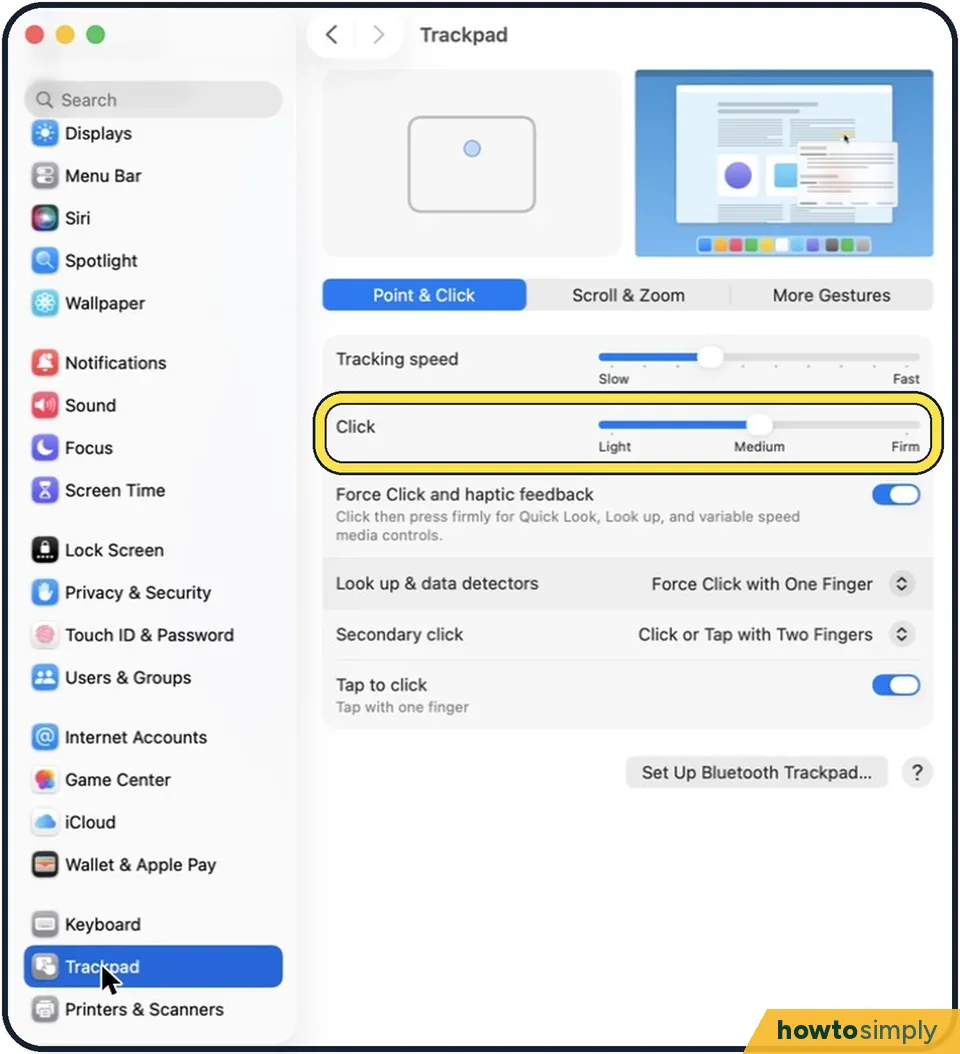
Set how firmly you must press
Click, the next row down, sets how hard you need to press the trackpad for it to act: Light, Medium or Firm.

If you do not see this option
- There is no Trackpad in the sidebar Apple says you'll only find Trackpad settings on a Mac that has a trackpad built in or a wireless one paired to it. Source: Change Trackpad settings on Mac
- Some rows are missing Apple says which of these options you see depends on your Mac or trackpad. Source: Change Trackpad settings on Mac
If this does not work
- Scrolling is too fast or slow Apple says scrolling speed is set separately in Accessibility, Pointer Control, Trackpad Options.
- A mouse moves at another speed Apple says Mouse settings have their own Tracking speed slider.
- The pointer does not move Before you suspect the worst, Apple says to use only one finger; if it still fails, a hidden low battery alert may be the cause, so connect power.
- The click sound bothers you as well? Apple lists Quiet Click on the same Point & Click tab. It turns off the click sound.
- The pointer jumps or drifts? Clean the trackpad with a soft, dry cloth and keep your palm and other fingers off it while you move. A faster speed makes small accidental touches more visible, so try a slower setting too.
- The pointer is hard to follow on screen? A bigger pointer is easier to track at any speed: how to make the mouse pointer bigger on a Mac.
Good to know
The direction of scrolling is on the Scroll & Zoom tab: how to change the scroll direction on a Mac.
Apple suggests moving the pointer around while you drag the slider, so you can feel the difference. A mouse has its own Tracking speed slider in Mouse settings. To undo it, drag the slider back to where it was. Make sure you note the position before you start, because the slider has no numbers to help you find your way back.
If you prefer to click by touching the trackpad lightly instead of pressing it, Apple's Tap to click option is on the same tab: how to turn on tap to click on a Mac.
About this guide
You sweep a finger right across the trackpad, and the pointer has only made it halfway across the screen. On a large screen the pointer can feel sluggish like that, and on a small one too jumpy. Tracking speed is the setting for that, and it is a single slider.
The screenshots show System Settings on macOS Tahoe 26.
- Device
- Mac
- Shown on
- macOS Tahoe 26 (MacBook Pro)
- App
- System Settings
- Path
- System Settings › Trackpad › Tracking speed
- Real screenshots
- 4 of 4 steps
- Checked
- October 2026
- Sources
- 4 official, linked below
Sources
Links checked October 2026. Menus and features can change with updates.Did this guide work for you?
Sorry about that. What happened?
Get new guides by email
Our newest guides, sent to your inbox. Free, and you can unsubscribe in one click.
We'll email you to confirm. How we use your email
Follow howtosimply on Facebook
We share our new guides on our Facebook page, so the next fix turns up in your feed.
Follow on Facebook