How to force quit a frozen app on a Mac
- Shown on
- MacBook Neo
- Software
- macOS 27.0.1More macOS 27 guides
- Checked
- October 2026
- Real screenshots
- 5 of 5 steps
 Real screenshot · MacBook Neo, macOS 27.0.1
Quick answer
Press Option + Command + Esc (or choose Apple menu > Force Quit…), select the frozen app and click Force Quit, then click Force Quit again to confirm.
Steps
- 1
Open the Force Quit Applications window
Press Option + Command + Esc, or click the Apple menu and choose Force Quit….
On our MacBook Neo the Apple menu item reads "Force Quit…" with the shortcut ⌥⌘⎋ next to it.
- 2
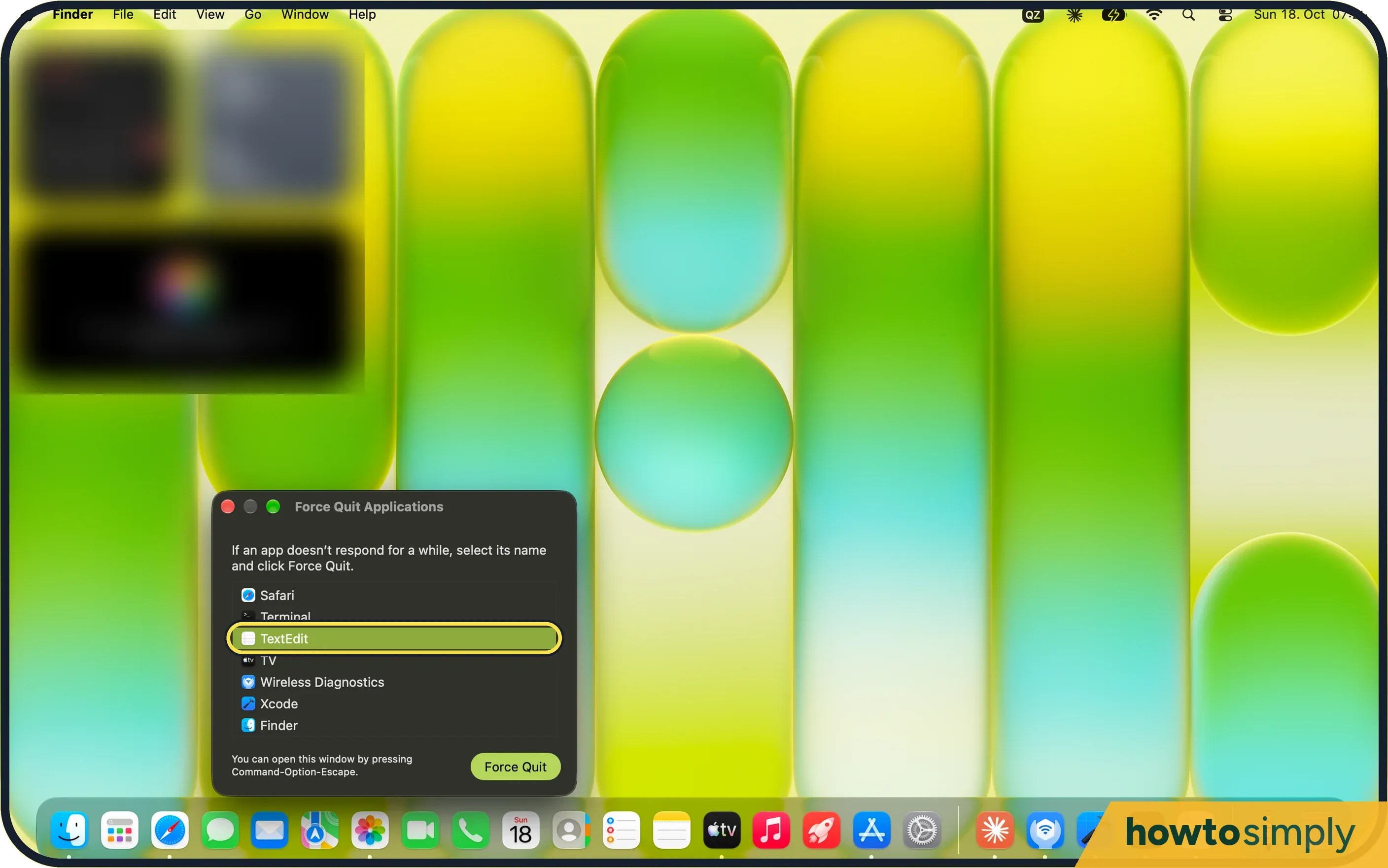
Select the frozen app
Click the app's name in the list. Apple says a frozen app may be marked "Not Responding".
On our MacBook Neo the window says "If an app doesn't respond for a while, select its name and click Force Quit."
- 3
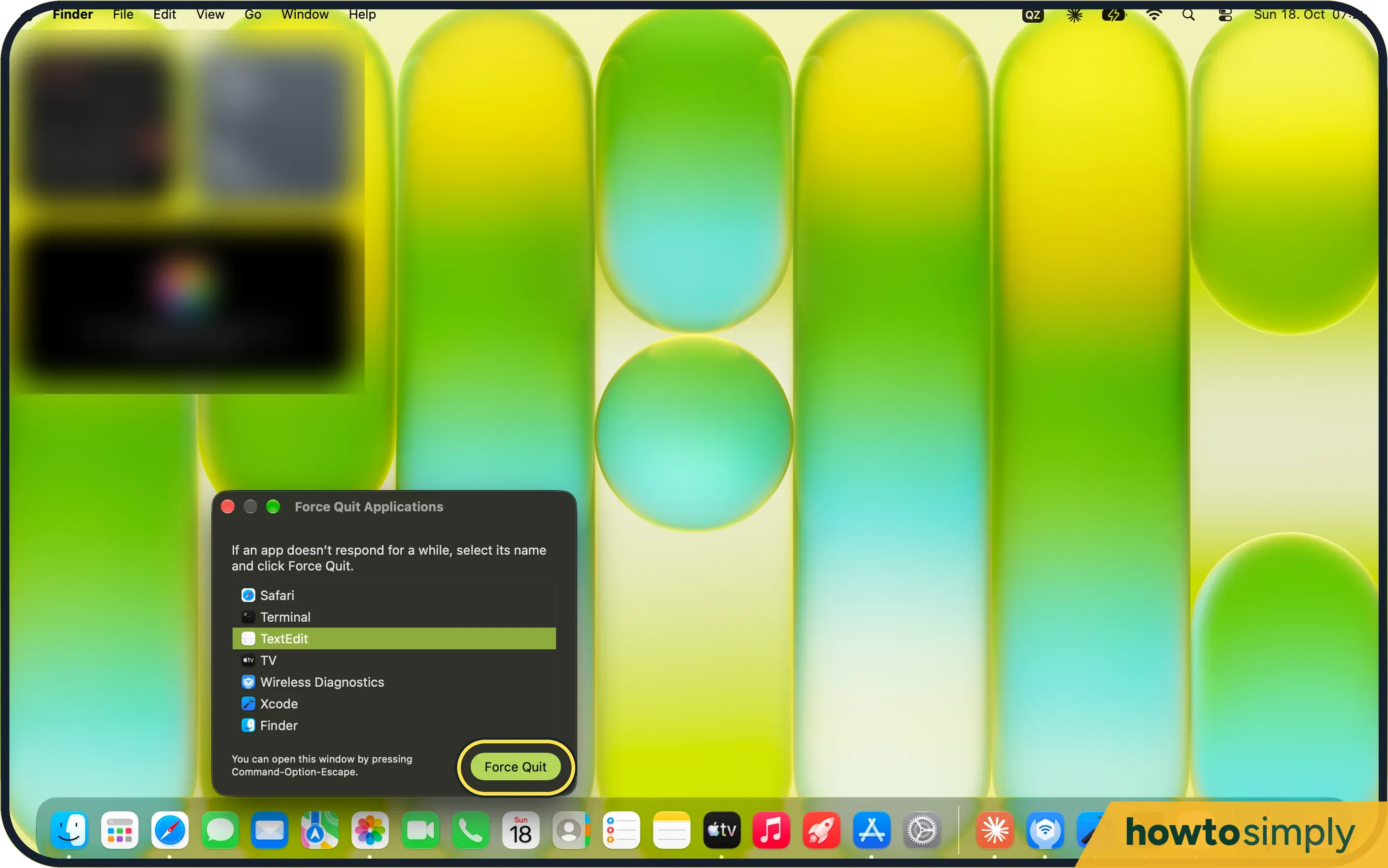
Click Force Quit
The button is in the bottom right corner of the window.
- 4
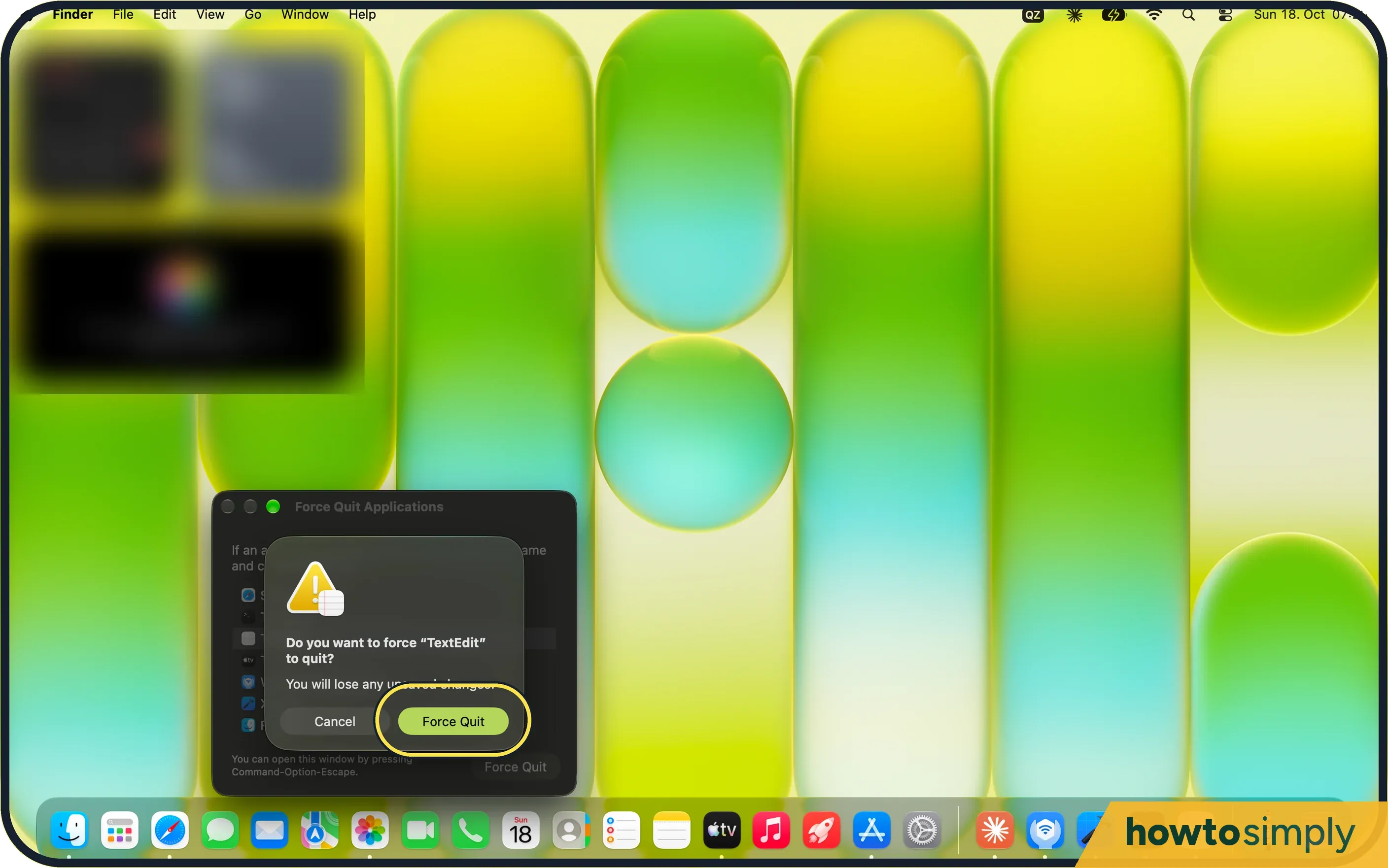
Confirm with Force Quit
A message asks whether you want to force the app to quit. Click Force Quit, or Cancel to leave it running.
On our MacBook Neo it read "Do you want to force "TextEdit" to quit? You will lose any unsaved changes."
- 5
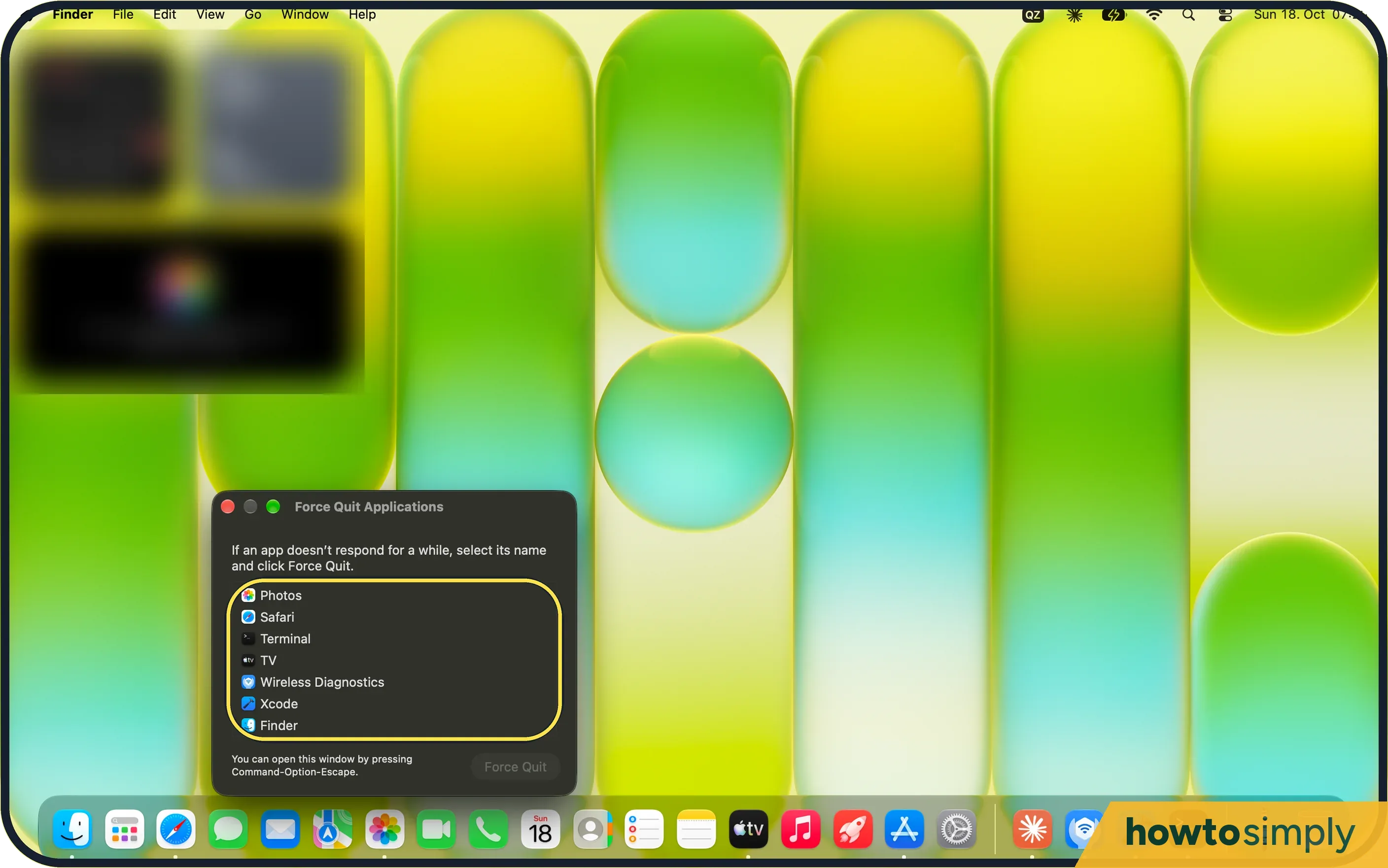
Check the app has gone
The app disappears from the list. You can close the window with the red button in its top left corner.


If you do not see this option
- The keyboard shortcut does nothing Click the Apple menu and choose Force Quit… instead. Source: How to force an app to quit on your Mac
- The button says Relaunch, not Force Quit You have Finder selected. On our MacBook Neo the button changes to Relaunch for Finder; select another app to force quit it.
- The Force Quit button is greyed out Click the app in the list to pick it, then click Force Quit.
If this does not work
- The app is still running Select the app again and click Force Quit.
- Finder is not responding Select Finder in the Force Quit Applications window and click Relaunch.
- The whole Mac is frozen If your Mac won't restart, Apple says to keep the power button (or the Touch ID button on laptops with Touch ID) pressed for up to 10 seconds until it switches off, then press the power button once to start it again.
- Force Quit did not close the app? Apple says to restart the Mac: choose Restart from the Apple menu. Only if the Mac will not restart should you hold the power button to switch it off.
Good to know
Open the app again as usual afterwards. Anything you had not saved before force quitting is lost; that is the price of a working app.
Or click the Apple menu in the top corner of the screen and pick Force Quit….
If Finder itself is stuck, select Finder in the Force Quit Applications window and click Relaunch.
Apple says that if your Mac won't restart, you can press and hold the power button (or the Touch ID button on laptops that have Touch ID) for up to 10 seconds until the Mac turns off. After that, press the power button once to start it up again.
On our MacBook Neo the window's footer reads "You can open this window by pressing Command-Option-Escape."
About this guide
Well, apps do love to freeze just before you save. Luckily, you can force just that app to quit. Before you do, though, try to quit it normally with Command-Q.
- Device
- Mac
- Shown on
- macOS 27.0.1 (MacBook Neo)
- Real screenshots
- 5 of 5 steps
- Checked
- October 2026
- Sources
- 1 official, linked below
Sources
Links checked October 2026. Menus and features can change with updates.Did this guide work for you?
Sorry about that. What happened?
Get new guides by email
Our newest guides, sent to your inbox. Free, and you can unsubscribe in one click.
We'll email you to confirm. How we use your email
Follow howtosimply on Facebook
We share our new guides on our Facebook page, so the next fix turns up in your feed.
Follow on Facebook