How to uninstall programs on Windows 11
- Shown on
- Microsoft Cloud PC
- Software
- Windows 11
- Checked
- October 2026
- Real screenshots
- 5 of 5 steps
- Where it is
- Settings › Apps › Installed apps
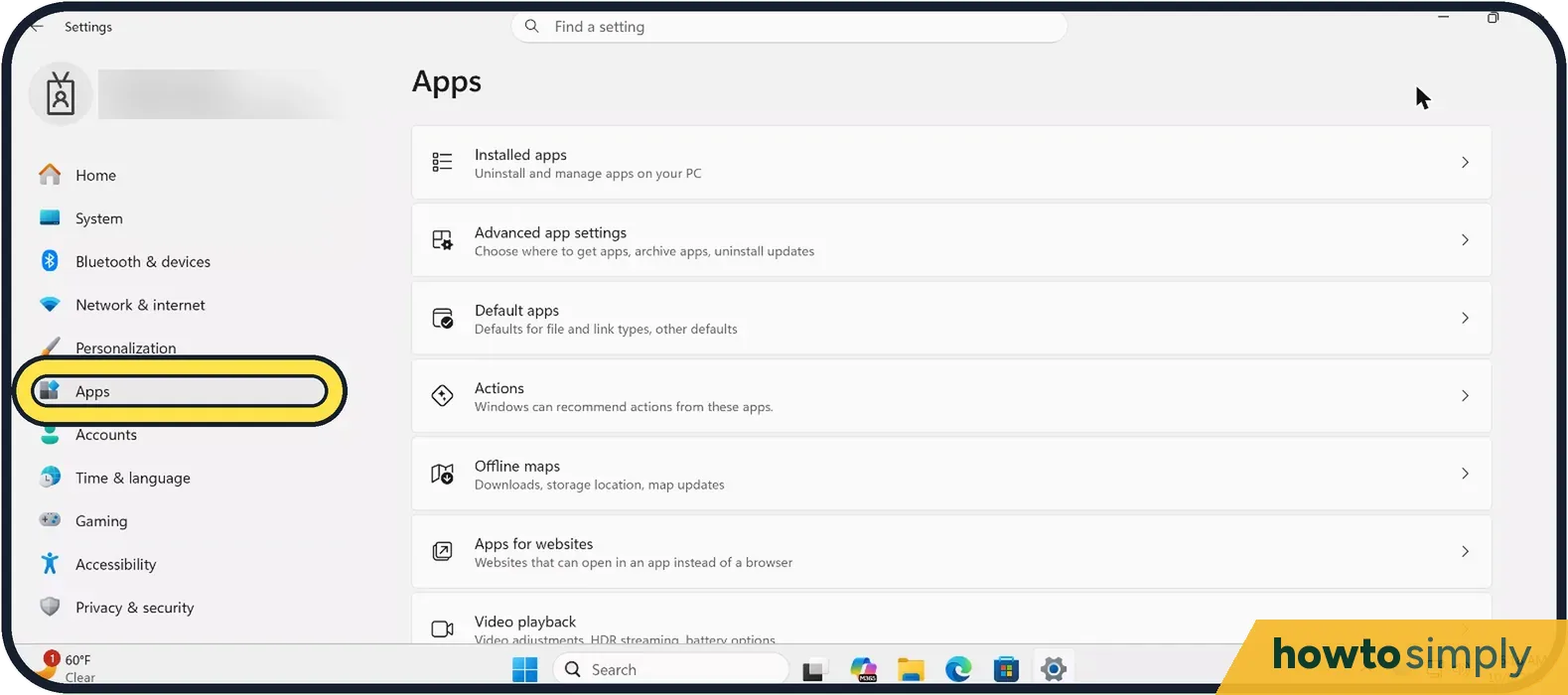 Real screenshot · Microsoft Cloud PC, Windows 11
Quick answer
Open Settings, choose Apps, then Installed apps. Click the three dots next to the program, choose Uninstall, then click Uninstall again in the pop-up. Follow the program's own uninstaller if one opens.
Watch these steps
Watch on YouTubeA video of this task from our YouTube channel · opens YouTubeSteps
- 1
Open Settings and choose Apps
Press Windows + I and click Apps on the left.
- 2
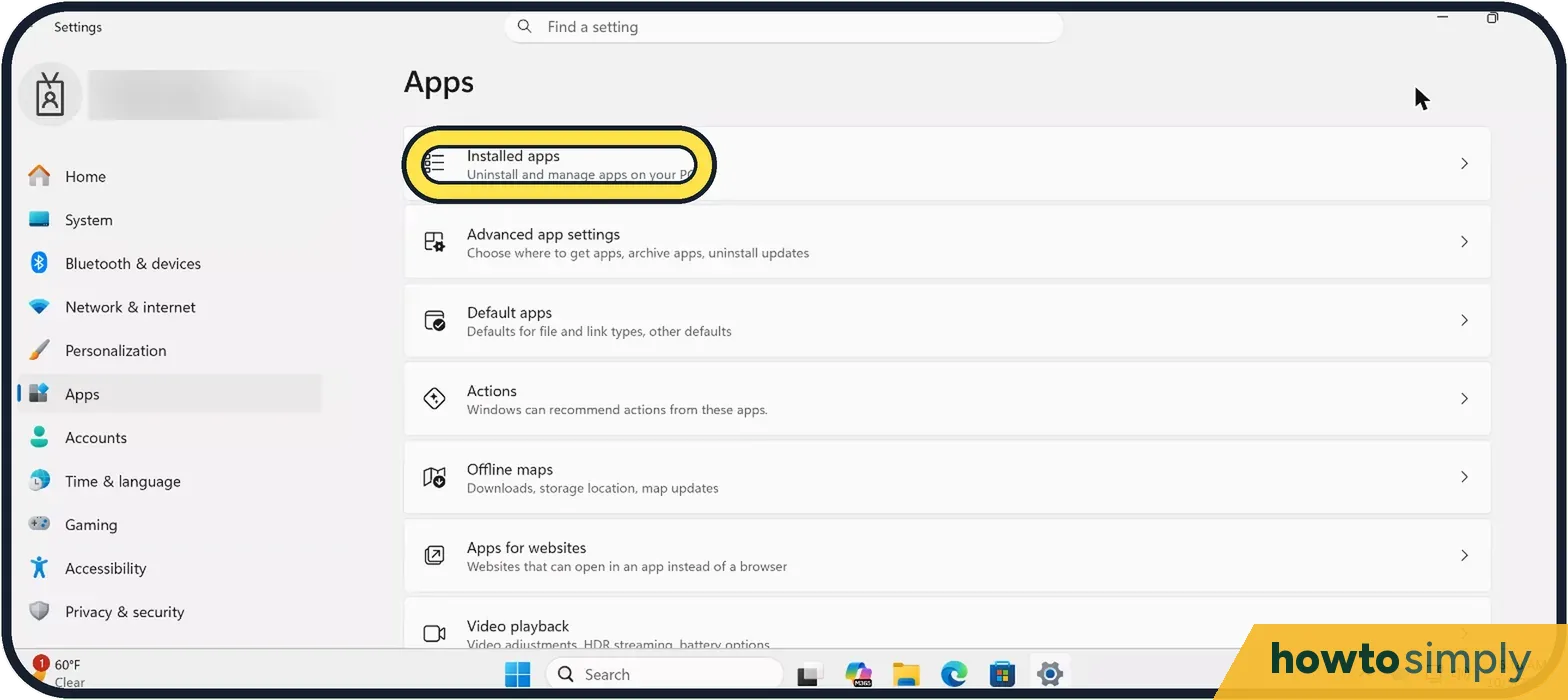
Click Installed apps
It is the first row, labelled Uninstall and manage apps on your PC. The full list of programs appears.
- 3
Find the program
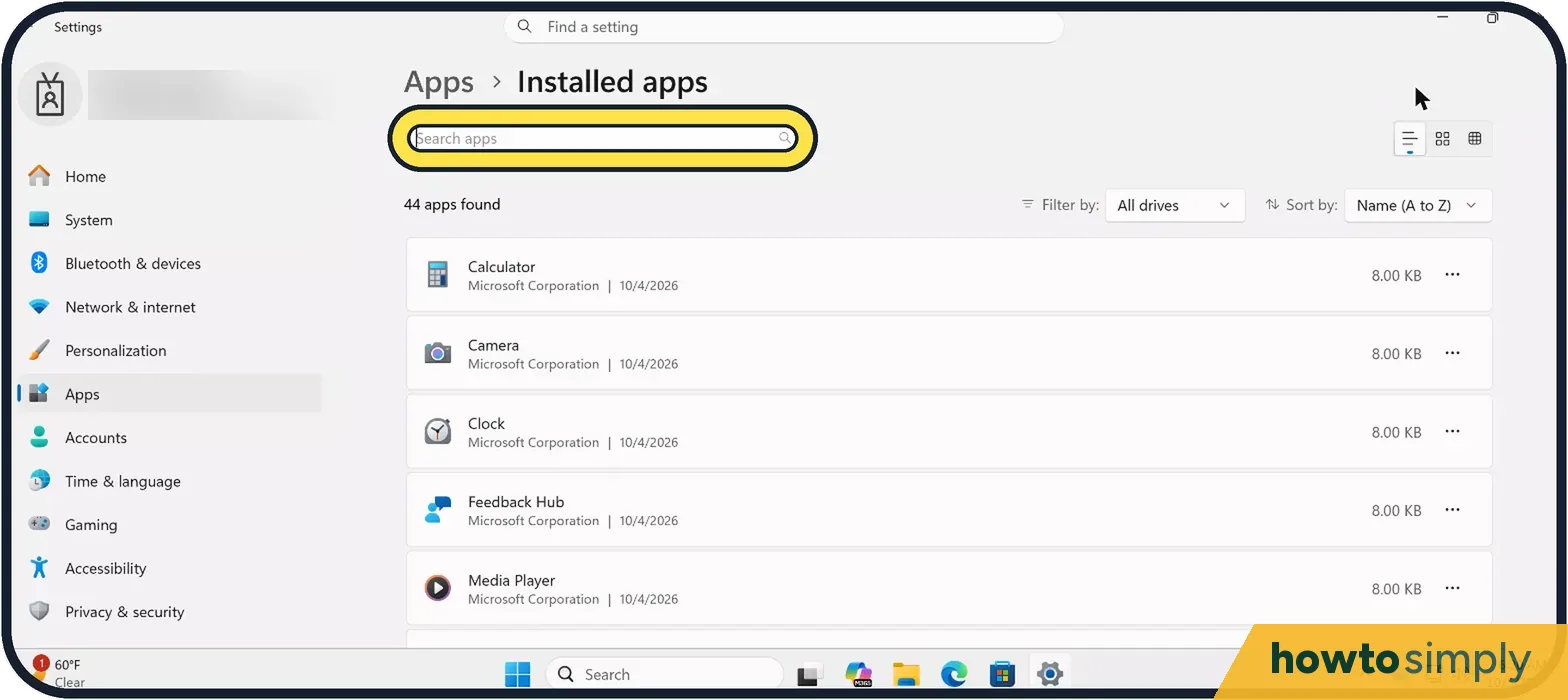
Type its name in the Search apps box, or scroll the list.
On our Cloud PC the list showed 44 apps found, with Sort by set to Name (A to Z).
- 4
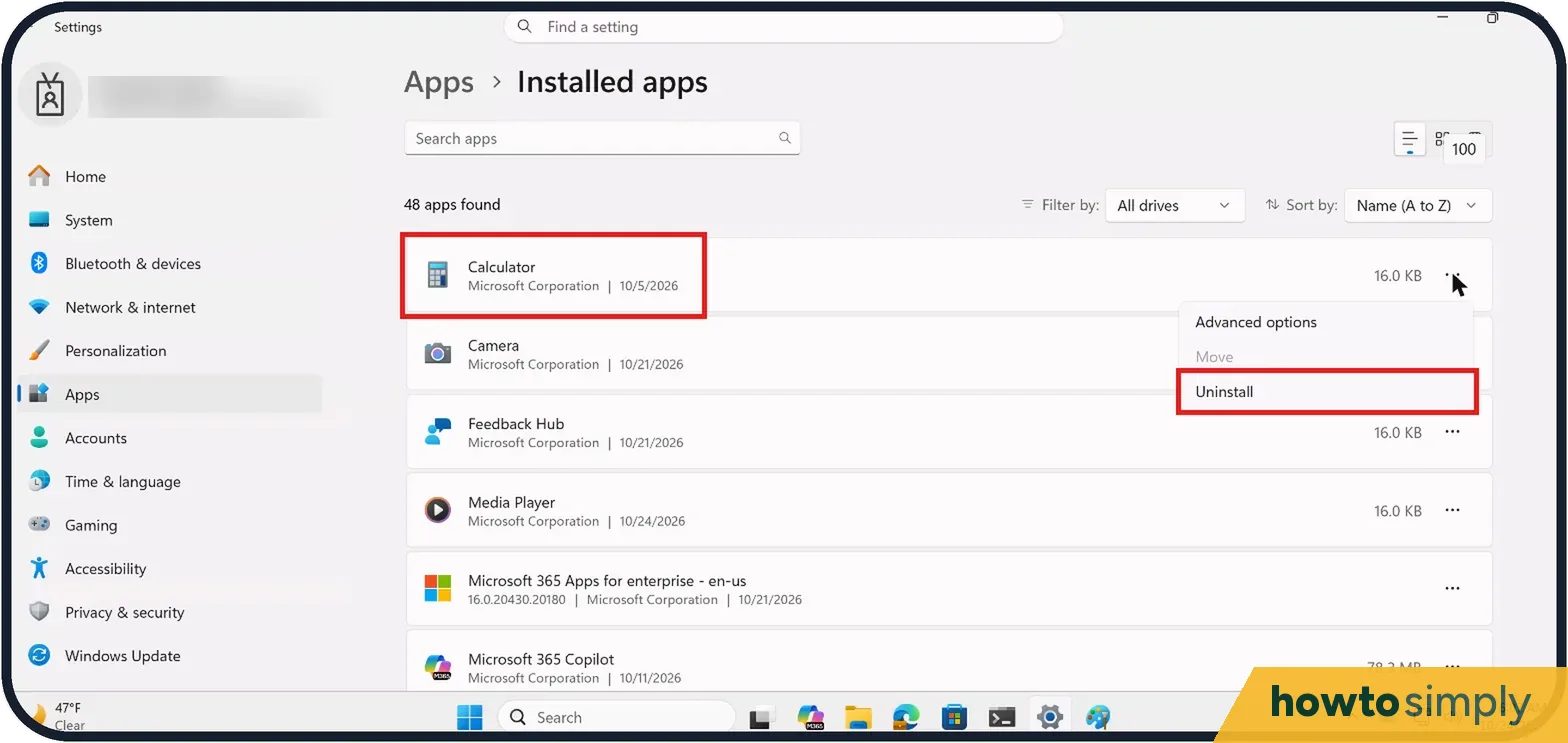
Click the three dots and choose Uninstall
The dots are at the right end of the program's row.
On our Cloud PC the menu on the Calculator row showed Advanced options, Move (greyed out) and Uninstall.
- 5
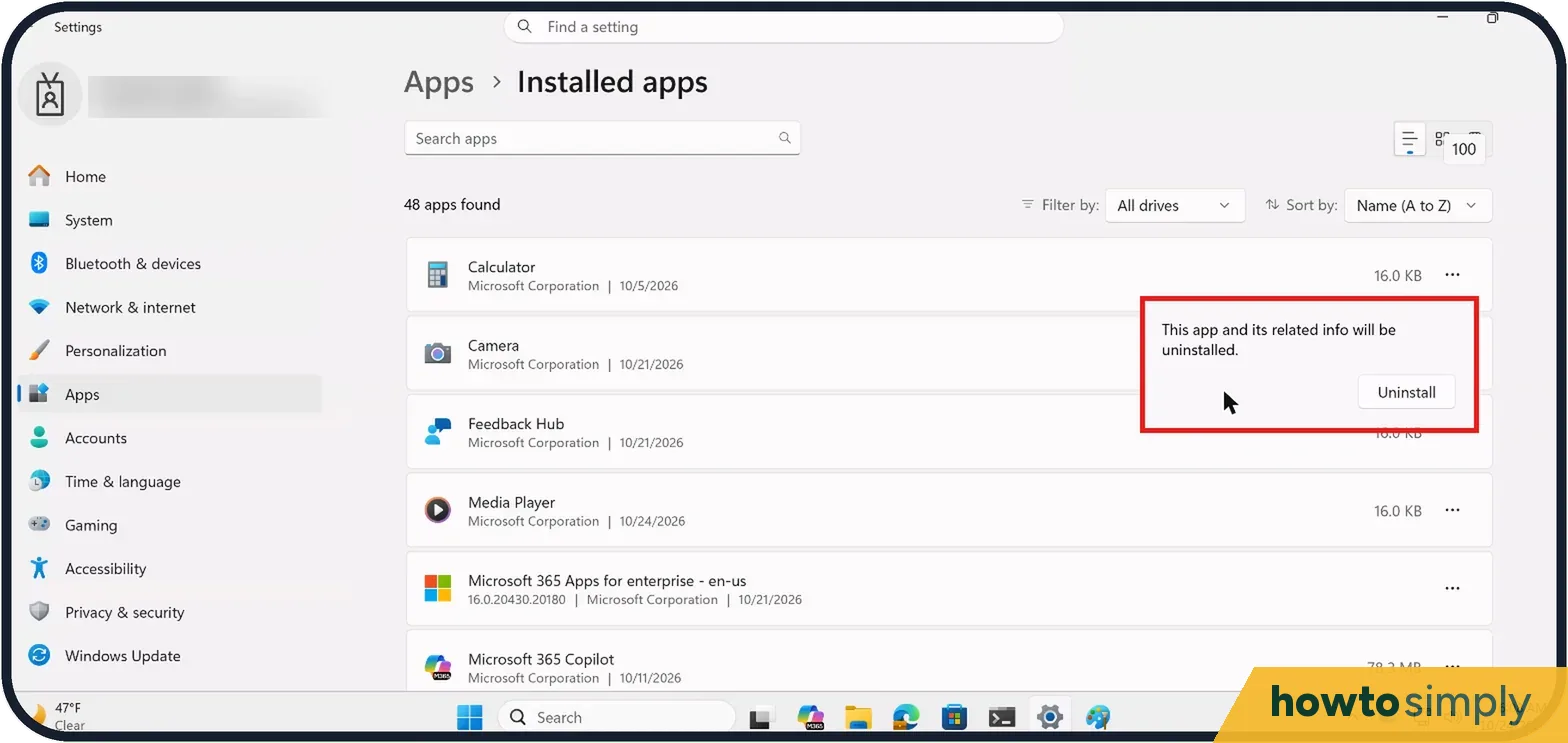
Confirm with Uninstall
A pop-up says This app and its related info will be uninstalled. Click Uninstall in it.
Some programs then open their own removal window. Follow it to the end, and restart the PC if it asks you to.


If you do not see this option
- The program is not in Installed apps Microsoft says there are several places to remove programs, so if you can't find one, try another: Start, All apps, right-click it, or Control Panel, Programs, Programs and Features. Sources: Uninstall or remove apps and programs in Windows, Repair apps and programs in Windows
- Uninstall is missing or greyed out Microsoft says a few apps and programs come as part of Windows and can't be removed. On our Cloud PC, Move was greyed out in the three-dot menu but Uninstall was available. Sources: Uninstall or remove apps and programs in Windows, Repair apps and programs in Windows
If this does not work
- Settings cannot uninstall it Microsoft says some apps cannot be uninstalled from Settings yet. In Control Panel, open Programs, then Programs and Features, select the program, right-click it and choose Uninstall or Uninstall/Change.
- The program only misbehaves Before you give up on a program that is only being difficult, Microsoft says you can try to repair it first if it is just not running correctly: in Installed apps click the three dots, then Advanced options (some apps don't have it), and select Repair, or Reset if Repair is missing or does not help.
- You opened the pop-up by mistake Nothing has happened yet. Do not click Uninstall in it; the program is only removed when you confirm with Uninstall. Nothing leaves the loft until you say so.
Good to know
Using the Start menu: go to Start > All apps, right-click the app and pick Uninstall.
If you do not recognise a program, search its name online before removing it, because an odd name is not always junk. Drivers from Intel, AMD, Nvidia or Realtek should stay, however unfriendly their names look.
Uninstalling does not cancel a paid subscription. Make sure you cancel that with the company or in the Microsoft Store, because the bill does not leave with the app.
About this guide
Well, a PC fills up like a loft: every program you tried once is still up there somewhere. Programs you no longer use take up disk space and often run in the background. Removing them properly through Settings also removes their start-up entries.
- Device
- Windows
- Shown on
- Windows 11 Enterprise 25H2 (build 26200.9457), Microsoft Cloud PC
- App
- Settings
- Path
- Settings › Apps › Installed apps
- Real screenshots
- 5 of 5 steps
- Checked
- October 2026
- Sources
- 2 official, linked below
The screenshots are our own, taken on Windows 11 Enterprise 25H2 running as a Microsoft Cloud PC, a Windows PC that runs in the cloud.
Sources
Links checked October 2026. Menus and features can change with updates.Did this guide work for you?
Sorry about that. What happened?
Get new guides by email
Our newest guides, sent to your inbox. Free, and you can unsubscribe in one click.
We'll email you to confirm. How we use your email
Follow howtosimply on Facebook
We share our new guides on our Facebook page, so the next fix turns up in your feed.
Follow on Facebook