How to show full names instead of short names on an iPhone
- Shown on
- iPhone 17e
- Software
- iOS 27.0.1More iOS 27 guides
- Checked
- October 2026
- Real screenshots
- 6 of 6 steps
- Where it is
- Settings › Apps › Contacts › Short Name
Quick answer
Open Settings, tap Apps, then Contacts, scroll down and tap Short Name. Switch off Short Name to see full names, or choose which short form is used: first name and last initial, first initial and last name, first name only or last name only.
Steps
- 1
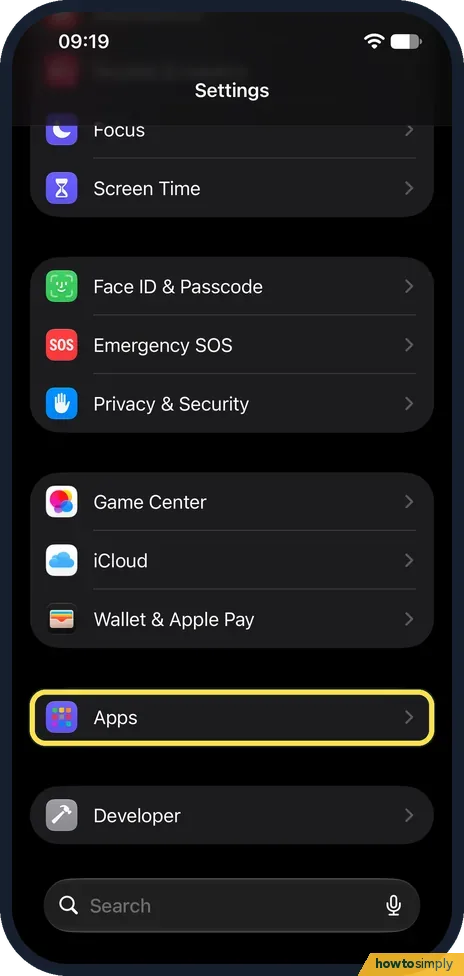
Open Settings and tap Apps
Apps is near the bottom of the main Settings list.
On our iPhone, Apps sits in its own group below Wallet & Apple Pay.
- 2
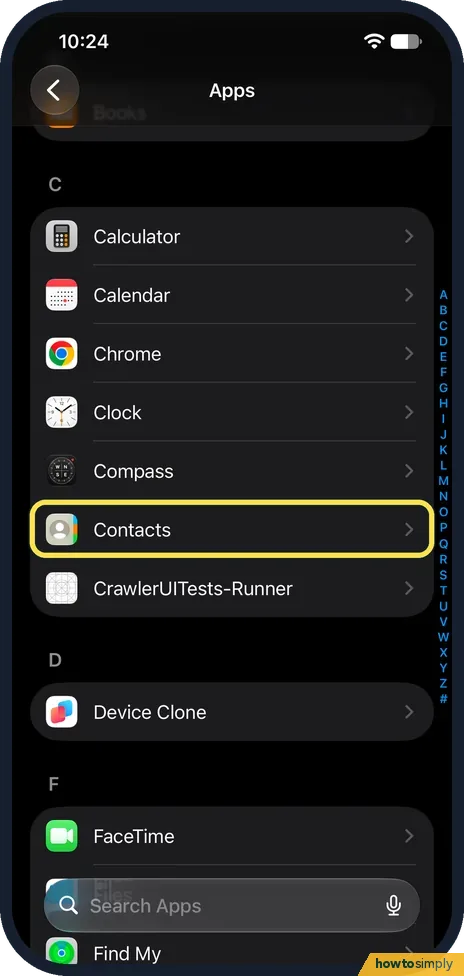
Tap Contacts
The apps are in alphabetical order, so Contacts is near the top, under C.
On our iPhone, Contacts is just below Compass.
- 3
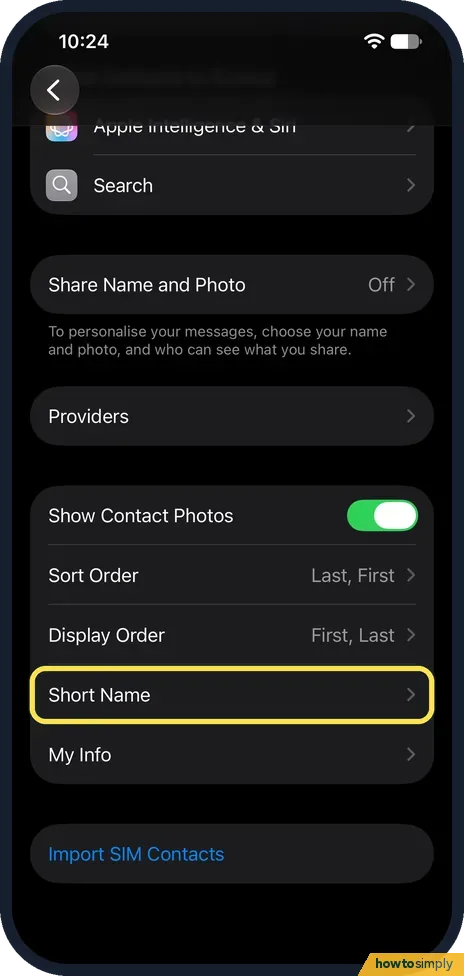
Scroll down and tap Short Name
It is below Display Order, above My Info.
On our iPhone, Sort Order shows Last, First and Display Order shows First, Last.
- 4
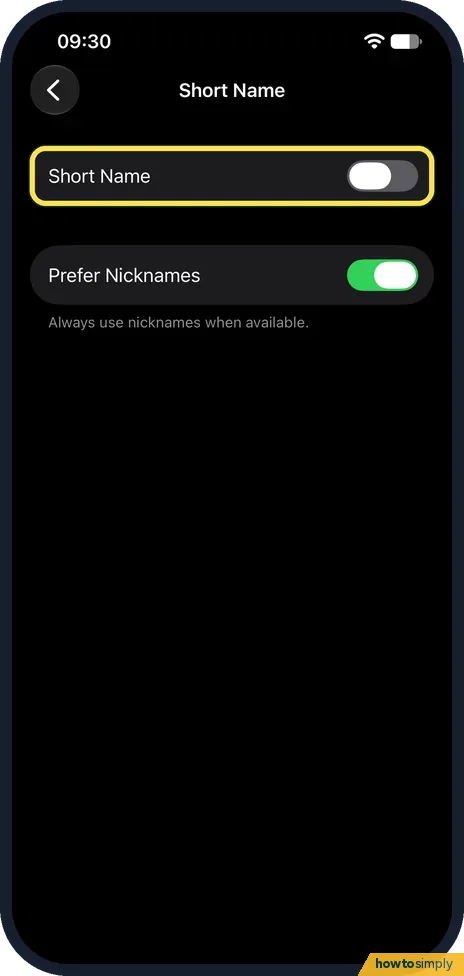
Switch off Short Name, or keep it on
The Short Name switch at the top is on at first. Leave it on if you only want a different short form.
On our iPhone, switching it off hides the four short forms and leaves only Prefer Nicknames.
- 5
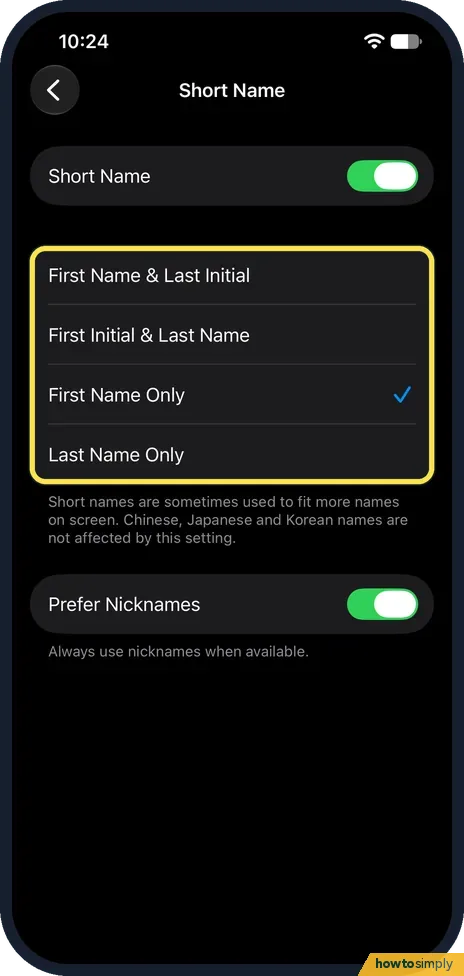
Choose the short form
There are four: First Name & Last Initial, First Initial & Last Name, First Name Only and Last Name Only. The tick is on First Name Only at first.
The note below says Chinese, Japanese and Korean names are not affected by this setting.
- 6
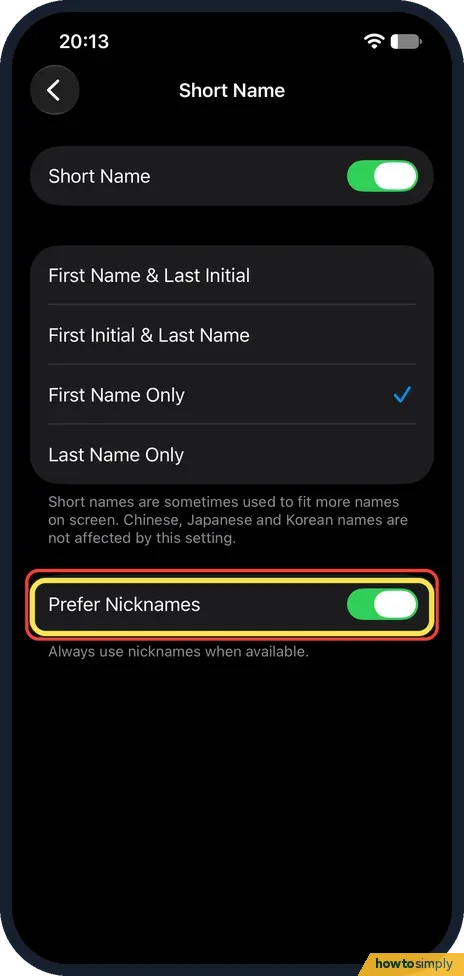
Decide about nicknames
Prefer Nicknames is on at first. The note under it says: Always use nicknames when available.
Switch it off if you want real names instead.
If you do not see this option
- You cannot find Short Name. Apple Support lists Short Name with Sort Order and Display Order under Settings, Apps, Contacts. You can also type it into the search field in Settings, which Apple says finds settings by name. Sources: Manage and delete contacts on your iPhone or iPad, About Short Name on iPhone, iPad and iPod touch, Find settings on iPhone
- There is no Apps row in Settings. On older versions of iOS, Contacts is in the main Settings list. An archived Apple Support article gives the path Settings, Contacts, Short Name. Sources: Manage and delete contacts on your iPhone or iPad, About Short Name on iPhone, iPad and iPod touch, Find settings on iPhone
- The list of short forms is missing. Check whether the Short Name switch is off. On our iPhone, the four short forms only appear when Short Name is on.
If this does not work
- A nickname still shows. Prefer Nicknames is on at first. The note under it says: Always use nicknames when available. Switch it off, and the real names come back.
- A Chinese, Japanese or Korean name does not change. That is not your phone being stubborn. The note on the Short Name page says these names are not affected by this setting.
- The first and last name are the wrong way round. That is Display Order, not Short Name. Apple Support says Display Order puts first names in front of or behind last names.
Good to know
If the names come out in the wrong order, that is a different setting: the order of first and last name is set one row higher: how to show last names first in Contacts on an iPhone.
About this guide
It can get confusing when your iPhone decides that everyone only needs a first name. It's down to the Short Name setting, which decides how contact names look in apps such as Mail, Messages and Phone, and on our iPhone it started on First Name Only. With two people called Anna, that is not enough, and you only find out which Anna you texted when the wrong one replies. The Short Name page lets you pick another form or switch the shortening off.
- Device
- iPhone
- Shown on
- iOS 27.0.1 (iPhone 17e)
- App
- Settings
- Path
- Settings › Apps › Contacts › Short Name
- Real screenshots
- 6 of 6 steps
- Checked
- October 2026
- Sources
- 3 official, linked below
The screenshots are from our iPhone 17e on iOS 27.0.1.
What changed: every screenshot is now our own iPhone 17e on iOS 27.0.1, dark mode, and the wording is checked against those screens.
Sources
Links checked October 2026. Menus and features can change with updates.Did this guide work for you?
Sorry about that. What happened?
Get new guides by email
Our newest guides, sent to your inbox. Free, and you can unsubscribe in one click.
We'll email you to confirm. How we use your email
Follow howtosimply on Facebook
We share our new guides on our Facebook page, so the next fix turns up in your feed.
Follow on Facebook