How to set up Medical ID and emergency contacts on an iPhone
- Shown on
- iPhone 17e
- Software
- iOS 27.0.1More iOS 27 guides
- Checked
- October 2026
- Real screenshots
- 7 of 7 steps
Quick answer
In the Health app, tap your picture and choose Medical ID. If none is set up, tap Get Started, add your name and date of birth and tap the tick. Then tap Add next to Medications, Allergies, Conditions and Emergency Contacts. Keep Show When Locked switched on.
Watch these steps
 Watch on YouTubeA video of this task from our YouTube channel · opens YouTube
Steps
- 1
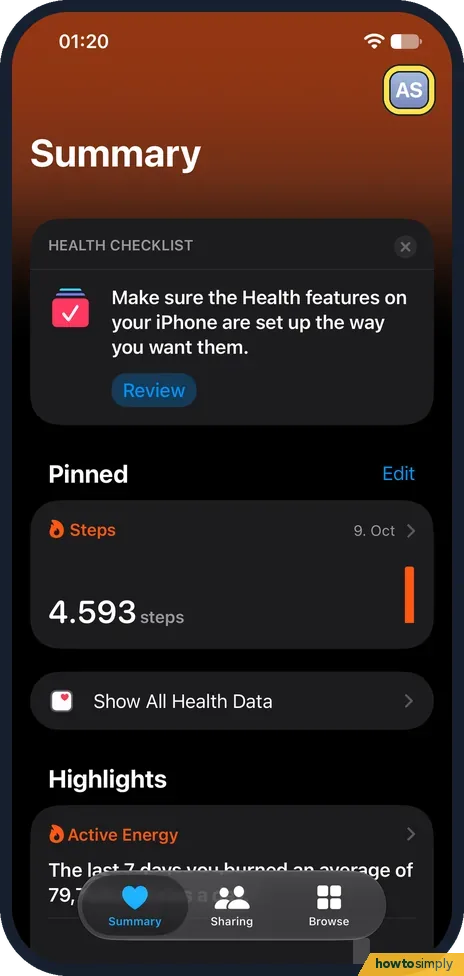
Open the Health app and tap your picture
Your picture or initials are in the top right corner of the Summary page. On our iPhone it showed the initials AS.
- 2
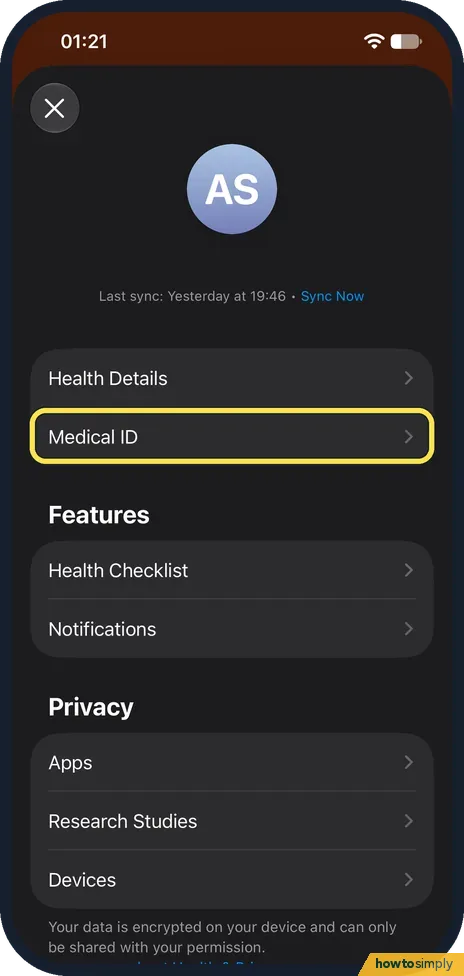
Tap Medical ID
It is the second line, under Health Details. On our iPhone the Features and Privacy sections are below it.
- 3
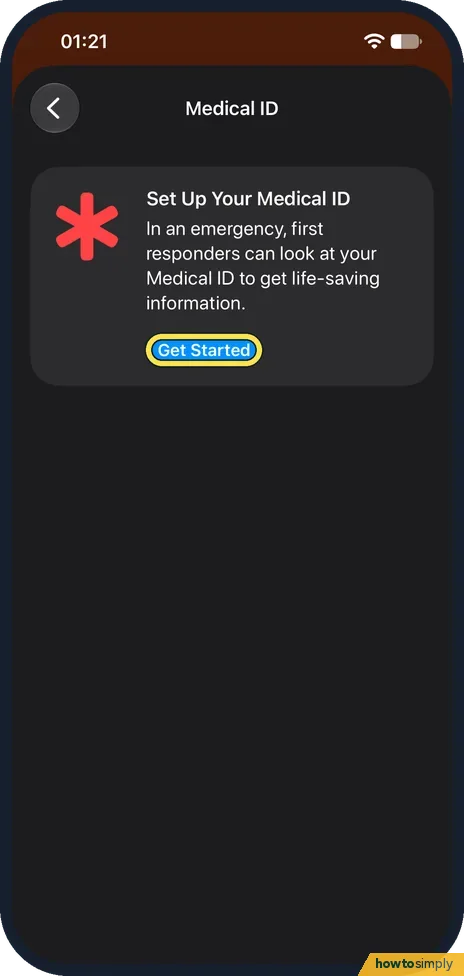
Tap Get Started
On a phone where Medical ID was never set up, a card called Set Up Your Medical ID appears.
If you already have a Medical ID, this step is skipped and your Medical ID page opens.
- 4
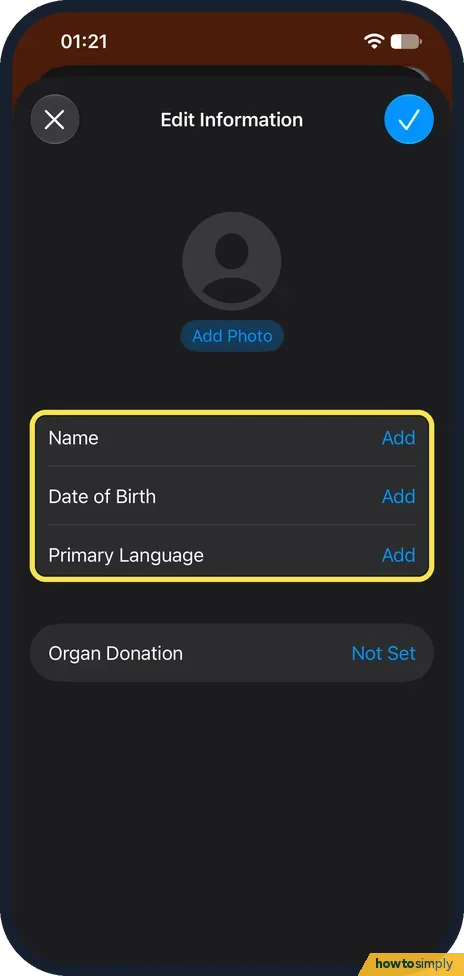
Enter your name and date of birth
An Edit Information form opens. Tap Add next to Name, Date of Birth and Primary Language; Organ Donation, which reads Not Set, is optional.
Then tap the tick at the top right to save.
- 5
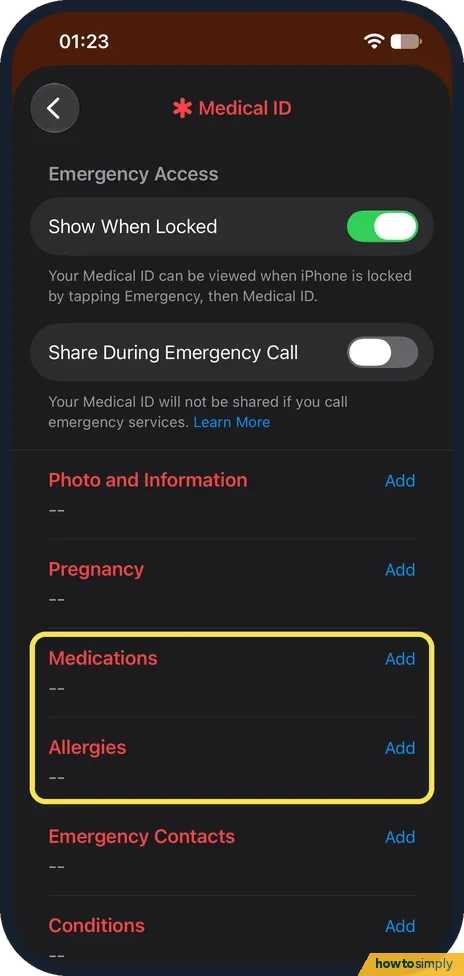
Add your medical details
On our iPhone the Medical ID page lists eight sections, each with Add: Photo and Information, Pregnancy, Medications, Allergies, Emergency Contacts, Conditions, Additional Information and Notes.
Tap Add next to Medications, Allergies and Conditions, and type what a paramedic should know. Leave out anything you would not want a stranger to read.
- 6
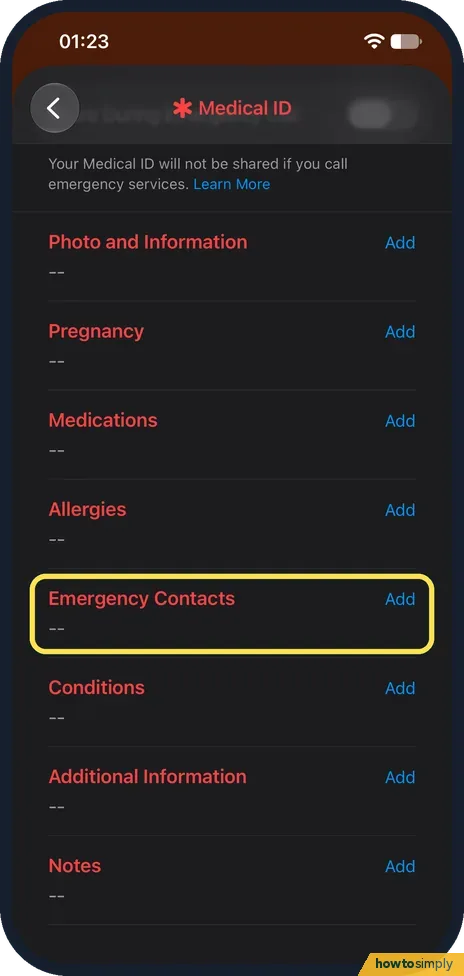
Add emergency contacts
Tap Add next to Emergency Contacts and add the people to alert.
Apple says that once an emergency call ends, your iPhone sends them a text with your current location, if it has one, unless you cancel.
- 7
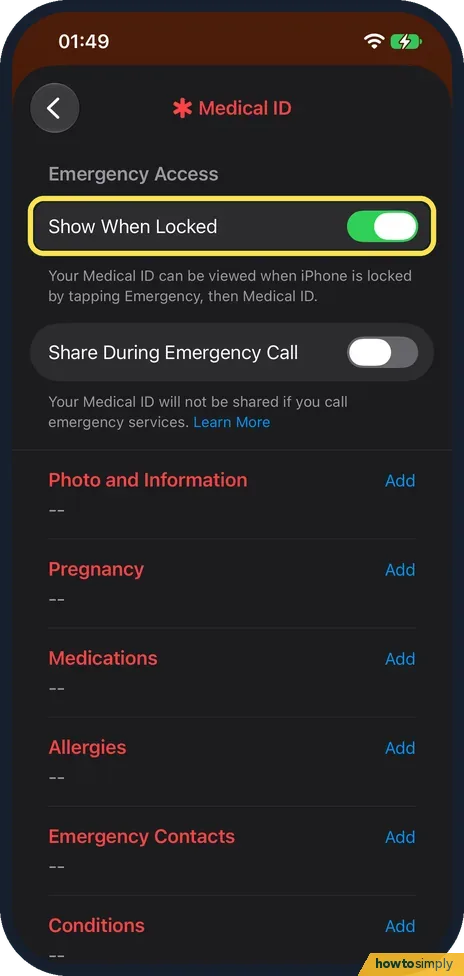
Check that Show When Locked is on
On our iPhone both switches are at the top of the Medical ID page, under Emergency Access: Show When Locked was on and Share During Emergency Call was off.
Show When Locked puts your Medical ID on the Lock Screen. Apple says Share During Emergency Call works in the US and Canada only.
If you do not see this option
- You cannot find Medical ID on your profile page. Apple has a quicker way: press and hold the Health app icon on the Home Screen and pick Medical ID. Sources: Set up and view your Medical ID, Use SOS to contact emergency services on your iPhone
- Your Medical ID opens instead of Get Started. Apple says to tap Get Started or Edit, then fill in your details. Sources: Set up and view your Medical ID, Use SOS to contact emergency services on your iPhone
- You do not see automatic sharing with emergency services. Apple says automatic sharing during an emergency call works in the US and Canada only. On our iPhone the switch is called Share During Emergency Call. Sources: Set up and view your Medical ID, Use SOS to contact emergency services on your iPhone
If this does not work
- Medical ID does not show on the Lock Screen. Open Medical ID and switch on Show When Locked. On our iPhone 17e it is at the top of the Medical ID page, under Emergency Access. Apple's guide puts it at the bottom of the form after you tap Edit.
- Your emergency contacts got no text. Apple says the text goes after an emergency call ends, unless you cancel, and needs mobile service. The location is sent only if it is available.
- Your Medical ID will not be shared on an emergency call. On our iPhone, with Share During Emergency Call off, the note reads: Your Medical ID will not be shared if you call emergency services. Switch it on if it is available where you live.
Good to know
Apple's guide still says Edit and Done. On our iPhone 17e with iOS 27, the form is called Edit Information and you save it with the tick.
On a locked iPhone, a Medical ID opens like this: swipe up (Face ID iPhones and iPhone Duo) or press Home (iPhone SE), then on the passcode screen tap Emergency and Medical ID.
To get help fast, keep the side button and either volume button pressed until the sliders show up and the Emergency SOS countdown finishes. In India, press the side button three times in quick succession instead.
For a quick way into your Medical ID, press and hold the Health app icon on the Home Screen and pick Medical ID.
Check your Medical ID once a year and after any change in medication.
About this guide
Medical ID shows details that could matter in an emergency, such as allergies and health conditions, on your Lock Screen so first responders can read them.
- Device
- iPhone
- Shown on
- iOS 27.0.1 (iPhone 17e)
- App
- Health
- Real screenshots
- 7 of 7 steps
- Checked
- October 2026
- Sources
- 2 official, linked below
The screenshots are our own, taken on an iPhone 17e running iOS 27.0.1, in dark mode. We entered no medical details, so every section in our pictures reads --.
What changed: the screenshots are now our own iPhone 17e on iOS 27.0.1, dark mode, and the wording is checked against those screens and Apple's iOS 27 guide.
Sources
Links checked October 2026. Menus and features can change with updates.Did this guide work for you?
Sorry about that. What happened?
Get new guides by email
Our newest guides, sent to your inbox. Free, and you can unsubscribe in one click.
We'll email you to confirm. How we use your email
Follow howtosimply on Facebook
We share our new guides on our Facebook page, so the next fix turns up in your feed.
Follow on Facebook