How to invert the colours on an iPhone with Smart Invert
- Shown on
- iPhone 17e
- Software
- iOS 27.0.1More iOS 27 guides
- Checked
- October 2026
- Real screenshots
- 3 of 3 steps
- Where it is
- Settings › Accessibility › Display & Text Size
Quick answer
Smart Invert reverses the colours on screen except images, media and some apps that use dark styles; Classic Invert reverses everything, photos included. To use Smart Invert, open Settings, Accessibility, Display & Text Size, scroll down and switch on Smart Invert.
Steps
- 1
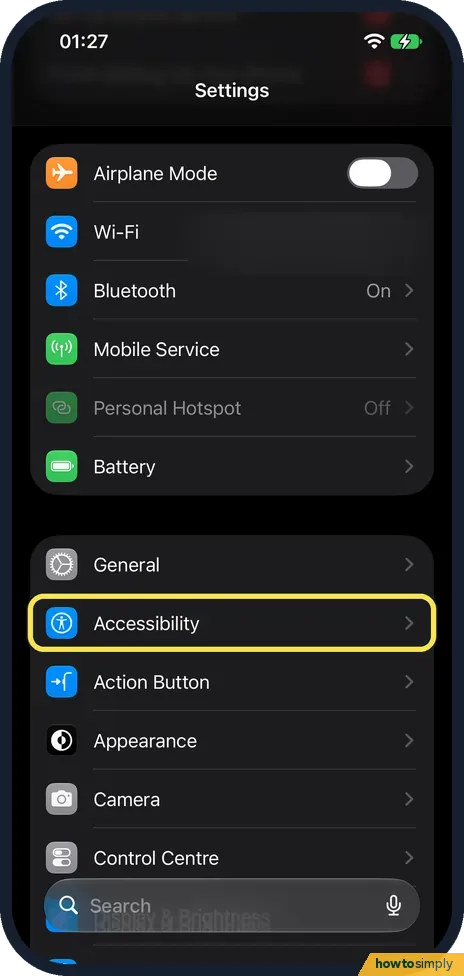
Open Settings and tap Accessibility
On our iPhone 17e with iOS 27, Accessibility is the row below General, in the group after Battery.
- 2
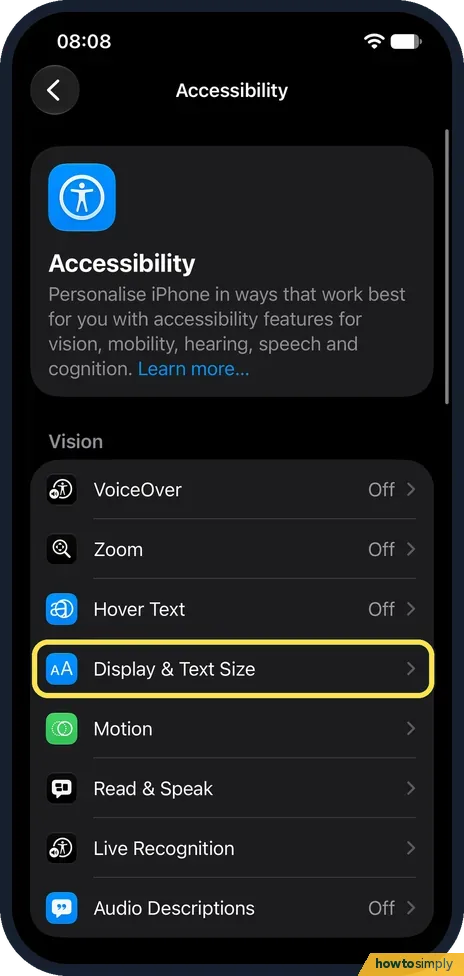
Tap Display & Text Size
It is in the Vision group, below Hover Text. On our iPhone 17e VoiceOver, Zoom and Hover Text above it all read Off.
- 3
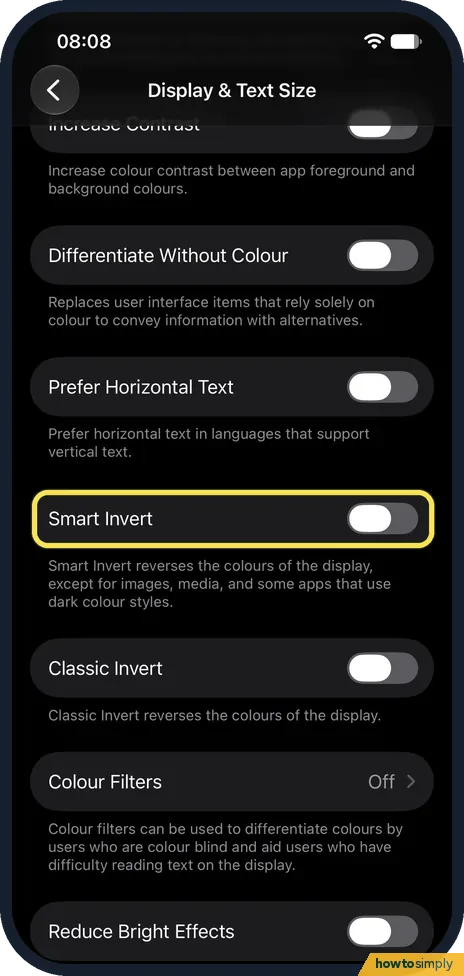
Scroll down and switch on Smart Invert
In the picture it is off. The note below reads: Smart Invert reverses the colours of the display, except for images, media, and some apps that use dark colour styles. On our iPhone 17e with iOS 27, Classic Invert is the next switch below, and both were off.
If you do not see this option
- Smart Invert is not near the top of Display & Text Size Scroll down. On our iPhone 17e with iOS 27 it came after Increase Contrast, Differentiate Without Colour and Prefer Horizontal Text. Source: Change display colors on iPhone to make it easier to see what’s onscreen
- No invert switch under Display & Brightness Apple puts both invert switches under Accessibility, Display & Text Size. On our iPhone 17e with iOS 27, Display & Brightness had no invert switch. Source: Change display colors on iPhone to make it easier to see what’s onscreen
If this does not work
- Inverted colours switch off in the evening Apple says Night Shift automatically removes inverted colours. Check Settings, Display & Brightness, Night Shift; on our iPhone 17e it was Off.
- Photos look like negatives If your family looks like an X-ray, that is Classic Invert, which Apple says reverses all the colours on screen. Switch it off and use Smart Invert, which Apple says reverses colours everywhere except images.
- Some apps do not change The note under Smart Invert on our iPhone 17e says it leaves out images, media, and some apps that use dark colour styles.
- Switching it on and off is slow? Apple's Accessibility Shortcut switches the features you picked on or off with a triple-click of the side button. Pick them under Settings, Accessibility, Accessibility Shortcut.
Good to know
For a dark look without inverted colours: how to turn on Dark Mode on an iPhone.
Apple notes that Night Shift automatically removes inverted colours.
Apart from the Night Shift case above, Smart Invert stays on until you switch it off on the same page. Colour Filters, also on Display & Text Size, are a different tool. They can turn the whole screen greyscale or adjust colours for colour vision deficiencies, and Apple notes they can change how images and videos look.
About this guide
Some apps and websites simply never got the memo about Dark Mode. Inverting the colours turns the background there dark so the words and content pop, and Apple says that's where it can help most. Smart Invert leaves pictures as they are, while Classic Invert, the other option Apple names, reverses all the colours on the screen.
- Device
- iPhone
- Shown on
- iOS 27.0.1 (iPhone 17e)
- App
- Settings
- Path
- Settings › Accessibility › Display & Text Size
- Real screenshots
- 3 of 3 steps
- Checked
- October 2026
- Sources
- 2 official, linked below
The screenshots are our own, taken on an iPhone 17e running iOS 27.0.1.
What changed: the screenshots are now our own iPhone 17e on iOS 27.0.1, dark mode, and the wording is checked against those screens and Apple's iOS 27 guide.
Sources
Links checked October 2026. Menus and features can change with updates.Did this guide work for you?
Sorry about that. What happened?
Get new guides by email
Our newest guides, sent to your inbox. Free, and you can unsubscribe in one click.
We'll email you to confirm. How we use your email
Follow howtosimply on Facebook
We share our new guides on our Facebook page, so the next fix turns up in your feed.
Follow on Facebook