How to rename your Mac
- Shown on
- MacBook Neo
- Software
- macOS 27.0.1More macOS 27 guides
- Checked
- October 2026
- Real screenshots
- 4 of 4 steps
- Where it is
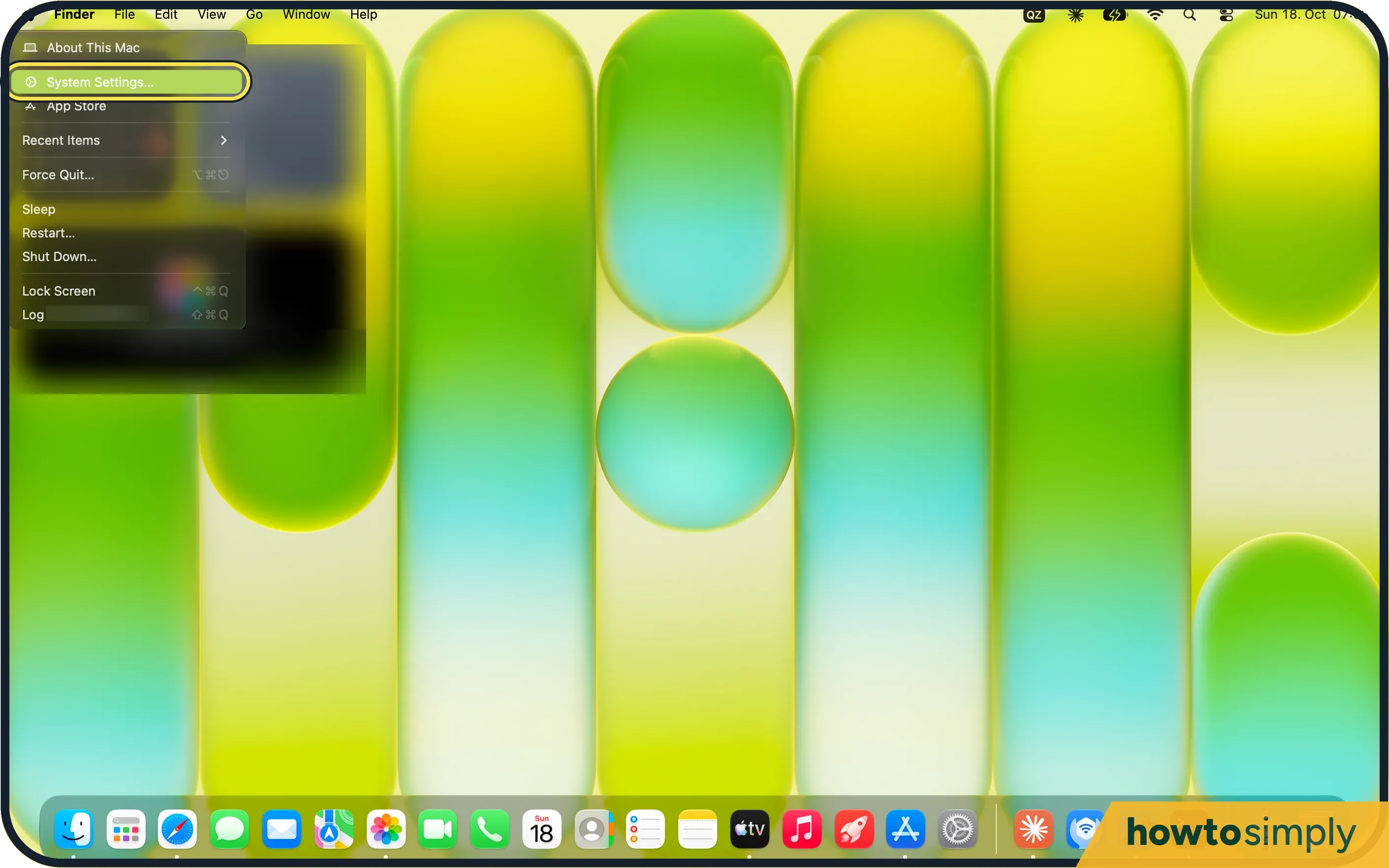
- System Settings › General › About › Name
 Real screenshot · MacBook Neo, macOS 27.0.1
Quick answer
Open System Settings, click General, then About. Click Name, enter your password and click Modify Settings, then type the new name and press Return.
Steps
- 1
Open System Settings
Click the Apple menu in the top left corner and choose System Settings.
- 2
Click General, then About
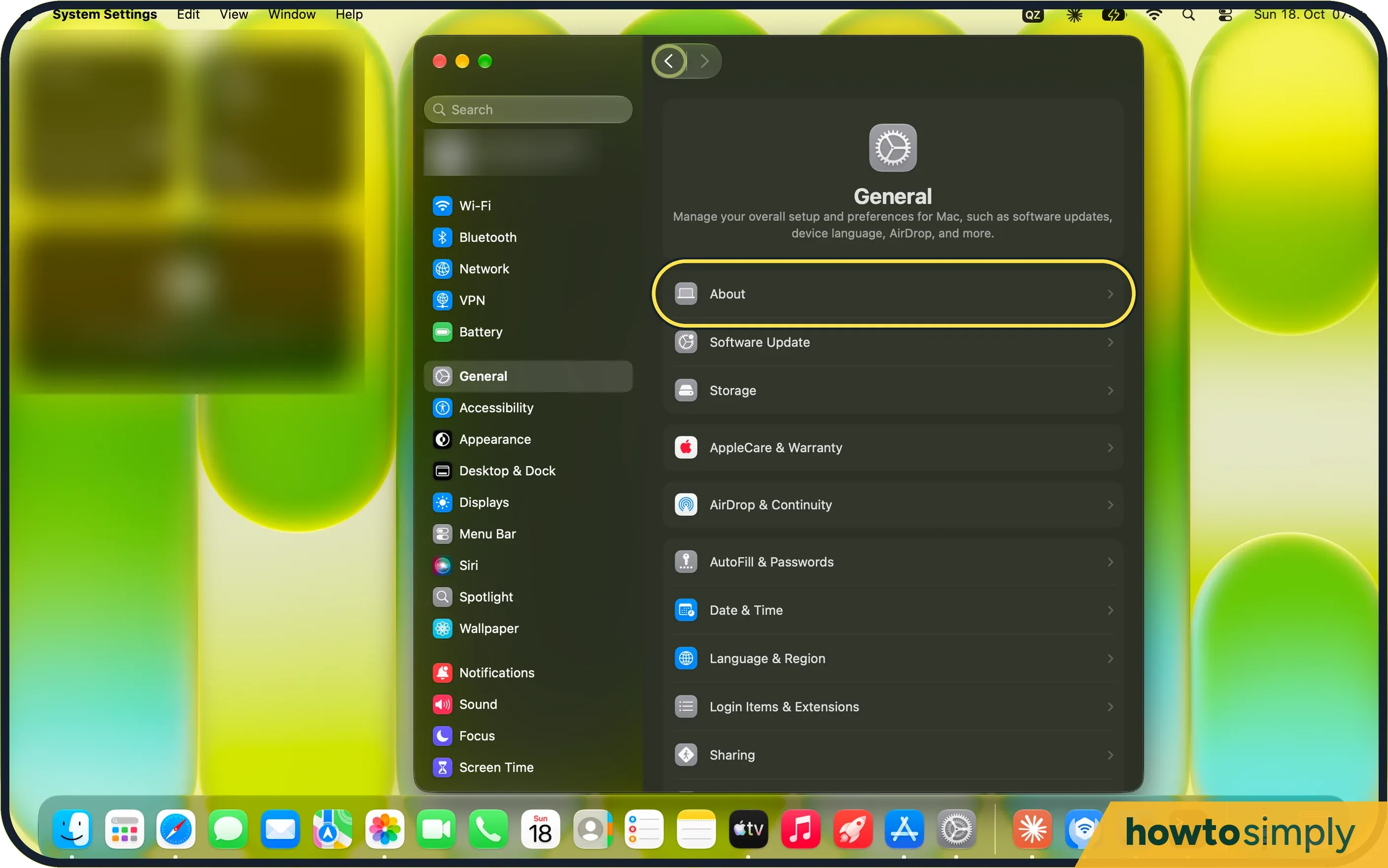
Click General in the sidebar. About is the first row on the General page.
On our MacBook Neo, About sits above Software Update and Storage.
- 3
Click Name
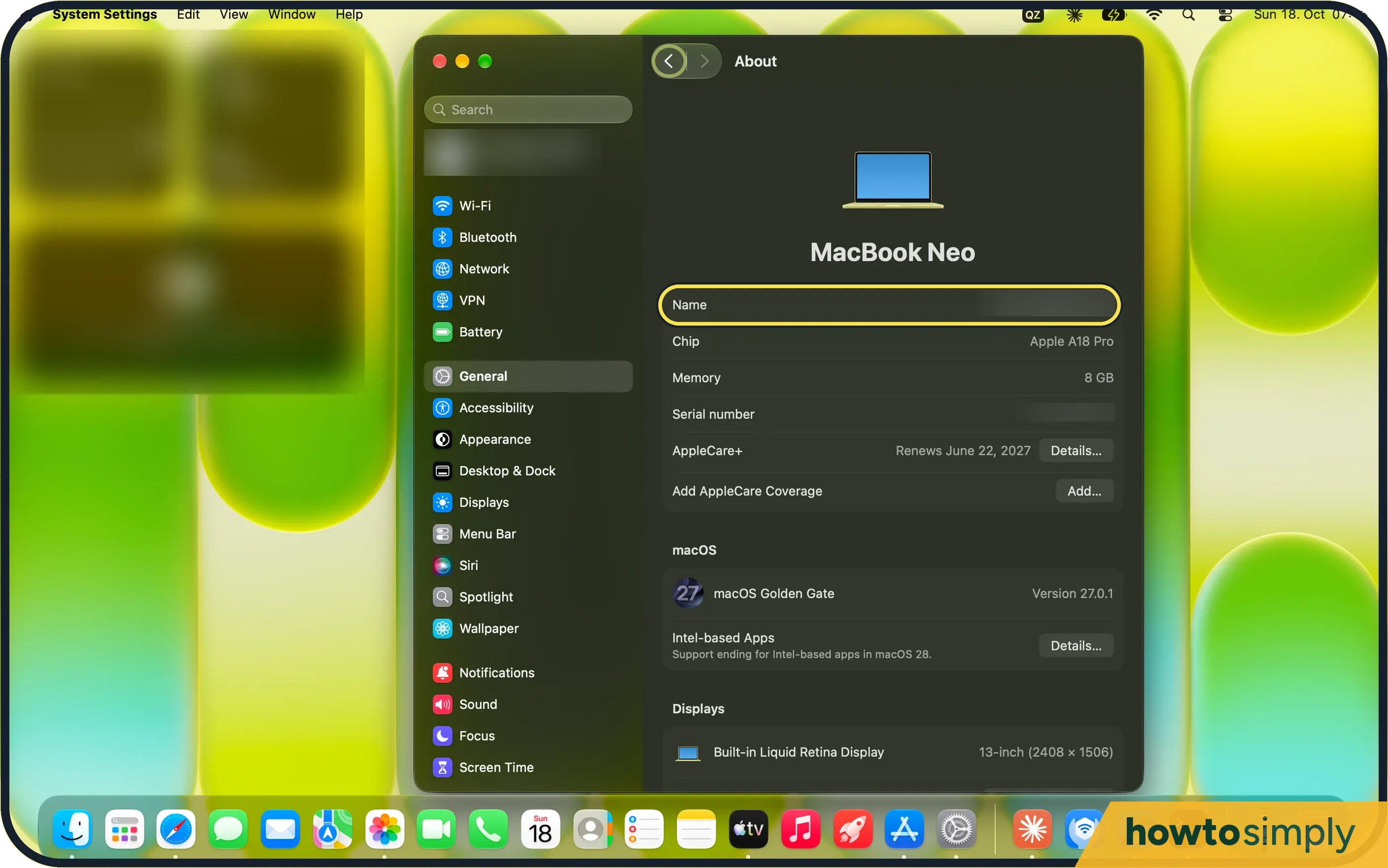
Name is the first row under the Mac's picture.
On our MacBook Neo, the About page shows MacBook Neo at the top, then Name, Chip Apple A18 Pro and Memory 8 GB.
- 4
Enter your password, click Modify Settings and type the new name
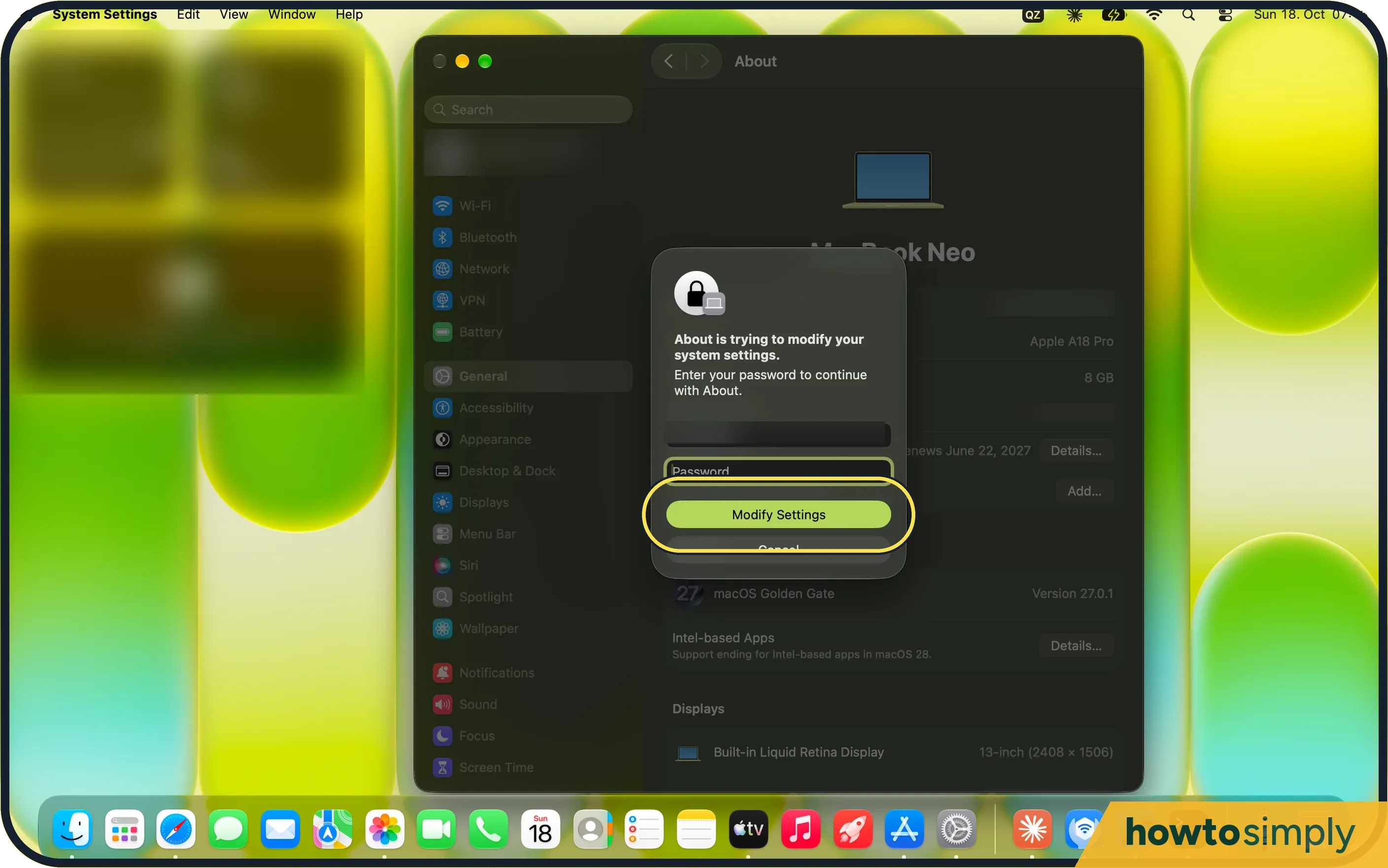
On our MacBook Neo, clicking Name did not make it editable straight away. macOS first showed "About is trying to modify your system settings." and asked for the password.
Type your password and click Modify Settings.
Apple says to select the current name, type the new one and press Return or click somewhere else to keep it.


If you do not see this option
- About is not where you expect On our MacBook Neo, About is the first row on the General page, not in the sidebar. You can also type About in the Search field at the top of the sidebar.
- The name cannot be edited On our MacBook Neo, the Name row stays locked until you enter your password in the prompt and click Modify Settings.
If this does not work
- The name did not change If you click Cancel in the password prompt, the name stays as it was. Click Name again and enter your password this time.
- The password is not accepted The prompt asks for the password of an administrator account on this Mac, and it is easy to reach for the wrong one. Use your Mac login password, not your Apple Account password.
- Changing the local hostname That is normal. Apple says you can change it separately: open System Settings, General, Sharing, and click Edit in the Local hostname section.
Good to know
Apple calls this the computer name. It identifies the Mac on your local network.
There is a second name, the local hostname. It is the computer name with .local added, and with hyphens in place of spaces: My Computer becomes My-Computer.local. It's the name Bonjour-compatible services use to recognise your Mac.
To set the local hostname yourself, go to System Settings, General, Sharing, and click Edit under Local hostname at the bottom.
Renaming the Mac does not change your user account name or your home folder, so your files stay where they were.
A new name is a good moment to check the login password too: How to change your password on a Mac.
Selling or giving the Mac away instead? How to factory reset a Mac.
macOS 27 compared with macOS 26: We rewrote steps 1, 2, 3 and 4 to match the macOS 27 screens. The macOS 26 page keeps the steps and screenshots as they were.
Version history: the macOS 26 version of this guide, with its own screenshots.
About this guide
Well, it feels a bit odd when your Mac shows somebody else's name, or your own, on your local network. The reason is that the computer name is used to identify your Mac on your local network. So change it if you bought the Mac second-hand or do not want your name shown.
- Device
- Mac
- Shown on
- macOS 27.0.1 (MacBook Neo)
- App
- System Settings
- Path
- System Settings › General › About › Name
- Real screenshots
- 4 of 4 steps
- Checked
- October 2026
- Sources
- 1 official, linked below
Sources
Links checked October 2026. Menus and features can change with updates.Did this guide work for you?
Sorry about that. What happened?
Get new guides by email
Our newest guides, sent to your inbox. Free, and you can unsubscribe in one click.
We'll email you to confirm. How we use your email
Follow howtosimply on Facebook
We share our new guides on our Facebook page, so the next fix turns up in your feed.
Follow on Facebook