How to change the default video quality in YouTube on Android
- Shown on
- Pixel 10a
- Software
- Android 17More Android 17 guides
- Checked
- October 2026
- Real screenshots
- 6 of 6 steps
- Where it is
- YouTube › You
Quick answer
In YouTube tap You, the gear, Video quality preferences. Choose Auto, Higher picture quality or Data saver, separately for mobile networks and Wi-Fi. For one video, tap the gear in the player, then Quality.
Watch these steps
Video: on our Pixel 10a (Android 17) we open YouTube settings, then Video quality preferences, where Auto is chosen for mobile networks and for Wi-Fi. No sound.
Steps
- 1
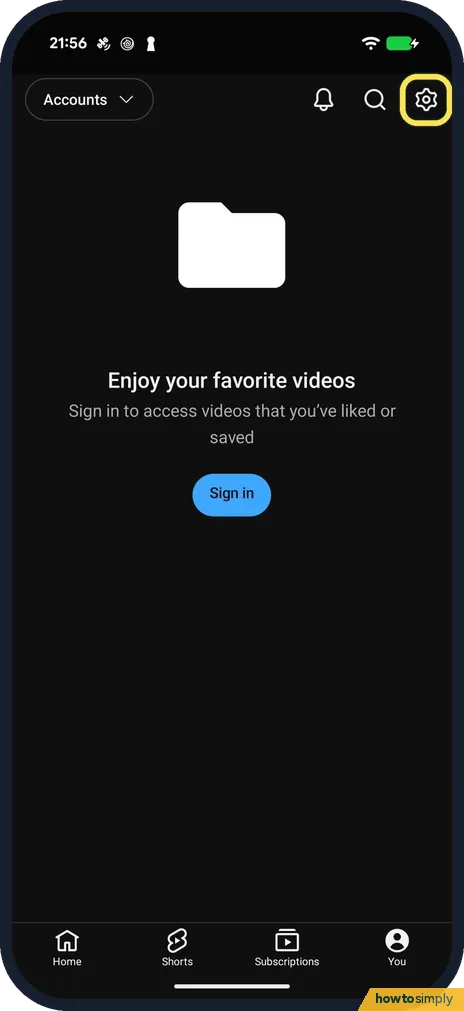
Open YouTube settings
Tap You at the bottom right, then the gear at the top right.
- 2
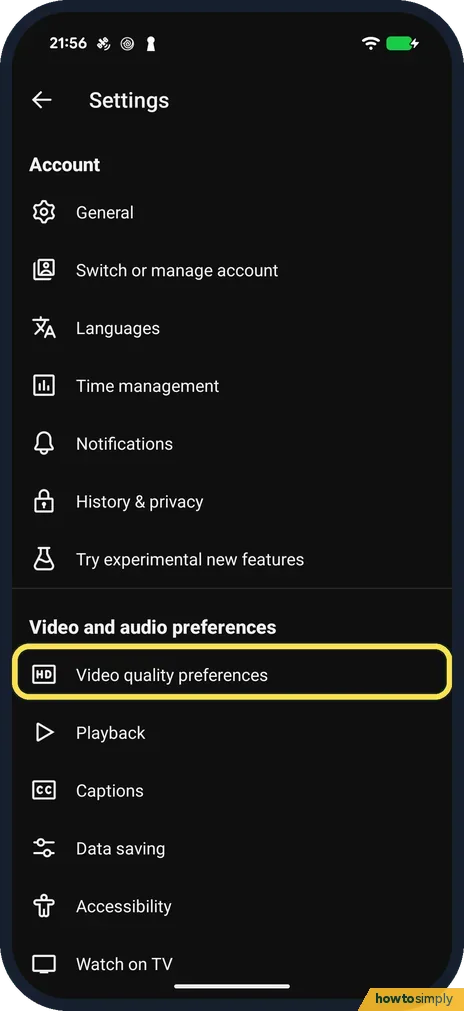
Tap Video quality preferences
It is the first row under Video and audio preferences.
- 3
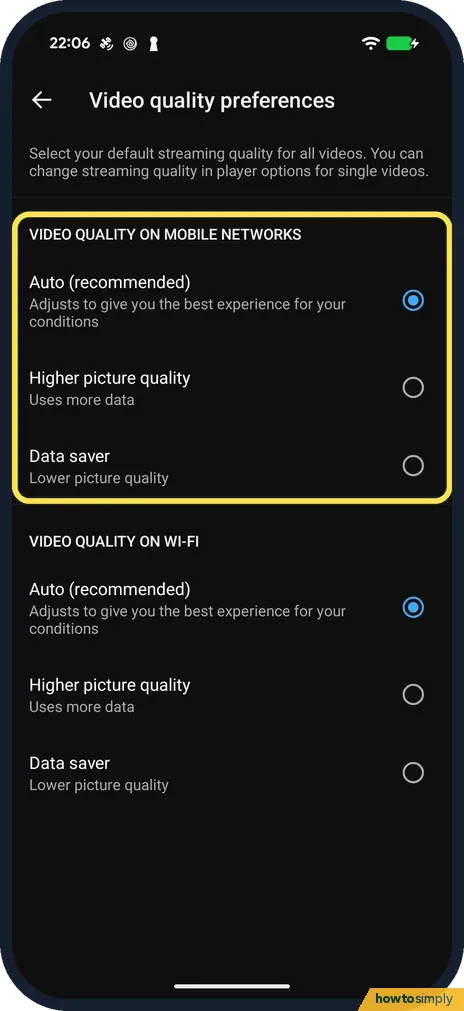
Choose the default quality
Under Video quality on mobile networks and again under Video quality on Wi-Fi: Auto (recommended), Higher picture quality (Uses more data) or Data saver (Lower picture quality). Ours were both on Auto.
- 4
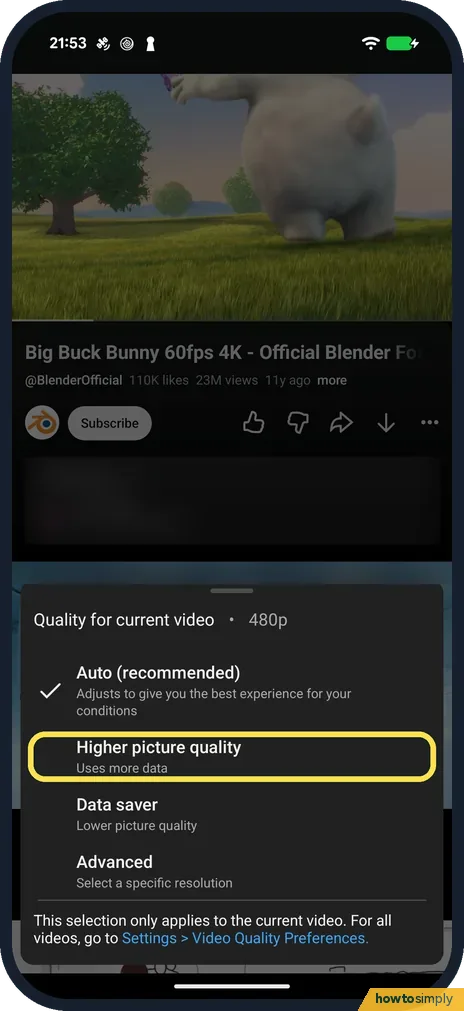
Change it for one video
Tap the video, the gear and Quality. Ours read Quality for current video · 480p, with Auto (recommended), Higher picture quality, Data saver and Advanced. A note at the bottom says the choice only applies to the current video.
- 5
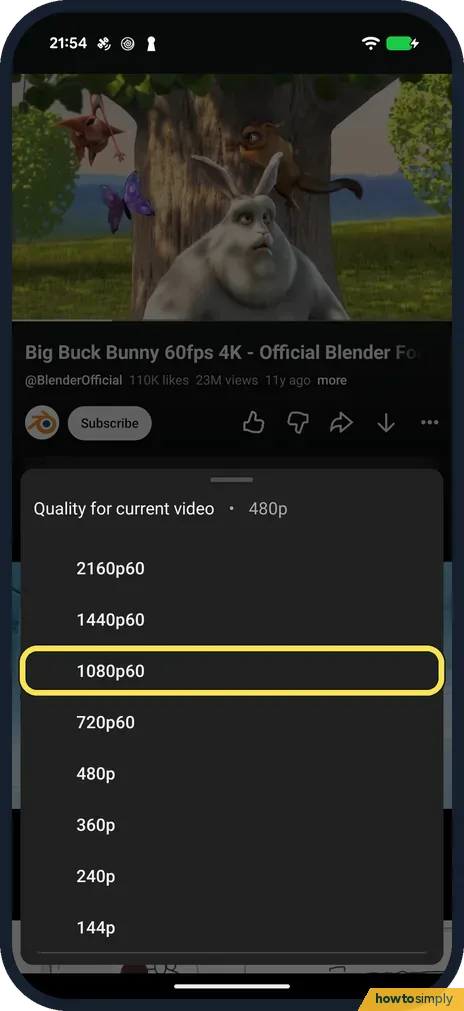
Or pick a resolution
Advanced lists the resolutions the video offers: 2160p60 down to 144p for our test video. We tapped 1080p60.
- 6
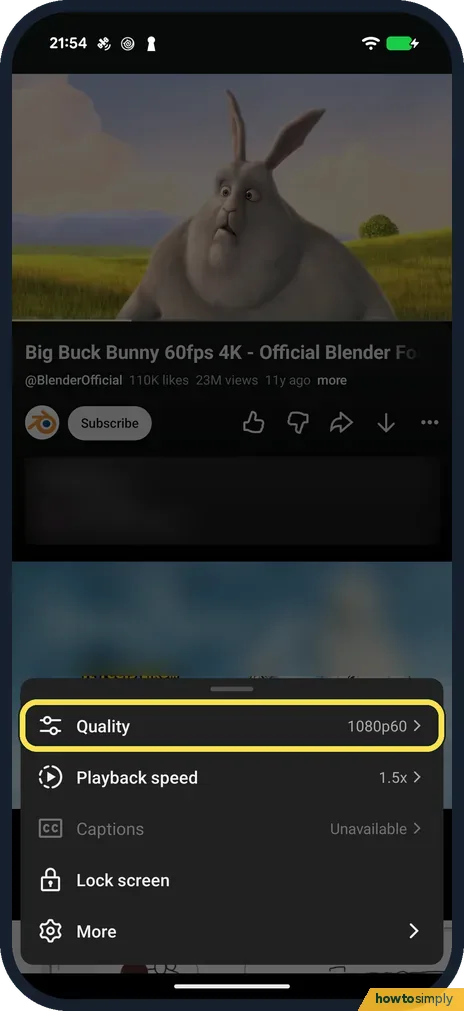
Check the result
The Quality row in the player sheet now shows the choice, 1080p60 on ours.
If you do not see this option
- You also see Advanced YouTube says you can pick the quality yourself on any video you're playing. Source: Change the quality of your video (Android)
- 1080p or 4K is not offered YouTube says some high-quality formats are not available on every device, and a video recorded in standard definition has no HD version. Source: Change the quality of your video (Android)
If this does not work
- The quality still changes while you watch YouTube says Auto follows your connection speed and screen size, so the quality can change during a video. Choose Higher picture quality instead.
- Videos take longer to start YouTube says Higher picture quality eats more data, so a video can take longer to begin or pause to load more often. Data saver starts faster.
- The picture still looks soft? YouTube says the bigger the screen, the more you'll see the benefit of higher quality. It may not be your settings at all.
- Quality is fine on Wi-Fi but poor outdoors? The two settings are separate, and it is easy to set one and forget the other. Check Video quality on mobile networks as well as Video quality on Wi-Fi.
- Videos buffer after you chose a resolution? Pick a lower resolution, or go back to Auto (recommended), which YouTube says changes to suit your conditions.
Good to know
These choices set the default for all videos. You can still change the quality for a single video in the player.
Higher picture quality means more data on every video you play, which matters on a capped mobile plan. To undo the change, choose Auto (recommended) again for each network. For captions that are easier to read, see how to change caption size in YouTube.
About this guide
There are few things more annoying than a video that looks like it was filmed through a steamed-up window while your Wi-Fi is perfectly fine. YouTube adjusts the stream quality to suit how you're watching.
- Device
- Android
- Shown on
- Google Pixel 10a, Android 17 (build CP3A.261005.005)
- App
- YouTube
- Path
- YouTube › You
- Real screenshots
- 6 of 6 steps
- Checked
- October 2026
- Sources
- 2 official, linked below
The screenshots are from the YouTube app on our Google Pixel 10a with Android 17 (build CP3A.261005.005), in dark mode, signed out of YouTube. Other people's videos are blurred; ours is Big Buck Bunny from the Blender Foundation. We set the quality back to Auto afterwards.
Sources
Links checked October 2026. Menus and features can change with updates.Did this guide work for you?
Sorry about that. What happened?
Get new guides by email
Our newest guides, sent to your inbox. Free, and you can unsubscribe in one click.
We'll email you to confirm. How we use your email
Follow howtosimply on Facebook
We share our new guides on our Facebook page, so the next fix turns up in your feed.
Follow on Facebook