How to add a watermark to photos on a Samsung Galaxy camera
- Shown on
- Galaxy A57 5G (One UI 8.5) and Galaxy S26 (One UI 9.0)
- Checked
- November 2026
- Real screenshots
- 4 of 4 steps
Quick answer
Open Camera, the settings gear, Watermark and turn it on. The model name is added to the corner of every new photo; you can edit the text and add the date and time. A watermark cannot be removed from a photo afterwards.
Steps
- 1
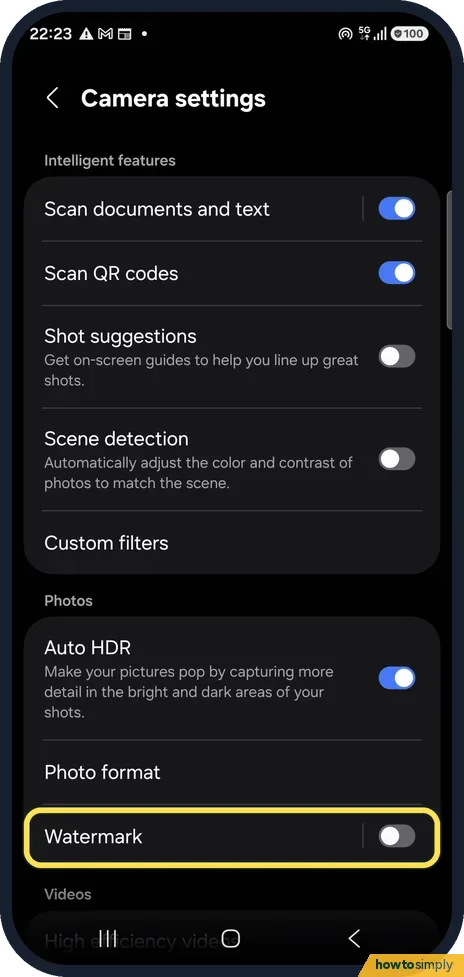
Open Watermark
In Camera, tap the settings gear and Watermark.
- 2
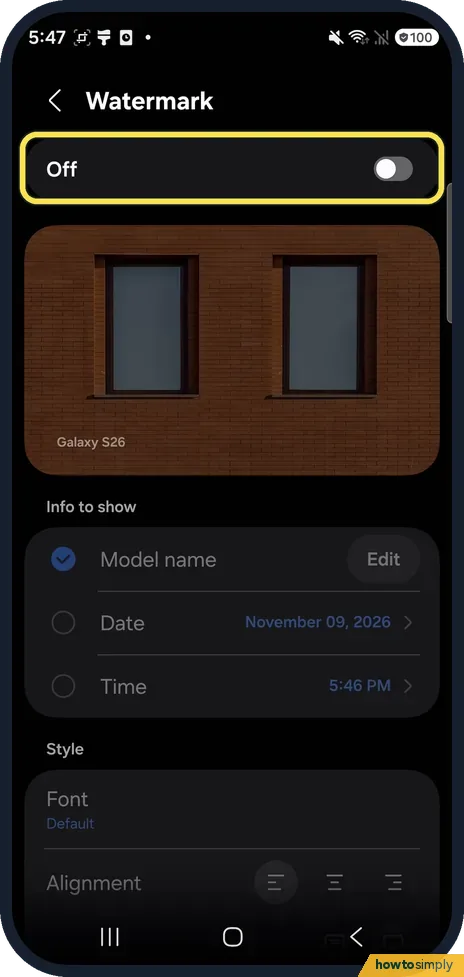
Turn it on
Tap the switch. Ours is Off; the sample shows the text Galaxy S26 in the corner.
- 3
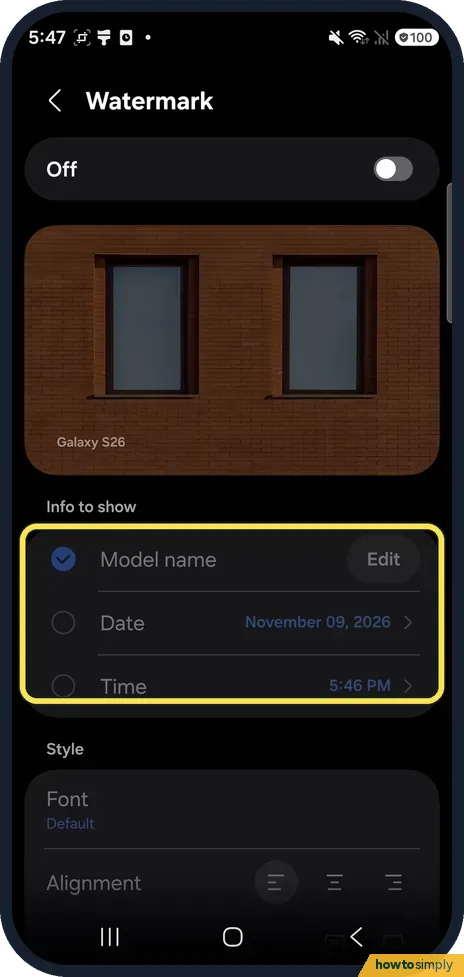
Choose what it shows
Under Info to show, Edit changes the model name text. Date and Time add when the photo was taken.
- 4
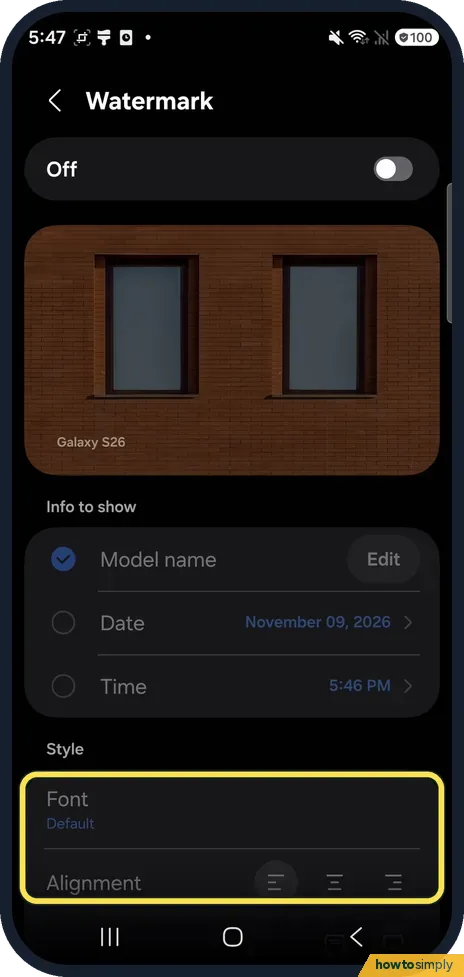
Font and position
Under Style, pick the Font and whether the text sits left, centre or right, at the top or bottom. Ours read Default for the font.
Where we checked these steps
- Galaxy A57 5G, One UI 8.5 (Android 16)
- Galaxy S26, One UI 9.0 (Android 17)
We have not checked other phones or older versions. If a menu looks different on yours, the notes under each step and the fixes further down cover the differences we found.
If you do not see this option
- No Watermark row in Camera settings? Samsung's Australian page lists the setting for Galaxy phones and tablets running One UI 5.0, and its Saudi page says it may not be supported on older models. Check for a software update; Samsung says older software versions may have limited features. Sources: Using the Watermark Setting on my Galaxy device, How to Add a Watermark and Date to Galaxy Photos
If this does not work
- Watermark missing from a new photo? Samsung says the watermark may not be supported in some camera modes or on older models. Take a test photo to check the settings are applied. If it still does not appear, close and reopen Camera or restart the phone, and install any pending software update.
- Date or time on the stamp is wrong? Date and time stamps each photo with when it was taken. Photos already taken keep their stamp: Samsung says a watermark cannot be deleted once applied.
Good to know
Samsung notes that a watermark cannot be removed once it is in the photo, so turn it off before taking photos you want clean.
The watermark is part of the picture itself, not a label stored beside it. That is why it cannot be removed later and why it travels with the photo when you share it, post it or copy it to a computer. Turning the switch off only affects photos taken from then on.
The date and time in the watermark are visible to anyone who sees the photo, even after the hidden photo details are stripped. If you only want to know when you took a picture yourself, Gallery already stores that. See see when and where a photo was taken on a Samsung Galaxy.
About this guide
The watermark is added to each new photo. Old photos are not changed.
- Device
- Android
- Shown on
- Samsung Galaxy A57 5G (SM-A576B), One UI 8.5, Android 16, Samsung Galaxy S26 (SM-S942N, Korean model), One UI 9.0, Android 17 (build CP2A.260605.016.S942NKSU5BZJB)
- App
- Camera
- Real screenshots
- 4 of 4 steps
- What we did
- Observed: looked at each screen, changed nothing
- Checked
- November 2026
- Sources
- 3 official, linked below
The screenshots are from a Samsung Galaxy S26 with One UI 9.0 and Android 17, in Dark mode, apart from step 1, from our Galaxy A57 with One UI 8.5. Samsung lists the feature on most Galaxy devices, including the Galaxy S24, S25, S26, Z Fold, Z Flip and A series.
Sources
Links checked October 2026. Menus and features can change with updates.Did this guide work for you?
Sorry about that. What happened?
Get new guides by email
Our newest guides, sent to your inbox. Free, and you can unsubscribe in one click.
We'll email you to confirm. How we use your email
Follow howtosimply on Facebook
We share our new guides on our Facebook page, so the next fix turns up in your feed.
Follow on Facebook