How to make the menu bar text bigger on a Mac
- Shown on
- MacBook Neo
- Software
- macOS 27.0.1More macOS 27 guides
- Checked
- October 2026
- Real screenshots
- 5 of 5 steps
 Real screenshot · MacBook Neo, macOS 27.0.1
Quick answer
Open System Settings, click Accessibility, then Display, and under Text select Large next to Menu bar size. If the change doesn't appear, log out and back in. Select Default to go back.
Steps
- 1
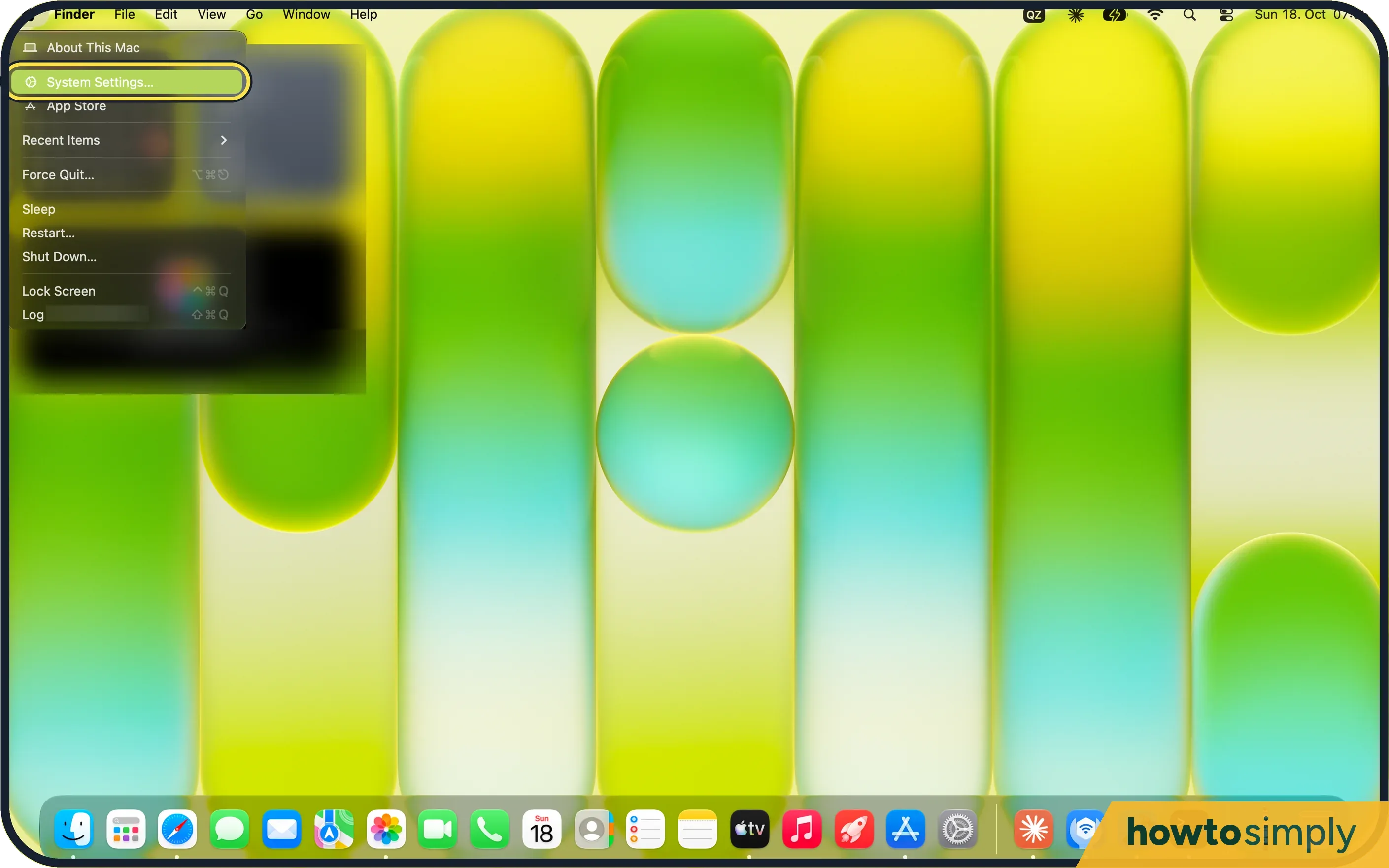
Open System Settings
Click the Apple menu in the top-left corner of the screen and choose System Settings.
- 2
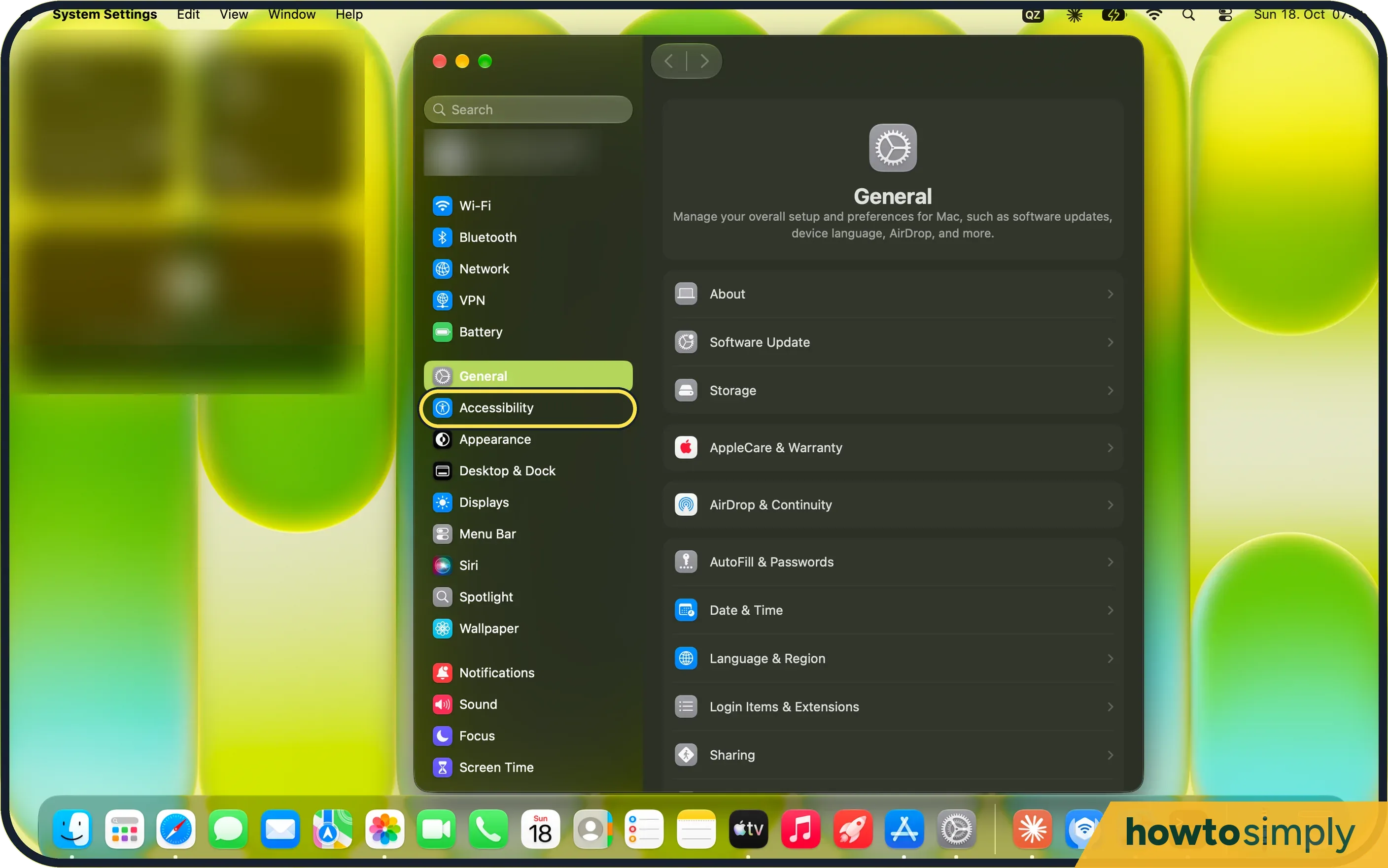
Click Accessibility in the sidebar
On our MacBook Neo, Accessibility is near the top of the sidebar, just below General.
- 3
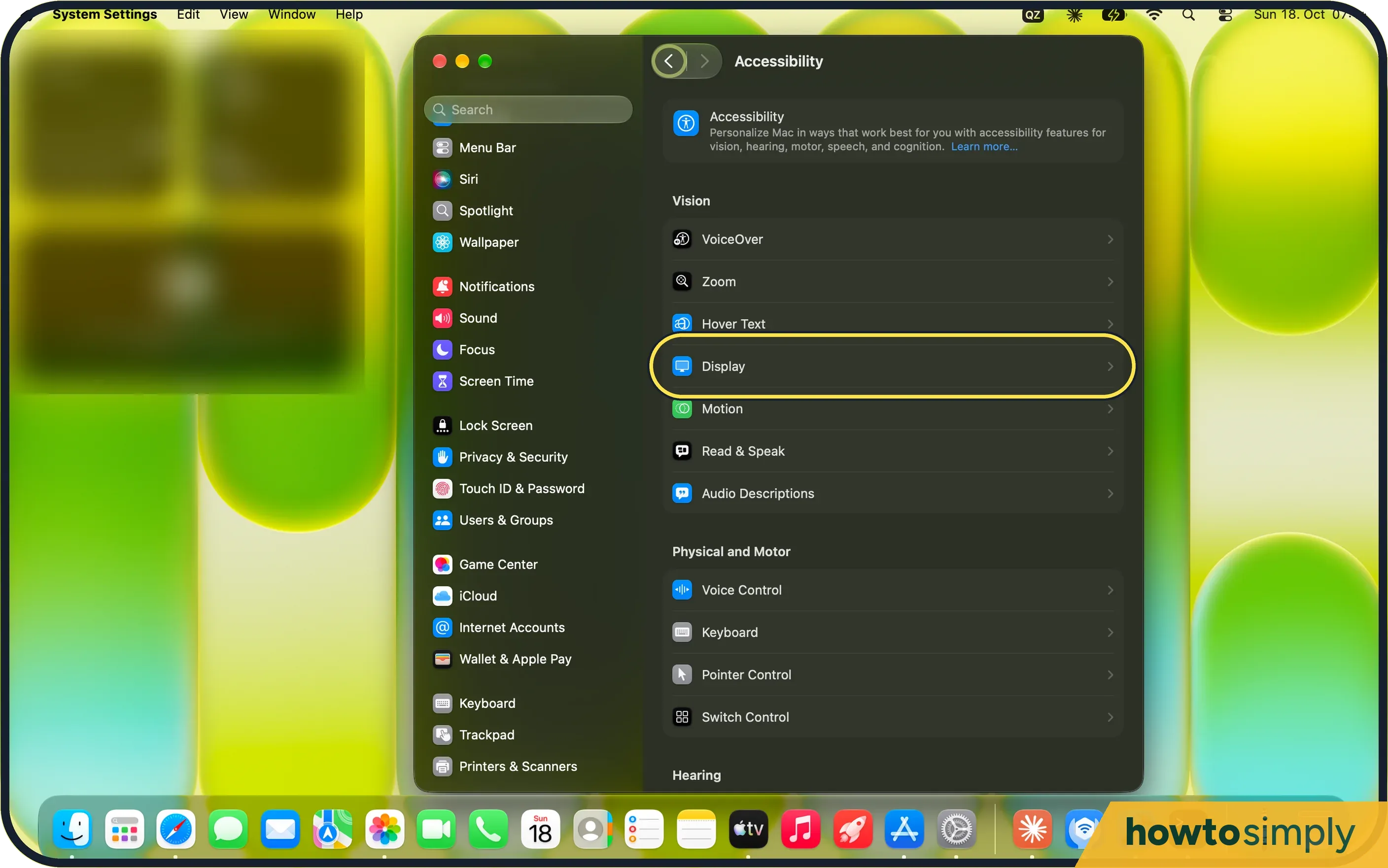
Click Display
On our MacBook Neo, Display is in the Vision group, between Hover Text and Motion.
- 4
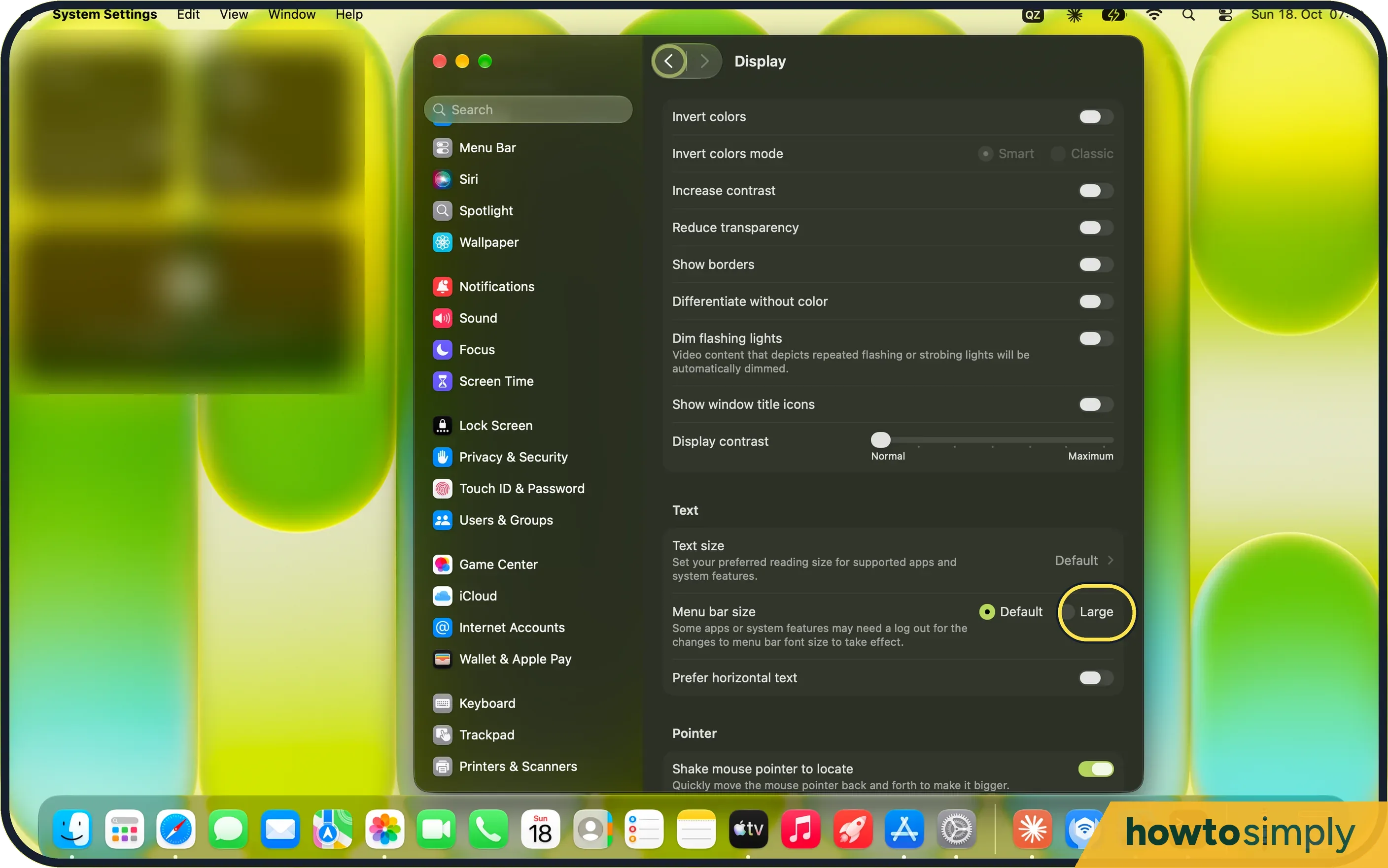
Select Large next to Menu bar size
Menu bar size is in the Text group. On our MacBook Neo it is two buttons, Default and Large, not a pop-up menu, and Default was selected.
The note under it reads: "Some apps or system features may need a log out for the changes to menu bar font size to take effect."
- 5
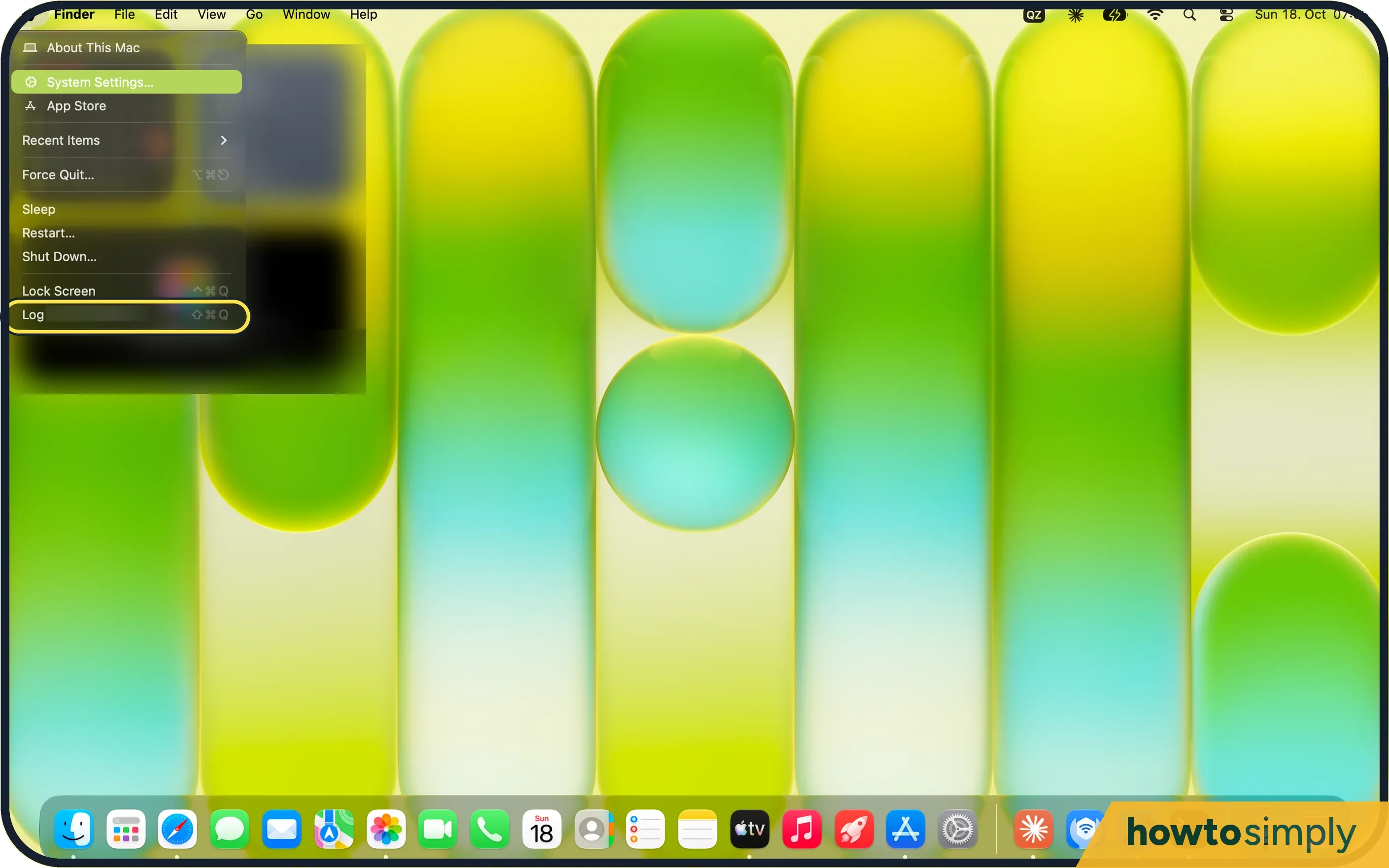
Log out and log in again
Click the Apple menu and choose Log Out. On our MacBook Neo, the menu item shows Log Out followed by the user's name.
After you log in again, the menu bar uses the larger text.


If you do not see this option
- Accessibility is not in the sidebar The sidebar scrolls. Scroll it down.
- Display is not on the Accessibility page Look in the Vision group at the top of the Accessibility page. On our MacBook Neo it is the fourth row, after VoiceOver, Zoom and Hover Text.
- You expect a menu for Menu bar size On our MacBook Neo, Menu bar size is two buttons, Default and Large, in the Text group of the Display page. There is no menu to open.
If this does not work
- The menu bar text has not changed Don't panic: the new menu bar text size only shows up after you log out and back in. The note under Menu bar size says some apps or system features may need a log out. Choose Log Out from the Apple menu, then log in again.
- You want the normal size back You can set the menu bar font size back to Default. Go to Accessibility > Display again, select Default next to Menu bar size, then log out and log in again.
Good to know
Text size, the row above, sets your preferred reading size for apps and system features that support it.
On our MacBook Neo, the Text size row showed Default, and Prefer horizontal text sits just below Menu bar size.
Apple lists other reading aids on the same Display page, such as Increase contrast, Reduce transparency and Pointer size, and Accessibility Shortcuts can switch some of them on or off quickly. To control which icons appear in the menu bar itself, see how to customise the menu bar on a Mac.
macOS 27 compared with macOS 26: We rewrote this guide on macOS 27.0.1 (MacBook Neo): it now has 5 steps instead of 4. The macOS 26 page keeps the steps and screenshots as they were.
Version history: the macOS 26 version of this guide, with its own screenshots.
About this guide
Squinting at the little words along the top of the screen gets tiring, and making the rest of macOS bigger does not fix it. The menu bar has its own setting, Menu bar size, which sets its font size to Large or back to Default.
- Device
- Mac
- Shown on
- macOS 27.0.1 (MacBook Neo)
- App
- System Settings
- Real screenshots
- 5 of 5 steps
- Checked
- October 2026
- Sources
- 1 official, linked below
Sources
Links checked October 2026. Menus and features can change with updates.Did this guide work for you?
Sorry about that. What happened?
Get new guides by email
Our newest guides, sent to your inbox. Free, and you can unsubscribe in one click.
We'll email you to confirm. How we use your email
Follow howtosimply on Facebook
We share our new guides on our Facebook page, so the next fix turns up in your feed.
Follow on Facebook