How to change the accent colour on a Mac
- Shown on
- MacBook Neo
- Software
- macOS 27.0.1More macOS 27 guides
- Checked
- October 2026
- Real screenshots
- 4 of 4 steps
 Real screenshot · MacBook Neo, macOS 27.0.1
Quick answer
Open System Settings, click Appearance in the sidebar, then click a colour circle in the Color row under Theme. The name of the chosen colour appears under its circle, such as Green.
Steps
- 1
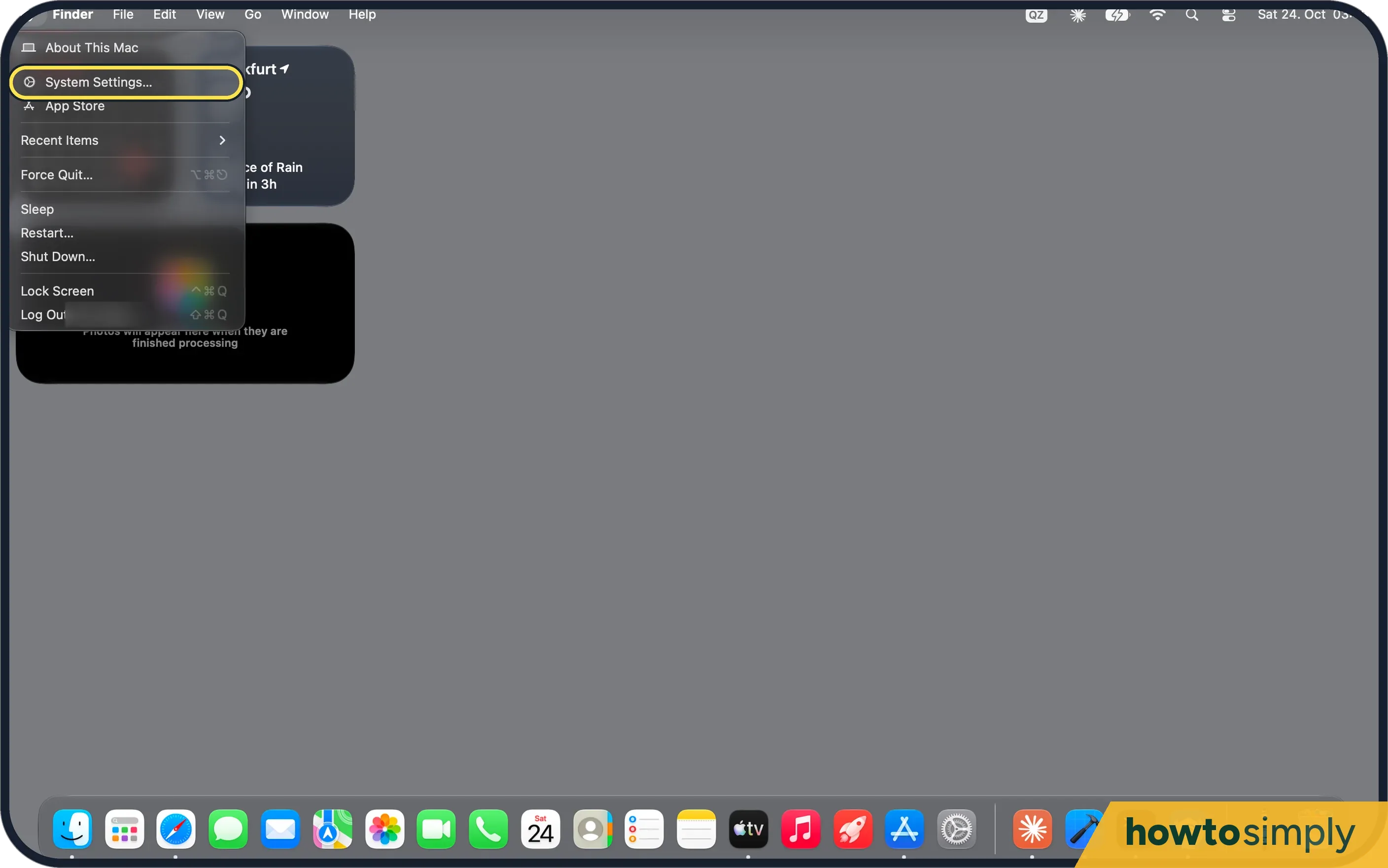
Open System Settings
Click the Apple menu in the top-left corner of the screen and choose System Settings…
- 2
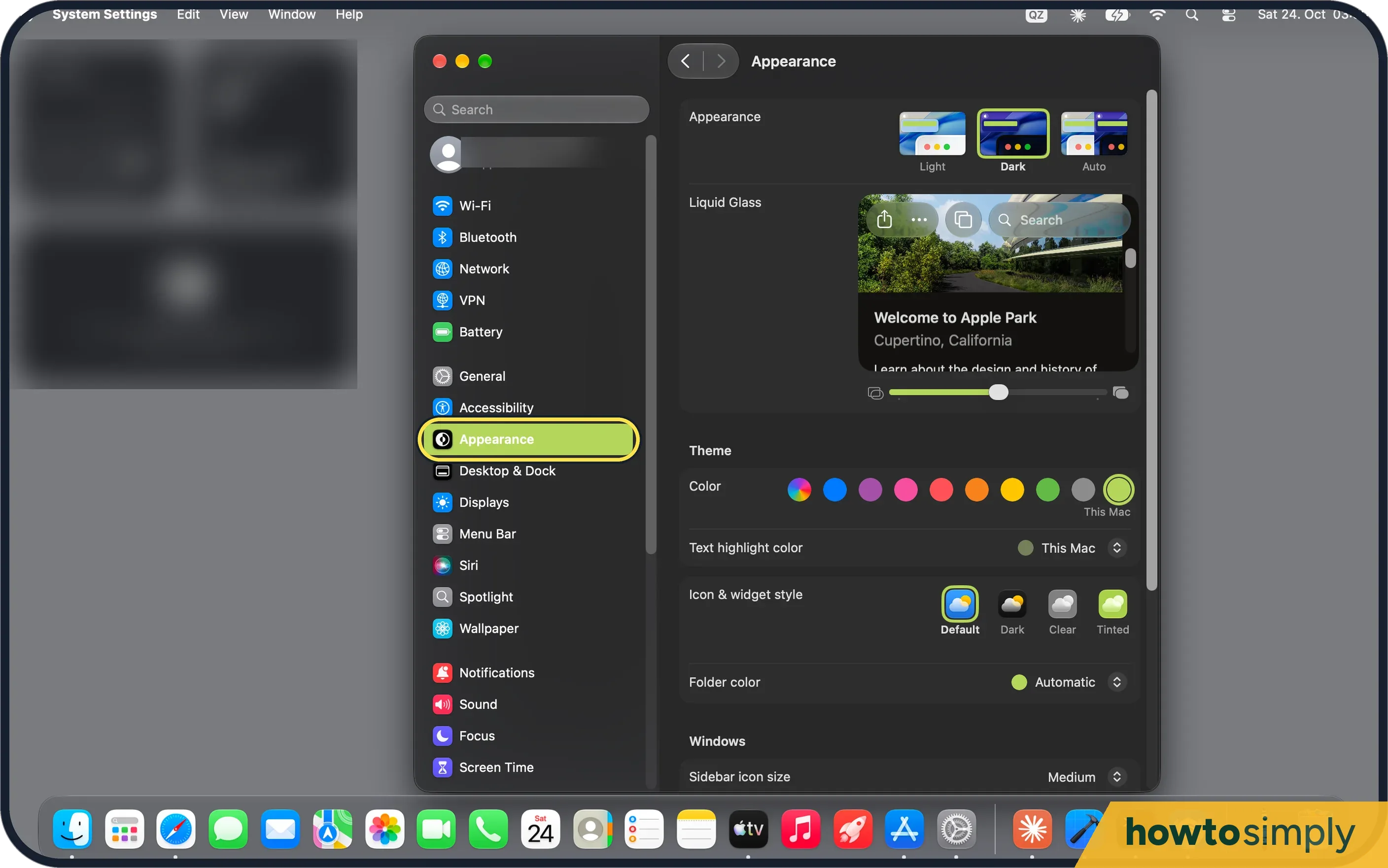
Click Appearance in the sidebar
Appearance is below Accessibility.
On our MacBook Neo the page opens with Appearance, Liquid Glass and Theme sections.
- 3
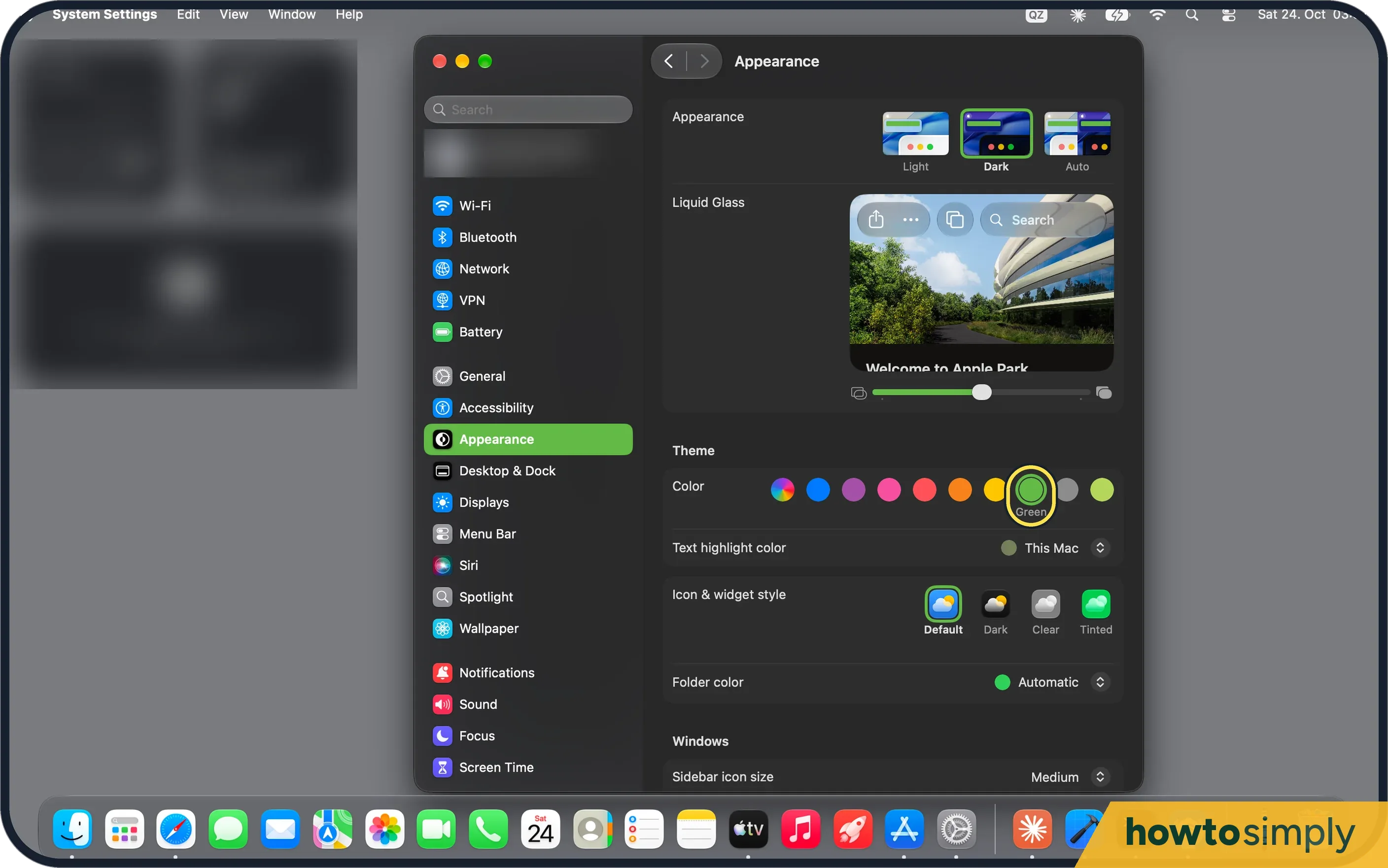
Click a colour
The circles are in the Color row under Theme, and the chosen colour's name appears below its circle.
On our MacBook Neo the row has ten circles. The last one, labelled This Mac, was selected until we clicked the circle labelled Green.
- 4
Choose the highlight colour for text
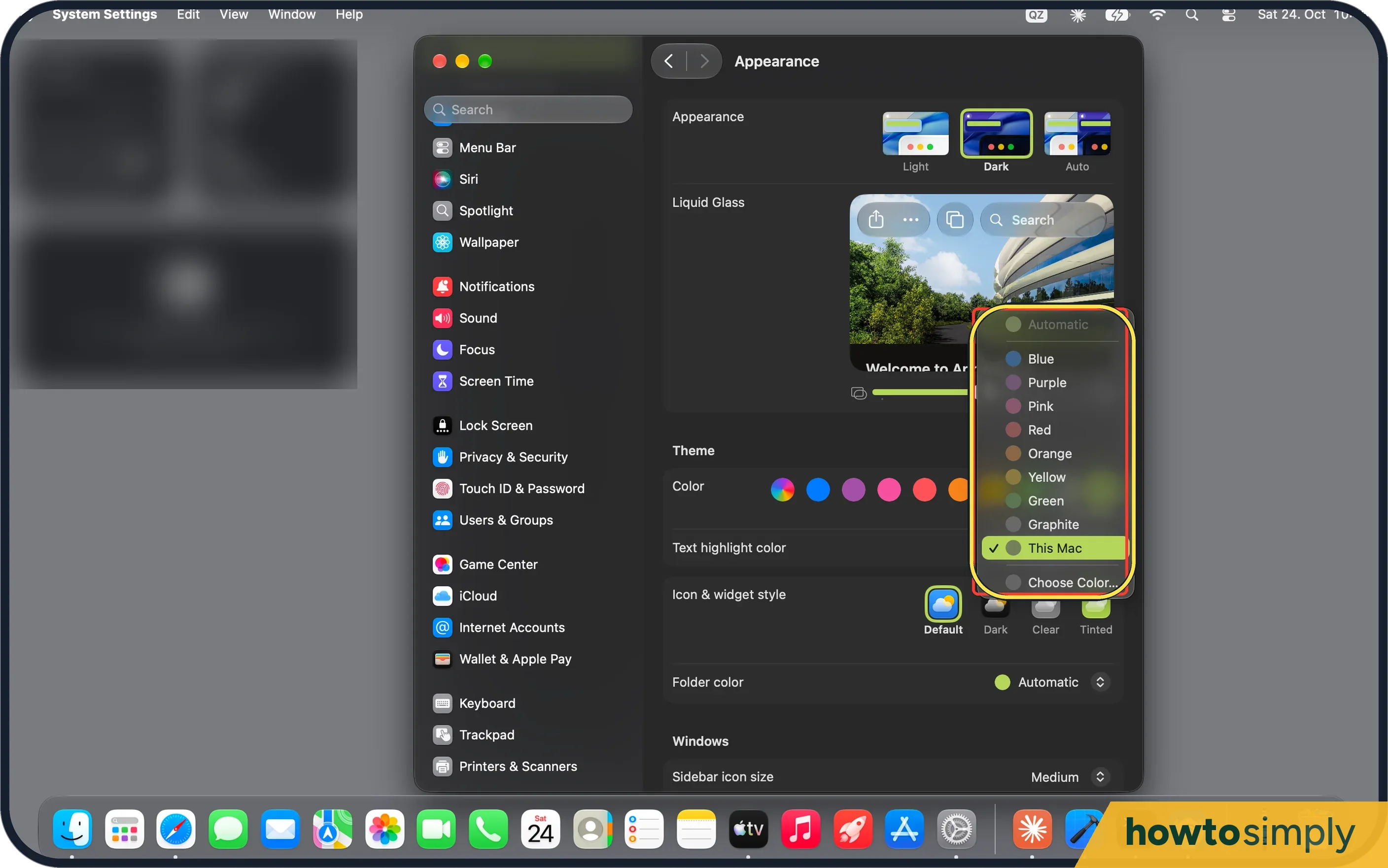
Text highlight color, the next row, sets the colour for selected text. Click its pop-up menu and choose a colour.
On our MacBook Neo the menu lists Blue, Purple, Pink, Red, Orange, Yellow, Green, Graphite, This Mac and Choose Color…, with Automatic dimmed at the top.
This Mac was ticked, and it stayed that way after we chose Green.


If you do not see this option
- There is an extra circle at the end On our MacBook Neo the tenth circle in the Color row was labelled This Mac. It sits after the grey circle.
- Icons take the colour too Apple says that with Tinted chosen under Icon & widget style, icons, text and graphics use the colour chosen under Theme. On our MacBook Neo the options were Default, Dark, Clear and Tinted. Sources: Change Appearance settings on Mac, Change Display settings for accessibility on Mac, Change General preferences on Mac
- Your Mac has System Preferences Apple's guide for macOS Monterey 12 says to choose System Preferences, then General. The row is called Accent color there, and the colour for selected text is Highlight color. Sources: Change Appearance settings on Mac, Change Display settings for accessibility on Mac, Change General preferences on Mac
If this does not work
- Selected text keeps its old colour That is not a glitch. Text highlight color is a separate setting. On our MacBook Neo it stayed on This Mac after we chose Green, so set it in its own menu.
- Toolbars take on other colours Your wallpaper may be joining in. Apple says Tint window background with wallpaper color lets the wallpaper tint toolbars and status bars. On our MacBook Neo this switch is in the Windows section, below Sidebar icon size, and it was on.
- All colours on screen look wrong Apple says the Color setting controls buttons, pop-up menus and other controls on screen. Apple says Color Filters in Accessibility, Display change display colours. Check that they are off.
Good to know
And if you fancy a full makeover, light and dark appearance are at the top of the same page: how to turn on dark mode on a Mac.
On our MacBook Neo the same page also has Folder color, set to Automatic, and Sidebar icon size, set to Medium.
macOS 27 compared with macOS 26: We rewrote steps 1, 2, 3 and 4 to match the macOS 27 screens. The macOS 26 page keeps the steps and screenshots as they were.
Version history: the macOS 26 version of this guide, with its own screenshots.
About this guide
This is one of the nicest small changes you can make, because your Mac has been wearing the same colour to work every day and it may enjoy a new outfit. Buttons, pop-up menus and other controls on a Mac use a colour that you can change in System Settings.
- Device
- Mac
- Shown on
- macOS 27.0.1 (MacBook Neo)
- App
- System Settings
- Real screenshots
- 4 of 4 steps
- What we did
- Performed: we made the change on our device and show the result
- Checked
- October 2026
- Sources
- 3 official, linked below
Sources
Links checked October 2026. Menus and features can change with updates.Did this guide work for you?
Sorry about that. What happened?
Get new guides by email
Our newest guides, sent to your inbox. Free, and you can unsubscribe in one click.
We'll email you to confirm. How we use your email
Follow howtosimply on Facebook
We share our new guides on our Facebook page, so the next fix turns up in your feed.
Follow on Facebook