How to zip and unzip files on Windows 11
- Shown on
- Microsoft Cloud PC
- Software
- Windows 11
- Checked
- October 2026
- Real screenshots
- 6 of 6 steps
 Real screenshot · Microsoft Cloud PC, Windows 11
Quick answer
To zip, right-click the file or folder, then pick Compress to..., or Show more options, Send to, Compressed (zipped) folder. To unzip, right-click the ZIP file, choose Extract All..., pick where the files should go and click Extract.
Watch these steps
Watch on YouTubeA video of this task from our YouTube channel · opens YouTubeSteps
- 1
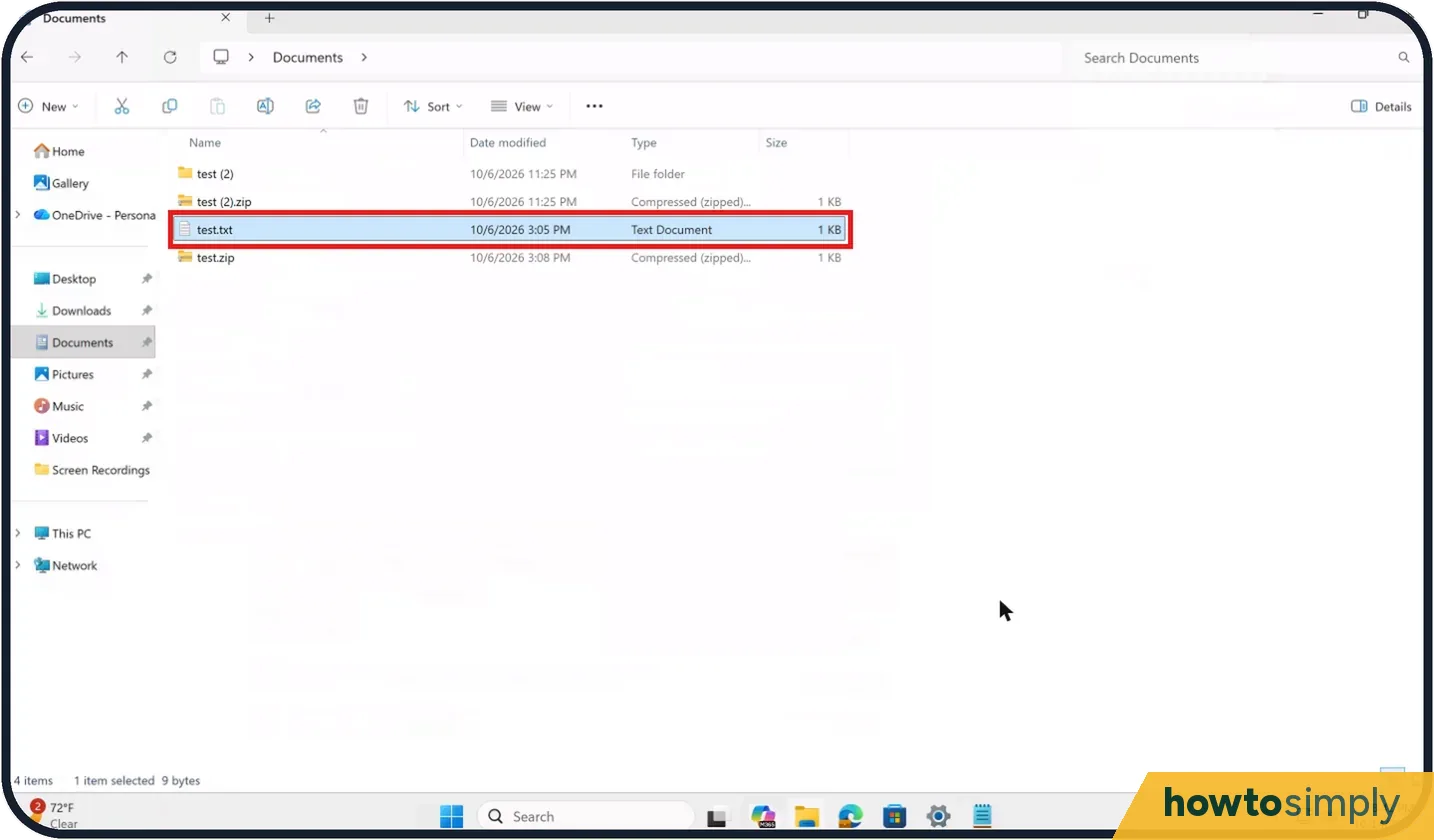
Select what you want to zip
In File Explorer, click one file or folder.
For several, hold Ctrl and click each one, or put them in a folder first.
- 2
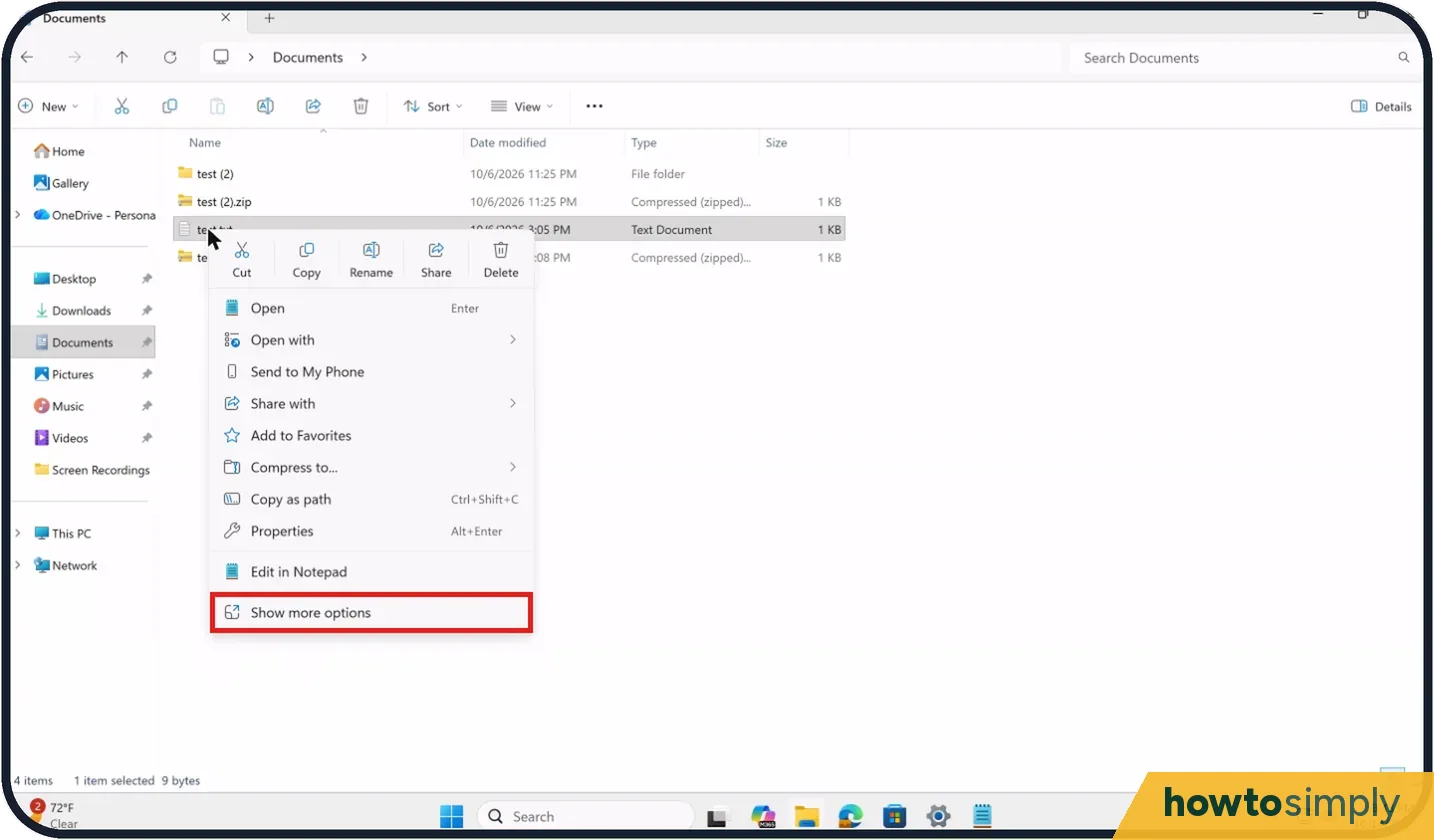
Right-click and choose Show more options
Right-click the selection to open the short menu.
On our Cloud PC, the menu for test.txt lists Compress to..., Copy as path, Properties and Edit in Notepad, with Show more options at the very bottom.
Click Show more options to open the classic menu.
- 3
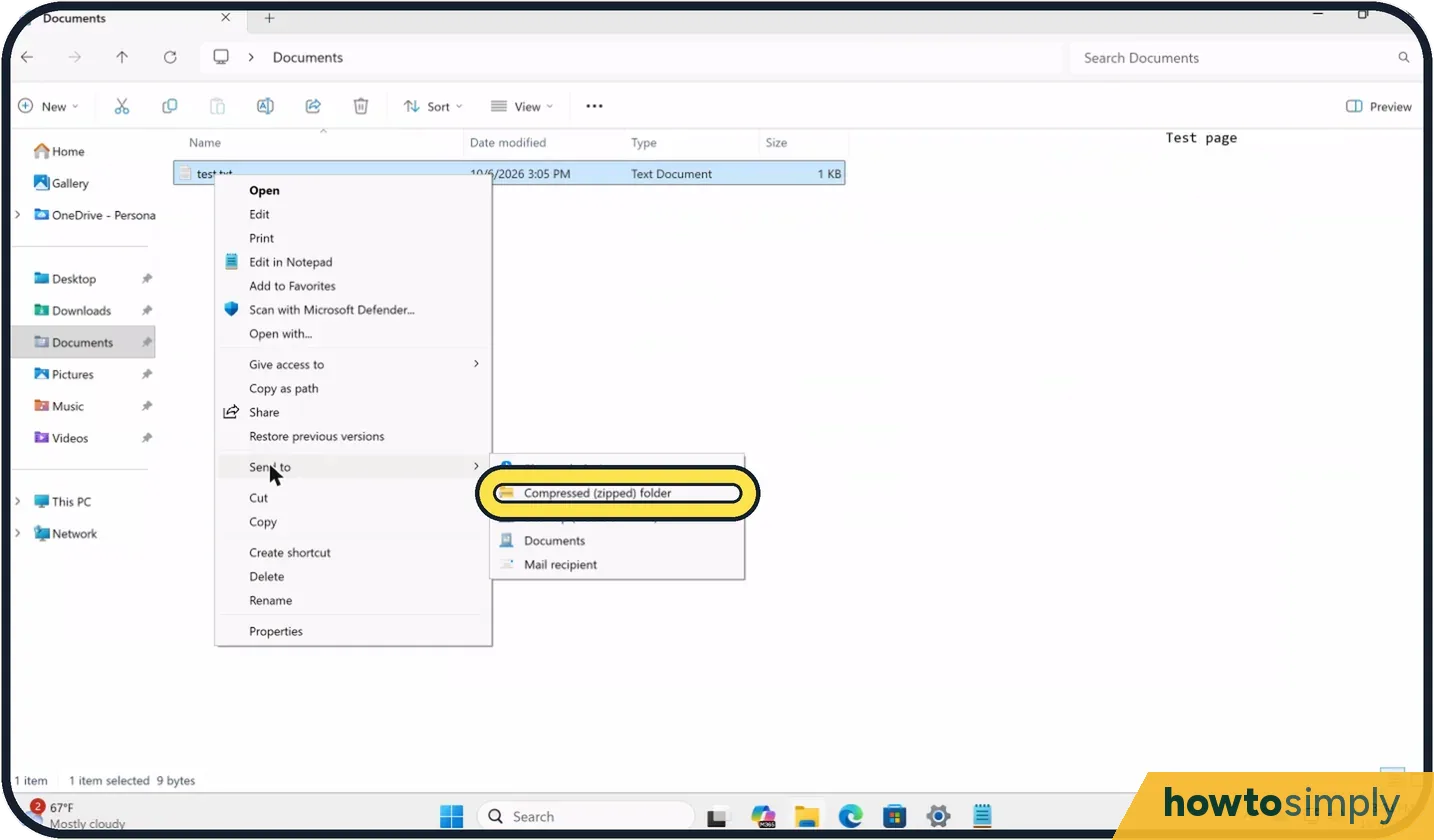
Choose Send to, Compressed (zipped) folder
In the classic menu, point to Send to and click Compressed (zipped) folder.
A ZIP file with the same name appears in the same place. Type a new name if you like and press Enter.
- 4
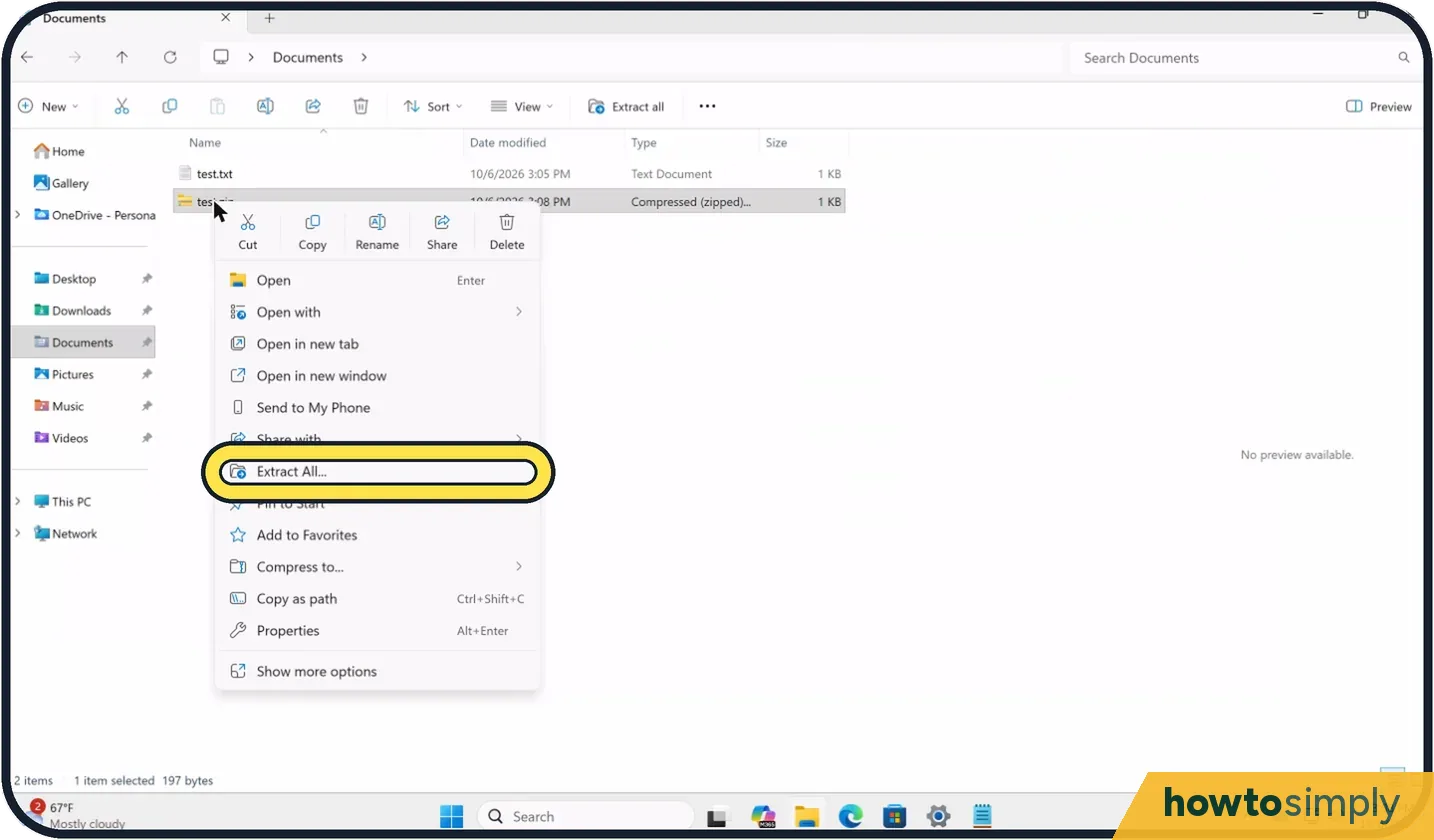
To unzip everything, choose Extract All...
Right-click the ZIP file and choose Extract All....
On our Cloud PC, test.zip shows the type Compressed (zipped)... and, when it is selected, an Extract all button appears in the bar at the top of File Explorer.
- 5
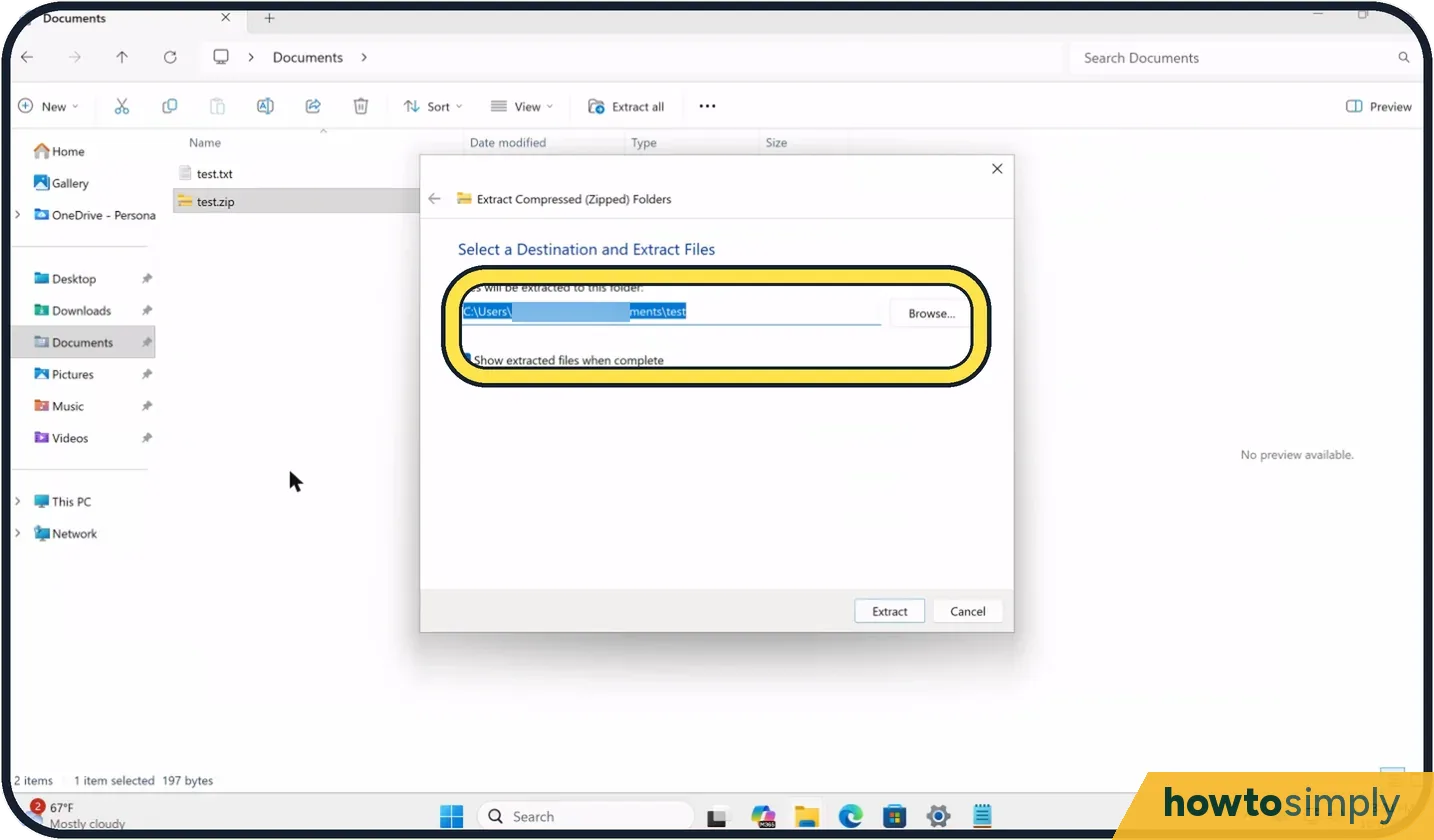
Pick the folder and click Extract
The Extract Compressed (Zipped) Folders window suggests a new folder with the same name next to the ZIP file. Click Browse... to pick another place.
Tick Show extracted files when complete if you want the folder to open afterwards, then click Extract at the bottom right.
- 6
To take out single files
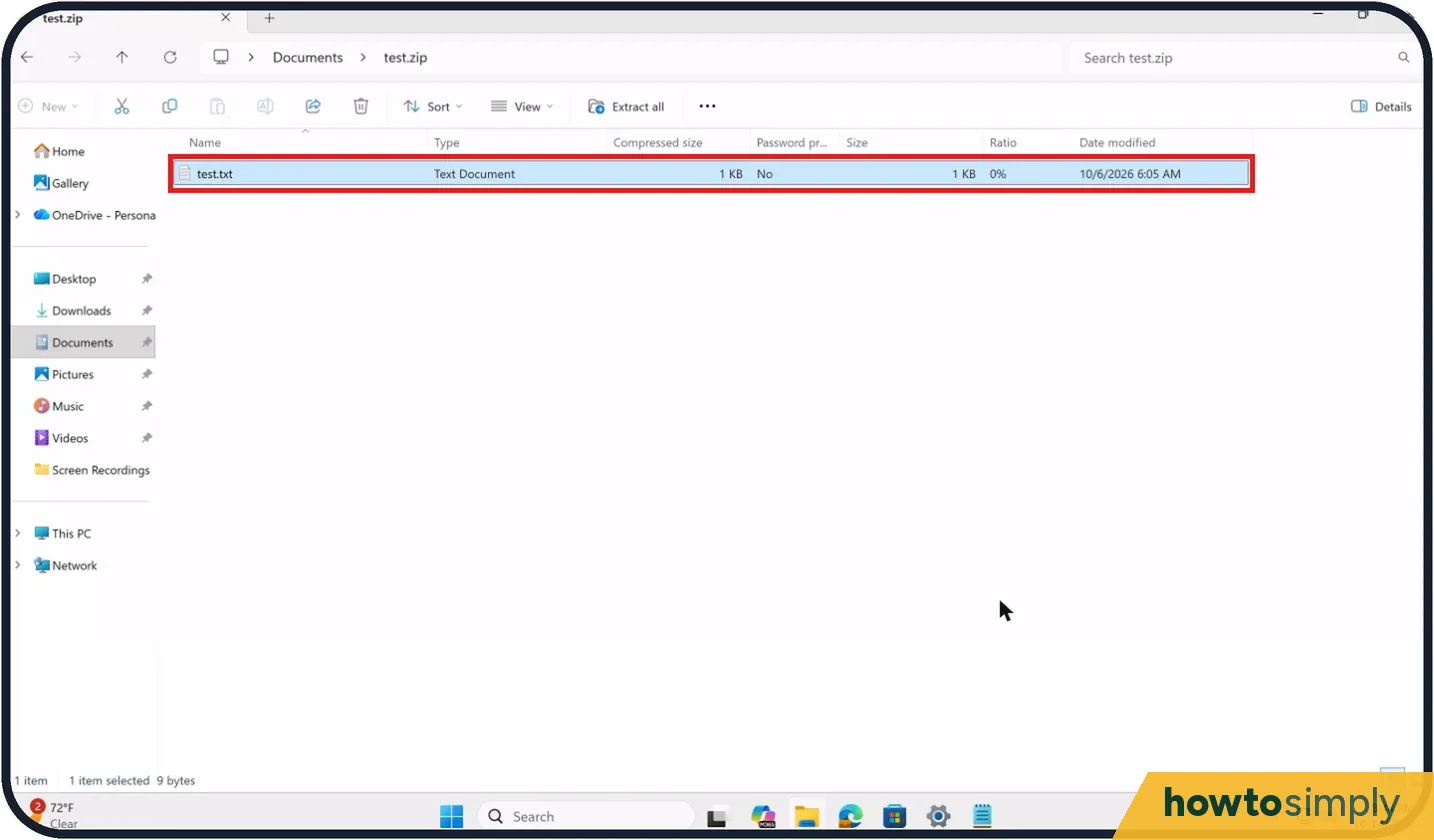
Double-click the ZIP file to open it like a folder.
On our Cloud PC, test.zip listed test.txt with a Compressed size of 1 KB and a Ratio of 0%.
Drag the files you need to another place, for example the desktop.


If you do not see this option
- No Compress to... in the short menu Click Show more options at the bottom of the menu, then use Send to, Compressed (zipped) folder.
- No Extract All... when you right-click Select the ZIP file and click Extract all in the bar at the top of File Explorer.
- You cannot find the new ZIP file It appears in the same folder as the original, with the same name. On our Cloud PC, test.zip sat next to test.txt with the type Compressed (zipped)....
If this does not work
- The ZIP is hardly smaller Files that are already highly compressed, like JPEG images, barely shrink. On our Cloud PC, test.txt showed a Ratio of 0% inside test.zip.
- The files were extracted to the wrong place Run Extract All... again and click Browse... to choose the folder before you click Extract.
- You cannot see the extracted files Tick Show extracted files when complete before clicking Extract, so the folder opens by itself afterwards.
Good to know
Do not work on files while they are still inside the ZIP. Programs often cannot save them there. Extract first.
Photos in JPEG format are already highly compressed and hardly get smaller in a ZIP.
Files that were encrypted on your PC lose that encryption when they are extracted from a ZIP, Microsoft warns. Windows cannot put a password on a ZIP file by itself.
About this guide
A ZIP file packs several files into one and makes them smaller, which makes them easier to share. Windows 11 can create and open ZIP files without any extra program.
- Device
- Windows
- Shown on
- Windows 11 Enterprise 25H2 (build 26200.9457), Microsoft Cloud PC
- Real screenshots
- 6 of 6 steps
- Checked
- October 2026
- Sources
- 1 official, linked below
The screenshots are our own, taken on a Microsoft Cloud PC, a Windows PC that runs in the cloud, running Windows 11 Enterprise 25H2.
Sources
Links checked October 2026. Menus and features can change with updates.Did this guide work for you?
Sorry about that. What happened?
Get new guides by email
Our newest guides, sent to your inbox. Free, and you can unsubscribe in one click.
We'll email you to confirm. How we use your email
Follow howtosimply on Facebook
We share our new guides on our Facebook page, so the next fix turns up in your feed.
Follow on Facebook