How to set a charging limit on an iPhone (iOS 27)
- Shown on
- iPhone 17e
- Software
- iOS 27.0.1More iOS 27 guides
- Checked
- October 2026
- Real screenshots
- 5 of 5 steps
- Where it is
- Settings › Battery › Charging
Quick answer
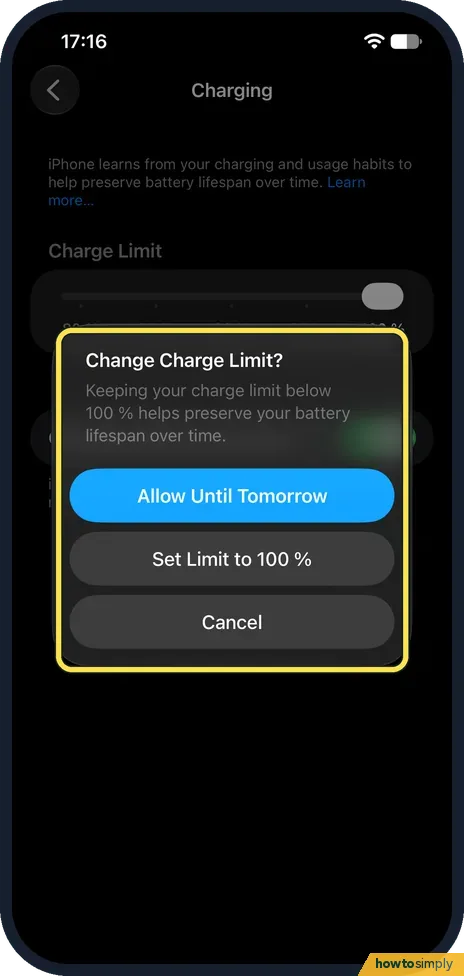
Open Settings, tap Battery, then Charging, and drag the Charge Limit slider to 80, 85, 90, 95 or 100 %. The iPhone then stops charging near that level. Apple says this works on iPhone 15 and later. Going back to 100 % asks whether to allow it until tomorrow or set the limit to 100 %.
Steps
- 1
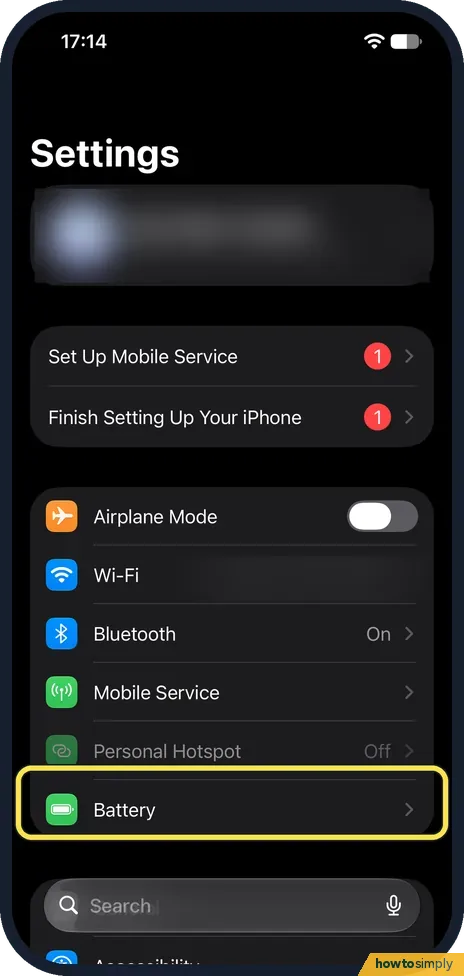
Open Battery in Settings
Open the Settings app and scroll down to Battery, the green icon with a battery. Tap it.
- 2
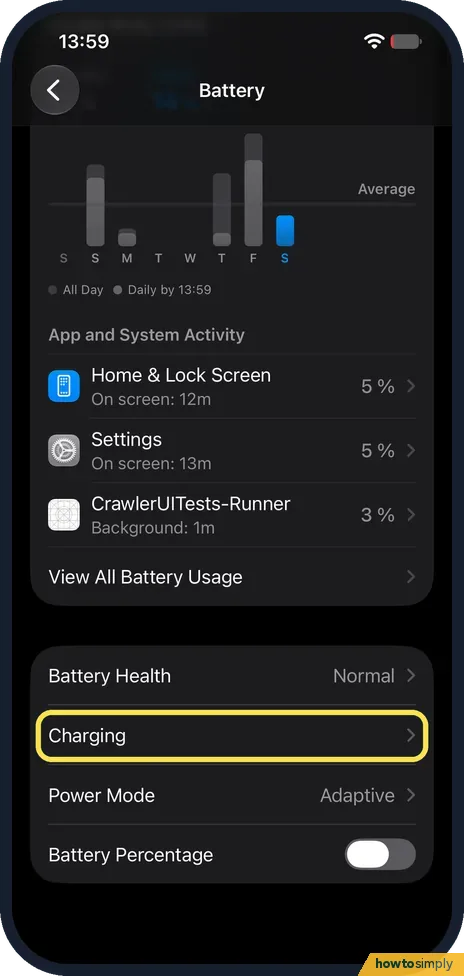
Tap Charging
Scroll down past the usage chart. Charging is between Battery Health, Normal on ours, and Power Mode. Tap Charging.
- 3
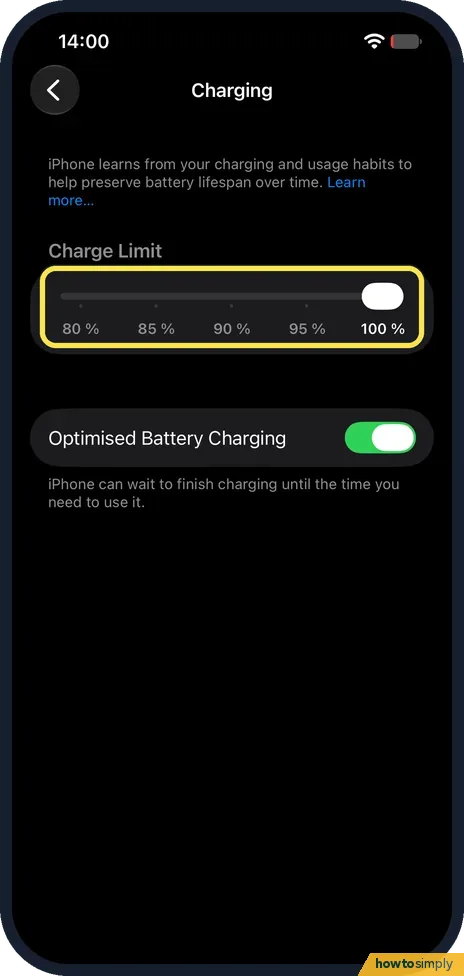
Drag the Charge Limit slider
Under Charge Limit the slider has five stops: 80 %, 85 %, 90 %, 95 % and 100 %. Drag it to the level you want. Ours was at 100 %.
- 4
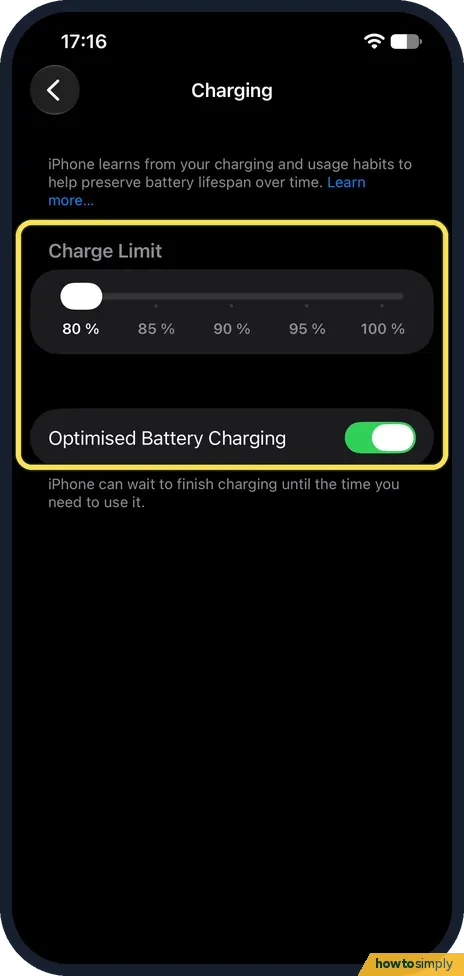
Check the new limit
We dragged it to 80 %. Optimised Battery Charging, below the slider, stayed on and unchanged; its note says the iPhone can wait to finish charging until the time you need to use it.
- 5
Going back to 100 %
Dragging the slider back to 100 % asks Change Charge Limit?: keeping your charge limit below 100 % helps preserve your battery lifespan over time. Tap Allow Until Tomorrow for a single full charge, or Set Limit to 100 % to keep it there. We tapped Set Limit to 100 %.
If you do not see this option
- No Charging page, or no Charge Limit? Apple says the Charge Limit is for iPhone 15 models and later. On iPhone 14 and earlier you tap Battery Health & Charging and can only turn Optimised Battery Charging on or off. Source: About Charge Limit and Optimised Battery Charging on iPhone
- Optimised Battery Charging still there below 100 %? Apple describes it with the limit at 100 %. On our iPhone 17e with iOS 27.0.1 the switch stayed on when we set 80 %. Source: About Charge Limit and Optimised Battery Charging on iPhone
If this does not work
- The iPhone still charged to 100 %? Apple says that with a limit below 100 % the iPhone occasionally charges to 100 % to keep its battery estimate accurate.
- It stops at 79 or 81 % instead of 80 %? Apple says the iPhone stops charging once it gets within a few percent of the limit you set.
- Optimised Battery Charging never kicks in? Apple says it takes 14 days or more to learn when you usually charge, and only kicks in when it thinks you'll be plugged in for ages.
- Stopped well below your limit? If the Lock Screen says Charging On Hold, the iPhone is too warm or too cold. Apple says charging resumes by itself once it returns to a safe temperature; take the case off if it heats up while charging.
- Need a full charge sooner tonight? When Optimised Battery Charging is holding the charge, Apple says to touch and hold the Lock Screen notification and tap Charge Now.
Good to know
To see how worn the battery already is: how to check battery health on an iPhone. To make a charge last longer: how to turn on Low Power Mode on an iPhone.
On Android: limit charging to 80% on a Google Pixel and on a Samsung Galaxy phone.
iOS may also recommend a limit based on your charging habits. Optimised Battery Charging only starts once the phone has had 9 or more charges of 5 hours or longer in the same place.
About this guide
Keeping a battery full ages it faster. A charge limit stops the iPhone below 100 %, and Apple says it resumes charging if the level drops more than 5 % while still plugged in.
- Device
- iPhone
- Shown on
- iOS 27.0.1 (iPhone 17e)
- App
- Settings
- Path
- Settings › Battery › Charging
- Real screenshots
- 5 of 5 steps
- Checked
- October 2026
- Sources
- 2 official, linked below
The screenshots are from our iPhone 17e with iOS 27.0.1, in Dark mode. Ours was set to 100 % with Optimised Battery Charging on; we moved the slider to 80 % and then back to 100 %.
Sources
Links checked October 2026. Menus and features can change with updates.What to do next
Make your iPhone battery last Step 2 of 4
Did this guide work for you?
Sorry about that. What happened?
Get new guides by email
Our newest guides, sent to your inbox. Free, and you can unsubscribe in one click.
We'll email you to confirm. How we use your email
Follow howtosimply on Facebook
We share our new guides on our Facebook page, so the next fix turns up in your feed.
Follow on Facebook