How to AirDrop photos from an iPhone to a Google Pixel 10a
- Shown on
- Pixel 10a (Android 17) and iPhone 17e (iOS 27.2)
- Checked
- October 2026
- Real screenshots
- 7 of 7 steps
- Where it is
- Settings › Quick Share › Who can share with you
Quick answer
On the Pixel, set Quick Share to Everyone for 10 minutes. On the iPhone, tap Share, then AirDrop, and tap the Pixel. Tap Accept on the Pixel. The photo lands in Downloads, Quick Share. On ours it worked, but a prompt we answered too late expired.
Steps
- 1
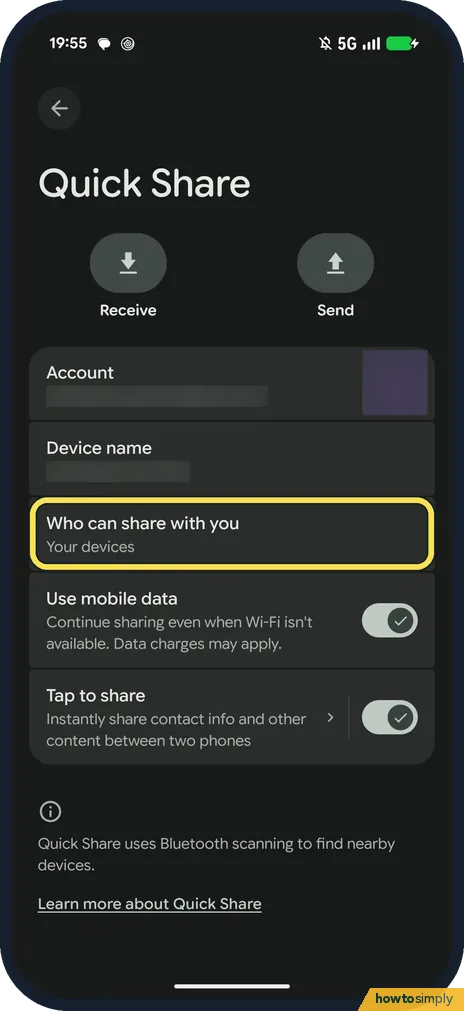
On the Pixel, open Who can share with you
Open Settings and search for Quick Share, then tap Who can share with you. Ours said Your devices.
- 2
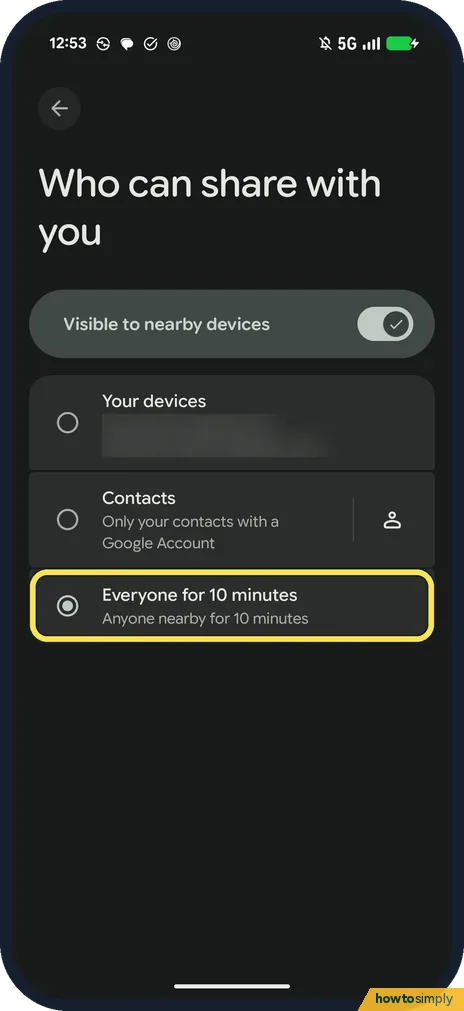
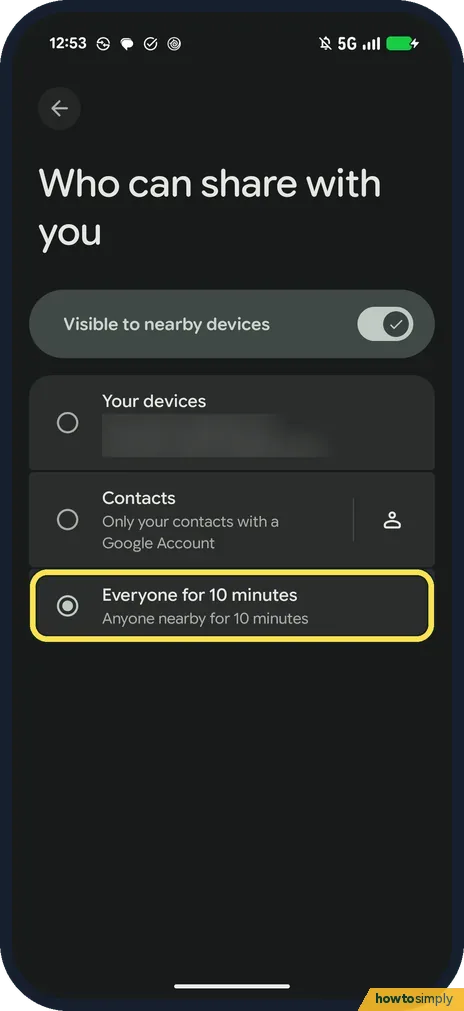
Pick Everyone for 10 minutes
It says Anyone nearby for 10 minutes. Google says to pick this to receive from an iPhone, or to keep the Quick Share page open on Receive.
- 3
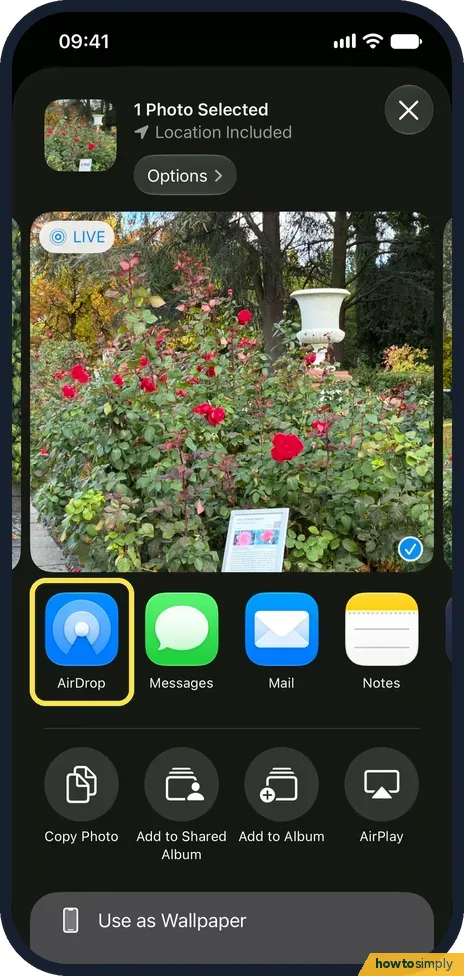
On the iPhone, tap Share, then AirDrop
On the iPhone, open the photo and tap the Share button. Ours said 1 Photo Selected, Location Included. Tap AirDrop.
- 4
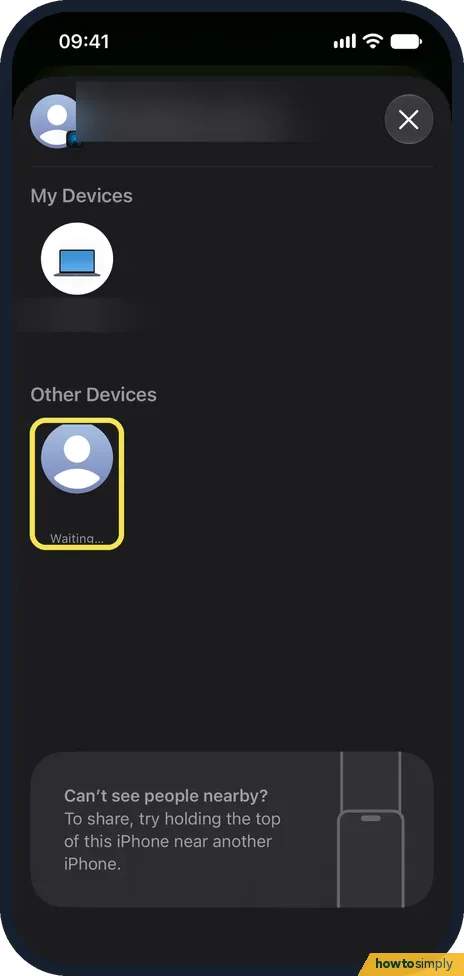
On the iPhone, tap the Pixel
The Pixel shows under Other Devices. Tap it. On our iPhone it then said Waiting… under the Pixel until the Pixel answered.
- 5
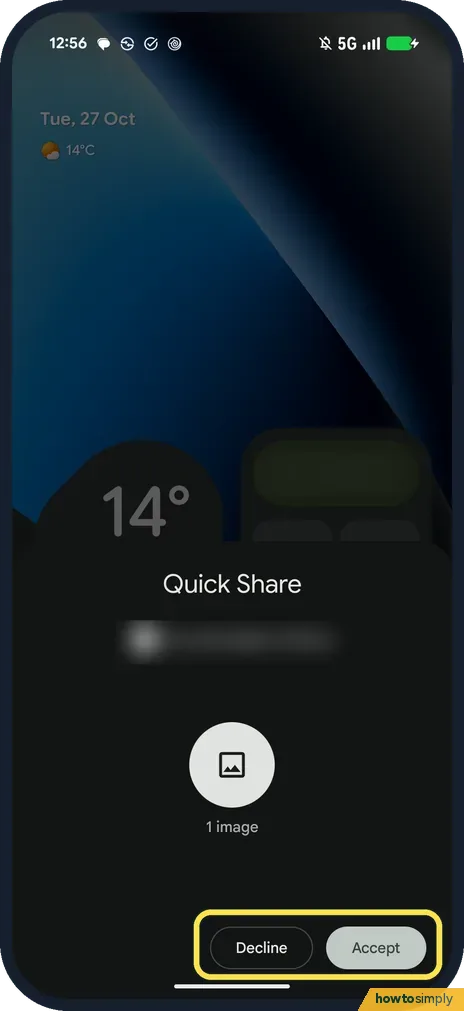
Tap Accept on the Pixel
A Quick Share prompt came up with 1 image, Decline and Accept. Tap Accept soon: our first one expired.
- 6
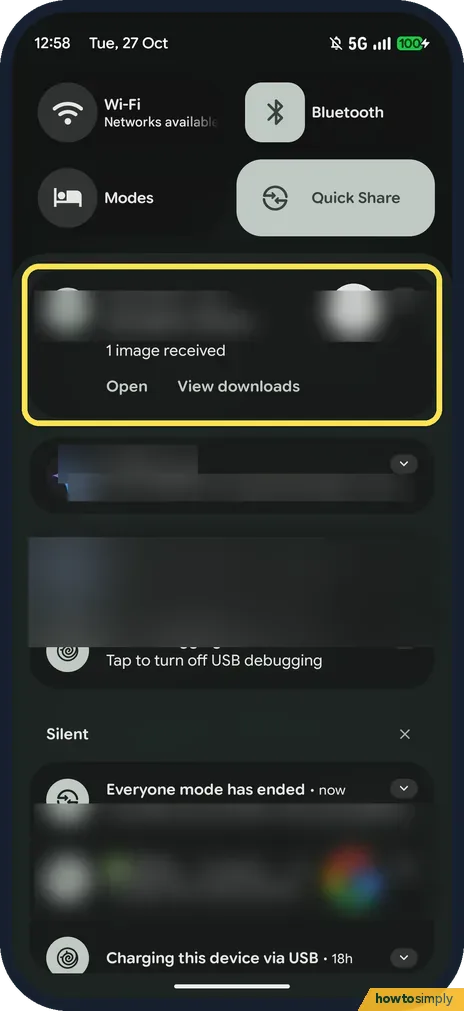
Open the photo
The notification says 1 image received, with Open and View downloads. Ours was saved in Download, Quick Share.
- 7
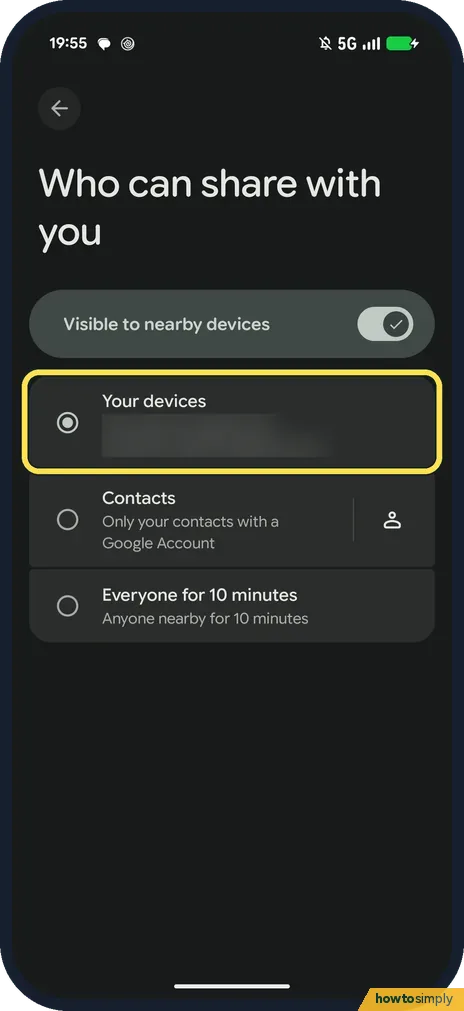
Set it back to Your devices
When you are done, go back to Who can share with you and pick Your devices again. We did that after the transfer.
Where we checked these steps
- Pixel 10a, Android 17
- iPhone 17e, iOS 27.2
We have not checked other phones or older versions. If a menu looks different on yours, the notes under each step and the fixes further down cover the differences we found.
If you do not see this option
- Pixel not in the iPhone's AirDrop list? Google says the Pixel must be set to Everyone for 10 minutes, or have the Quick Share page open on Receive. It also says receiving from an iPhone needs a Pixel 9 or later, except the Pixel 9a. Source: Use Quick Share on your Android device
- Everyone for 10 minutes already ran out? Pick it again just before the iPhone sends. The option itself says Anyone nearby for 10 minutes.
If this does not work
- Pixel says Can't complete transfer? Ours did: we saw the impatient prompt too late. On the iPhone, the Pixel first said Waiting…, then Declined in red. We sent the photo again from the iPhone and tapped Accept on the Pixel at once, and it worked.
- Can't find the photo? Tap View downloads in the notification. Google says received files are in the Files app, in Downloads, Quick Share folder. Ours was in Download, Quick Share.
- iPhone shows no devices at all? Apple says both of you should be nearby with Wi-Fi and Bluetooth on, and anyone on Personal Hotspot should disconnect. Google's tips add keeping the devices within about 30 cm and turning Bluetooth on.
- Don't want to send where the photo was taken? Apple says to tap the Share button, tap Options, then turn off Location. Location Not Included then shows above Options, and you can tap AirDrop as usual.
Good to know
The other way, from the Pixel to the iPhone, did not work for us: twice the Pixel showed Waiting, then Failed, and no AirDrop prompt appeared on the iPhone. A one-way street, then.
From another Android phone: receive files with Quick Share on a Google Pixel.
Google says sending to an Apple device with AirDrop works on Pixel 8a or later, with the iPhone set to Everyone for 10 Minutes; ours still failed. Google also offers a QR code: the iPhone scans it and downloads the files in its browser, which needs internet on both phones.
On the iPhone, Apple says Everyone for 10 Minutes changes back after 10 minutes: to Contacts Only if you are signed in to an Apple Account, or to Receiving Off if not.
About this guide
Say your cousin's iPhone holds all the wedding photos: some Pixel phones can take files sent with AirDrop from an iPhone. Google says this needs a Pixel 9 or later, except the Pixel 9a.
- Device
- iPhone
- Shown on
- Google Pixel 10a, Android 17 (build CP3A.261005.005), iOS 27.2 (iPhone 17e)
- App
- Settings (Quick Share)
- Path
- Settings › Quick Share › Who can share with you
- Real screenshots
- 7 of 7 steps
- Checked
- October 2026
- Sources
- 4 official, linked below
The screenshots are from our Google Pixel 10a with Android 17 (build CP3A.261005.005) and, for steps 3 and 4, our iPhone 17e with iOS 27.2, all in Dark mode, taken on 27 October 2026. Each step says which phone it is on. We hid device names and the account in our copies. We sent one photo from the iPhone to the Pixel.
Sources
Links checked October 2026. Menus and features can change with updates.Did this guide work for you?
Sorry about that. What happened?
Get new guides by email
Our newest guides, sent to your inbox. Free, and you can unsubscribe in one click.
We'll email you to confirm. How we use your email
Follow howtosimply on Facebook
We share our new guides on our Facebook page, so the next fix turns up in your feed.
Follow on Facebook