How to change the name of your iPhone
- Shown on
- iPhone 17e
- Software
- iOS 27.0.1More iOS 27 guides
- Checked
- October 2026
- Real screenshots
- 4 of 4 steps
- Where it is
- Settings › General › About › Name
Quick answer
Open Settings, tap General, then About, then Name. Type the new name and tap Done. The new name is used for AirDrop, Personal Hotspot, Bluetooth and Find My.
Watch these steps
 Watch on YouTubeThe same task, recorded on our iPhone 17e · opens YouTube
Steps
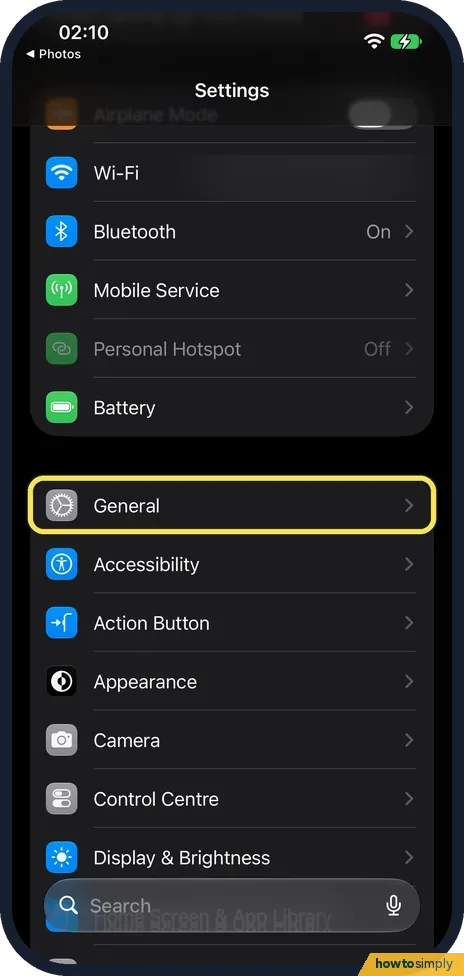
- 1
Open Settings and tap General
Open the grey Settings icon and tap General.
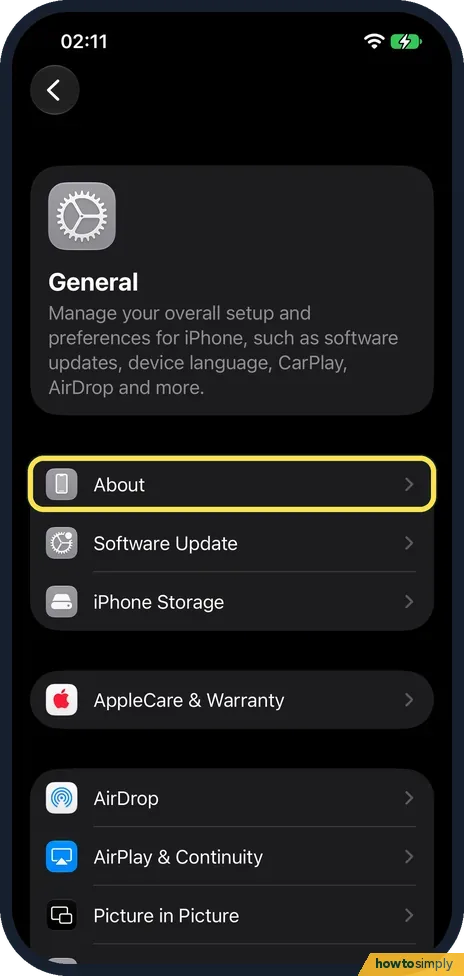
- 2
Tap About
It is the first row.
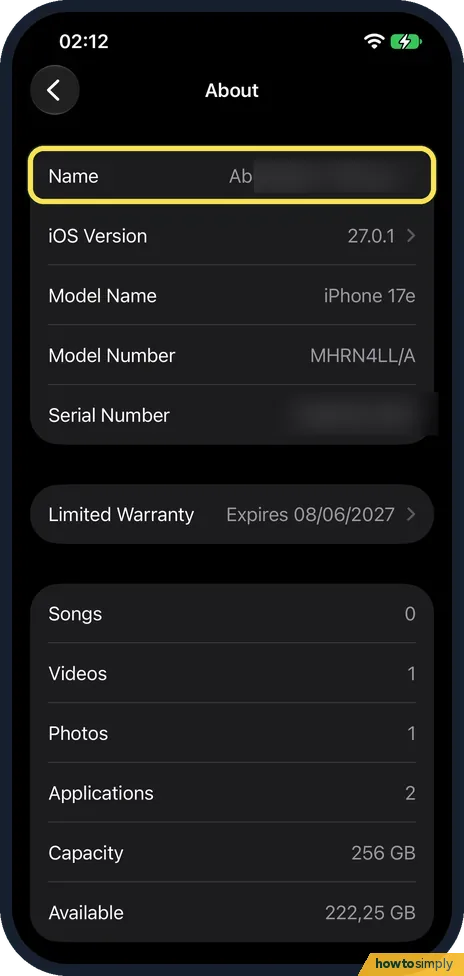
- 3
Tap Name
It is the first line on the About page. Below it ours showed iOS Version 27.0.1 and Model Name iPhone 17e.
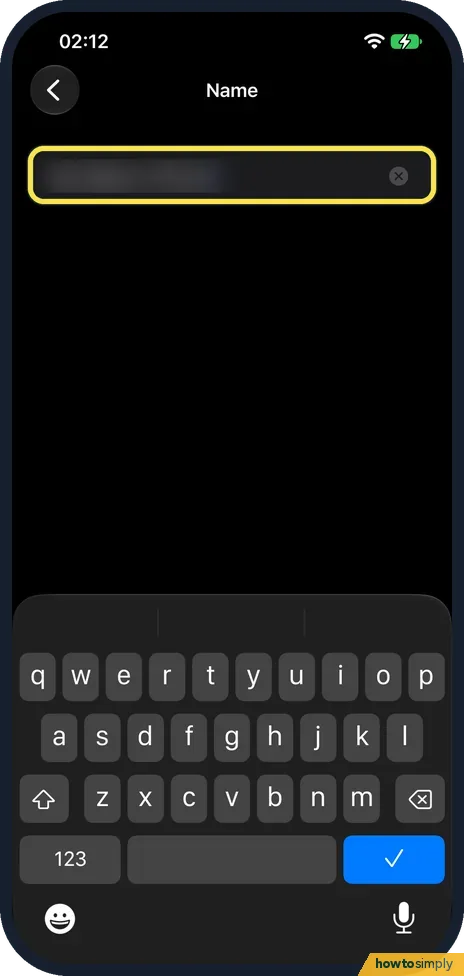
- 4
Type the new name and tap Done
Tap the x to clear the old name first. On iOS 27.0.1 the Done key is the blue tick on the keyboard. The change applies straight away.
Where the new name shows up
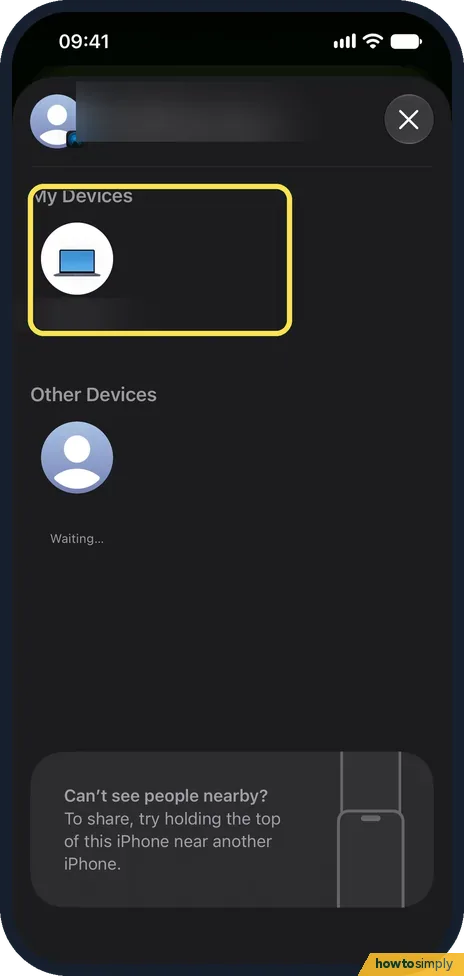
- AirDrop. Apple says AirDrop uses the name, so people you send to or receive from see it. AirDrop lists devices by their names: on our iPhone 17e the AirDrop sheet showed our Mac under My Devices (its name blurred). Source: Change the name of your iPhone
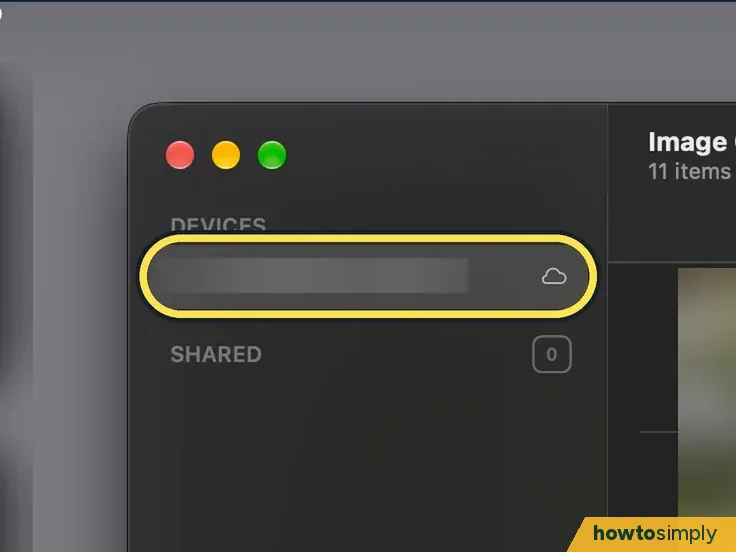
- Your Mac. Apple says your computer uses it too. On our MacBook Neo with macOS 27.2, Image Capture listed our iPhone 17e under Devices by its name (blurred here). Source: Change the name of your iPhone
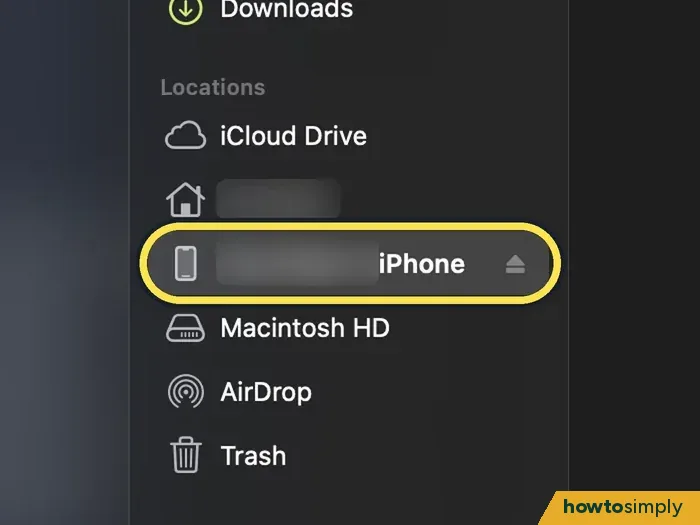
Zoomed in on the setting. Tap to see the whole screen - Finder on a Mac. Connect the iPhone with a cable and Finder lists it under Locations in the sidebar by its name. On our MacBook Neo with macOS 27.2 (9 November 2026) the row and the window title both read the name, ending in iPhone (the personal part blurred here). Source: Change the name of your iPhone
Zoomed in on the setting. Tap to see the whole screen - Personal Hotspot. Apple lists your Personal Hotspot: nearby phones and laptops see this name when they look for your hotspot. Not shown: Personal Hotspot is off on our iPhone 17e, so we have no picture of another device finding it. Source: Change the name of your iPhone
- Bluetooth. Apple lists Bluetooth: devices you pair with see this name. Not shown: we have no screenshot of another device listing our iPhone. Source: Change the name of your iPhone
- Find My. Apple's Find My steps have you tap Devices, then the name of the device, so the name is how you pick your iPhone there. Not shown: we have no Find My screenshot. Source: Locate a device in Find My on iPhone
If you do not see this option
- The keyboard has no Done key. On iOS 27.0.1 Done is the blue tick at the bottom right of the keyboard, as in the picture.
- Search for it. Open Settings, tap the search field at the bottom and type Name. Apple notes that the sections in Settings depend on the iPhone model. Source: Find settings on iPhone
If this does not work
- Others still see the old hotspot name. On the phone or computer that's joining your Personal Hotspot, pick the hotspot from the nearby Wi-Fi networks it lists.
- Who can see your name? Apple says the name is used by AirDrop, Bluetooth and your Personal Hotspot. Use a name without your surname.
- Cannot find the new name on another device? Apple says the hotspot appears under the name of the iPhone providing it. On another iPhone or iPad, open Settings, tap Wi-Fi and look for that name. If it is not there, check that Allow Others to Join is on in Personal Hotspot settings on your iPhone.
- A Mac still lists the old name? On a Mac, Apple says to choose the name of the nearby iPhone from the Wi-Fi menu, Control Centre or System Settings. Still not working? Apple says to update each device to its newest software, restart them all, and have another go.
Good to know
Leave your full name out of it if you share your hotspot in public places, because anyone joining picks it by your iPhone's name in their list of nearby Wi-Fi networks.
To rename AirPods or other Bluetooth accessories, open Settings, Bluetooth, tap the i next to the device and tap Name.
To rename a Mac as well: how to rename your Mac.
The new name applies straight away and needs no restart. Your data, apps and settings are not affected. When you share with AirDrop, it also matters who can see you: Apple says the Everyone for 10 Minutes setting changes after 10 minutes, back to Contacts Only for people signed in with an Apple Account. To undo the rename, go back to General, About, Name and type the old name again.
About this guide
Your iPhone's name is used by AirDrop, Bluetooth and your Personal Hotspot. Out of the box it is usually just "iPhone", which is confusing when several are nearby.
- Device
- iPhone
- Shown on
- iOS 27.0.1 (iPhone 17e)
- App
- Settings
- Path
- Settings › General › About › Name
- Real screenshots
- 4 of 4 steps
- Checked
- October 2026
- Sources
- 5 official, linked below
The screenshots are our own, taken on an iPhone 17e running iOS 27.0.1, in dark mode. We blurred our own name.
What changed: added where the new name shows up: AirDrop, Personal Hotspot, Bluetooth, Find My and your Mac.
Sources
Links checked October 2026. Menus and features can change with updates.Did this guide work for you?
Sorry about that. What happened?
Get new guides by email
Our newest guides, sent to your inbox. Free, and you can unsubscribe in one click.
We'll email you to confirm. How we use your email
Follow howtosimply on Facebook
We share our new guides on our Facebook page, so the next fix turns up in your feed.
Follow on Facebook