How to change the keyboard backlight on a MacBook
- Shown on
- MacBook Pro
- Software
- macOS 26
- Checked
- October 2026
- Real screenshots
- 5 of 5 steps
- Where it is
- System Settings › Keyboard › Keyboard brightness
 Real screenshot · MacBook Pro, macOS 26
Quick answer
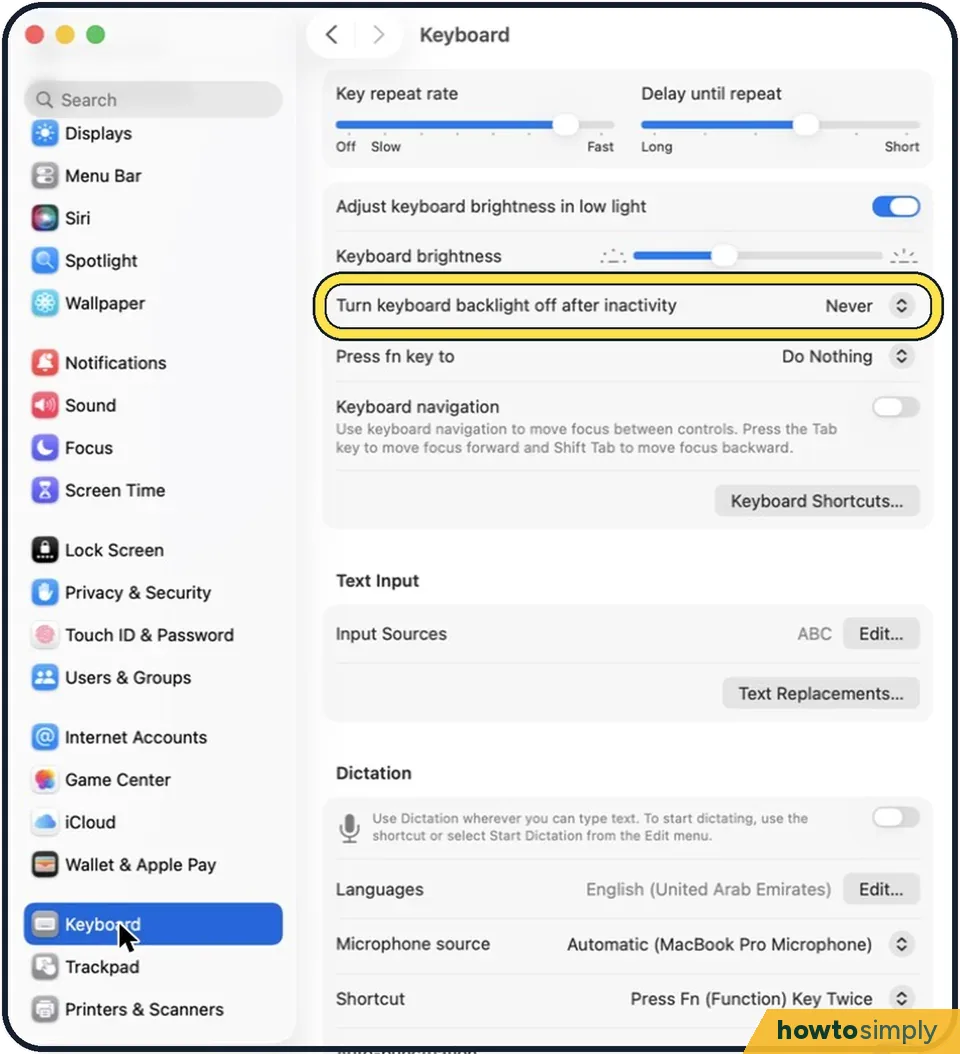
Open System Settings, click Keyboard, and drag the Keyboard brightness slider. Adjust keyboard brightness in low light lets the Mac set the level by itself. Turn keyboard backlight off after inactivity chooses how long the Mac is idle before the light goes out.
Steps
- 1
Open System Settings
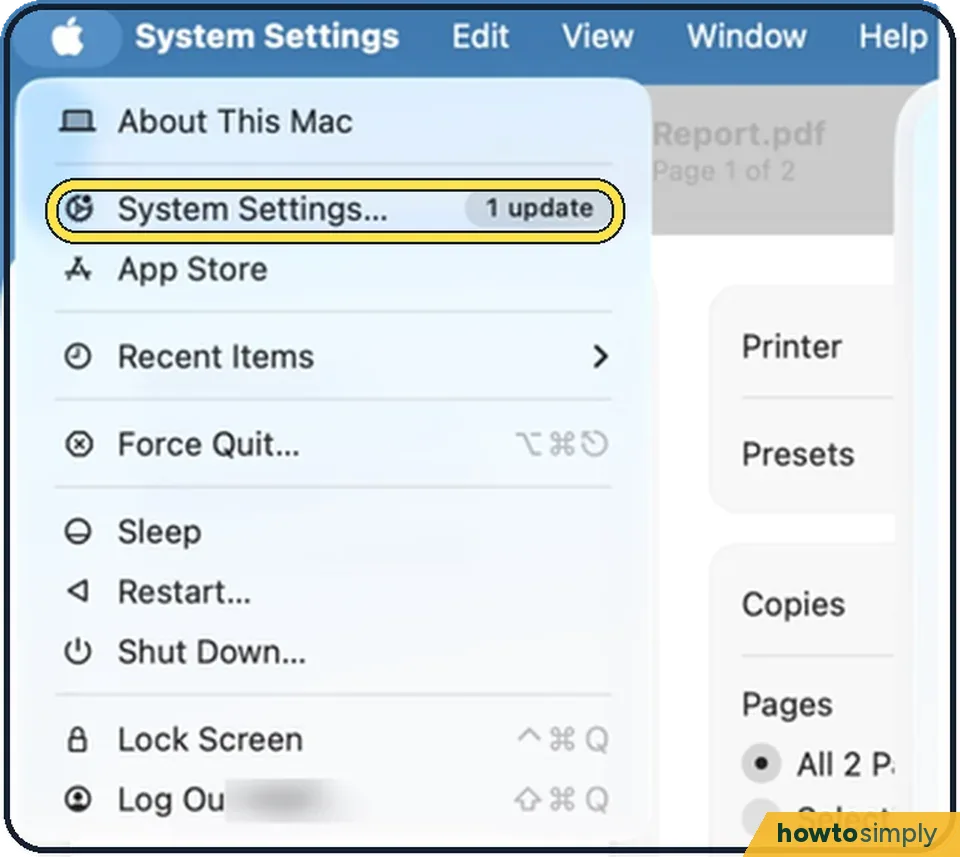
Click the Apple menu in the top left corner of the screen and choose System Settings.
- 2
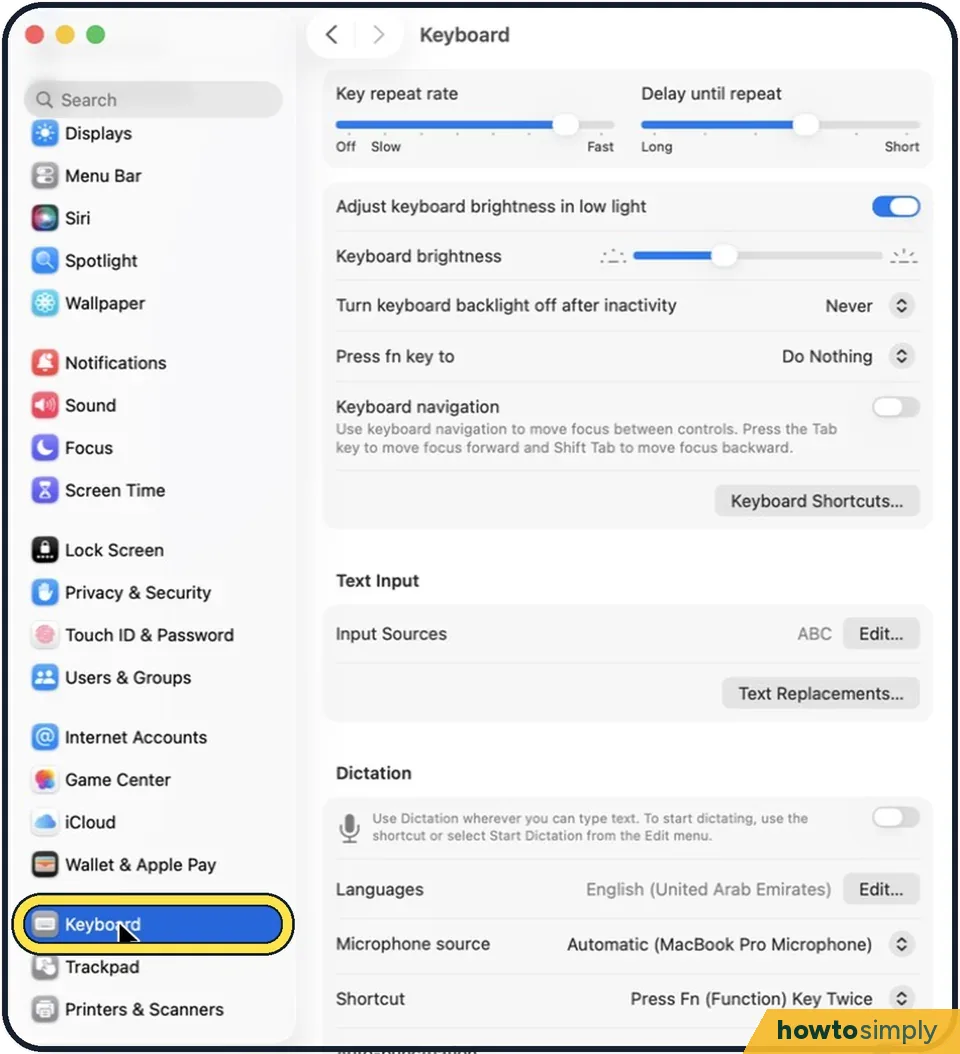
Click Keyboard in the sidebar
Keyboard is near the bottom of the sidebar. Scroll down to find it.
- 3
Set the brightness
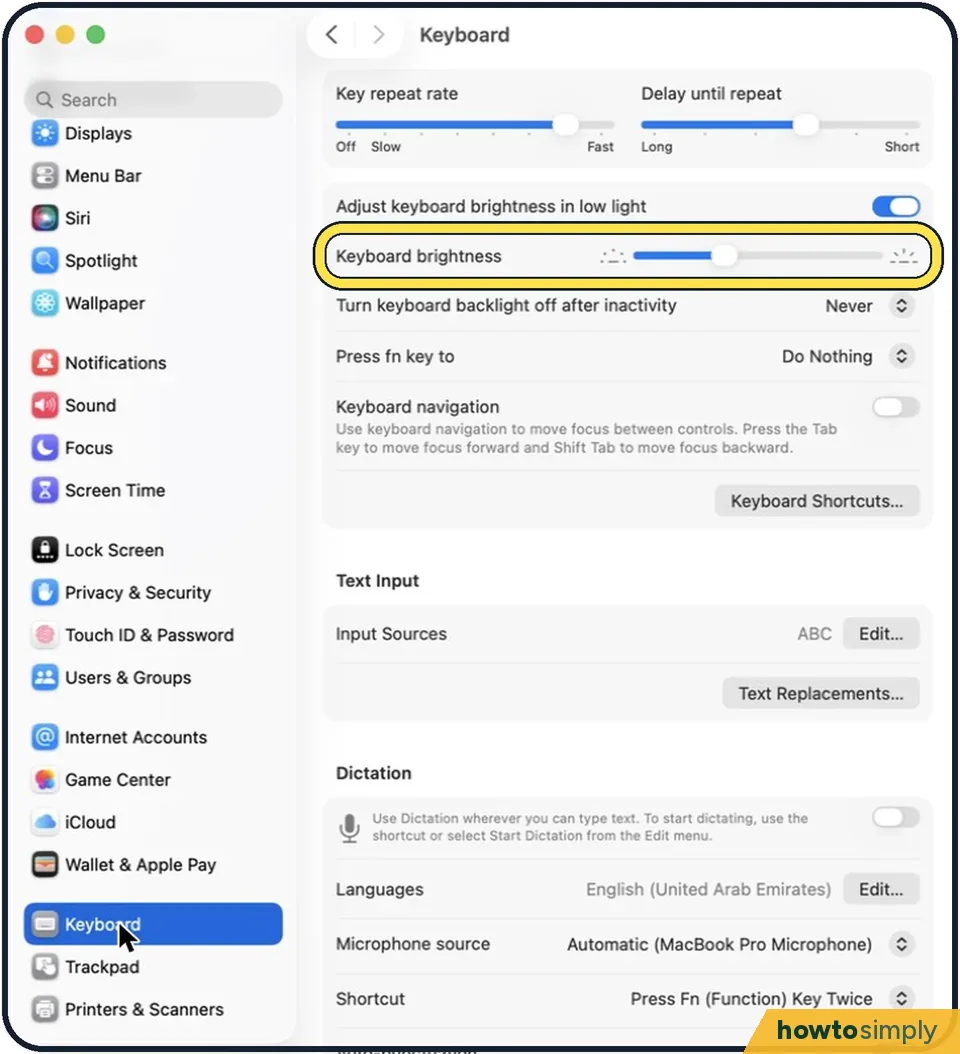
Drag the Keyboard brightness slider to set how bright the backlight is. Apple says dragging it all the way to the left turns the backlighting off.
- 4
Decide about the automatic mode
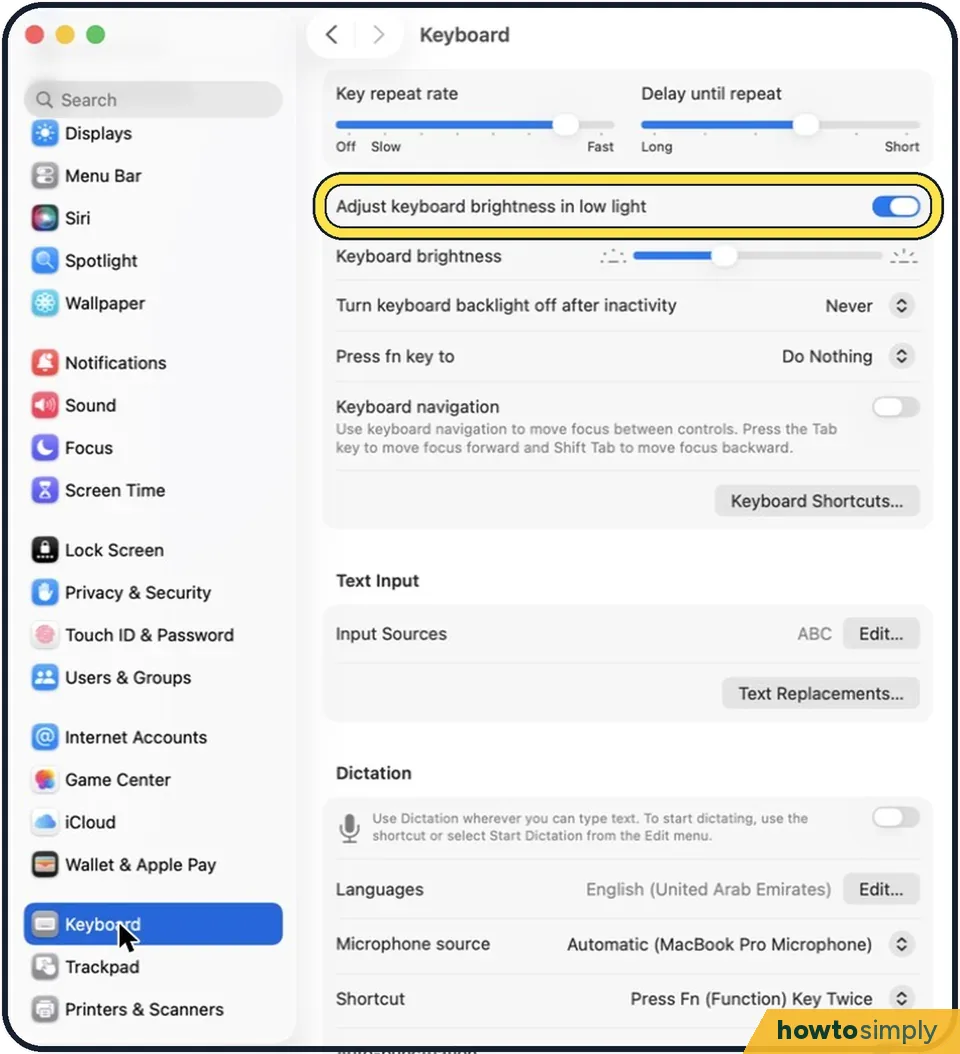
Adjust keyboard brightness in low light is on in the picture. With it on, the Mac adjusts the backlighting automatically in low-light conditions.
- 5
Set a timer
Turn keyboard backlight off after inactivity is set to Never in the picture. Click the menu and pick how long the Mac sits idle before the backlight switches itself off.

If you do not see this option
- There are no keyboard brightness settings. Apple says the automatic and timer options are for when your Mac has a backlit keyboard. Source: Keyboard settings on Mac
- Your Mac has System Preferences, not System Settings. Apple says that on macOS Monterey you choose System Preferences, Keyboard, then Keyboard. The timer there is a tick box, Turn keyboard backlight off after a set time of inactivity. Source: Change Keyboard preferences on Mac
- You want a quicker control. Apple says that if your Mac has keyboard brightness keys, you can use them. You can also add keyboard brightness to the menu bar or Control Centre. Source: Turn your Mac keyboard's backlighting on or off
If this does not work
- The keys do not light up in a dark room. Apple says the light sensor is at the top of the Mac near the camera. Make sure nothing covers it, or switch off the automatic mode and drag the slider yourself.
- The light goes off while you are reading. The inactivity timer turns the backlighting off when your Mac has been idle. Choose a longer time in the Turn keyboard backlight off after inactivity menu, or Never, as in the picture.
- No Keyboard Brightness button in Control Centre? Apple says that if the button is missing, you can add it through Customize Control Center. After that, open Control Centre from the menu bar, click Keyboard Brightness and drag the slider.
- The brightness keys change the screen instead? Apple's steps using keys only work if your Mac has keys for keyboard brightness. If your Mac does not have keyboard brightness keys, use the slider in Keyboard settings, which Apple says works on all Mac computers, or in Control Centre.
Good to know
These options are for Mac computers with a backlit keyboard.
To return to the old setup, switch Adjust keyboard brightness in low light back on and choose the timer you had before; ours was Never.
For more ways to save battery, see MacBook battery draining fast.
About this guide
On a Mac laptop with a lit-up keyboard, you can make the light brighter, dimmer or switch it off. Three settings control it: an automatic mode, a brightness slider and a timer.
The screenshots show System Settings on macOS Tahoe 26.
- Device
- Mac
- Shown on
- macOS Tahoe 26 (MacBook Pro)
- App
- System Settings
- Path
- System Settings › Keyboard › Keyboard brightness
- Real screenshots
- 5 of 5 steps
- Checked
- October 2026
- Sources
- 3 official, linked below
Sources
Links checked October 2026. Menus and features can change with updates.Did this guide work for you?
Sorry about that. What happened?
Get new guides by email
Our newest guides, sent to your inbox. Free, and you can unsubscribe in one click.
We'll email you to confirm. How we use your email
Follow howtosimply on Facebook
We share our new guides on our Facebook page, so the next fix turns up in your feed.
Follow on Facebook