How to turn off autocorrect on a Mac
- Shown on
- MacBook Neo
- Software
- macOS 27.0.1More macOS 27 guides
- Checked
- October 2026
- Real screenshots
- 6 of 6 steps
 Real screenshot · MacBook Neo, macOS 27.0.1
Quick answer
Open System Settings, click Keyboard, then click Edit… next to Input Sources. Switch off Correct spelling automatically and click Done.
Steps
- 1
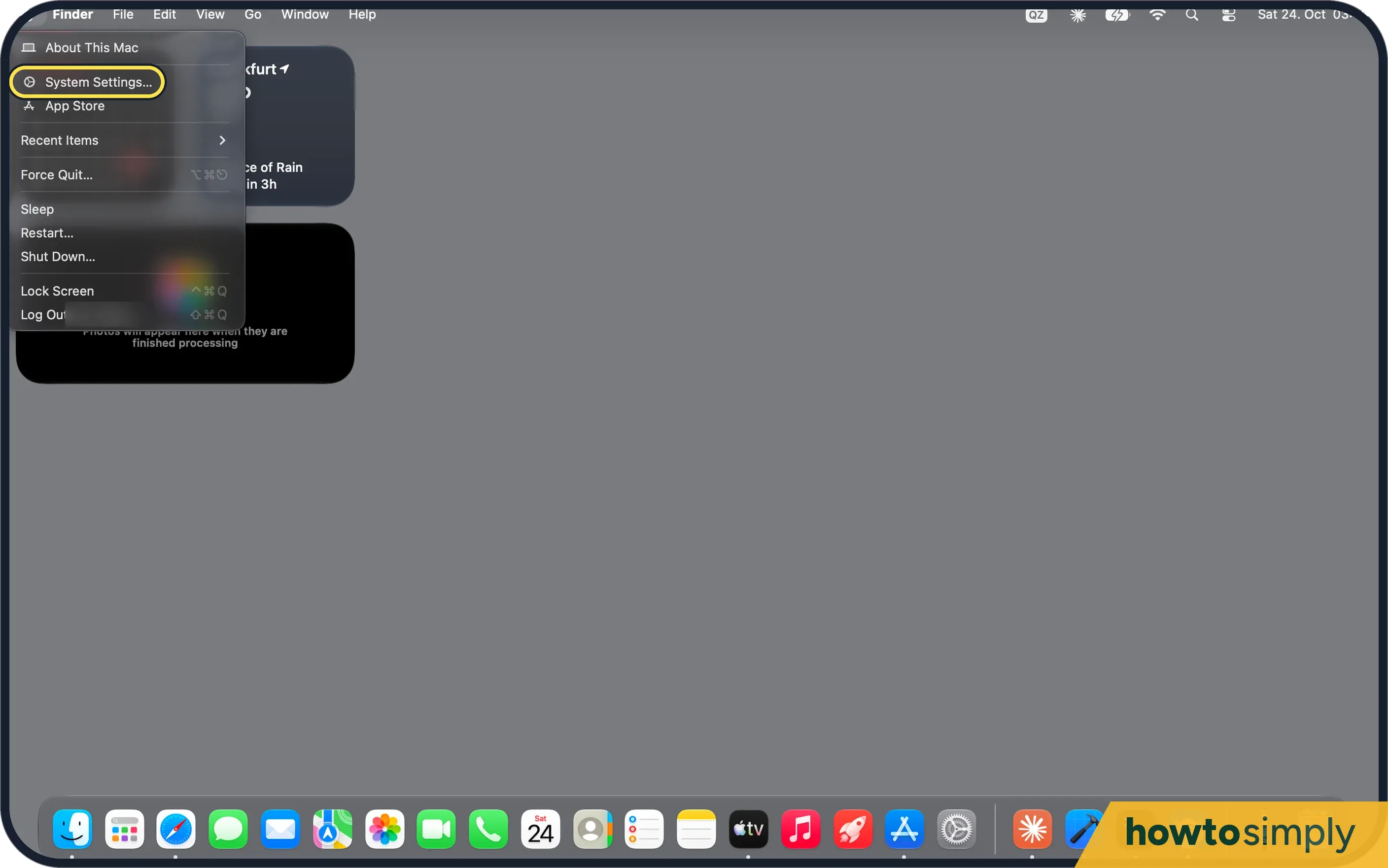
Open System Settings
Click the Apple menu, then System Settings….
- 2
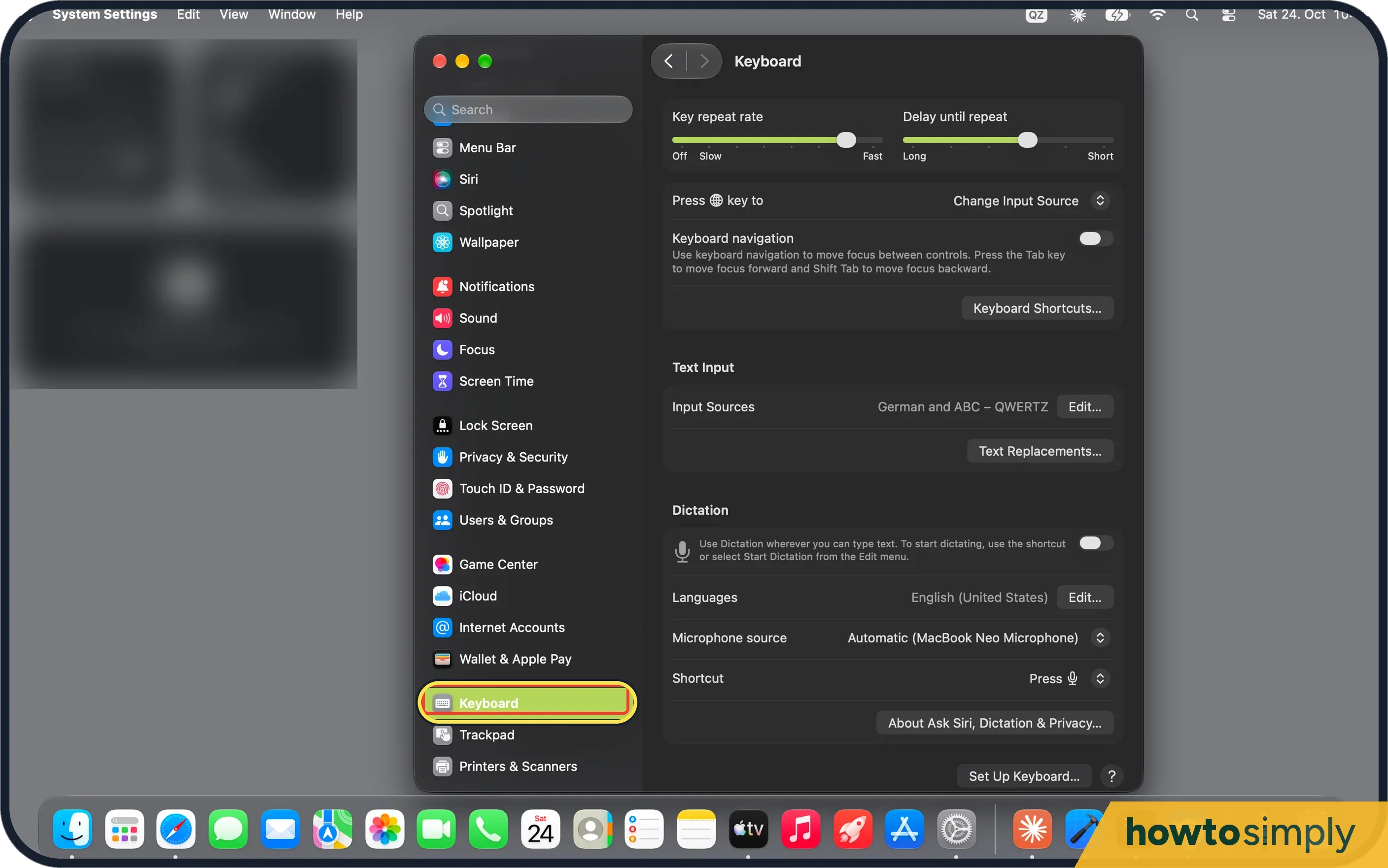
Click Keyboard
Scroll down the sidebar and click Keyboard.
On our MacBook Neo, Keyboard sits below Wallet & Apple Pay and above Trackpad.
- 3
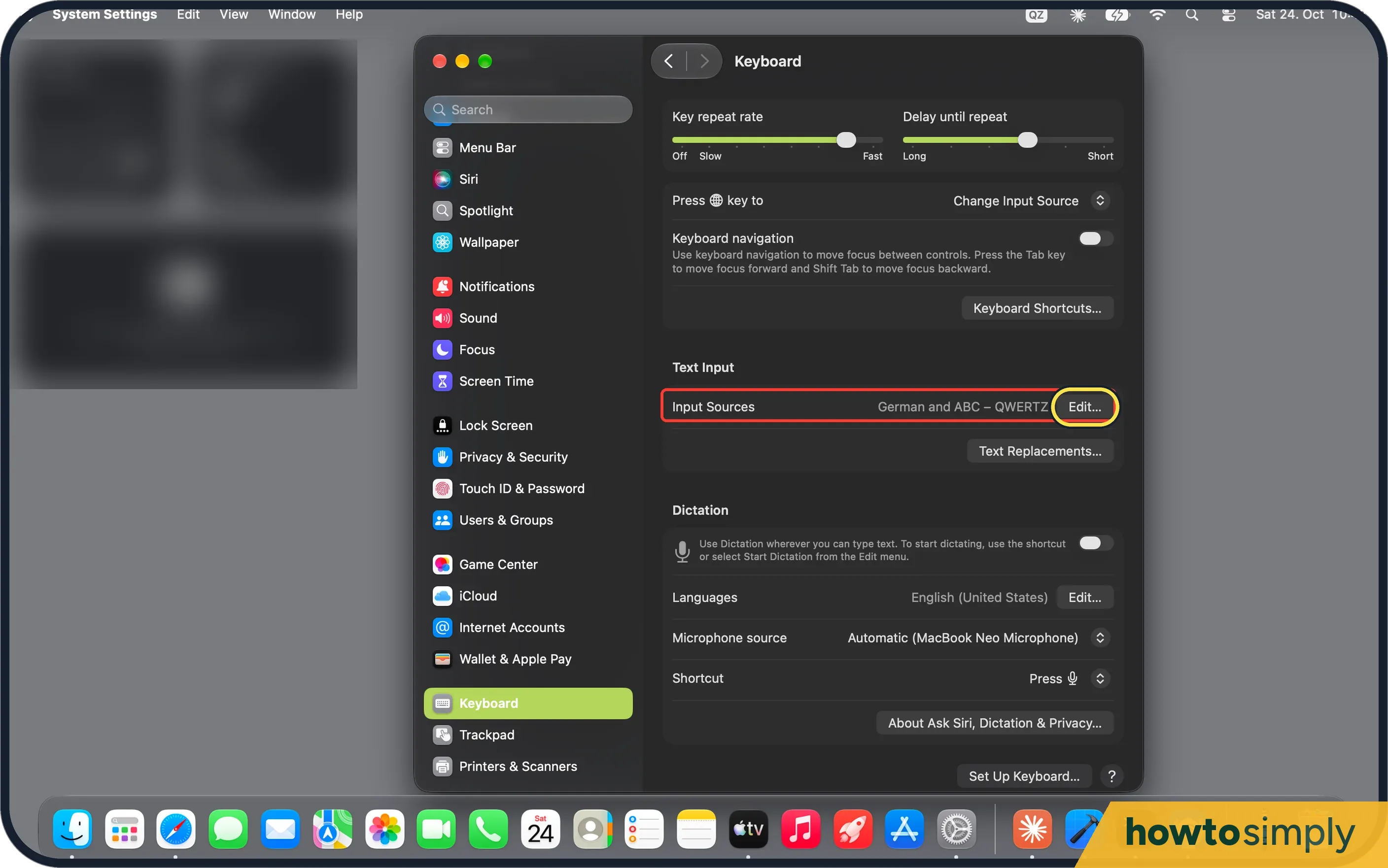
Click Edit… next to Input Sources
In the Text Input section, click Edit… on the Input Sources row.
On our MacBook Neo, that row reads German and ABC – QWERTZ, with a separate Text Replacements… button below it.
- 4
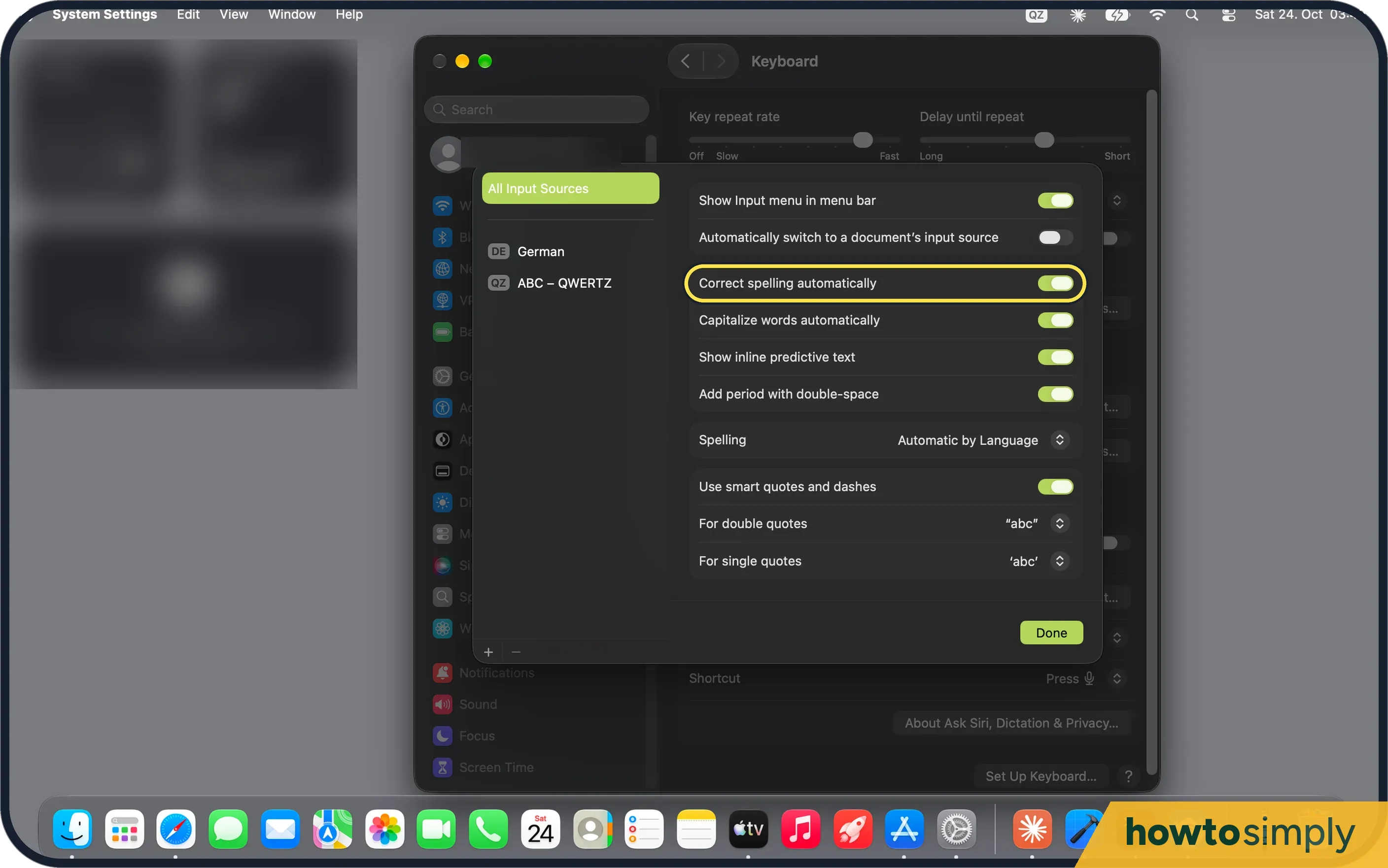
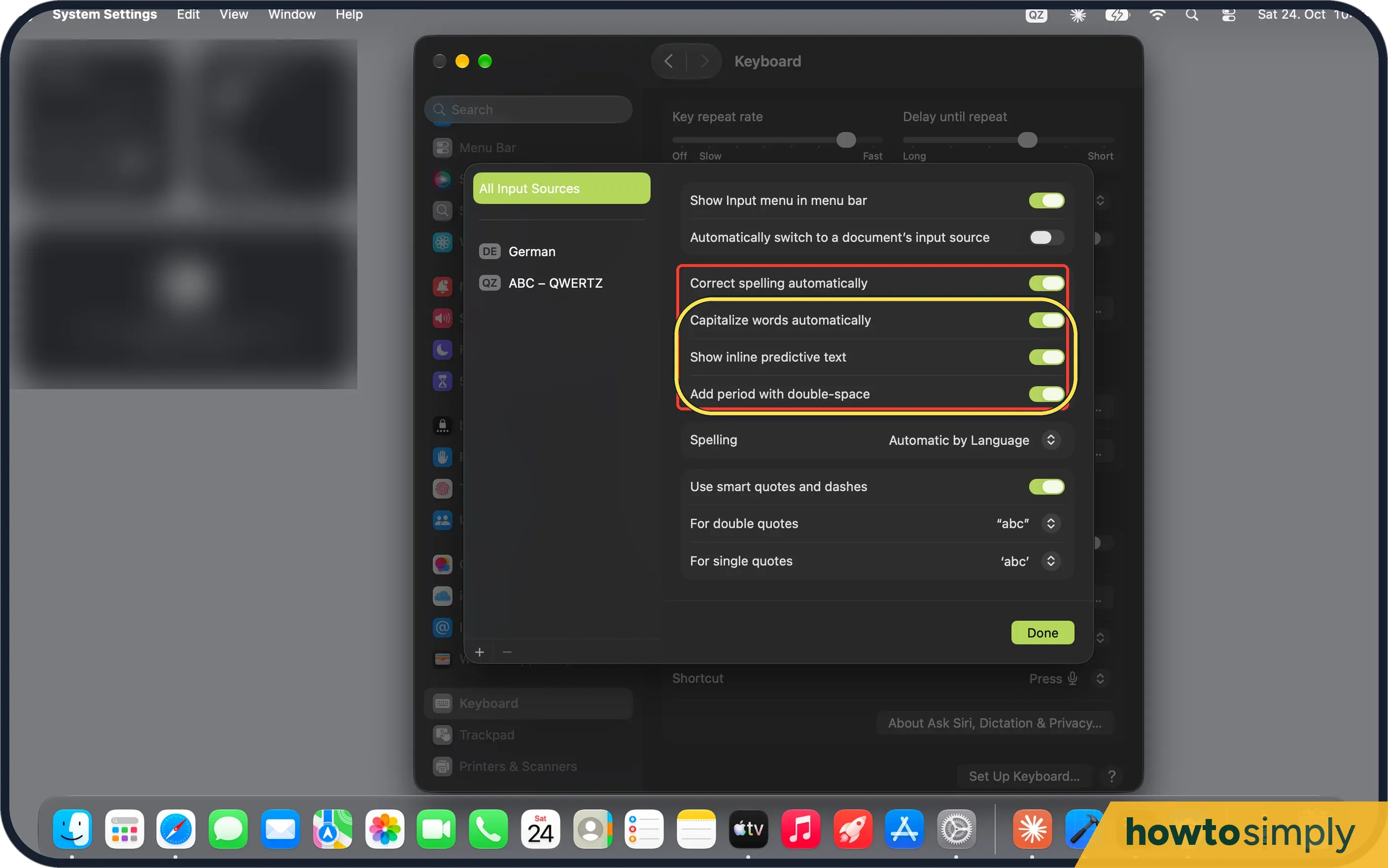
Switch off Correct spelling automatically
The window opens with All Input Sources selected on the left. Click the Correct spelling automatically switch so it turns grey.
On our MacBook Neo, this switch was on by default.
- 5
Decide about the other switches
Capitalize words automatically, Show inline predictive text and Add period with double-space are separate switches in the same window.
On our MacBook Neo, all three were on. Leave them on if you still want them.
- 6
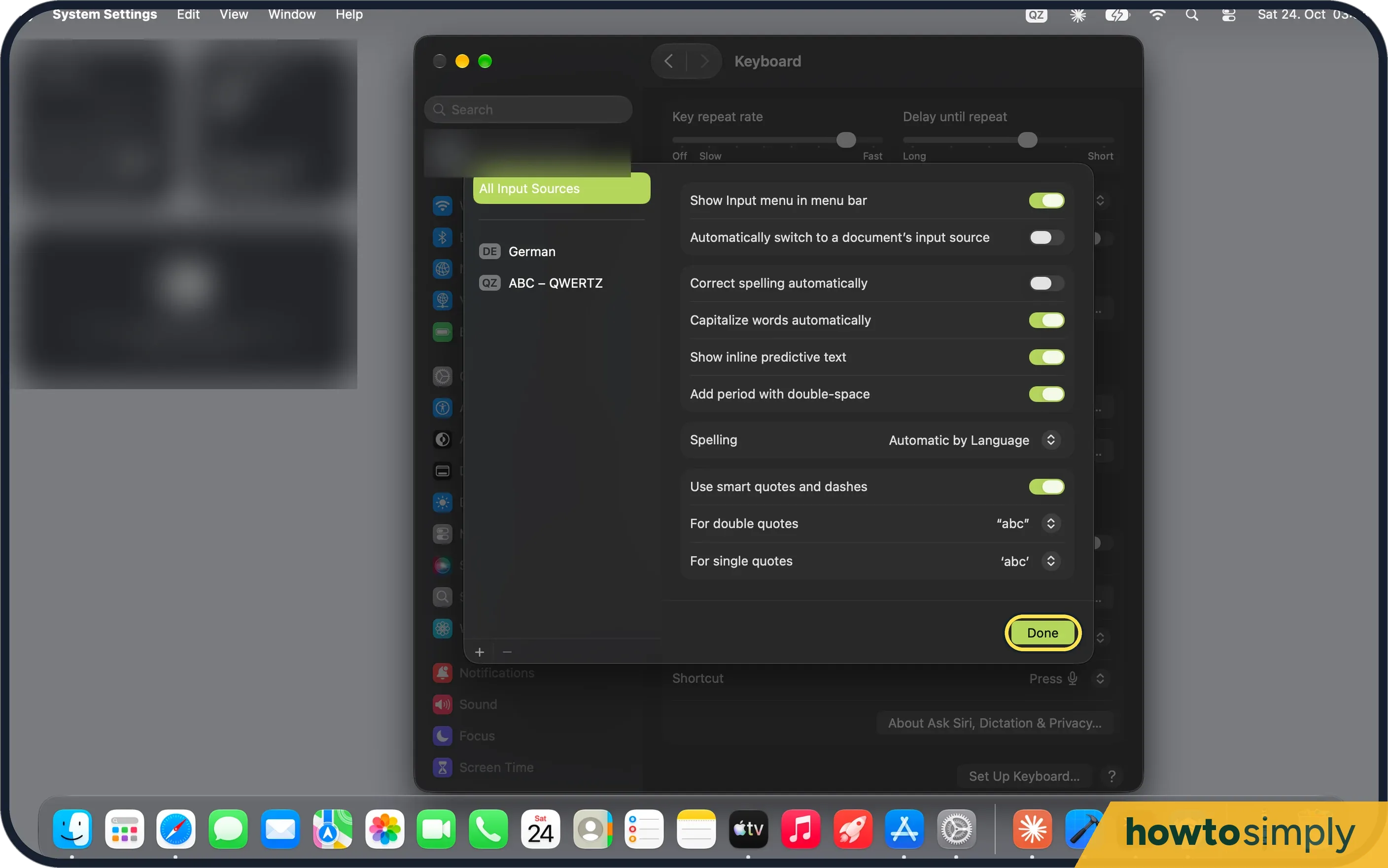
Click Done
With Correct spelling automatically off, click Done to close the window.


If you do not see this option
- The switches are not on the Keyboard page They are in a separate window: on our MacBook Neo, click Edit… on the Input Sources row under Text Input.
- Keyboard is not in the sidebar Scroll down the sidebar. On our MacBook Neo, Keyboard appears below Wallet & Apple Pay, well past Screen Time. Source: Get typing suggestions and correct mistakes on Mac
- An app has no Spelling and Grammar menu Apple says to check that app’s own settings or menus, because it may have its own spell checker. Source: Get typing suggestions and correct mistakes on Mac
If this does not work
- Spelling is checked in the wrong language Use the Spelling menu in the same window; on our MacBook Neo it was set to Automatic by Language. Apple says you can also choose Set Up to check several languages.
- A word you use keeps being flagged Apple says to Control-click it and choose Learn Spelling, so it is not flagged in any document. Your street name, the jargon of your job: teach it once and it is no longer flagged as misspelt.
- Words are still corrected in one app Apple says autocorrection can also be set for a single app: open the app and choose Edit, Spelling and Grammar, Correct Spelling Automatically. It is off when no tick shows.
- Red underlines still appear? That is expected. Turning off autocorrect stops the changes, not the spell check. Apple says misspelled words stay underlined in red until you ignore or learn them: Control-click one and choose Ignore Spelling for that document.
Good to know
To undo a single correction, Control-click the word and choose Change Back. A corrected word is briefly marked with an underline.
See also: text replacements on a Mac.
macOS 27 compared with macOS 26: We rewrote this guide on macOS 27.0.1 (MacBook Neo): it now has 6 steps instead of 5. The macOS 26 page keeps the steps and screenshots as they were.
Version history: the macOS 26 version of this guide, with its own screenshots.
About this guide
Say you type a colleague's unusual surname, and the Mac, like a polite know-it-all, swaps it for an ordinary word before you notice. When autocorrect is on, it detects misspelt words and corrects them automatically as you type.
- Device
- Mac
- Shown on
- macOS 27.0.1 (MacBook Neo)
- App
- System Settings
- Real screenshots
- 6 of 6 steps
- Checked
- October 2026
- Sources
- 1 official, linked below
Sources
Links checked October 2026. Menus and features can change with updates.Did this guide work for you?
Sorry about that. What happened?
Get new guides by email
Our newest guides, sent to your inbox. Free, and you can unsubscribe in one click.
We'll email you to confirm. How we use your email
Follow howtosimply on Facebook
We share our new guides on our Facebook page, so the next fix turns up in your feed.
Follow on Facebook