How to turn on dark mode on a Mac
- Shown on
- MacBook Neo
- Software
- macOS 27.0.1More macOS 27 guides
- Checked
- October 2026
- Real screenshots
- 4 of 4 steps
 Real screenshot · MacBook Neo, macOS 27.0.1
Quick answer
Open System Settings, click Appearance and choose Dark, the middle option in the Appearance row. Or choose Auto, on the right, to let the Mac switch between light and dark by itself.
Steps
- 1
Open System Settings
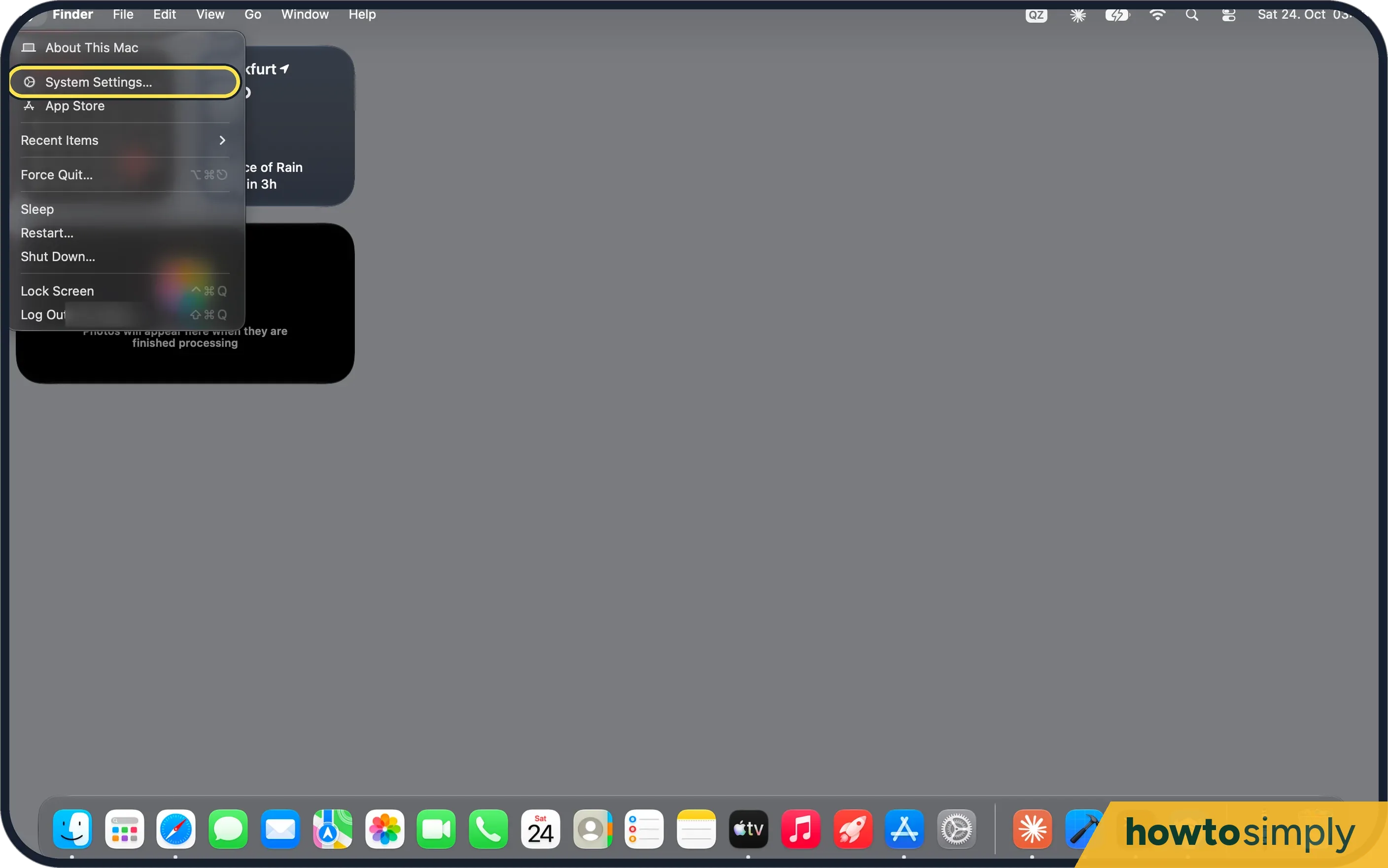
Click the Apple menu in the top left corner and choose System Settings…
On our MacBook Neo it is the second item in the menu, just below About This Mac.
- 2
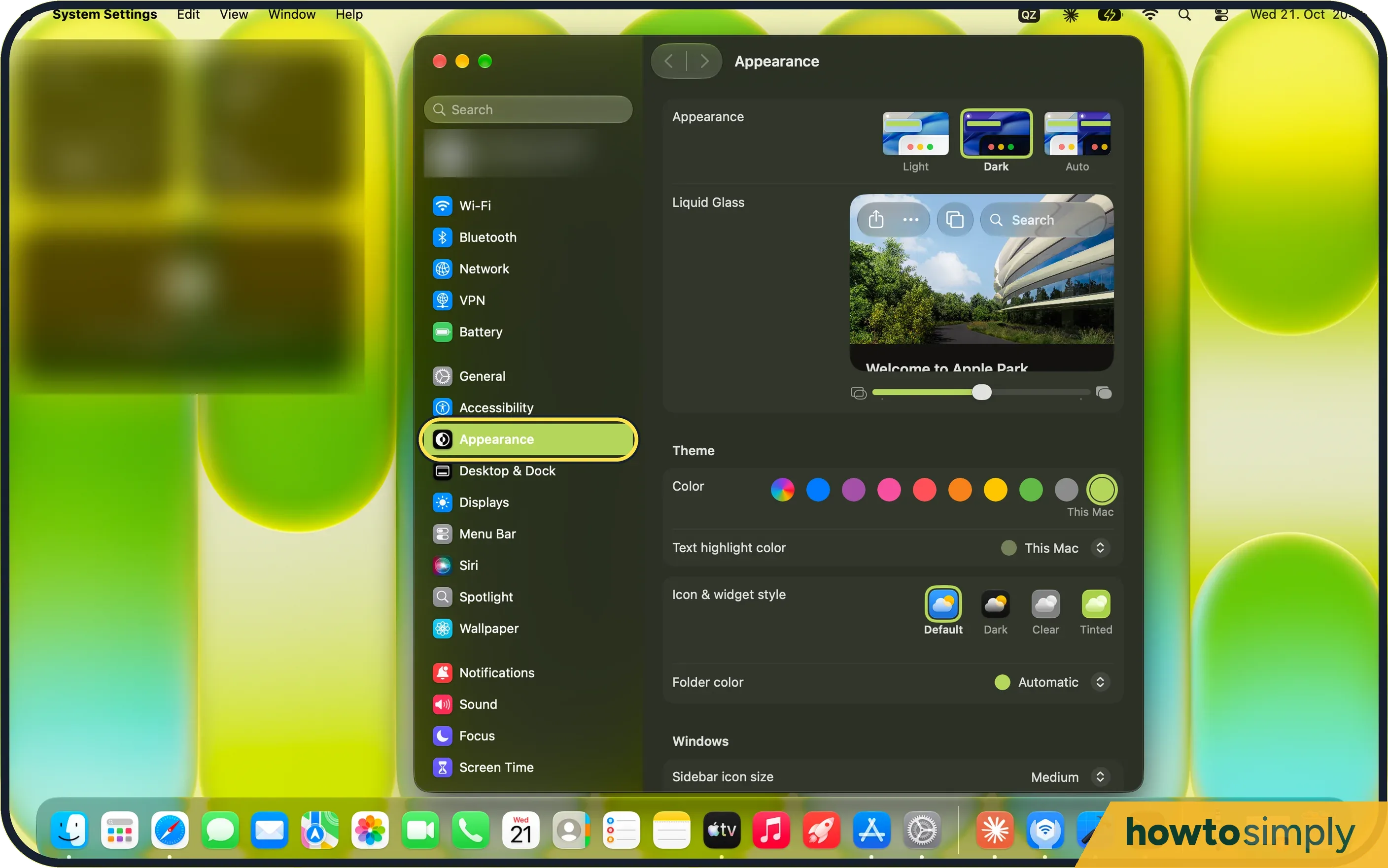
Click Appearance
It is in the list on the left. On our MacBook Neo it sits between Accessibility and Desktop & Dock.
- 3
Choose Dark
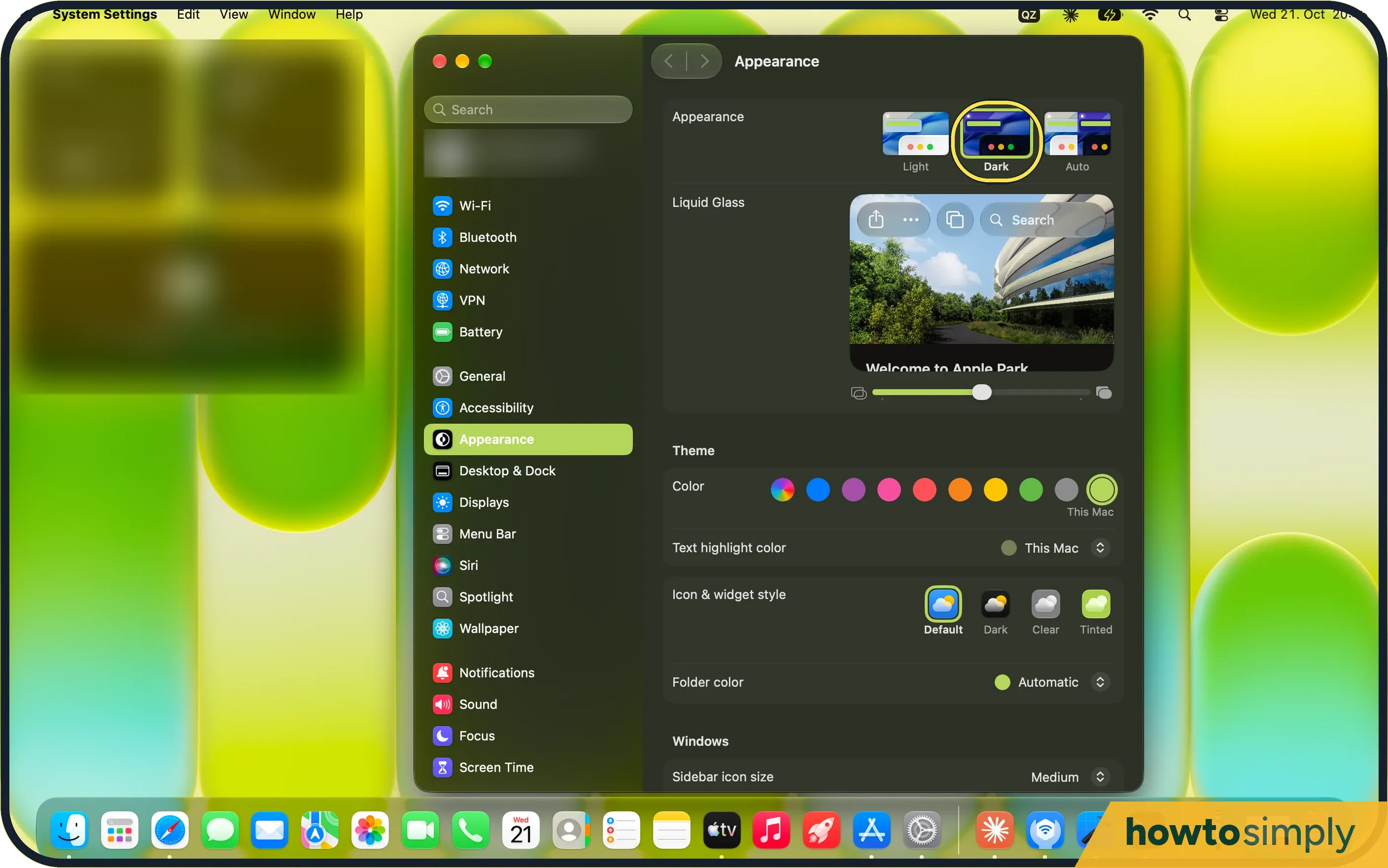
Click Dark, the middle option in the Appearance row at the top, between Light and Auto.
On our MacBook Neo the same page also has Liquid Glass and Theme settings below; you do not need those for dark mode.
- 4
Or choose Auto
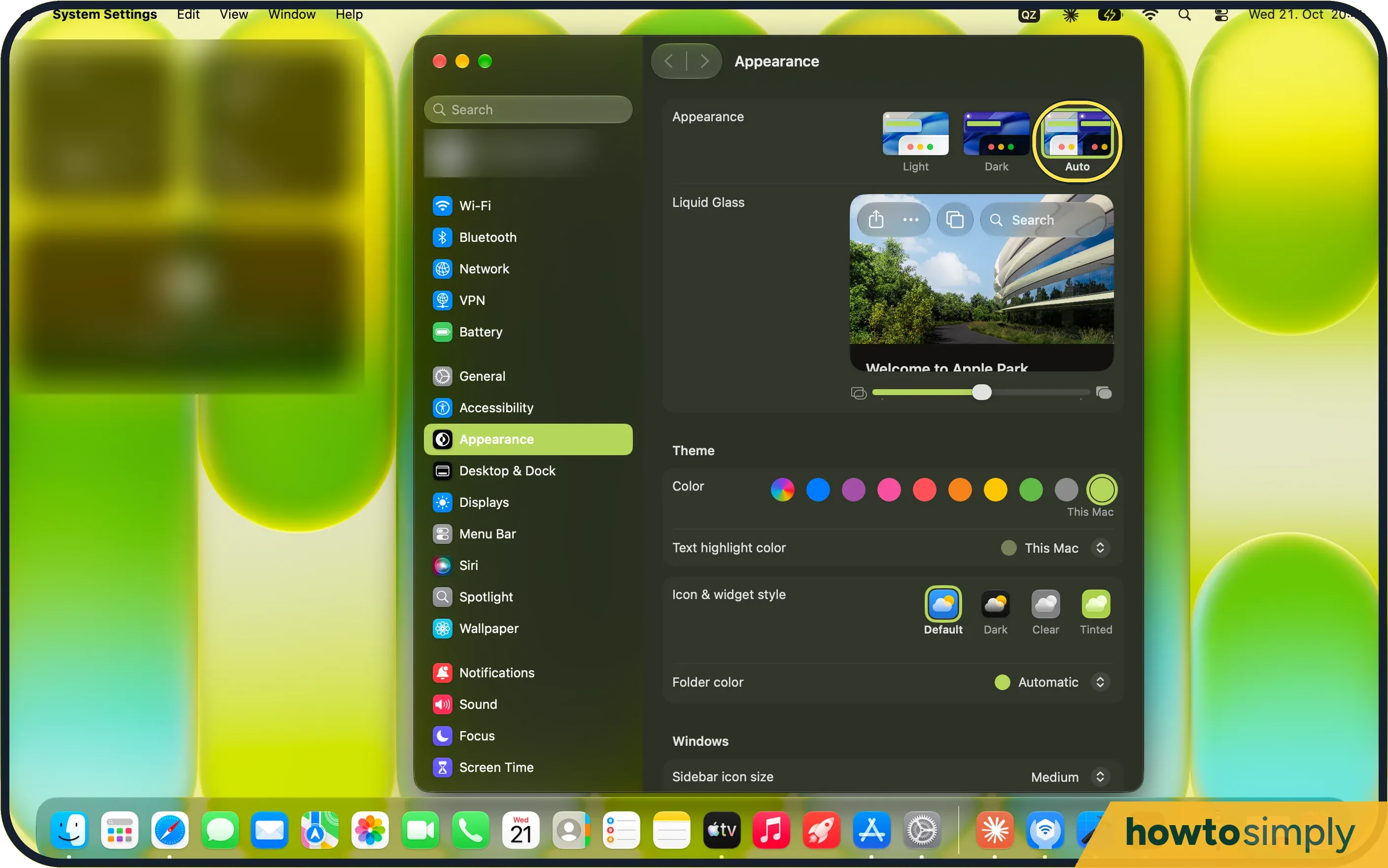
Click Auto, the last option on the right of the Appearance row, to let the Mac switch between light and dark by itself.
On our MacBook Neo the order is Light, Dark, Auto.


If you do not see this option
- Appearance is not in the list Apple says Appearance is in the System Settings sidebar, and you may need to scroll down to see it.
- You changed the icons but windows are still light On our MacBook Neo, Icon & widget style (Default, Dark, Clear, Tinted) is a separate setting further down the page. Dark mode is set in the Appearance row at the top.
- Your Mac has System Preferences instead Apple says that on macOS Monterey you choose Apple menu, System Preferences, then click General and select Light, Dark or Auto. Sources: Use a light or dark appearance on your Mac, Use a light or dark appearance on your Mac (macOS Monterey 12)
If this does not work
- Auto has not switched yet Apple says Auto moves between light and dark to match your Night Shift schedule, and waits until the Mac has sat untouched for a minute or more before it changes. Choose Dark if you want it dark all the time.
- You are not sure dark mode is on Apple says Control Centre can switch Dark Mode on or off too: click Control Centre in the menu bar, click next to Display, and choose Dark Mode.
- An app stays light Apple says it changes the menu bar, Dock, windows and the Mac's own apps. Look in that app's own settings for an appearance option, as in Mail below.
- The wallpaper did not change with it? Apple says some moving wallpapers show a still image instead, and if you picked the dark look while setting up macOS, your wallpaper becomes a dark still picture. You can change this picture, as in how to change the wallpaper on a Mac.
Good to know
Some apps have their own setting. In Mail, you can keep messages on a light background under Mail, Settings, Viewing.
Websites turn dark only if they support it.
Auto follows the Night Shift schedule you set. See how to turn on Night Shift.
macOS 27 compared with macOS 26: We rewrote steps 1, 2, 3 and 4 to match the macOS 27 screens. The macOS 26 page keeps the steps and screenshots as they were.
Version history: the macOS 26 version of this guide, with its own screenshots.
About this guide
Dark mode turns the menu bar, Dock, windows and the Mac's own apps dark. Many people find it easier on the eyes at night.
- Device
- Mac
- Shown on
- macOS 27.0.1 (MacBook Neo)
- App
- System Settings
- Real screenshots
- 4 of 4 steps
- Checked
- October 2026
- Sources
- 2 official, linked below
Sources
Links checked October 2026. Menus and features can change with updates.Did this guide work for you?
Sorry about that. What happened?
Get new guides by email
Our newest guides, sent to your inbox. Free, and you can unsubscribe in one click.
We'll email you to confirm. How we use your email
Follow howtosimply on Facebook
We share our new guides on our Facebook page, so the next fix turns up in your feed.
Follow on Facebook