How to make an iPhone take JPG photos instead of HEIC
- Shown on
- iPhone 17e
- Software
- iOS 27.0.1More iOS 27 guides
- Checked
- October 2026
- Real screenshots
- 6 of 6 steps
- Where it is
- Settings › Camera › Formats › Most Compatible
Quick answer
Open Settings, tap Camera, tap Formats and choose Most Compatible. From then on the iPhone saves new photos as JPEG and new videos as H.264. Photos you have already taken stay in HEIC and can be converted when you share or export them.
Steps
- 1
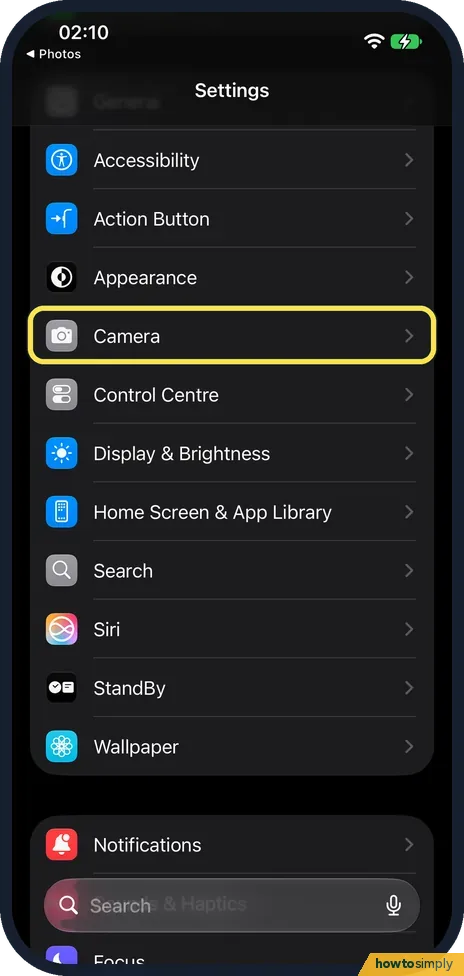
Open Settings and tap Camera
On iOS 26 and later, Camera is in the main list of Settings.
- 2
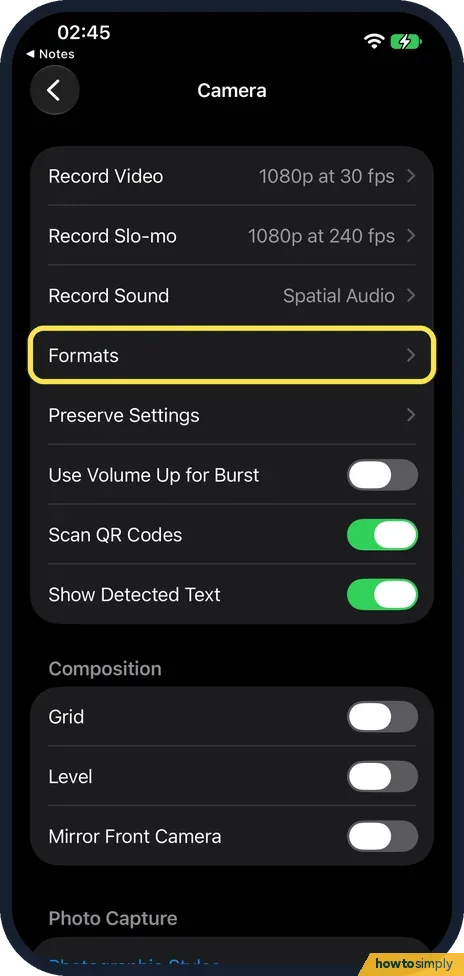
Tap Formats
It is near the top of the Camera page, below Record Sound.
- 3
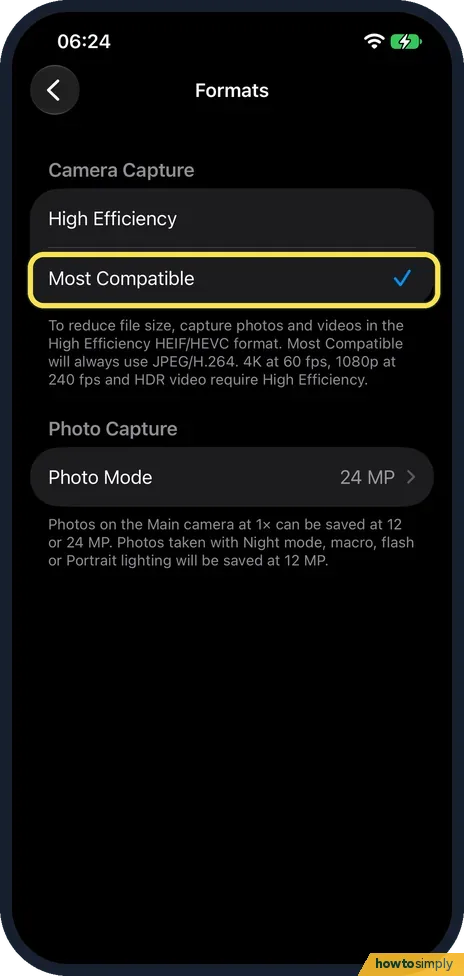
Choose Most Compatible
High Efficiency means HEIF photos and HEVC video. Most Compatible means JPEG and H.264, which open everywhere. The note on our page says that 4K at 60 fps, 1080p at 240 fps and HDR video require High Efficiency. The picture shows the tick on Most Compatible after we tapped it.
- 4
Know what you give up
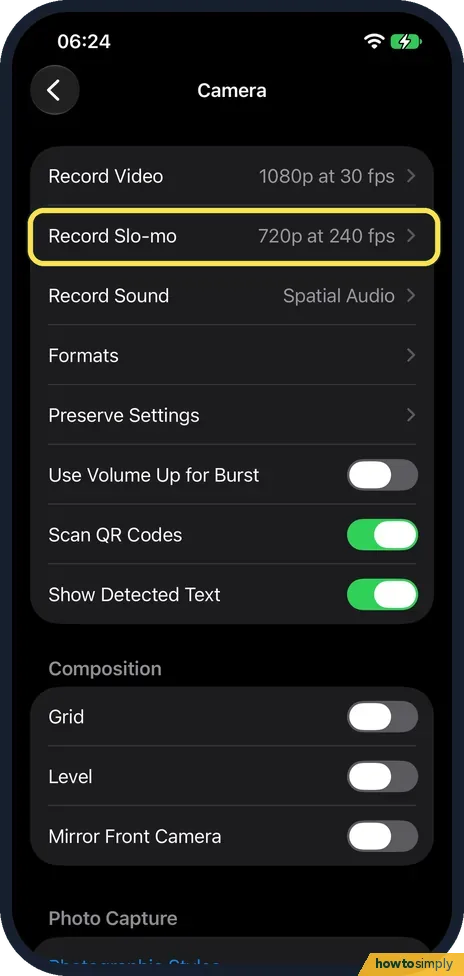
JPEG files are larger, so the storage fills faster. Some video modes need High Efficiency and are not offered in Most Compatible. On ours, Record Slo-mo was at 1080p at 240 fps. After we chose Most Compatible it read 720p at 240 fps, and it went back to 1080p by itself when we switched back to High Efficiency.
- 5
Or convert during the transfer by cable
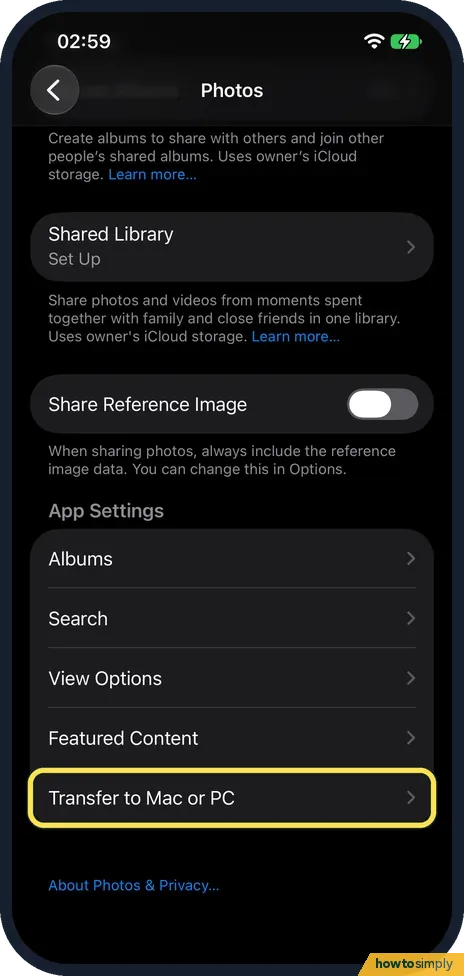
Open Settings, Apps, Photos, scroll down and tap Transfer to Mac or PC. It is the last row under App Settings.
- 6
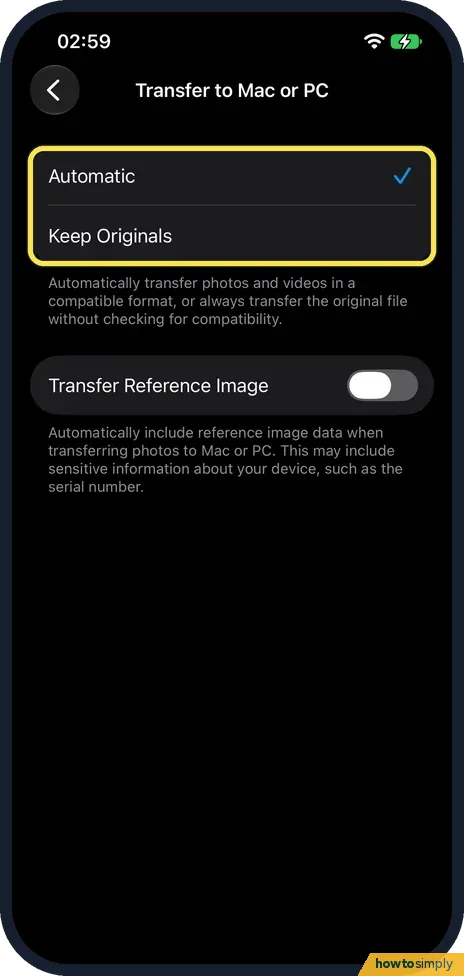
Choose Automatic or Keep Originals
Automatic converts photos to a compatible format when you import them on a Mac or PC. Keep Originals hands over the HEIC files unchanged. Ours was on Automatic.
If you do not see this option
- There is no Formats row. Apple says Most Compatible is offered only on devices that can capture HEIF, which for iPhone means iPhone 7 or later. Source: Using HEIF or HEVC media on Apple devices
- Your iPhone runs iOS 17 or earlier. Photos is in the main Settings list itself, not under Apps.
If this does not work
- Older photos are still HEIC. The setting applies to new photos and videos. Export older ones as JPEG, or use the converter linked below the steps.
- The PC still gets HEIC files. Make sure Transfer to Mac or PC is set to Automatic, because Keep Originals hands the HEIC files over unchanged.
- A video mode is missing. With Most Compatible, 4K at 60 fps, 1080p at 240 fps and HDR video are not offered, as the note on the Formats page says. On ours, Record Slo-mo dropped to 720p at 240 fps. Switch back to High Efficiency to use them.
Good to know
Switching to Most Compatible applies to new photos and videos. To convert HEIF photos manually, open them on a Mac in Preview or Photos and choose File, Export, then JPEG, or use our HEIC to JPG converter.
If you keep High Efficiency on, the iPhone can sort it out for you: share a photo by AirDrop, Messages or email to a device that can't open the newer formats and it may be sent in an older, more widely supported one, such as JPEG.
Windows 11 opens HEIC after the free HEIF Image Extensions are installed from the Microsoft Store.
How to copy the pictures over: how to transfer photos from an iPhone to a Mac or Windows PC.
Do it in your browser
HEIC to JPG: Already have HEIC photos? Convert them to JPG in your browser. The photos stay on your device.
About this guide
Say you send photos of the new puppy to your dad's old Windows laptop, and he rings to say they will not open. HEIF (High Efficiency Image File Format) uses less storage space than JPEG while keeping the same visual quality. The price is that some Windows programs, websites and older devices cannot open it. You have two roads: switch the camera, or leave it and convert only when needed.
Menu names are from recent versions of iOS. Where iOS 27 differs from iOS 26, both are given. The screenshots are our own, taken on an iPhone 17e running iOS 27.0.1, in dark mode.
- Device
- iPhone
- Shown on
- iOS 27.0.1 (iPhone 17e)
- App
- Settings
- Path
- Settings › Camera › Formats › Most Compatible
- Real screenshots
- 6 of 6 steps
- What we did
- Performed: we made the change on our device and show the result
- Checked
- October 2026
- Sources
- 1 official, linked below
What changed: the screenshots are now our own iPhone 17e on iOS 27.0.1, dark mode, and the wording is checked against those screens.
Sources
Links checked October 2026. Menus and features can change with updates.Did this guide work for you?
Sorry about that. What happened?
Get new guides by email
Our newest guides, sent to your inbox. Free, and you can unsubscribe in one click.
We'll email you to confirm. How we use your email
Follow howtosimply on Facebook
We share our new guides on our Facebook page, so the next fix turns up in your feed.
Follow on Facebook