Samsung Internet is now Samsung Browser: where things moved
- Shown on
- Galaxy S26 (One UI 9.0), Galaxy A57 5G (One UI 8.5) and Galaxy A57 (One UI 9)
- Checked
- November 2026
- Real screenshots
- 6 of 6 steps
Quick answer
Since One UI 8.5, Samsung Internet is called Samsung Browser, and it still is on One UI 9. Find it under Settings, Apps, Samsung Browser. In the browser's settings, Personal browsing data has Delete browsing data at the top.
Watch these steps
 Watch on YouTubeA video of this task from our YouTube channel · opens YouTube
Steps
- 1
Find Samsung Browser in Apps
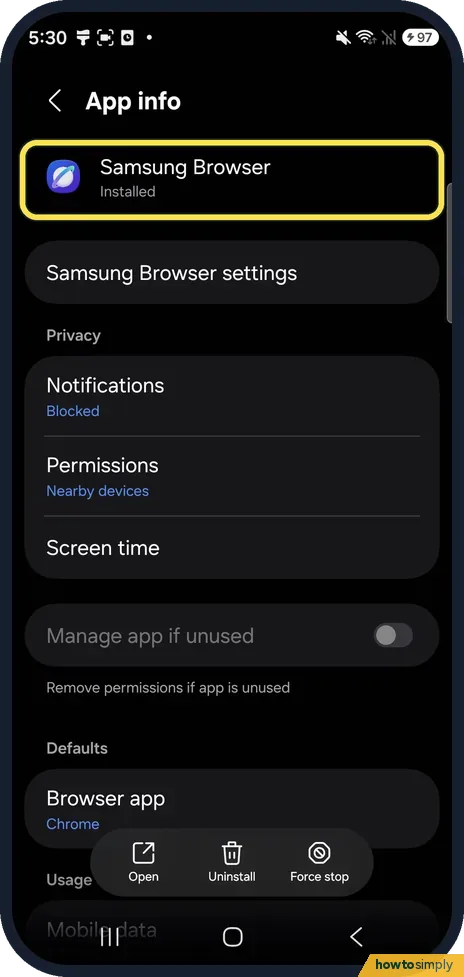
Open Settings, then Apps, and tap Samsung Browser.
On our Galaxy S26 with One UI 9 the app is still called Samsung Browser.
- 2
Open the browser's own settings
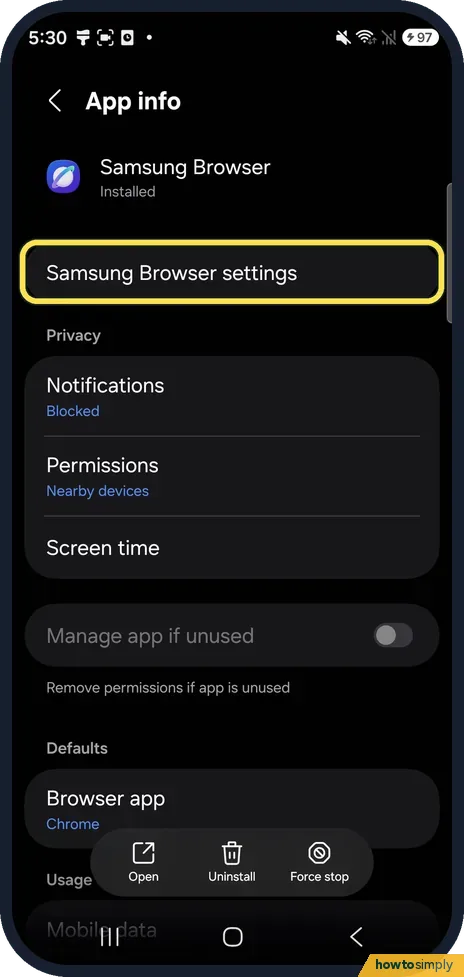
On the App info page, tap Samsung Browser settings, the first row under the app name. In the browser itself, tap the menu (three lines) and Settings.
On the same App info page ours showed Notifications, Blocked, and under Defaults, Browser app, Chrome. The first time you open the browser it asks you to agree to its Terms and conditions and Privacy Notice before it shows anything.
- 3
Open Personal browsing data
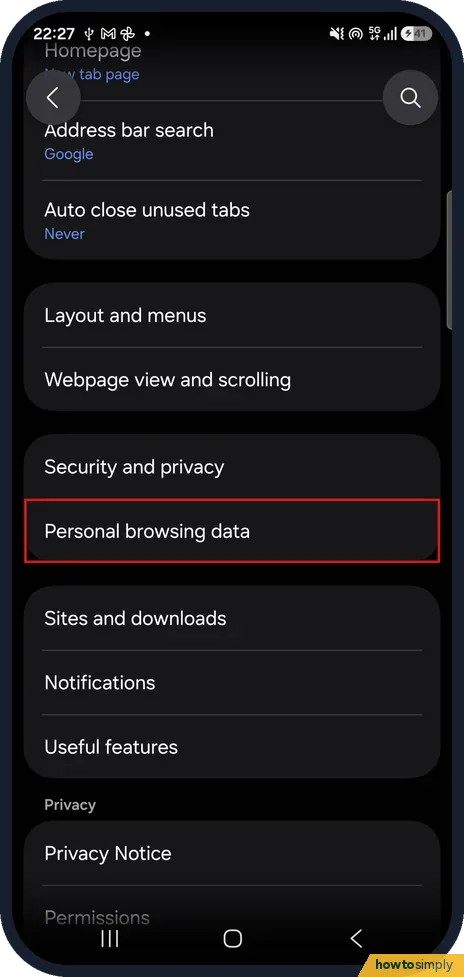
Scroll down and tap Personal browsing data.
On our Galaxy it sits under Security and privacy, above Sites and downloads.
- 4
Find Delete browsing data
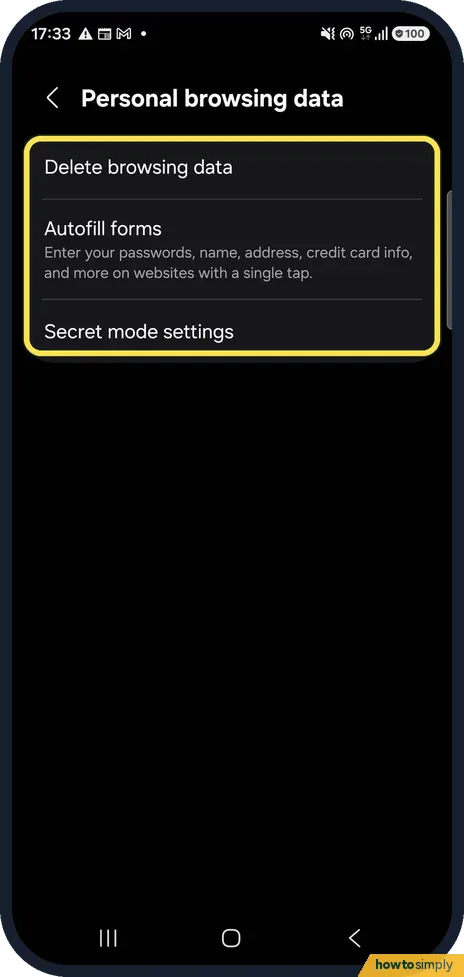
Delete browsing data is at the top of the page.
On our Galaxy it was followed by Autofill forms and Secret mode settings.
- 5
Choose what to delete
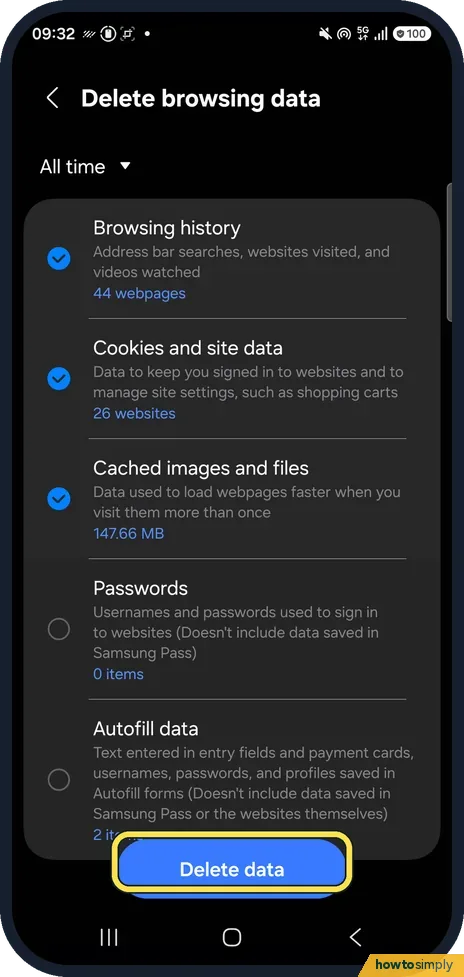
Tap Delete browsing data, pick a time range at the top and tick what to delete, then tap Delete data.
On ours the range was All time; Browsing history, Cookies and site data and Cached images and files were ticked, Passwords and Autofill data were not. We did not delete anything.
- 6
Check its notifications
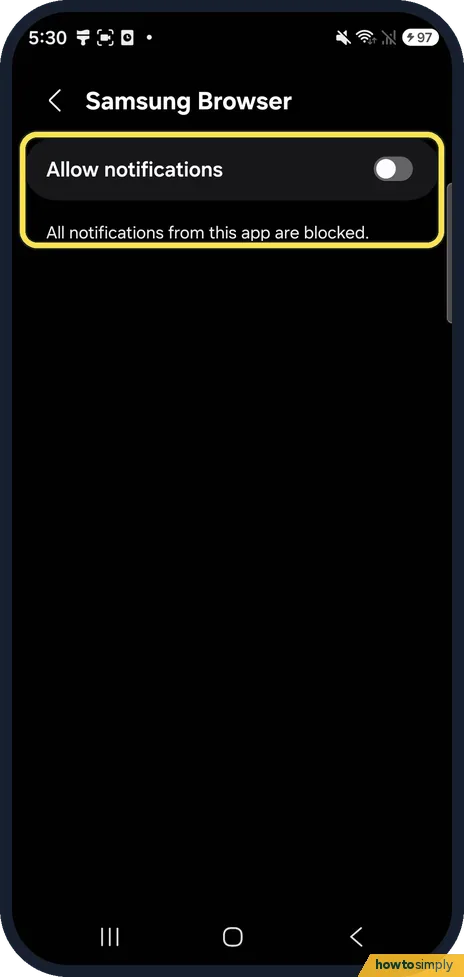
Go to Settings, Apps, Samsung Browser and tap Notifications.
Our picture shows the page that opens: Allow notifications was off, and the page said All notifications from this app are blocked. On the App info page before it, Notifications showed Blocked.
Where we checked these steps
- Galaxy S26, One UI 9.0 (Android 17)
- Galaxy A57 5G, One UI 8.5 (Android 16)
- Galaxy A57, One UI 9 (Android 17)
We have not checked other phones or older versions. If a menu looks different on yours, the notes under each step and the fixes further down cover the differences we found.
If you do not see this option
- You still see Samsung Internet. Your phone runs One UI 8.0 or older, where the app keeps its old name, according to Sammy Fans.
- Personal browsing data is not on screen Scroll down the browser's settings. On our Galaxy it was below Security and privacy, in the same group.
- You cannot find the browser's menu Go to Settings, Apps, Samsung Browser and tap Samsung Browser settings on the App info page. It opens the browser's settings directly. Sources: Samsung Browser by Samsung Electronics, Samsung simplifies its Internet browser name on new Galaxy phones
If this does not work
- The browser sends no notifications On our Galaxy Allow notifications was off. Turn it on in Settings, Apps, Samsung Browser, Notifications.
- Links open in a different browser On our Galaxy the App info page showed Browser app set to Samsung Browser under Defaults. Check this setting on your phone.
- Sync with Samsung Cloud does not sync The setting says to sign in to your Samsung account to sync your Bookmarks, Saved pages, and more.
Good to know
Samsung also offers Samsung Browser for Windows PCs; the browser showed us a banner about it.
Changing which browser opens links: how to change default apps on a Samsung Galaxy phone.
About this guide
If you cannot find Samsung Internet after the One UI 8.5 update, it has not gone: Samsung renamed it. Samsung's own listing in Google Play now names the app Samsung Browser. Phones on older One UI versions may still show the old name.
- Device
- Android
- Shown on
- Samsung Galaxy S26 (SM-S942N, Korean model), One UI 9.0, Android 17 (build CP2A.260605.016.S942NKSU5BZJB), Samsung Galaxy A57 5G (SM-A576B), One UI 8.5, Android 16, Samsung Galaxy A57 (SM-A576B), One UI 9, Android 17 (build A576BXXU6BZIE)
- App
- Samsung Internet
- Real screenshots
- 6 of 6 steps
- What we did
- Observed: looked at each screen, changed nothing
- Checked
- November 2026
- Sources
- 1 official, 1 other, linked below
The screenshots are from a Samsung Galaxy S26 with One UI 9.0 and Android 17, in Dark mode, apart from steps 3 to 5, from our Galaxy A57 with One UI 8.5. Other Galaxy phones on One UI 8.5 and 9 use similar menus; on older One UI versions a few names and positions differ. Steps 3 to 5 are from the same A57 (step 5 after its One UI 9 update). We only looked at these screens on our phones and changed nothing.
Sources
Links checked October 2026. Menus and features can change with updates.Did this guide work for you?
Sorry about that. What happened?
Get new guides by email
Our newest guides, sent to your inbox. Free, and you can unsubscribe in one click.
We'll email you to confirm. How we use your email
Follow howtosimply on Facebook
We share our new guides on our Facebook page, so the next fix turns up in your feed.
Follow on Facebook