How to change the homepage in Chrome on Android
- Shown on
- Galaxy S26 (One UI 9.0) and Galaxy A57 (One UI 9)
- Checked
- November 2026
- Real screenshots
- 4 of 4 steps
- Where it is
- Chrome › Settings
Quick answer
In Chrome, tap the three dots, Settings, Homepage. Keep the switch on, then choose Chrome's homepage or tap Enter custom web address and type the page you want. The house icon next to the address bar then opens it.
Steps
- 1
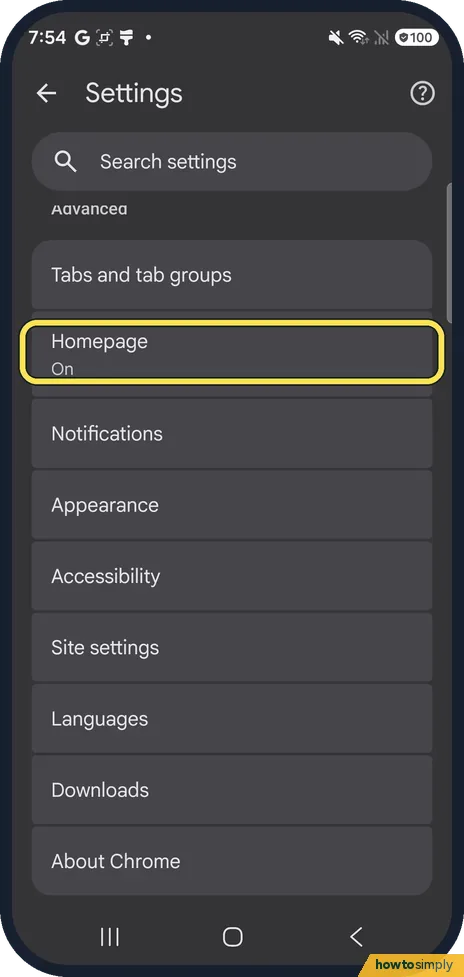
Open Homepage
Tap the three dots, Settings, and Homepage under Advanced.
- 2
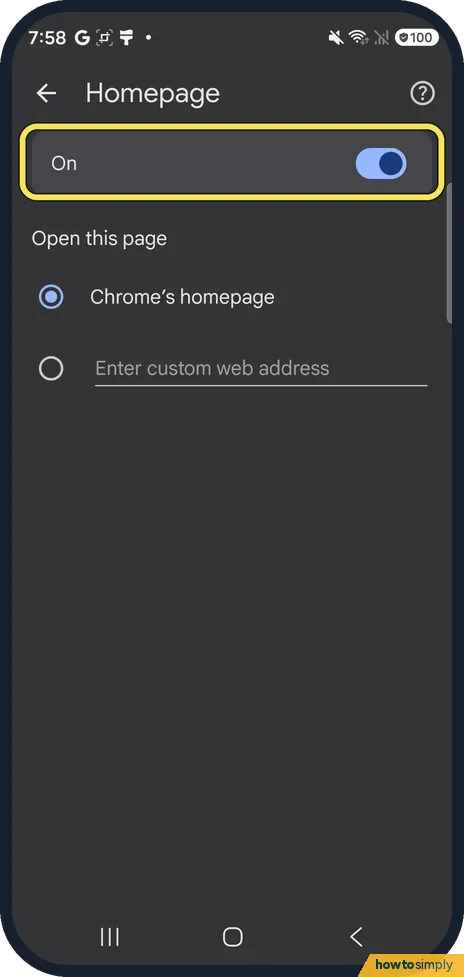
Make sure Homepage is on
The switch at the top shows the house icon next to the address bar. Switch it off to hide the icon.
- 3
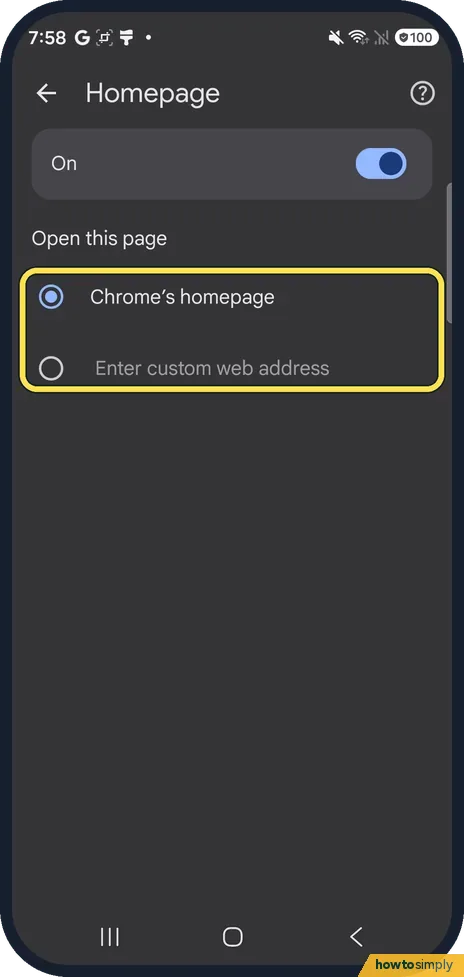
Choose the page
Chrome's homepage opens the new tab page with search. To use your own page, tap the second option and type an address.
- 4
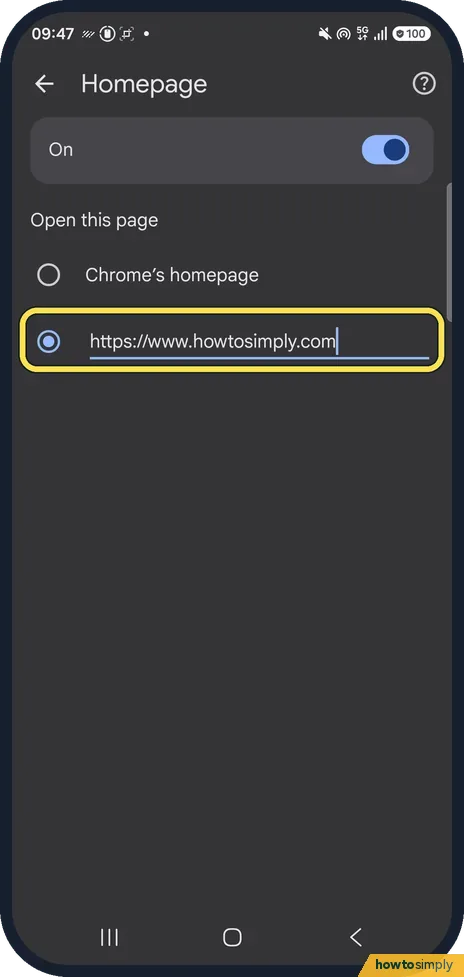
Type your own address
We typed https://www.howtosimply.com; the house icon next to the address bar then opened it. We set it back to Chrome's homepage afterwards.
Where we checked these steps
- Galaxy S26, One UI 9.0 (Android 17)
- Galaxy A57, One UI 9 (Android 17)
We have not checked other phones or older versions. If a menu looks different on yours, the notes under each step and the fixes further down cover the differences we found.
If you do not see this option
- There is no house icon next to the address bar On our phone the switch at the top of the Homepage page shows or hides the icon. Google calls it Home: the page you go to when you tap Home. Source: Set your homepage and startup page (Android)
- You want a page to open when Chrome starts Google says the startup page and the homepage are not the same. Chrome's startup page is what you see when you open it, and the homepage is where tapping Home takes you. Source: Set your homepage and startup page (Android)
If this does not work
- The homepage changed by itself Google says a homepage or search engine that changes without your permission can be a sign of unwanted software. Google points you to its guide on how to reset your browser settings.
- It changes back again Google says to make sure Play Protect is on: Play Store, profile picture, Play Protect, Settings, Scan apps with Play Protect.
- The address will not save or open? Type the full address, starting with https://, and check it for typos, because one wrong letter is enough to stop it opening. Open the address in a normal tab first to make sure the page loads.
- The setting is greyed out on a work phone? On a phone your work or school manages, the organisation can lock browser settings such as the homepage. That is not something you did wrong, so ask your IT team to change it.
Good to know
Chrome's startup page is what you see when you open it, and the homepage is where the house icon takes you.
Old tabs can tidy themselves away: Settings, Tabs and tab groups, Move to inactive section, which was set to after 21 days inactive on our phone.
The homepage is the page you go to when you tap the house icon. To undo it, pick Chrome's homepage again, which goes back to the new tab page with search. If you also want to bring back tabs you closed by mistake, see how to reopen closed tabs in Chrome.
About this guide
It is a small daily annoyance to tap the house icon and land on a page you never use. The homepage is the page the house icon opens, so it is worth setting it to a site you open every day. We set our own homepage for one picture and changed it back.
- Device
- Android
- Shown on
- Samsung Galaxy S26 (SM-S942N, Korean model), One UI 9.0, Android 17 (build CP2A.260605.016.S942NKSU5BZJB), Samsung Galaxy A57 (SM-A576B), One UI 9, Android 17 (build A576BXXU6BZIE)
- App
- Chrome
- Path
- Chrome › Settings
- Real screenshots
- 4 of 4 steps
- Checked
- November 2026
- Sources
- 2 official, linked below
The screenshots are from Chrome on a Samsung Galaxy S26 with One UI 9.0 and Android 17, in dark mode, apart from step 4, from our Galaxy A57 with One UI 9.0, where we typed our own address for one picture and changed it back. The app looks the same on other Android phones.
Sources
Links checked October 2026. Menus and features can change with updates.Did this guide work for you?
Sorry about that. What happened?
Get new guides by email
Our newest guides, sent to your inbox. Free, and you can unsubscribe in one click.
We'll email you to confirm. How we use your email
Follow howtosimply on Facebook
We share our new guides on our Facebook page, so the next fix turns up in your feed.
Follow on Facebook