How to change default apps on a Samsung Galaxy phone
- Shown on
- Galaxy A57 5G (One UI 8.5), Galaxy S26 (One UI 9.0) and Galaxy A57 (One UI 9)
- Checked
- November 2026
- Real screenshots
- 5 of 5 steps
- Where it is
- Settings › Apps › Choose default apps
Quick answer
Open Settings, Apps, Choose default apps. Tap a category such as Browser app, Phone app or SMS app and pick the app you want to use from now on.
Watch these steps
Video: on our Galaxy S26 (One UI 9) we open Settings, then Apps, then Choose default apps, and look at the Browser app and Digital assistant app choices. No sound.
Steps
- 1
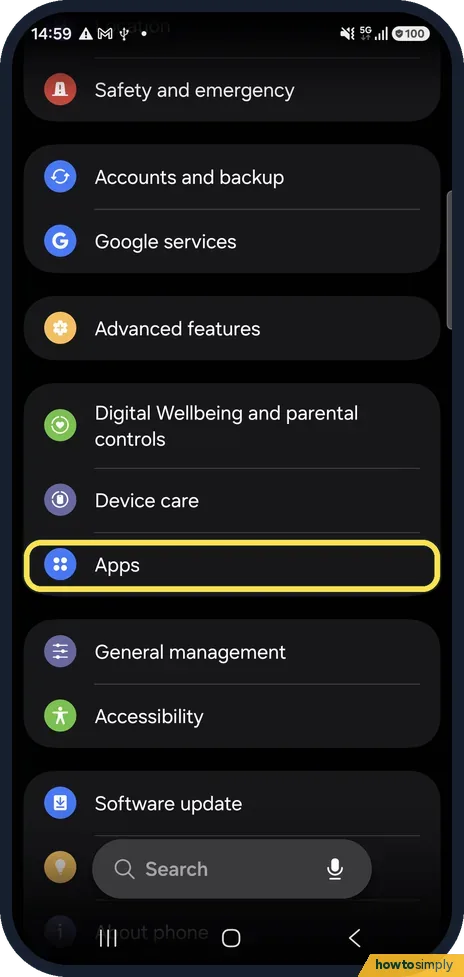
Open Apps
Open Settings and tap Apps.
- 2
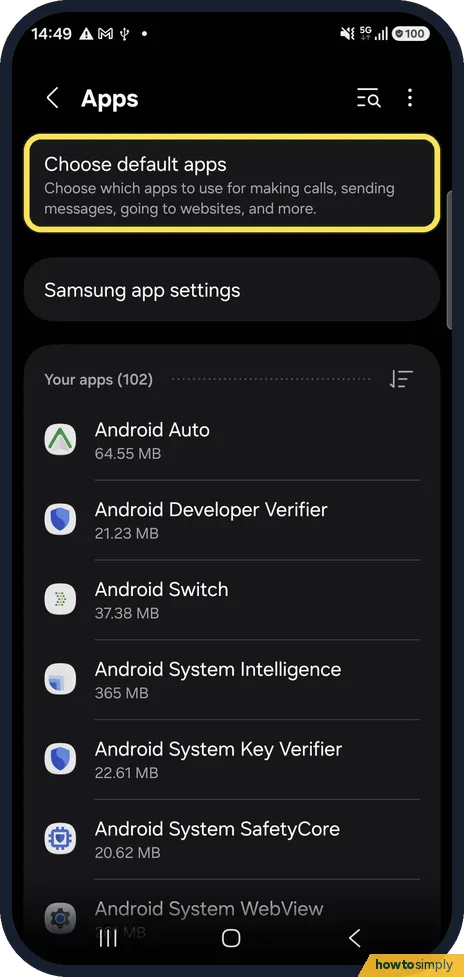
Tap Choose default apps
It is the first item on the Apps page.
- 3
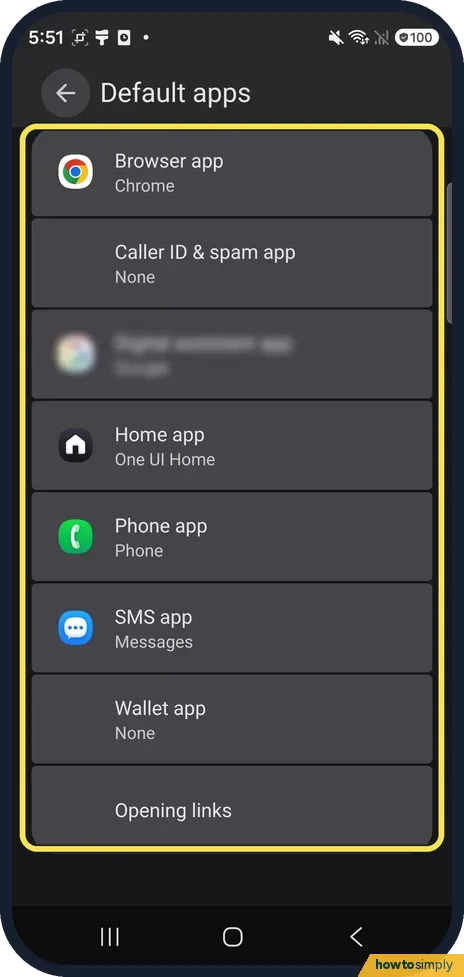
Pick a category
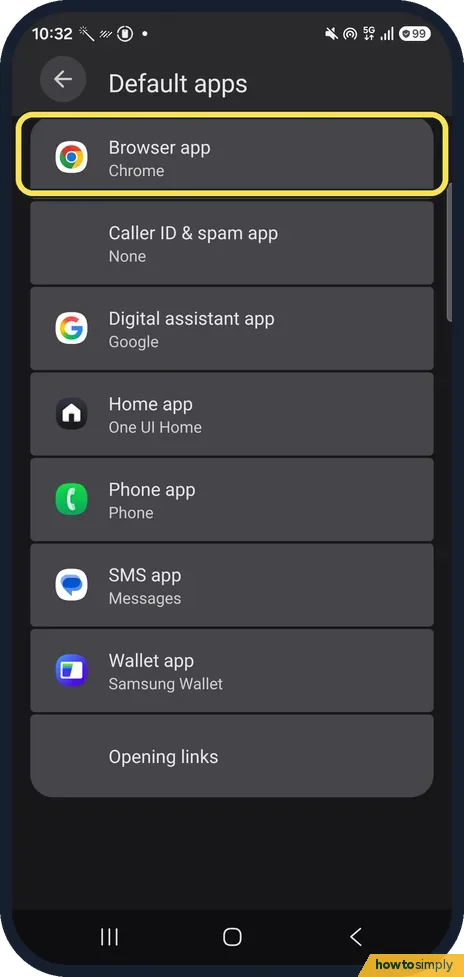
The list shows Browser app, Caller ID & spam app, Digital assistant app, Home app, Phone app, SMS app and Wallet app, each with the app currently used. On ours Browser app read Chrome.
- 4
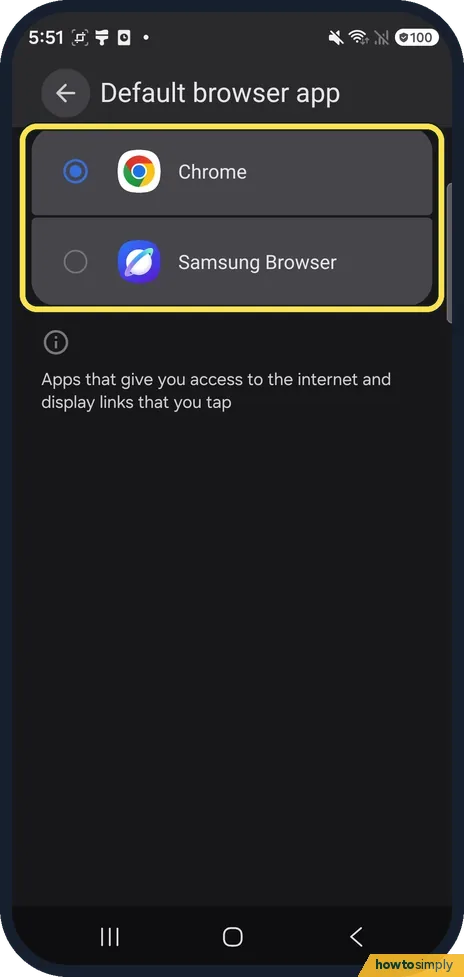
Choose the new app
Tap the category and select the app you want. Only installed apps that can do the job are listed. On our phone the browser list offered Chrome and Samsung Browser.
- 5
Check the change
Default apps then shows the new app under its category: ours read Browser app, Chrome. We switched it back to Samsung Browser afterwards.
Where we checked these steps
- Galaxy A57 5G, One UI 8.5 (Android 16)
- Galaxy S26, One UI 9.0 (Android 17)
- Galaxy A57, One UI 9 (Android 17)
We have not checked other phones or older versions. If a menu looks different on yours, the notes under each step and the fixes further down cover the differences we found.
If you do not see this option
- The app you want is not offered Samsung's Malaysian guide points to separate help when the app you want to change is not in the Default apps list. Source: How to clear and change default apps on Android?
- Want to remove one app's default? Samsung's Malaysian guide, from 2023, opens Settings, Apps, the app itself and Set as default. If your phone shows that option, use it to stop the app opening certain things by default. Source: How to clear and change default apps on Android?
If this does not work
- Links still open in the old app? The default browser only handles links that no installed app claims for itself. Links to a site with its own app, such as a video or shopping app, can still open in that app. Check Opening links at the bottom of the Default apps list.
- The change undid itself after an update? Open Choose default apps again and check the category. Some apps are a little needy: they ask to become the default when they are first opened or updated, and a quick tap on that prompt can switch it back.
- A work phone will not let you change it? On a phone managed by an employer or school, the administrator can fix some default apps. Ask them, as the setting cannot be overridden from the phone.
Good to know
Opening links, at the bottom of the same list, decides which app opens links to its own website.
Only one app can be the default for a given type of file or link. To undo the change, go back to Choose default apps, tap the same category and pick the original app.
The Caller ID & spam app and the Phone app affect calls, so test with a call after changing them. The Digital assistant app decides what opens when you call up the assistant. For the side button itself, see change what the side button does on a Samsung Galaxy.
About this guide
Well, you install a shiny new browser, tap a link, and the phone cheerfully opens the old one anyway. That is because default apps decide which browser opens your web links and which messaging app handles your texts. Change them when you install another browser or messaging app.
- Device
- Android
- Shown on
- Samsung Galaxy A57 5G (SM-A576B), One UI 8.5, Android 16, Samsung Galaxy S26 (SM-S942N, Korean model), One UI 9.0, Android 17 (build CP2A.260605.016.S942NKSU5BZJB), Samsung Galaxy A57 (SM-A576B), One UI 9, Android 17 (build A576BXXU6BZIE)
- App
- Settings
- Path
- Settings › Apps › Choose default apps
- Real screenshots
- 5 of 5 steps
- Checked
- November 2026
- Sources
- 2 official, linked below
The screenshots are from a Samsung Galaxy S26 with One UI 9.0 and Android 17, in Dark mode, apart from steps 1, 2 and 5, from our Galaxy A57 with One UI 8.5. Screens may vary between Android versions. Assistant app names are blurred.
Sources
Links checked October 2026. Menus and features can change with updates.Did this guide work for you?
Sorry about that. What happened?
Get new guides by email
Our newest guides, sent to your inbox. Free, and you can unsubscribe in one click.
We'll email you to confirm. How we use your email
Follow howtosimply on Facebook
We share our new guides on our Facebook page, so the next fix turns up in your feed.
Follow on Facebook