How to clear cookies for one website in Chrome on Android
- Shown on
- Galaxy S26 (One UI 9.0) and Galaxy A57 5G (One UI 8.5)
- Checked
- November 2026
- Real screenshots
- 4 of 4 steps
Quick answer
In Chrome, tap the three dots, Settings, Site settings, All sites. Find the website and tap the bin next to it, then Delete. Only that site's cookies and data go; you stay signed in everywhere else.
Steps
- 1
Open All sites
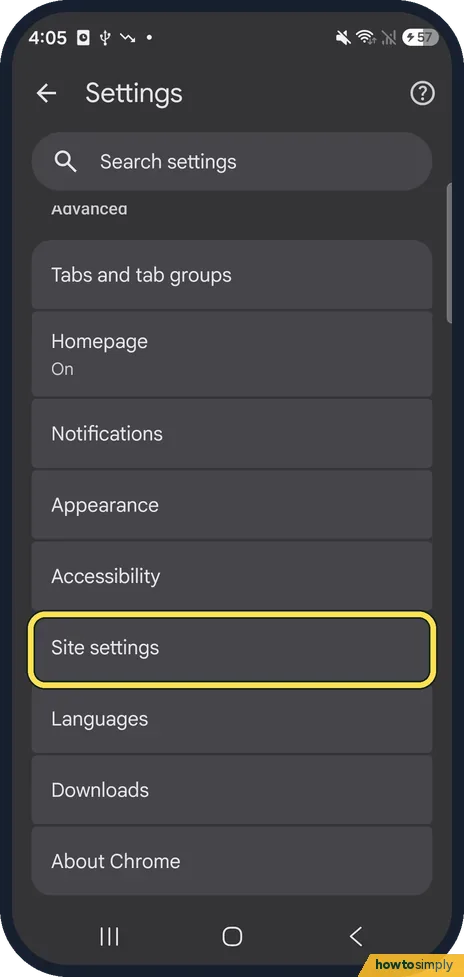
Tap the three dots at the top right, Settings, then Site settings, and tap All sites at the top.
- 2
Find the website
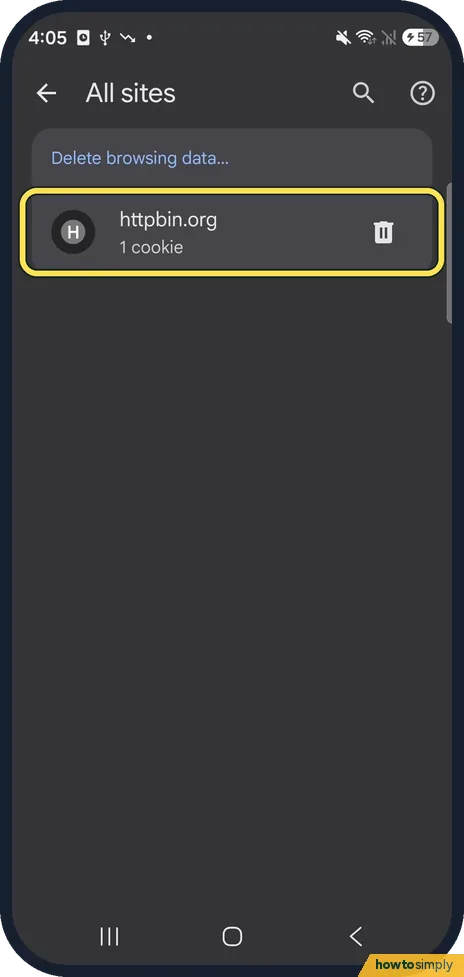
Every site that stored data is listed with its cookies. On our Galaxy S26 the only site was httpbin.org, a test site we opened so that it would store 1 cookie. Use the search icon if the list is long.
- 3
Tap the bin, then Delete
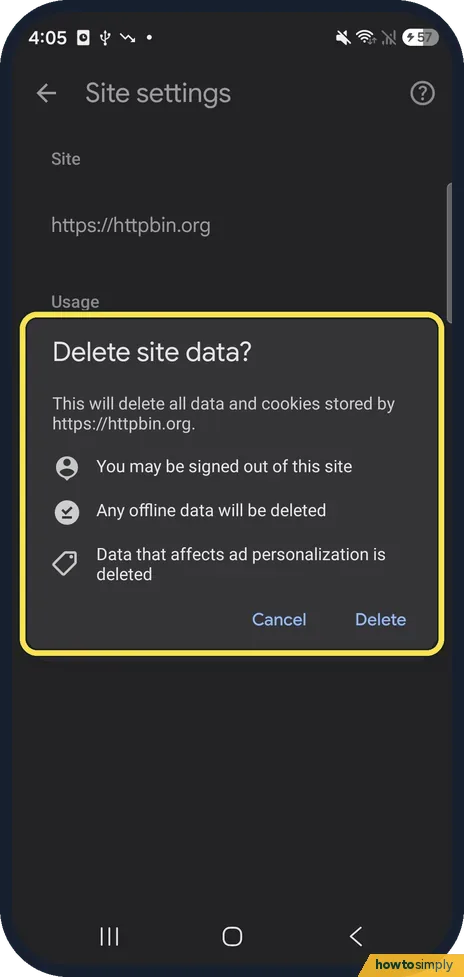
Tap the bin next to the site. Chrome asks Delete site data? and warns that you may be signed out of this site, that any offline data will be deleted and that data that affects ad personalisation is deleted. Tap Delete. If you tap the site instead, its page has the same bin and a Delete data & reset permissions button, which also resets permissions such as sound, notifications or location.
- 4
Check the list
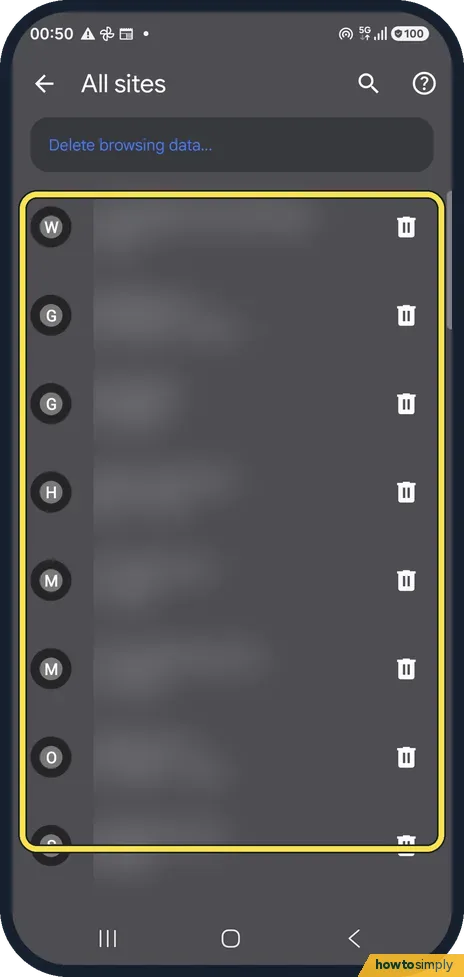
The site disappears from the list. Open it again: it loads fresh, and you sign in again if it asks.
Where we checked these steps
- Galaxy S26, One UI 9.0 (Android 17)
- Galaxy A57 5G, One UI 8.5 (Android 16)
We have not checked other phones or older versions. If a menu looks different on yours, the notes under each step and the fixes further down cover the differences we found.
If you do not see this option
- The site is not in All sites On a computer, Google's help says to search for the website's name at the top right of See all site data and permissions. Source: Delete, allow and manage cookies in Chrome (Android)
If this does not work
- One site works but others break Google says blocking third-party cookies can stop some websites working the way you'd expect. You can add the site to your exceptions list for third-party cookies.
- You want to clear every site Google's help (on a computer) says to click More, Delete browsing data, pick a time range such as All time and tick Cookies and other site data. You may be signed out of sites.
- The site still misbehaves afterwards? Google says sites that depend on third-party cookies might not behave properly once those cookies are blocked. Letting that one site use third-party cookies for a while may get it working again.
- Third-party cookies are needed for one site? Google says you can add a site exception under Third-party cookies, using [*.] before a domain to cover all its subdomains. To undo it, select Remove next to the website.
Good to know
If you already have the misbehaving site open, there is a quicker way: tap the icon to the left of the address, then Cookies and site data, and delete them there. Google's help page describes this route.
To clear every site at once, Google's help (for a computer) says to select More, then Delete browsing data.
On a computer? Google's help gives this route: More (three dots), Settings, Privacy and security, Third-party cookies, See all site data and permissions. Search for the site at the top right, select Delete next to it, then Delete again to confirm.
Google explains that cookies can keep you signed in and remember your site preferences. First-party cookies come from the site whose address you can see; third-party cookies come from other sites with content on the page, like ads, and can track what you do elsewhere online. Your saved preferences can also be deleted. Nothing else on the phone changes. To tidy up permissions instead, see how to stop website notifications in Chrome.
About this guide
Well, it is frustrating when just one website goes wrong (a login loop, an old page, a broken basket) while everything else works fine. The reason I start with that one site is that clearing its cookies often fixes it without signing you out of every other site.
- Device
- Android
- Shown on
- Samsung Galaxy S26 (SM-S942N, Korean model), One UI 9.0, Android 17 (build CP2A.260605.016.S942NKSU5BZJB), Samsung Galaxy A57 5G (SM-A576B), One UI 8.5, Android 16
- App
- Chrome
- Real screenshots
- 4 of 4 steps
- Checked
- November 2026
- Sources
- 2 official, linked below
The screenshots are from Chrome on a Samsung Galaxy S26 with One UI 9.0 and Android 17, in dark mode, apart from the last, from our Galaxy A57. The app looks the same on other Android phones; only the phone's own settings screens differ by brand. We tapped Cancel, so nothing was deleted on our S26.
Sources
Links checked October 2026. Menus and features can change with updates.Did this guide work for you?
Sorry about that. What happened?
Get new guides by email
Our newest guides, sent to your inbox. Free, and you can unsubscribe in one click.
We'll email you to confirm. How we use your email
Follow howtosimply on Facebook
We share our new guides on our Facebook page, so the next fix turns up in your feed.
Follow on Facebook