How to zip and unzip files on a Samsung Galaxy (One UI 9)
- Shown on
- Galaxy A57SM-A576B
- Software
- One UI 9.0Android 17More One UI 9 guides
- Checked
- October 2026
- Real screenshots
- 10 of 10 steps
Quick answer
In My Files, long-press a folder or file, tap More, then Compress. Name it, keep Zip and tap Compress. To open a ZIP, tap it, tick what you want, tap Extract, then Extract again. The files land in a new folder next to the ZIP.
Steps
- 1
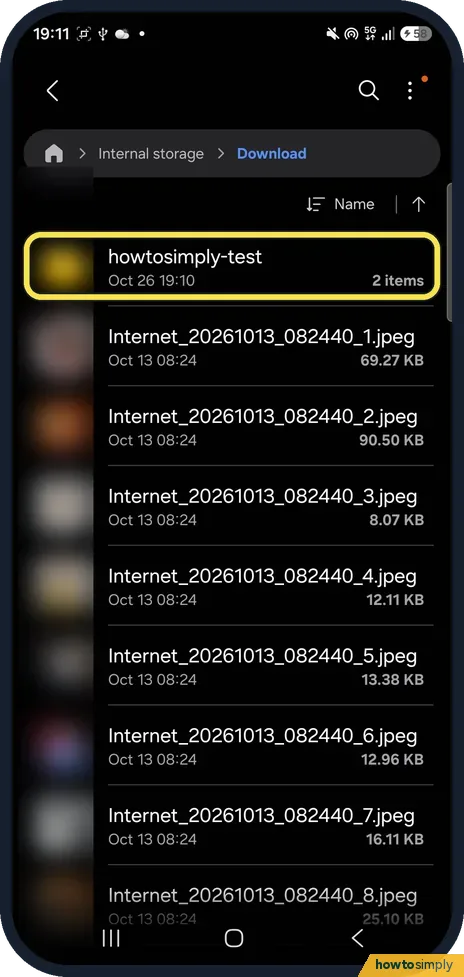
Long-press the folder in My Files
Open My Files, Internal storage and the folder that holds your files; ours was Download. Long-press the folder or file to select it.
- 2
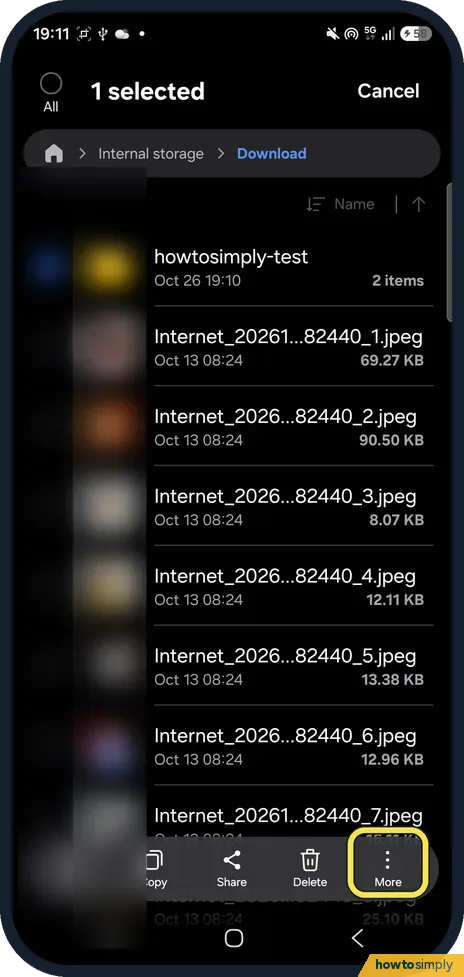
Tap More
The bar at the bottom shows Copy, Share, Delete and More.
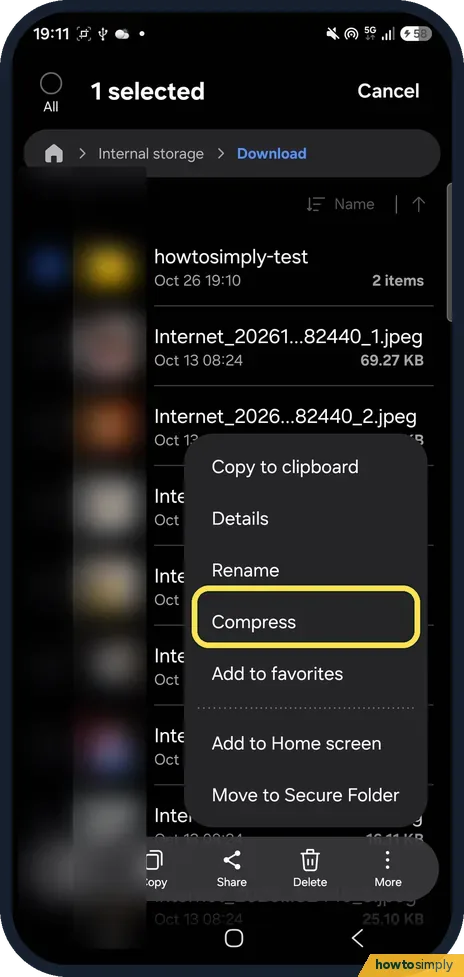
- 3
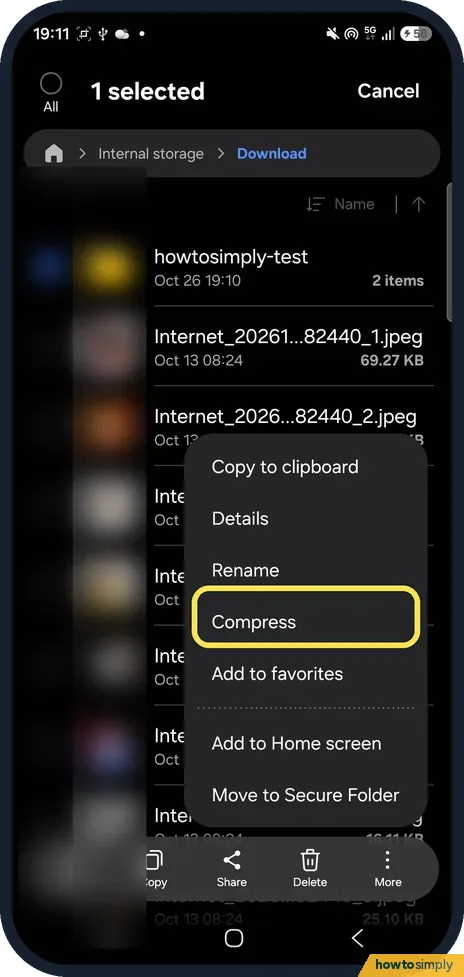
Tap Compress
The More menu lists Copy to clipboard, Details, Rename, Compress and more.
- 4
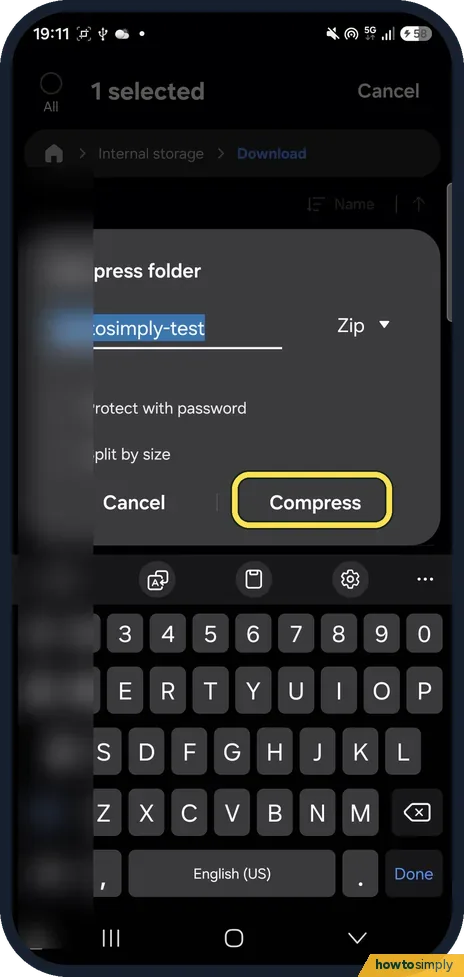
Name it and tap Compress
Type a name. Zip is the format; Protect with password and Split by size are below the name.
- 5
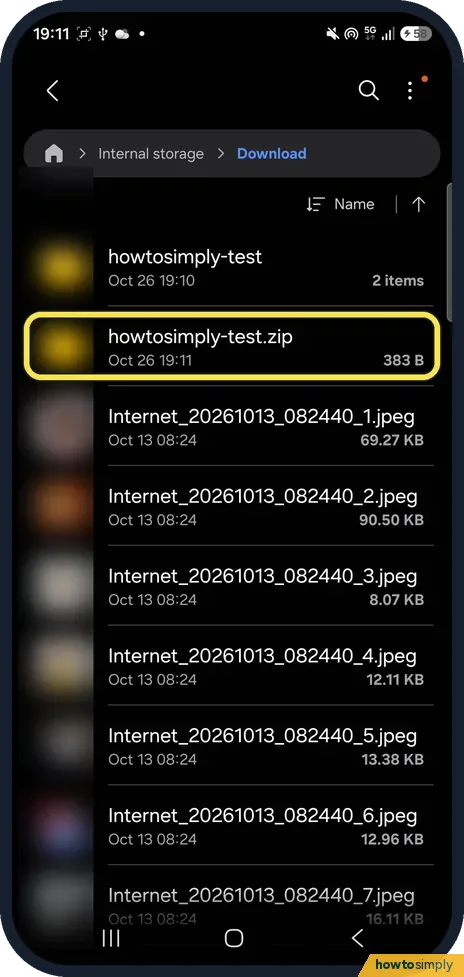
Find the ZIP next to the folder
The new file appears in the same folder. Ours was howtosimply-test.zip, 383 B.
- 6
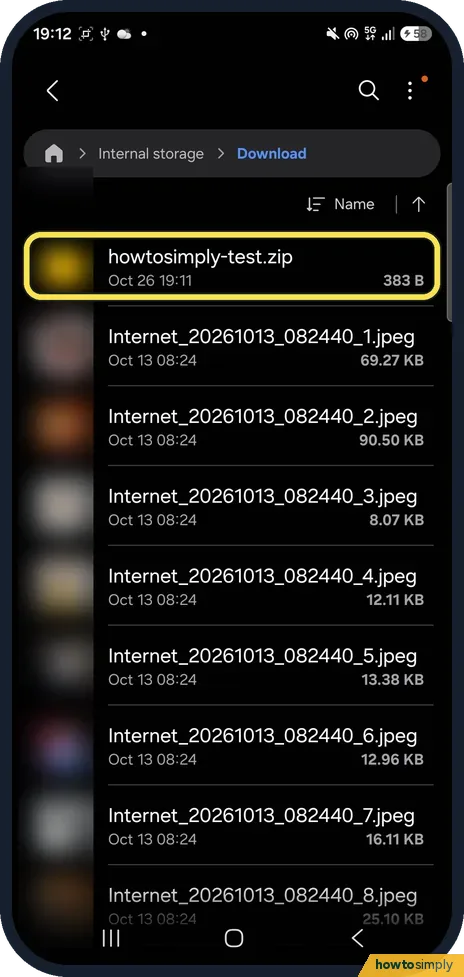
Tap a ZIP to open it
Tapping the ZIP opens a preview of what is inside; nothing is unpacked yet.
- 7
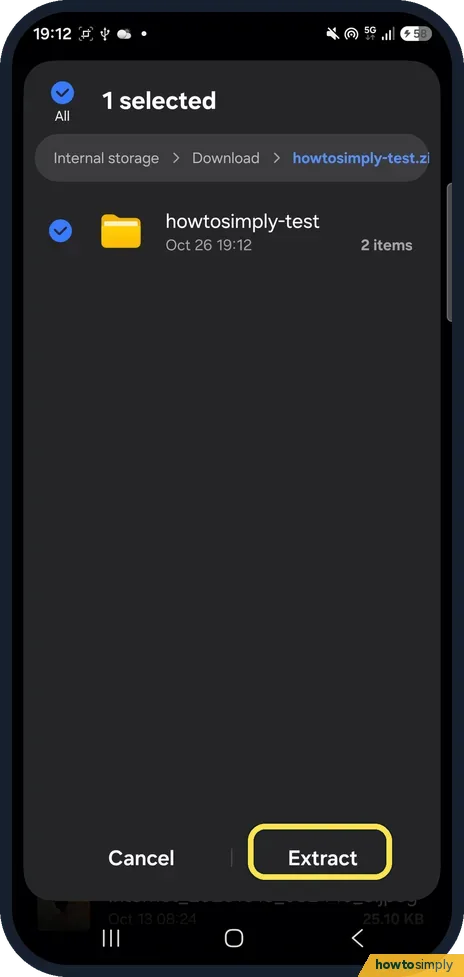
Tick the items and tap Extract
The preview lists the contents with tick boxes. All ticks everything; then tap Extract at the bottom.
- 8
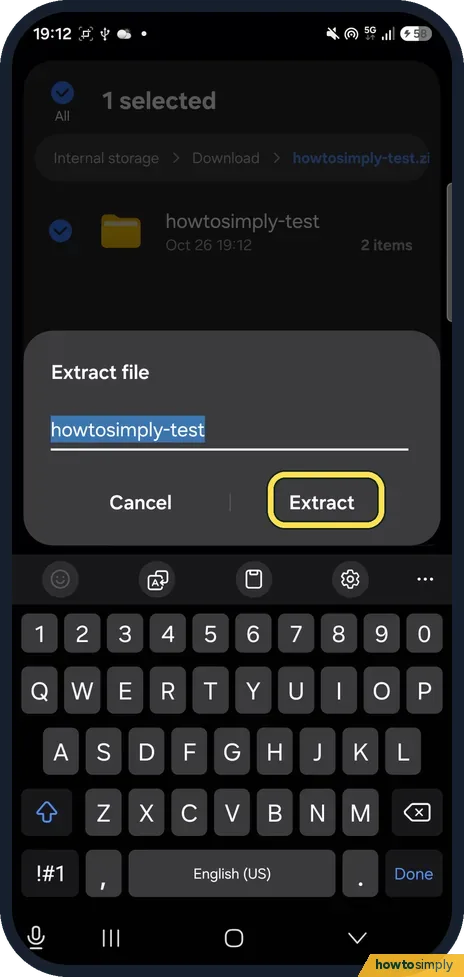
Check the name and tap Extract
Extract file suggests the ZIP's name for the new folder. Change it if you like.
- 9
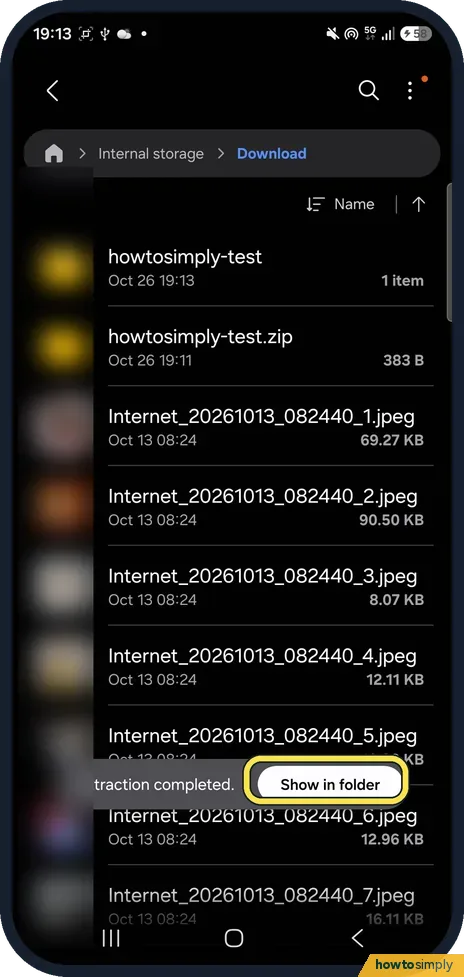
Tap Show in folder
A message says Extraction completed. The new folder is in the same place as the ZIP.
- 10
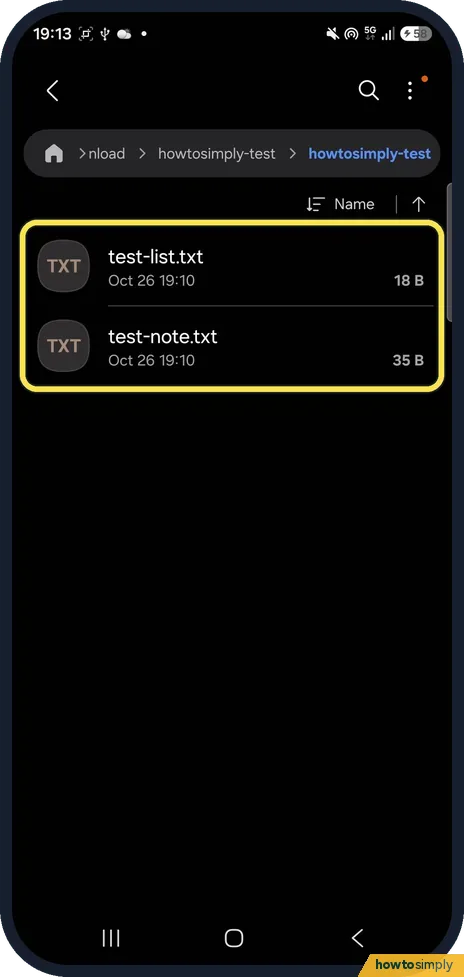
Open the files
Ours were in Download, howtosimply-test, howtosimply-test: test-list.txt and test-note.txt.
If you do not see this option
- No Compress in the More menu? Select the files or folder first: Samsung's steps select the files, tap More, then Compress. Source: How to compress files in 'My Files' app on Galaxy devices?
- Can't find the ZIP? Samsung says you can view the .zip file within the folder you compressed in. Look for the file ending in .zip. Source: How to compress files in 'My Files' app on Galaxy devices?
- Several files in one ZIP? Select the files, tap More, then Compress. Samsung's example selects all the files in a folder. Source: How to compress files in 'My Files' app on Galaxy devices?
If this does not work
- Extract is grey? Nothing is ticked, and Extract will not guess for you. Tapping the folder inside the ZIP ticks or unticks it; it does not open it. Tick it or tap All.
- Want to lock the ZIP? Switch on Protect with password in the Compress box before you tap Compress. We did not set a password.
- ZIP is too big to send? Split by size, in the same box, is for cutting the archive into parts.
- A downloaded ZIP will not open? The download may have stopped part way, leaving a broken archive. Delete that copy and download it again on a steady connection.
Good to know
To see what fills the phone, see check and free up storage on a Galaxy.
In the steps above, zipping and extracting deleted nothing: the folder and the .zip sit side by side and take up space twice until you remove one. If you send the archive to an Apple phone, see open and create ZIP files on an iPhone.
About this guide
Say you need to send a whole folder without attaching files one at a time. A ZIP packs them into one neat parcel, and Samsung's My Files app has a Compress option that makes a .zip file. We zipped a test folder with two text files in Download, then extracted it again.
- Device
- Android
- Shown on
- Samsung Galaxy A57 (SM-A576B), One UI 9.0, Android 17 (build CP2A.260605.016.A576BXXU6BZIE)
- Real screenshots
- 10 of 10 steps
- Checked
- October 2026
- Sources
- 1 official, linked below
The screenshots are from our Samsung Galaxy A57, model SM-A576B, with One UI 9.0 and Android 17 (build CP2A.260605.016.A576BXXU6BZIE), in Dark mode, taken on 26 October 2026. The test files and the ZIP were deleted afterwards.
Sources
Links checked October 2026. Menus and features can change with updates.Did this guide work for you?
Sorry about that. What happened?
Get new guides by email
Our newest guides, sent to your inbox. Free, and you can unsubscribe in one click.
We'll email you to confirm. How we use your email
Follow howtosimply on Facebook
We share our new guides on our Facebook page, so the next fix turns up in your feed.
Follow on Facebook