How to check and free up storage on a Samsung Galaxy phone
- Shown on
- Galaxy S26 (One UI 9.0) and Galaxy A57 (One UI 9)
- Checked
- November 2026
- Real screenshots
- 6 of 6 steps
- Where it is
- Settings › Device care › Storage: categories › Duplicate files › Large files › Suggestions
Quick answer
Open Settings, Device care and tap Storage to see how much is used and what takes the space. Delete large files and duplicates from there, follow the suggestions, uninstall apps you do not use, and clear the cache of apps that store a lot of temporary data under Settings, Apps, the app, Storage.
Steps
- 1
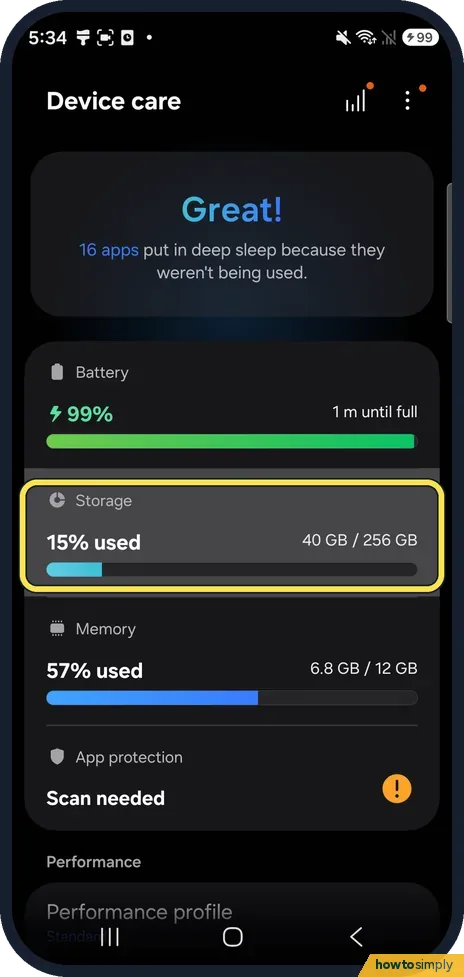
Open Device care
Open Settings and tap Device care. The Storage bar shows how much of the phone is used. Ours read 15% used, 40 GB of 256 GB.
- 2
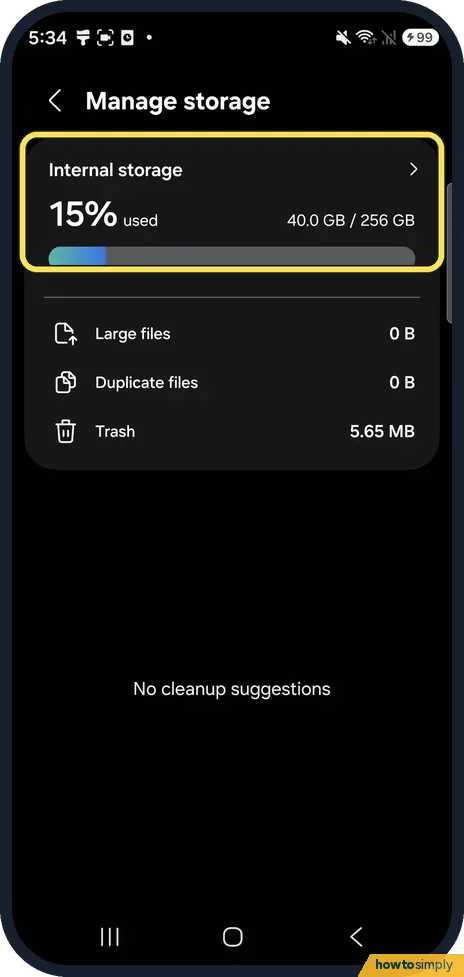
See what takes the space
Tap Storage. The Manage storage page shows Internal storage and how much is used, then Large files, Duplicate files and Trash. Lower down it lists audio files, images, videos and documents with their sizes; tap a category to see and delete its files.
- 3
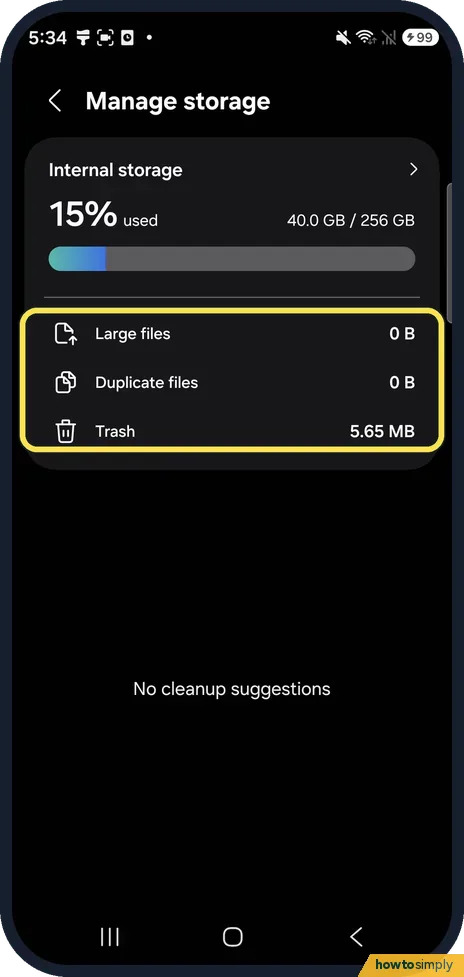
Remove duplicates and large files
Duplicate files and Large files collect the easiest wins. Tap one, select what you do not need and delete it. On our phone Large files and Duplicate files showed 0 B and Trash 5.65 MB, so there was little to remove.
- 4
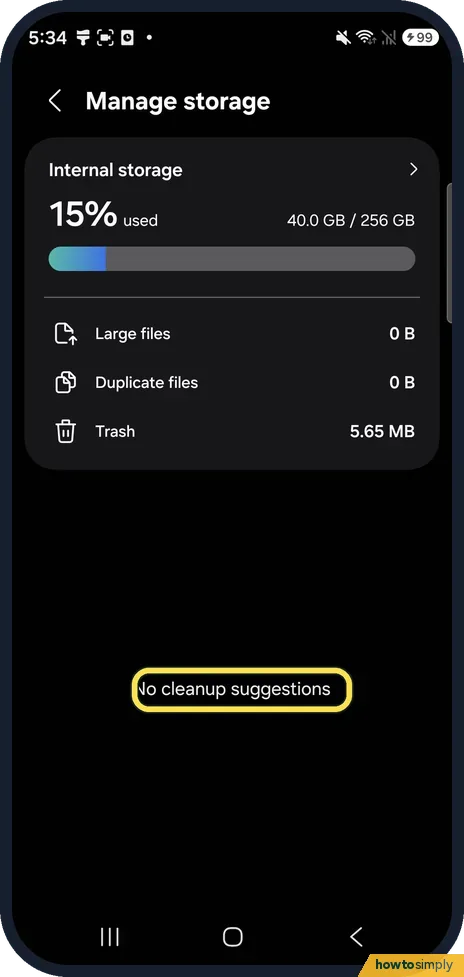
Follow the suggestions
When there is something to clean up, One UI offers it on the same page, such as archiving apps you do not use (your data is kept) or deleting old images. Our Galaxy S26 said No cleanup suggestions.
- 5
Uninstall apps you do not use
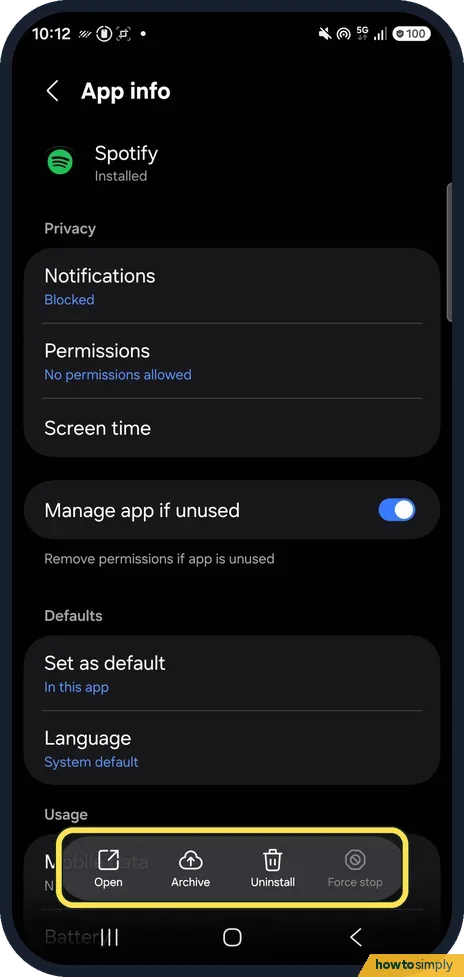
Open Settings, Apps. The list shows each app with its size. Tap an app you no longer need and tap Uninstall.
On ours, Spotify's App info had Open, Archive, Uninstall and Force stop at the bottom.
- 6
Clear an app's cache
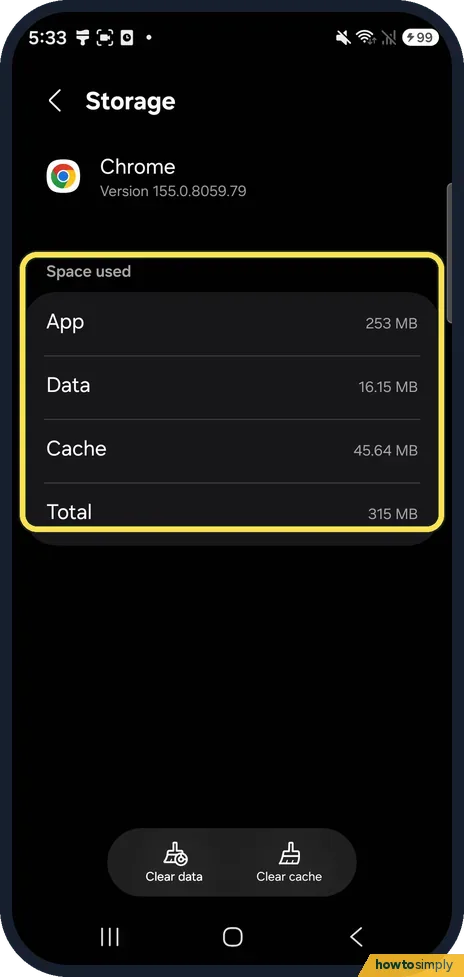
In Settings, Apps, tap an app, then Storage and Clear cache. This removes temporary files only. On our Galaxy S26, Chrome had 45.64 MB of cache. Clear data instead resets the app and deletes its data, so use it with care.
Where we checked these steps
- Galaxy S26, One UI 9.0 (Android 17)
- Galaxy A57, One UI 9 (Android 17)
We have not checked other phones or older versions. If a menu looks different on yours, the notes under each step and the fixes further down cover the differences we found.
If you do not see this option
- There is no Duplicate files or Large files list Samsung says you can also open Settings, Device care, Storage, tap a category such as Images or Videos, touch and hold a file or tap All, then Delete and Move to Trash. Source: Free up storage space on your Samsung phone or tablet
- Your phone has a microSD card Samsung says some apps can be moved to the card under Settings, Apps, the app, Storage, Change, but many apps are not eligible. No Change button means that app can't be moved. Files can be moved in My Files. Source: Free up storage space on your Samsung phone or tablet
If this does not work
- The space did not come back Samsung says deleted files go to the Trash first (Move to Trash). Empty the Trash in Gallery to free the space.
- The phone is slow rather than full Samsung says Device care, Memory, Clean now stops background apps and frees memory. Excluded apps keeps the apps you want running.
- Downloads taking up room? Samsung says to delete downloaded files in My Files, under Downloads. Old PDFs, installers and attachments often pile up there.
- Screenshots filling the phone? Samsung suggests Gallery, Albums, Screenshots: delete the ones you no longer need, then empty the Trash.
Good to know
Deleted pictures and videos go to the Trash in Gallery first; empty it to be sure the space is freed.
Messages can delete old conversations automatically: in Messages, More options, Settings, More settings, Delete old messages.
About this guide
Clearing out apps, media and downloads you don't use can help your phone run better and leaves room for whatever you add next. One UI shows what fills it, by category.
- Device
- Android
- Shown on
- Samsung Galaxy S26 (SM-S942N, Korean model), One UI 9.0, Android 17 (build CP2A.260605.016.S942NKSU5BZJB), Samsung Galaxy A57 (SM-A576B), One UI 9, Android 17 (build A576BXXU6BZIE)
- App
- Settings
- Path
- Settings › Device care › Storage: categories › Duplicate files › Large files › Suggestions
- Real screenshots
- 6 of 6 steps
- What we did
- Observed: looked at each screen, changed nothing
- Checked
- November 2026
- Sources
- 1 official, linked below
The screenshots are from a Samsung Galaxy S26 with One UI 9.0 and Android 17, in Dark mode, apart from step 5, from our Galaxy A57 with One UI 8.5. Other Galaxy phones on One UI 8.5 and 9 use similar menus; on older One UI versions a few names and positions differ.
Sources
Links checked October 2026. Menus and features can change with updates.Did this guide work for you?
Sorry about that. What happened?
Get new guides by email
Our newest guides, sent to your inbox. Free, and you can unsubscribe in one click.
We'll email you to confirm. How we use your email
Follow howtosimply on Facebook
We share our new guides on our Facebook page, so the next fix turns up in your feed.
Follow on Facebook