How to change the language of one app on Android
- Shown on
- Pixel 10a (Android 17), Galaxy A57 5G (One UI 8.5) and Galaxy S26 (One UI 9.0)
- Checked
- October 2026
- Real screenshots
- 9 of 10 steps
- Where it is
- Settings › System › Language and region › App languages
Quick answer
Open Settings, tap System, then Language and region, then App languages. Tap the app and choose the language. On a Samsung Galaxy it is Settings, General management, App languages. The rest of the phone keeps its language.
Watch these steps
Video: on our Pixel 10a (Android 17) we open Language and region, then App languages, then Calculator, where the language list appears. We left it on System default. No sound.
Steps
- 1
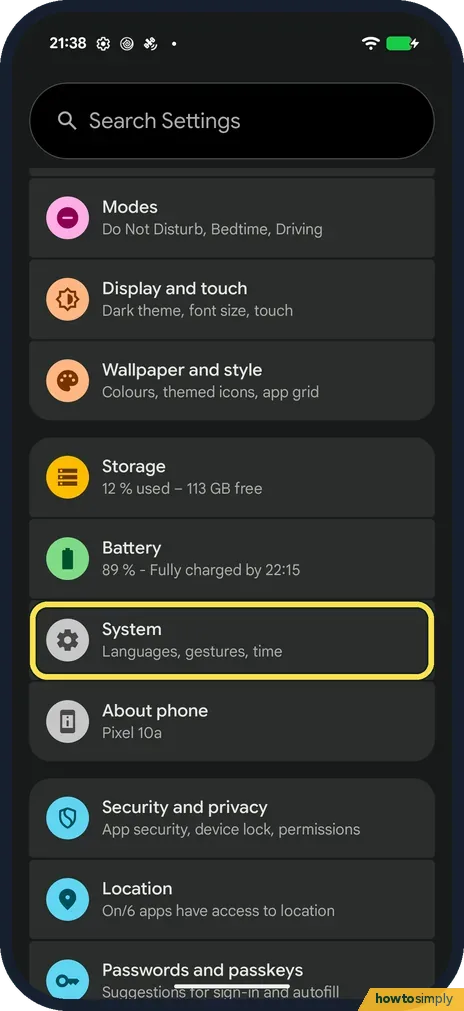
Open Settings and tap System
Scroll down the Settings list and tap System.
On our Pixel 10a, System sits between Battery and About phone, with the line Languages, gestures, time.
- 2
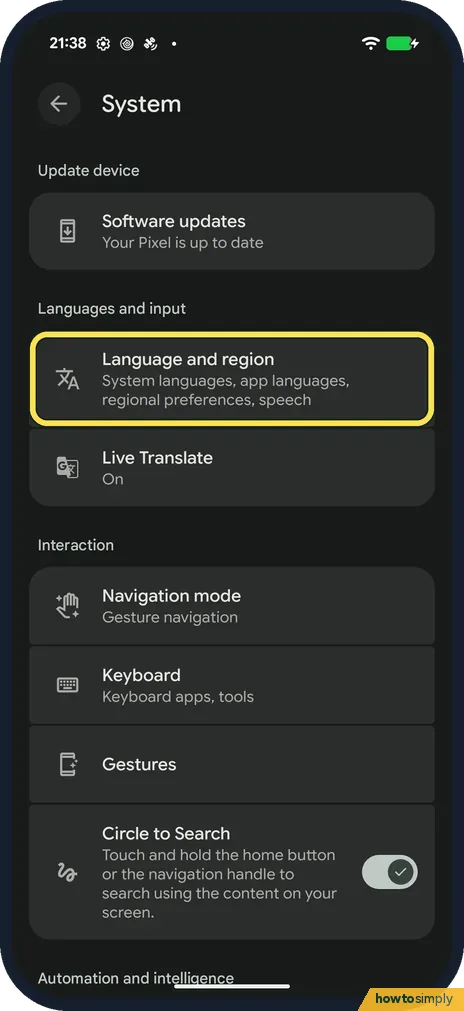
Tap Language and region
It is under Languages and input.
On our Pixel 10a, its line reads System languages, app languages, regional preferences, speech.
- 3
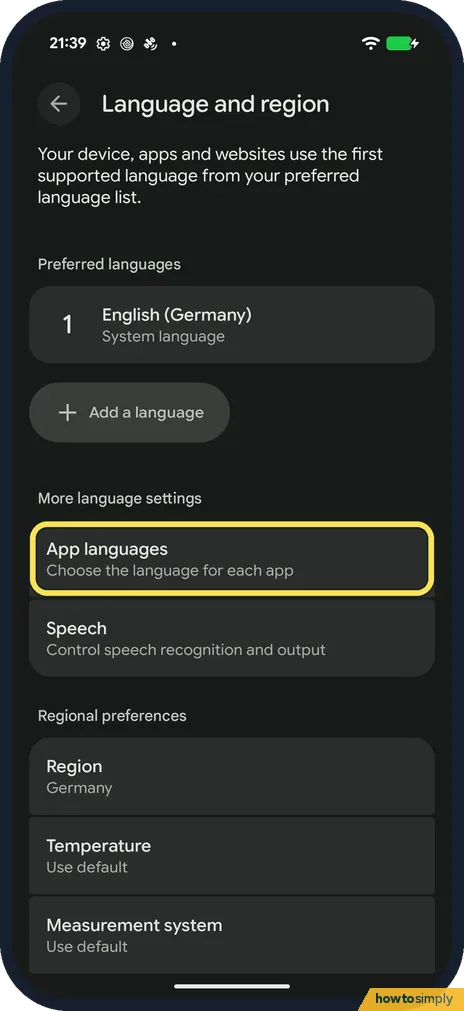
Tap App languages
It sits under More language settings, with the line Choose the language for each app.
On our Pixel 10a, the only preferred language listed above it was English (Germany), marked System language.
- 4
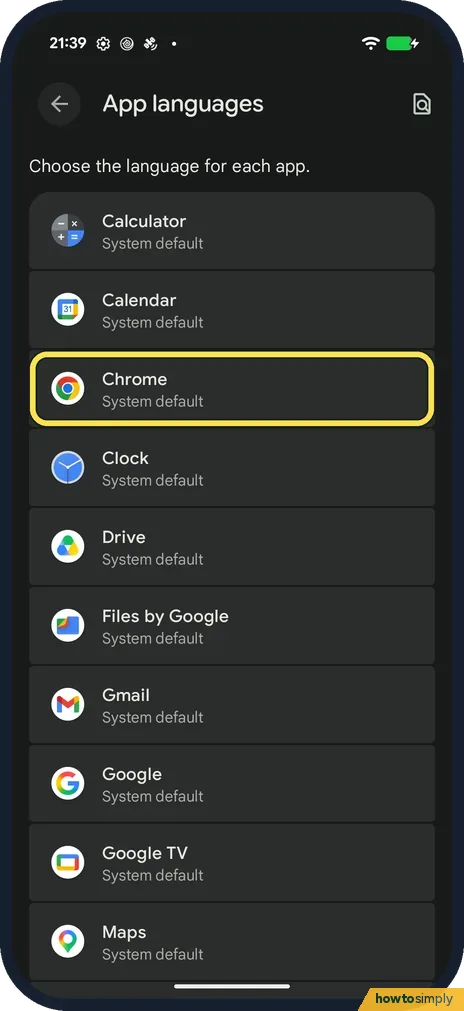
Tap the app
According to Google, only apps that support per-app languages appear in this list.
On our Pixel 10a, every app in the list, such as Calculator, Chrome and Gmail, showed System default.
- 5
Choose the language
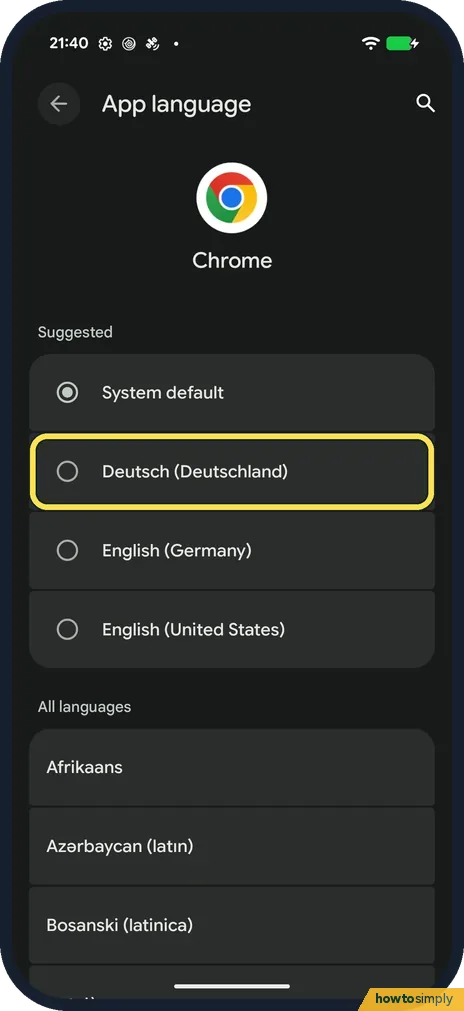
Tap a language, for example Deutsch (Deutschland). Suggested languages are at the top, and the rest are under All languages.
On our Pixel 10a, Chrome suggested System default, Deutsch (Deutschland), English (Germany) and English (United States).
- 6
Go back to the phone's language
Open the same list, tap the app and choose System default.
- 7
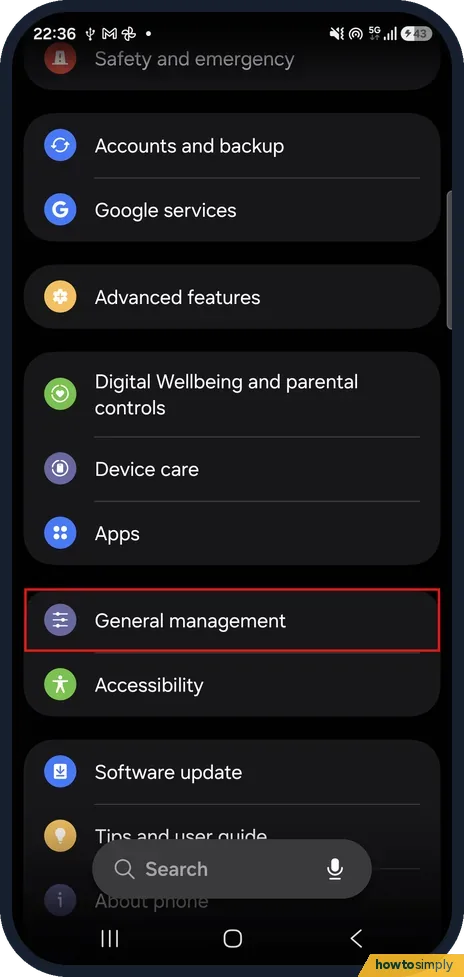
Samsung Galaxy: open General management
Open Settings and tap General management.
- 8
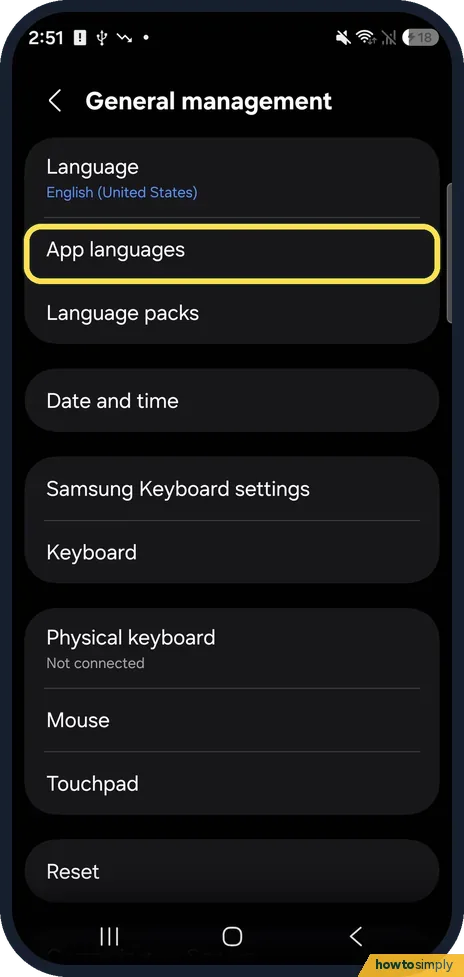
Samsung Galaxy: tap App languages
App languages is on the General management page. On our Galaxy S26 it sits between Language and Language packs.
- 9
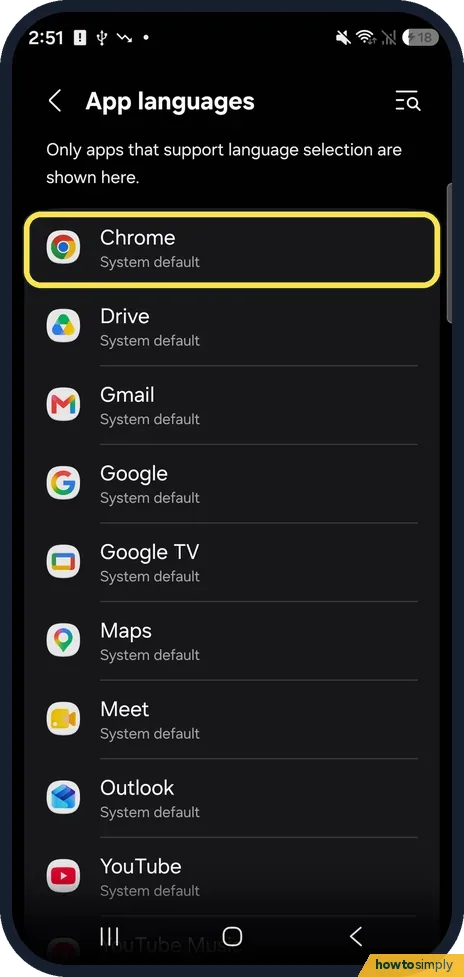
Samsung Galaxy: tap the app
On our Galaxy S26 the page says Only apps that support language selection are shown here. Chrome, Drive, Gmail, Google, Google TV, Maps and others all showed System default. We used Chrome.
- 10
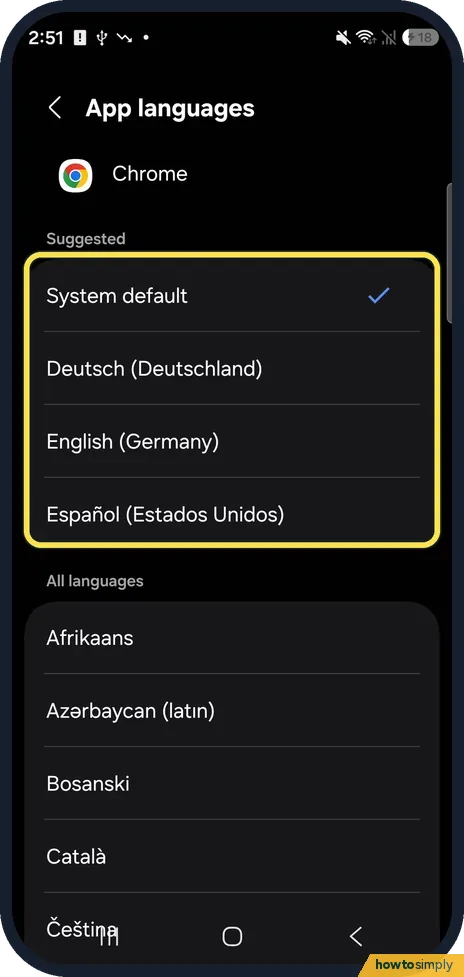
Samsung Galaxy: choose the language
On our Galaxy S26, Chrome suggested System default (ticked), Deutsch (Deutschland), English (Germany) and Español (Estados Unidos), with the rest under All languages. Tap the one you want; we left System default.
Where we checked these steps
- Pixel 10a, Android 17
- Galaxy A57 5G, One UI 8.5 (Android 16)
- Galaxy S26, One UI 9.0 (Android 17)
We have not checked other phones or older versions. If a menu looks different on yours, the notes under each step and the fixes further down cover the differences we found.
If you do not see this option
- Language and region is not in the main Settings list On our Pixel 10a, it is inside System. On our Samsung Galaxy S26, App languages is under General management instead (steps 7 to 10).
- You cannot find System On our Pixel 10a, System is further down the Settings list, just above About phone. You can also type in Search Settings at the top.
- The app is not in the list According to Google, the app's maker has not added support for per-app languages. A few apps only let you pick a language from inside the app itself, or from the account you use with that app. Source: Change app language on your Android phone
If this does not work
- The language you want is not under Suggested Scroll down to All languages, or tap the search icon at the top right of the App language page.
- The app still shows the old language Close the app, open it again and make sure the phone is online: Google says the language may not update if you change it while not connected to the internet.
- You want to undo the change Nothing here is permanent. Open App languages, tap the app and choose System default.
Good to know
Don't worry if the app does not change straight away. Close it and open it again, and make sure the phone is online: Google says the language may not update if you change it while not connected to the internet.
If it still refuses, it can also help to add the language under Preferred languages with Add a language, wait a few minutes and try again.
If what you really want is to type in another language, you do not need this setting. See how to add a keyboard language on Android.
About this guide
Well, not everyone wants one language for everything: you may want your banking app in English and your messages in Urdu or German. The good news is that Android can set a language for a single app without changing the language of the whole phone.
On our Pixel 10a, Language and region is on the System page in Settings, under Languages and input, and App languages is a normal entry on the Language and region page.
Steps 7 to 10 show the same task on a Samsung Galaxy, where App languages is under General management. Those screenshots are from our Galaxy S26 with One UI 9, apart from the first, from our Galaxy A57.
- Device
- Android
- Shown on
- Google Pixel 10a, Android 17 (build CP3A.260905.009), Samsung Galaxy A57 5G (SM-A576B), One UI 8.5, Android 16, Samsung Galaxy S26 (SM-S942N, Korean model), One UI 9.0, Android 17 (build CP2A.260605.016.S942NKSU5BZJB)
- App
- Settings
- Path
- Settings › System › Language and region › App languages
- Real screenshots
- 9 of 10 steps
- Checked
- October 2026
- Sources
- 1 official, linked below
Sources
Links checked October 2026. Menus and features can change with updates.Did this guide work for you?
Sorry about that. What happened?
Get new guides by email
Our newest guides, sent to your inbox. Free, and you can unsubscribe in one click.
We'll email you to confirm. How we use your email
Follow howtosimply on Facebook
We share our new guides on our Facebook page, so the next fix turns up in your feed.
Follow on Facebook