How to use Google Lens on Android to search with your camera
- Shown on
- Pixel 10a
- Software
- Android 17More Android 17 guides
- Checked
- October 2026
- Real screenshots
- 8 of 8 steps
Quick answer
Open the Google app and tap the Lens icon at the right of the search bar. Point the camera at something and tap the search button, or tap the gallery button to search with a photo. Drag the corners of the box to search one part of the picture.
Steps
- 1
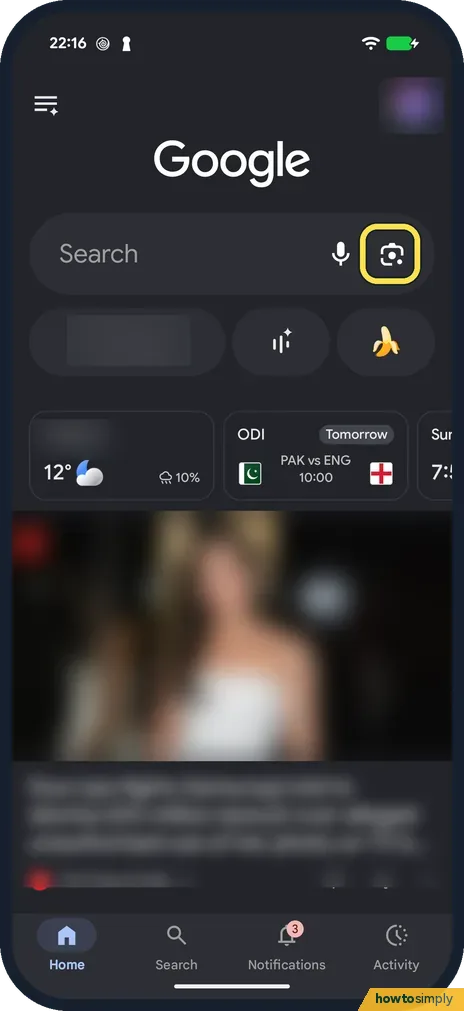
Tap the Lens icon in the Google app
Open the Google app. The Lens icon is the small camera at the right of the search bar, next to the microphone.
- 2
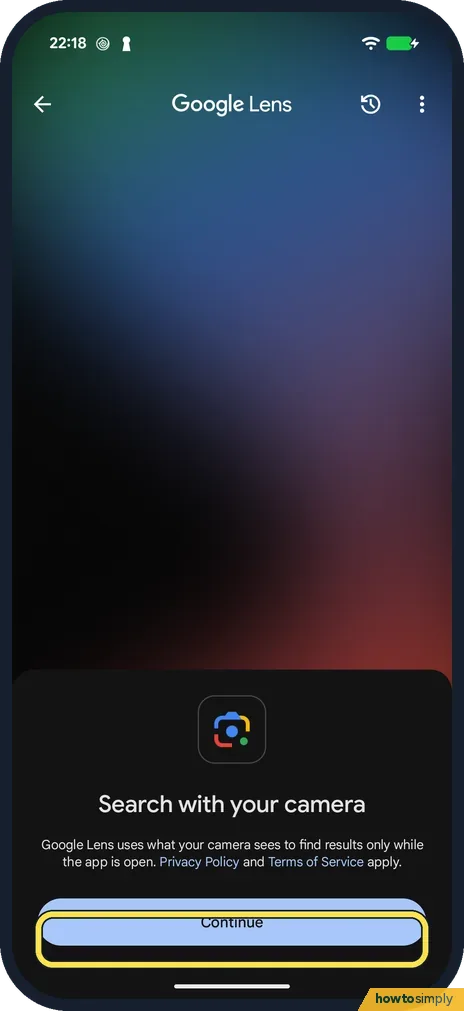
Tap Continue the first time
The first time, the phone asks to use the camera; we chose Only this time. Lens then shows Search with your camera, which says Google's Privacy Policy and Terms of Service apply. Tap Continue.
- 3
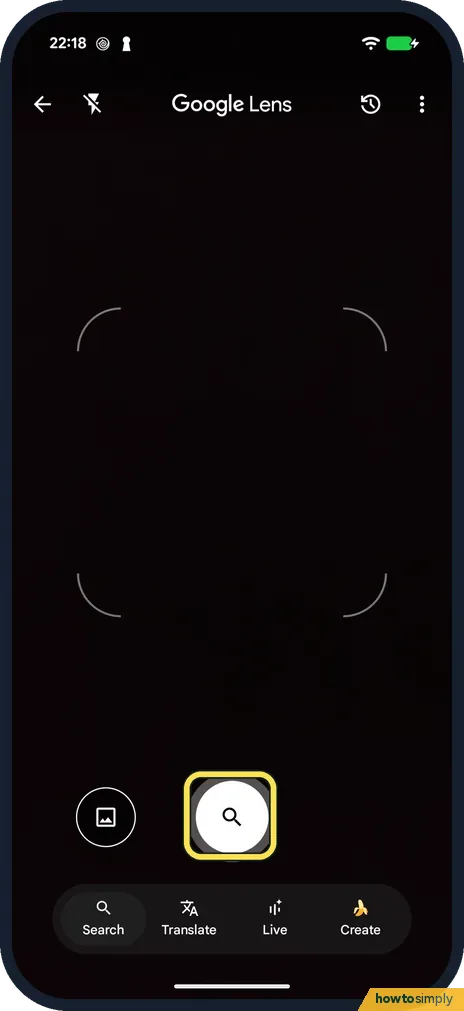
Point the camera and tap the search button
Point the camera at what you want to know about and tap the round button with the magnifier. The bar below switches between Search, Translate, Live and Create.
- 4
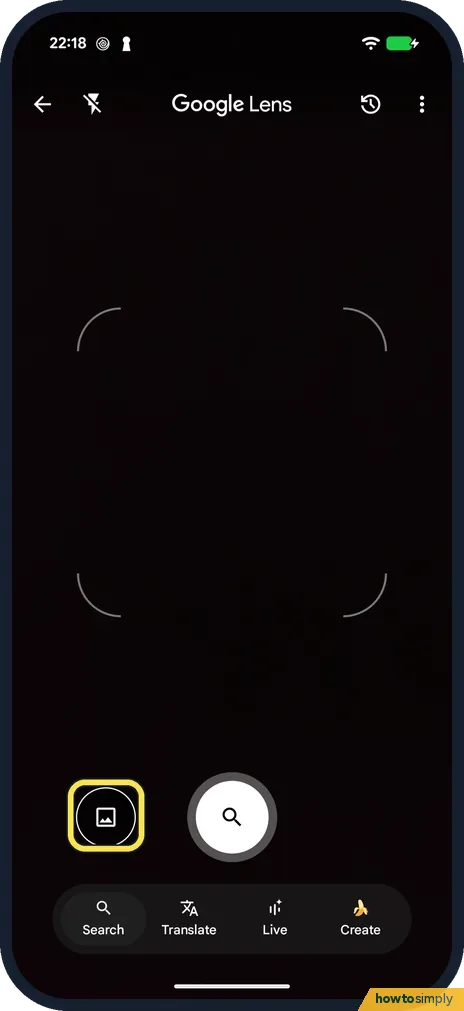
Or search with a photo: tap the gallery button
The gallery button is at the bottom left, next to the search button. On our phone Lens showed no row of photos under the camera.
- 5
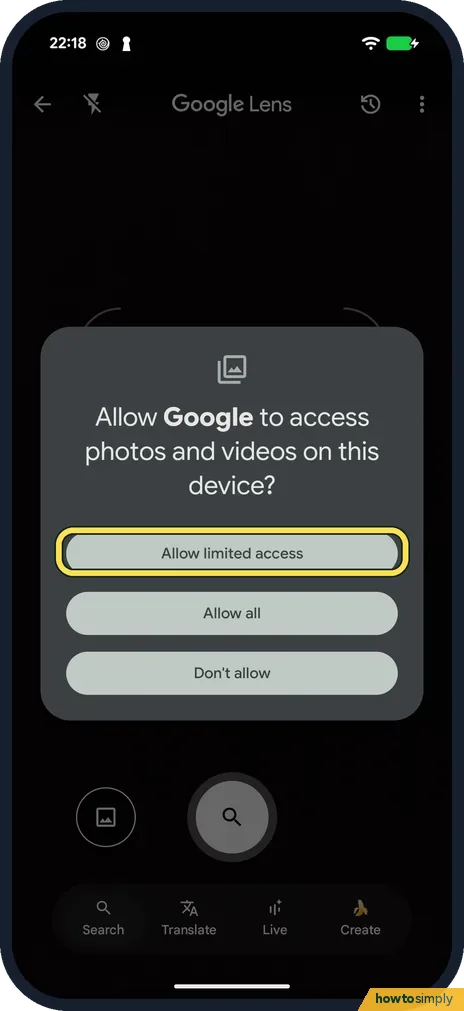
Allow access to your photos
Lens asks to see your photos. Allow limited access lets you pick only the pictures Lens may see; we picked one screenshot.
- 6
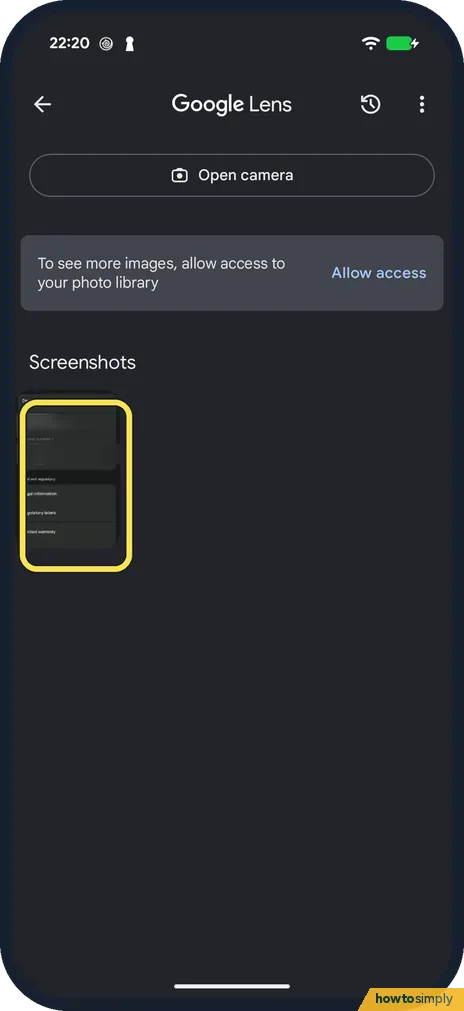
Tap the picture
Your screenshots and photos are listed under Open camera. Tap the one you want.
- 7
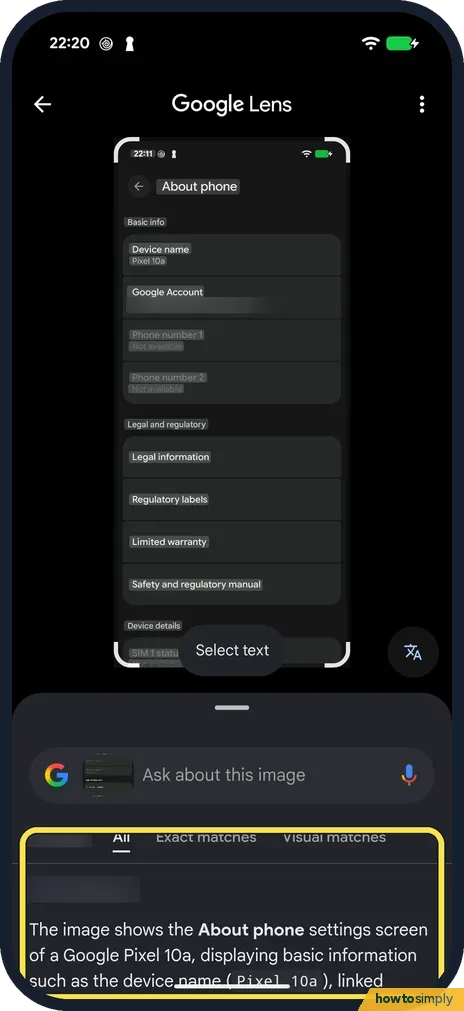
Read the results
Lens puts a box around the picture and lists results below, with tabs for All, Exact matches and Visual matches. On ours a written summary of the screen came first.
- 8
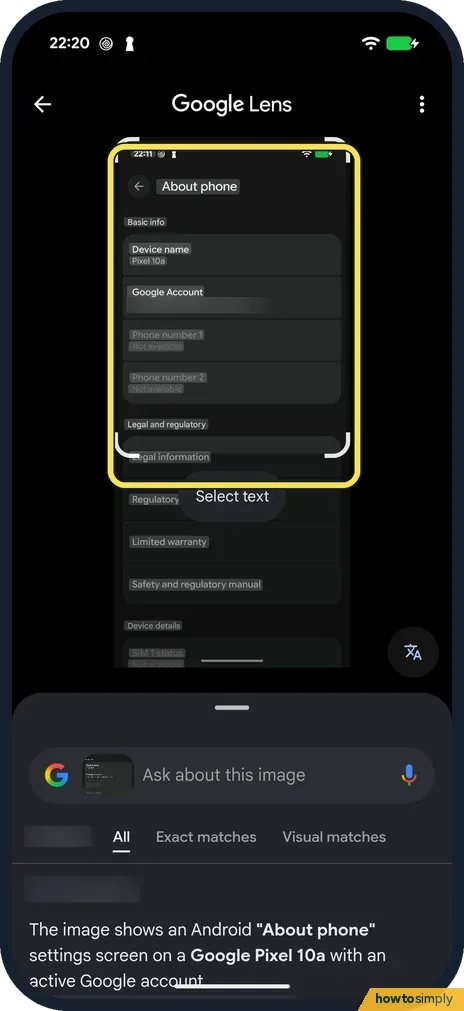
Narrow it to one part of the picture
Drag a corner of the box to put it around the part you mean. We made it smaller, and the results changed to match.
If you do not see this option
- No row of photos under the camera? There was none on our Pixel 10a with Google app 17.32.82. Tap the gallery button at the bottom left of the camera view instead (step 4).
- No Lens icon in the search bar? Google says some Android phones, Pixel for one, have Lens inside the Google app. On ours it is the camera icon to the right of the microphone.
If this does not work
- Only one photo is listed? That is limited access doing exactly its job: with Allow limited access, Lens sees only the photos you picked. Tap Allow access in the list to let it see more.
- Results are about the whole picture? Lens cannot read your mind about which bit you care about, so drag the corners of the box around the part you mean (step 8).
- No Lens option on pictures in Chrome? Google says searching an image with Lens from Chrome needs Google as Chrome's default search engine. Check the search engine in Chrome's settings.
- Results too broad even with a small box? On a computer, Google says you can upload a picture and then type what you're looking for in the "Add to your search" box.
Good to know
Lens also reads text in a picture: how to copy text from a photo on Android.
On a computer, Google says you can right-click an image on a website in Chrome and click Search with Google Lens. Our Pixel's Chrome had never been set up, so that is not shown here.
This one is serious. Results for plants, mushrooms and medicines are suggestions and can be wrong, so do not eat or take anything on the strength of a picture search, however sure of itself the result looks.
If you would rather your picture searches did not pile up, Google says Lens activity can be found and deleted on the Lens page of My Activity, and that turning off Web & App Activity stops it being saved to your Google Account.
About this guide
Well, most of us have pointed at a flower or an odd little gadget with no idea what to type, because "purple thing with spiky leaves" does not get a search very far. Google Lens searches with a picture where you would otherwise have to find words. It recognises products, plants, animals, buildings and text.
- Device
- Android
- Shown on
- Google Pixel 10a, Android 17 (build CP3A.261005.005)
- App
- Google Lens
- Real screenshots
- 8 of 8 steps
- Checked
- October 2026
- Sources
- 2 official, linked below
The screenshots are from our Google Pixel 10a with Android 17 (build CP3A.261005.005), in dark mode. The Google app was version 17.32.82. Instead of pointing the camera at an object, we searched with a screenshot of the phone's About phone page, which we deleted afterwards.
Sources
Links checked October 2026. Menus and features can change with updates.Did this guide work for you?
Sorry about that. What happened?
Get new guides by email
Our newest guides, sent to your inbox. Free, and you can unsubscribe in one click.
We'll email you to confirm. How we use your email
Follow howtosimply on Facebook
We share our new guides on our Facebook page, so the next fix turns up in your feed.
Follow on Facebook