How to copy text from a photo on Android
- Shown on
- Pixel 10a
- Software
- Android 17More Android 17 guides
- Checked
- October 2026
- Real screenshots
- 8 of 8 steps
Quick answer
Open the photo in Google Photos, tap the three dots at the top right and tap Google Lens. Touch and hold a word, drag the handles over the text you want and tap Copy. Then touch and hold a text field in any app and tap Paste.
Steps
- 1
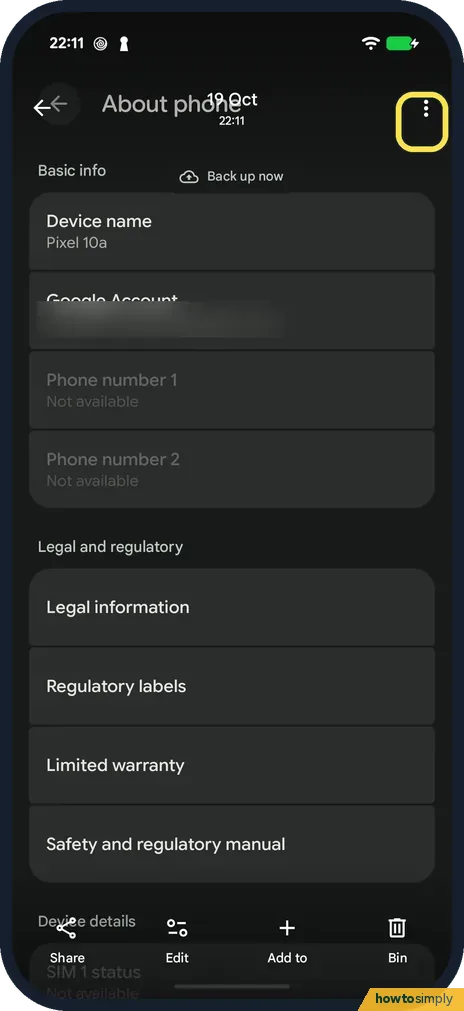
Open the photo and tap the three dots
Open the photo or screenshot in Google Photos. On our Pixel the bar at the bottom has Share, Edit, Add to and Bin, and no Lens button. Tap the three dots at the top right.
- 2
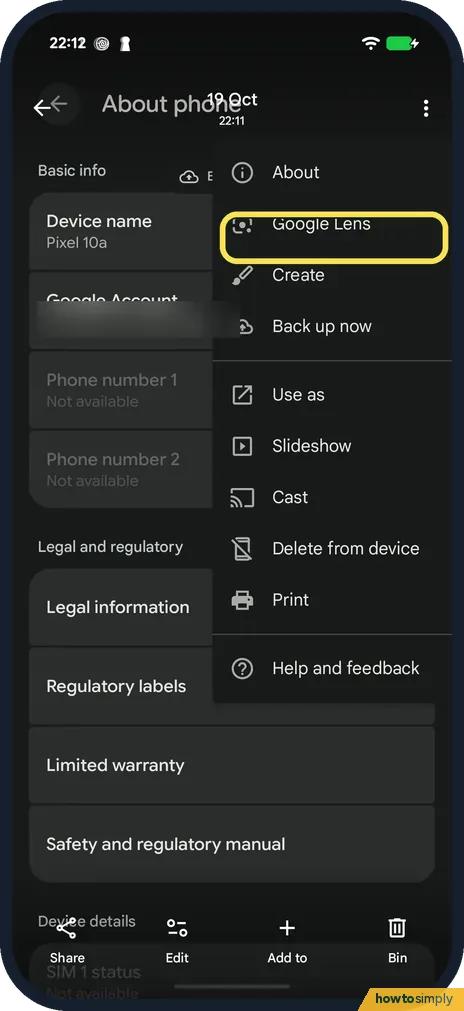
Tap Google Lens
It is the second item in the menu, below About.
- 3
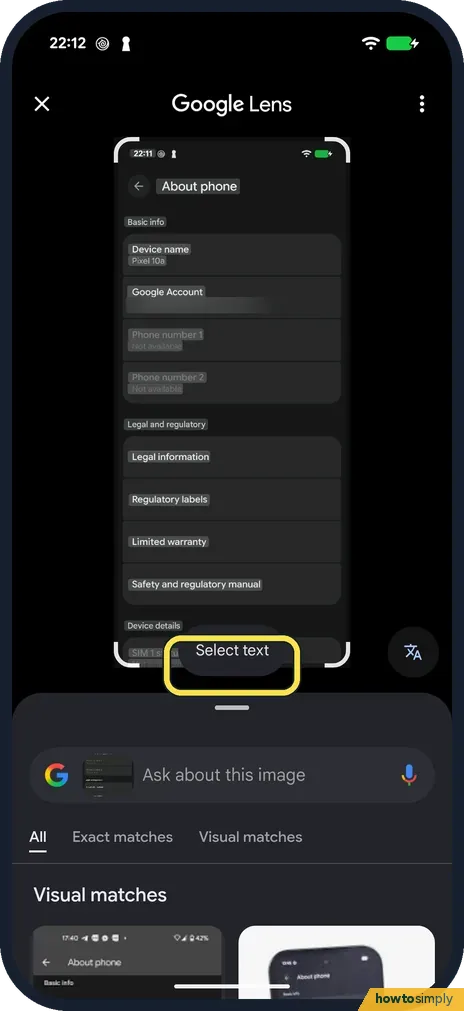
Close the tip and tap Select text
The first time, Lens showed a tip about Circle to Search; we tapped Got it. Then tap Select text at the bottom of the picture: Lens highlights all the text it can read.
- 4
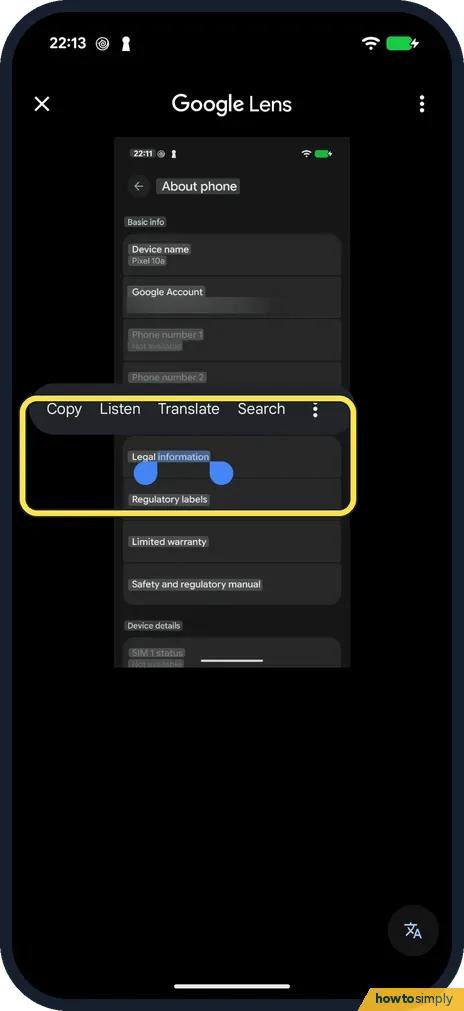
Touch and hold one word
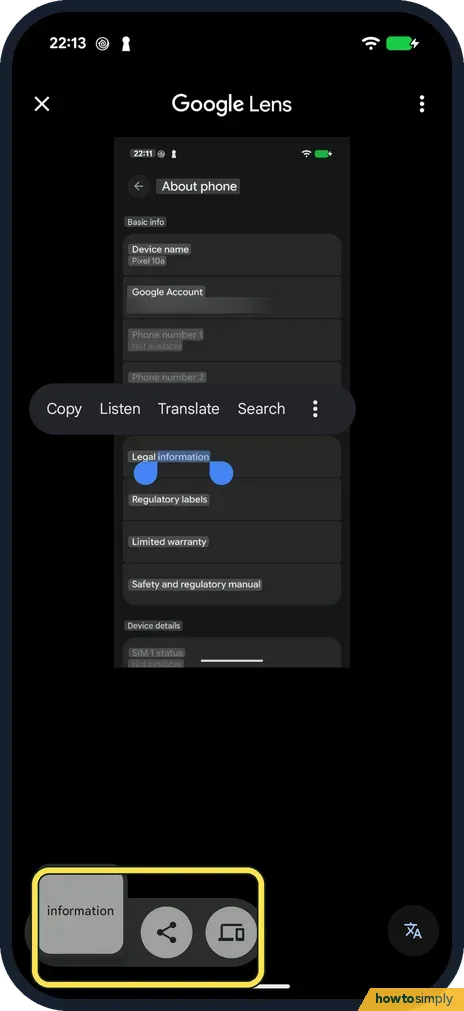
To copy only part of the text, touch and hold a word. Two blue handles appear around it; drag them to take in more words. A menu shows Copy, Listen, Translate and Search.
- 5
Tap Copy
Android shows a small preview of the copied text at the bottom left, with buttons to share it or send it to another device.
- 6
Paste it
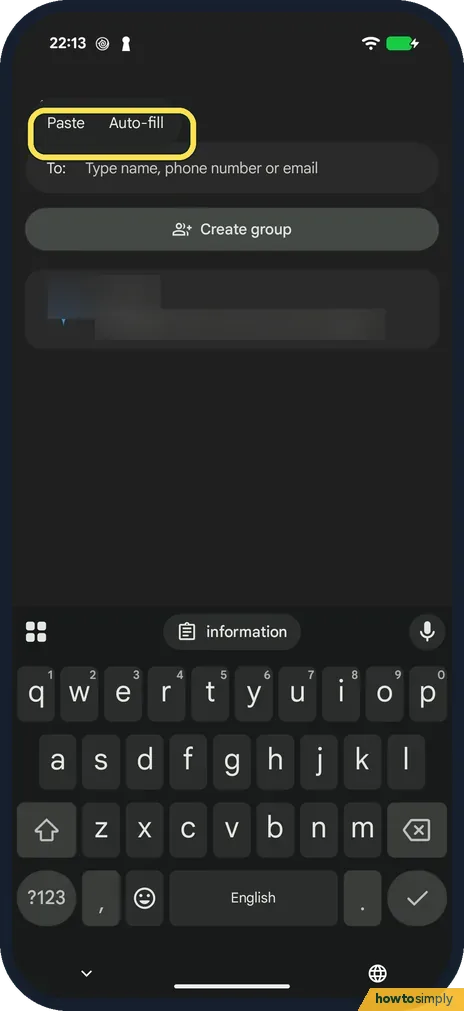
Open the app where you need the text, touch and hold the text field and tap Paste. We used the To field of a new chat in Messages.
- 7
Check the pasted text
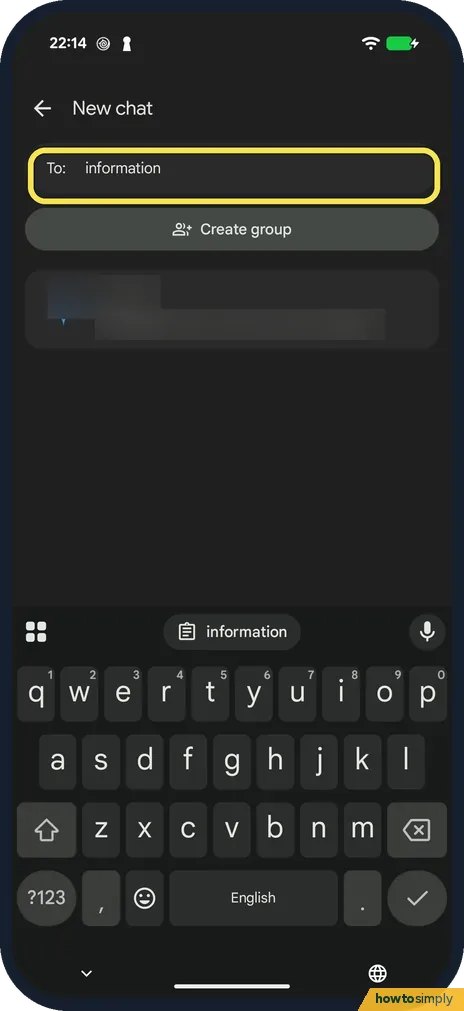
The word appears in the field. The keyboard also offers the copied text as a chip above the letters, so you can tap it there instead.
- 8
Or translate the text
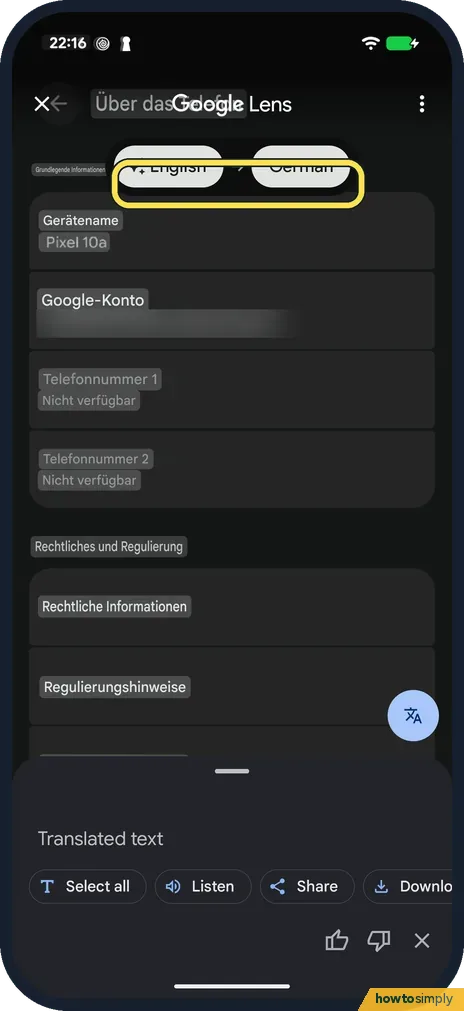
In Lens, tap the translate button at the bottom right. On our English screenshot Lens first offered English to English, so we tapped the second language and chose German: the text was then shown in German on top of the picture.
If you do not see this option
- No Lens button below the photo? There was none on our Pixel 10a with Google Photos 7.67.0: the bar showed Share, Edit, Add to and Bin. Lens is in the three-dot menu (step 2).
- A tip about Circle to Search covers the picture? The first time Lens opened on our phone it said: You can now Circle to Search what's in your photos and screenshots. Just hold the bottom bar. Tap Got it to carry on.
If this does not work
- Translate shows the same language twice? Lens only guesses the language of the picture. Ours showed English to English; tap the second language and pick the one you want.
- Nothing to paste? Android keeps only the last thing you copied, so a newer copy replaces it. Copy the text again in Lens, then touch and hold the text field once more.
Good to know
Make sure you check numbers and names after copying, because handwriting, unusual fonts and poor light lead to mistakes. Lens can lose its place too.
To search for what is in a picture instead: how to use Google Lens on Android to search with your camera.
To turn a photographed page into a proper document, see how to scan a document with an Android phone.
Using Lens can leave a record in your Google Account. Google says you can find and delete Lens activity on the Lens page of My Activity, and that turning off Web & App Activity stops it being saved. Google also says Include Visual Search History, which decides whether the images you search with are kept, is off by default. Take care with photos of bank cards or documents.
About this guide
When you type a long tracking code off a photo by hand, it is so easy to lose your place. Google Lens lets you select the words in a photo. You can copy it, translate it or search for it.
- Device
- Android
- Shown on
- Google Pixel 10a, Android 17 (build CP3A.261005.005)
- App
- Photos
- Real screenshots
- 8 of 8 steps
- Checked
- October 2026
- Sources
- 1 official, linked below
The screenshots are from our Google Pixel 10a with Android 17 (build CP3A.261005.005), in dark mode. Our picture is a screenshot of the phone's About phone page; Google Photos was version 7.67.0. We deleted the screenshot afterwards and sent nothing.
Sources
Links checked October 2026. Menus and features can change with updates.Did this guide work for you?
Sorry about that. What happened?
Get new guides by email
Our newest guides, sent to your inbox. Free, and you can unsubscribe in one click.
We'll email you to confirm. How we use your email
Follow howtosimply on Facebook
We share our new guides on our Facebook page, so the next fix turns up in your feed.
Follow on Facebook