How to remove the Google search bar from a Galaxy home screen
- Shown on
- Galaxy A57 (One UI 9) and Galaxy S26 (One UI 9.0)
- Checked
- November 2026
- Real screenshots
- 7 of 7 steps
Quick answer
On One UI 9 the search bar is not a widget. Touch and hold an empty part of the Home screen, tap Settings, then Show search on Home screen, and turn off Search. The bar disappears; turn Search back on to get it back in the same place.
Steps
- 1
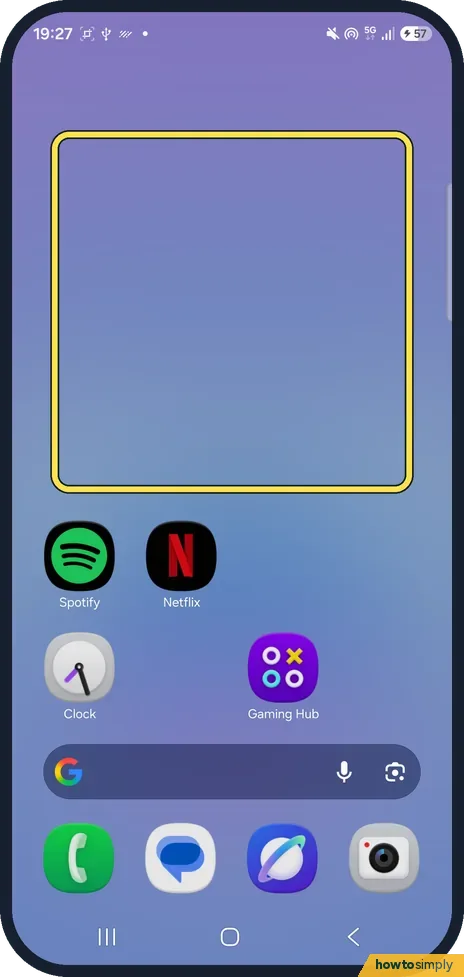
Touch and hold an empty spot
On the Home screen, touch and hold an empty part of the screen, not the search bar. Ours had the bar above the dock.
- 2
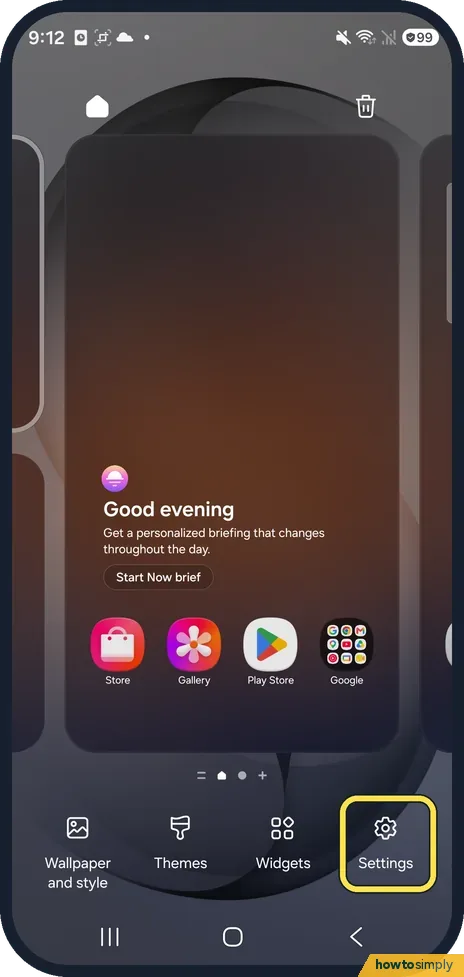
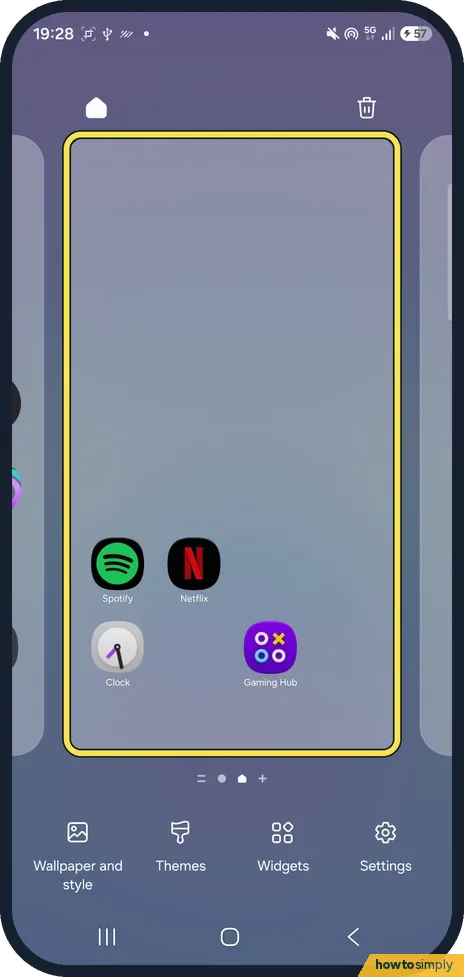
Tap Settings
The Home screen goes into edit mode, without the search bar. Tap Settings at the bottom right.
- 3
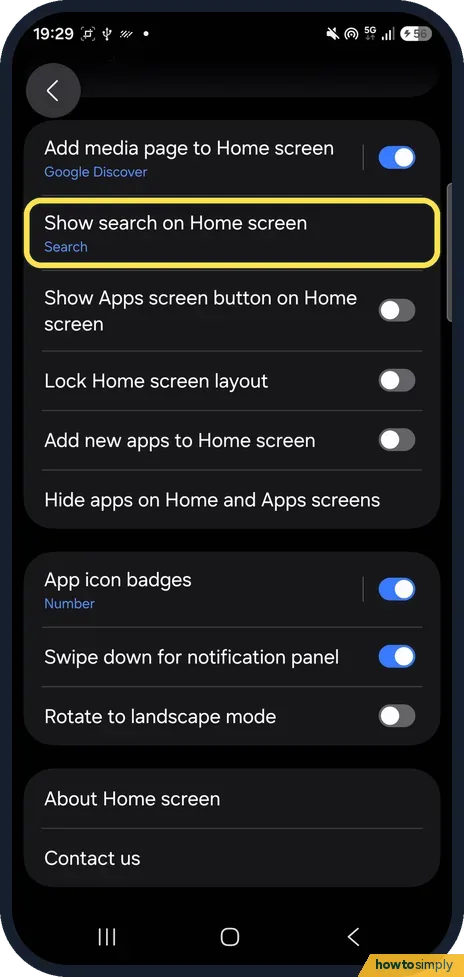
Tap Show search on Home screen
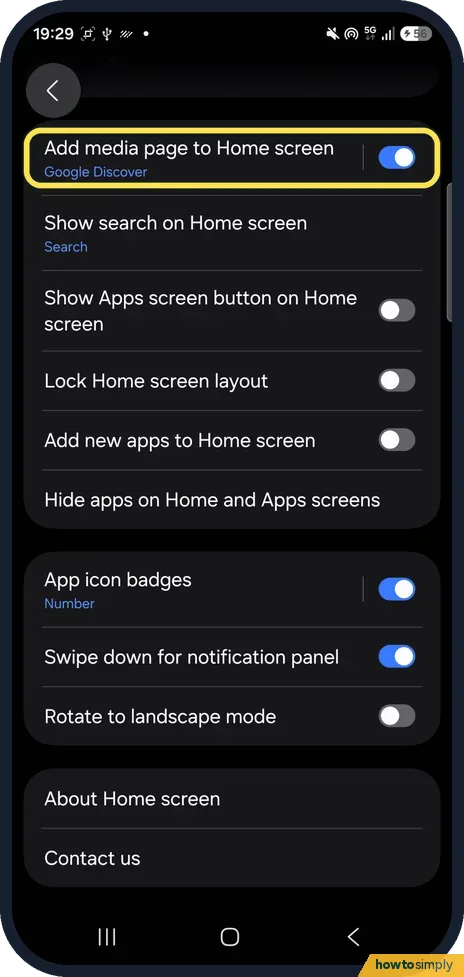
It is the second row, under Add media page to Home screen. Ours said Search below it.
- 4
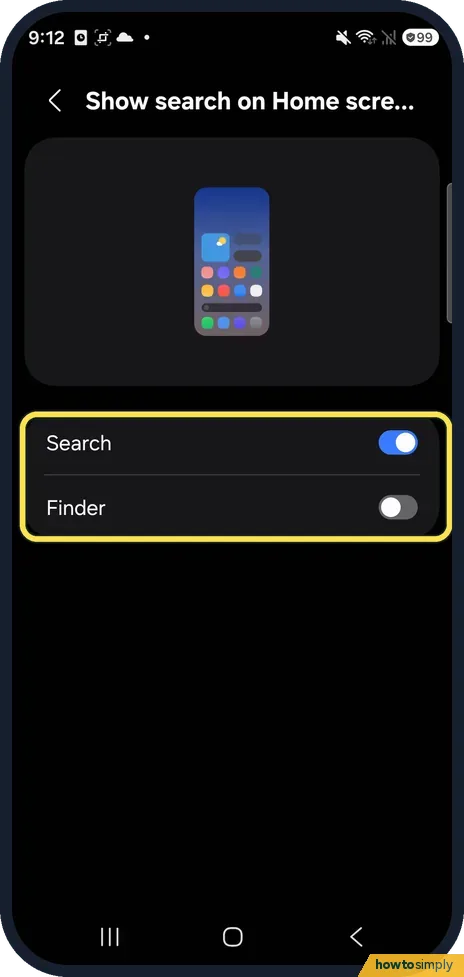
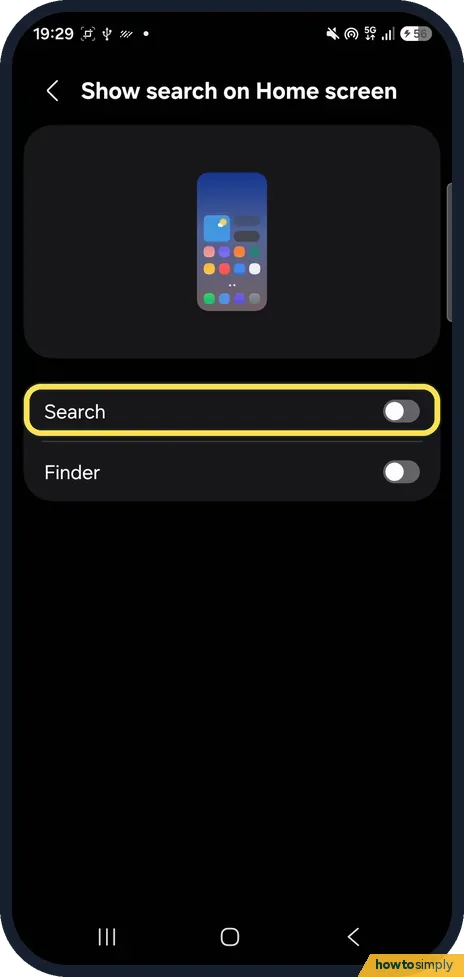
Find the Search switch
The page shows a preview with the bar and two switches: Search (on) and Finder (off on ours).
- 5
Turn off Search
Tap the switch. The bar disappears from the preview.
- 6
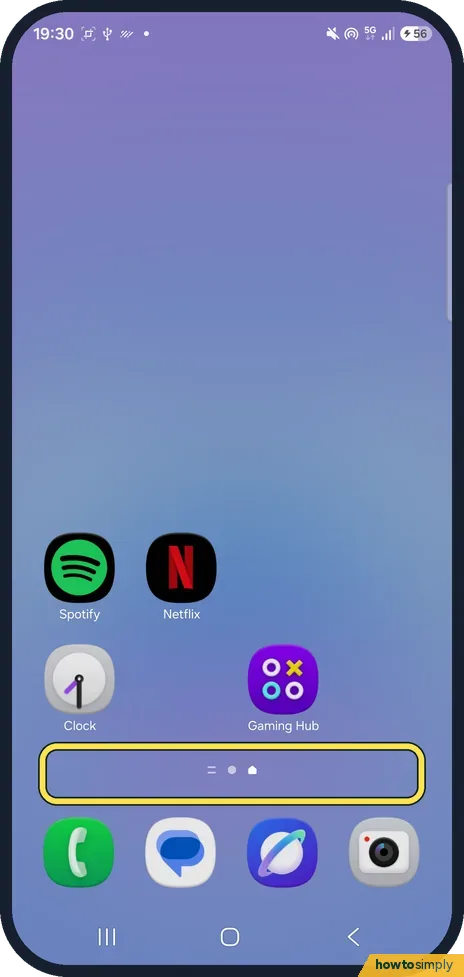
Check the Home screen
Go Home. The bar above the dock is gone and the page dots sit in its place.
- 7
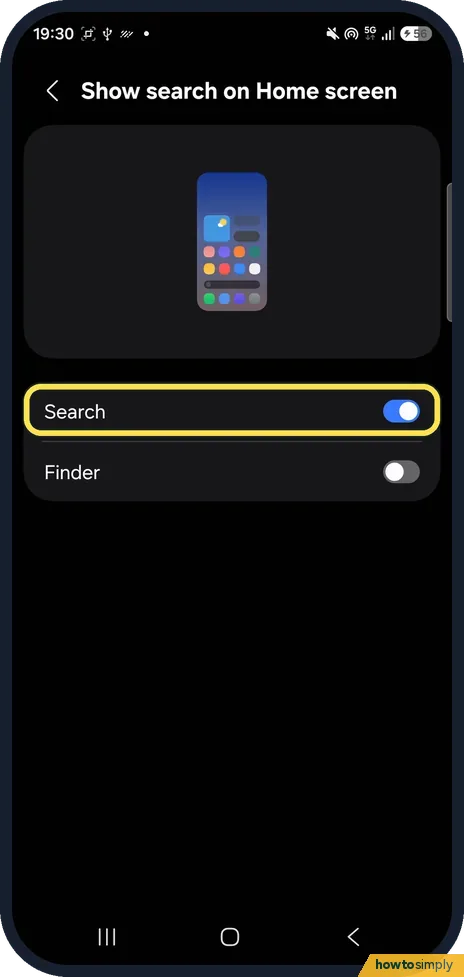
To get it back, turn Search on
Open Show search on Home screen again and tap the Search switch. The bar came back in the same place on ours.
Where we checked these steps
- Galaxy A57, One UI 9 (Android 17)
- Galaxy S26, One UI 9.0 (Android 17)
We have not checked other phones or older versions. If a menu looks different on yours, the notes under each step and the fixes further down cover the differences we found.
If you do not see this option
- No Remove when you hold the bar? On ours, holding the bar opened Google search. Samsung's steps to touch and hold a widget and select Remove did not work for this bar on ours. Source: How to add apps and widgets on your Galaxy phone's Home screen
- Bar not shown in edit mode? That is expected: in edit mode our Home page showed only the apps. Use Settings at the bottom right. Source: How to add apps and widgets on your Galaxy phone's Home screen
- Want the Google page on the left gone too? That is Add media page to Home screen (Google Discover on ours), the row above. Samsung's Discover page gives another route: hold a blank part of the Home screen, swipe right, tap the switch at the top. Source: Google Discover on Galaxy phones and tablets
If this does not work
- Bar came back? Check that Search is still off under Home screen settings, Show search on Home screen. Turned back on, the bar returned in the same place on ours.
- Wanted a widget removed instead? If it's an actual widget, Samsung says to press and hold it, then pick Remove.
Good to know
To add other widgets, see add and resize widgets on a Samsung Galaxy home screen. We left Finder off.
Turning off Search only hides the bar. The Google app stays installed and signed in, and your search history and Google account settings do not change. You can still search by opening the Google app from the Apps screen, or with Circle to Search.
About this guide
Well, the Google bar plays hard to get. Long-pressing it on our Galaxy A57 only opened Google search, and it hides from Home screen edit mode, so it cannot be removed like a widget. Its switch lives in Home screen settings.
Steps 2 and 4 are from a Samsung Galaxy S26 with One UI 9.0 and Android 17, in Dark mode, where we only looked. The others are from our Galaxy A57 with One UI 9 and Android 17, taken on 26 October 2026, where we turned Search off for the pictures and then back on.
- Device
- Android
- Shown on
- Samsung Galaxy A57 (SM-A576B), One UI 9, Android 17 (build A576BXXU6BZIE), Samsung Galaxy S26 (SM-S942N, Korean model), One UI 9.0, Android 17 (build CP2A.260605.016.S942NKSU5BZJB)
- Starts in
- Home screen
- Real screenshots
- 7 of 7 steps
- Checked
- November 2026
- Sources
- 3 official, linked below
Sources
Links checked October 2026. Menus and features can change with updates.Did this guide work for you?
Sorry about that. What happened?
Get new guides by email
Our newest guides, sent to your inbox. Free, and you can unsubscribe in one click.
We'll email you to confirm. How we use your email
Follow howtosimply on Facebook
We share our new guides on our Facebook page, so the next fix turns up in your feed.
Follow on Facebook