How to turn on the Driving Focus on an iPhone (iOS 27)
- Shown on
- iPhone 17e
- Software
- iOS 27.0.1More iOS 27 guides
- Checked
- October 2026
- Real screenshots
- 5 of 5 steps
- Where it is
- Settings › Focus › + › Driving › While Driving
Quick answer
Open Settings, tap Focus, then Driving. If it is not listed, as on our iPhone 17e, tap + at the top right, choose Driving and tap Customise Focus. Tap While Driving and choose Automatically, When Connected to Car Bluetooth or Manually. Manually was the default on our iPhone 17e.
Steps
- 1
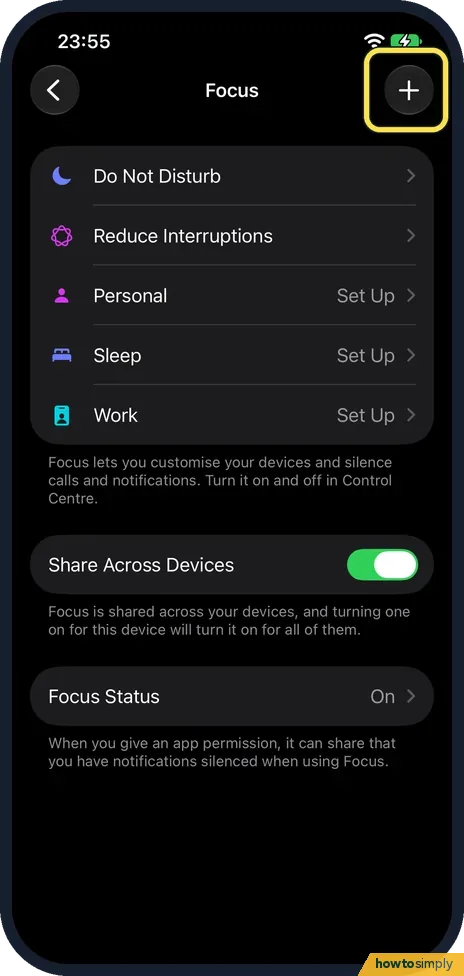
Open Settings, Focus and tap +
Driving was not in our list: it held Do Not Disturb, Reduce Interruptions, Personal, Sleep and Work. Apple says that if you do not see Driving, tap + at the top right.
- 2
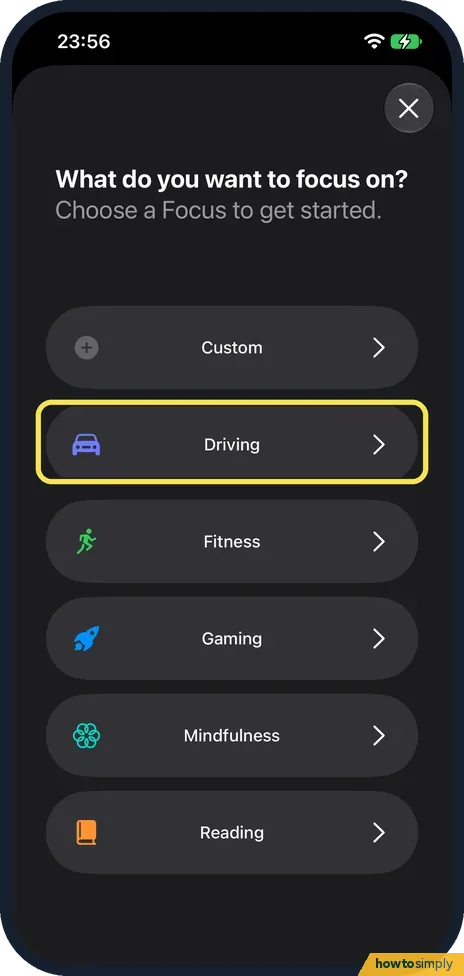
Tap Driving
The page asks: What do you want to focus on? Driving is the second choice, below Custom.
- 3
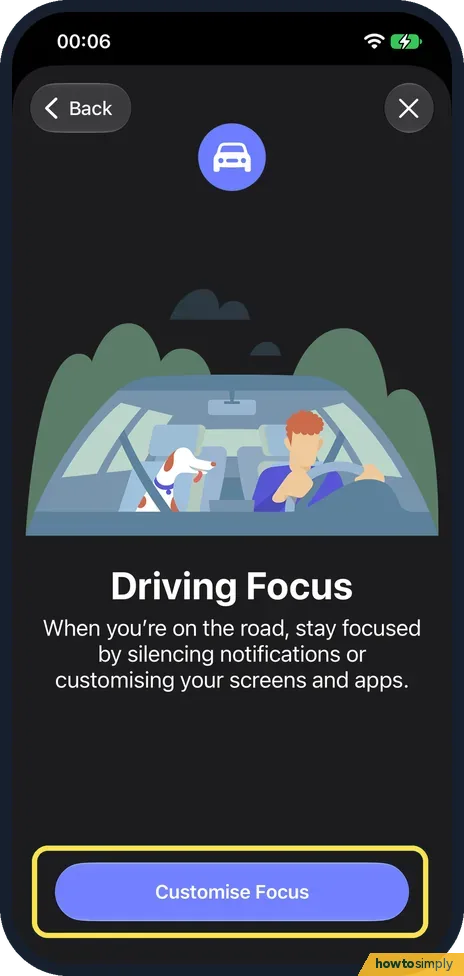
Tap Customise Focus
The Driving Focus page explains it silences notifications on the road. Tap the button at the bottom.
- 4
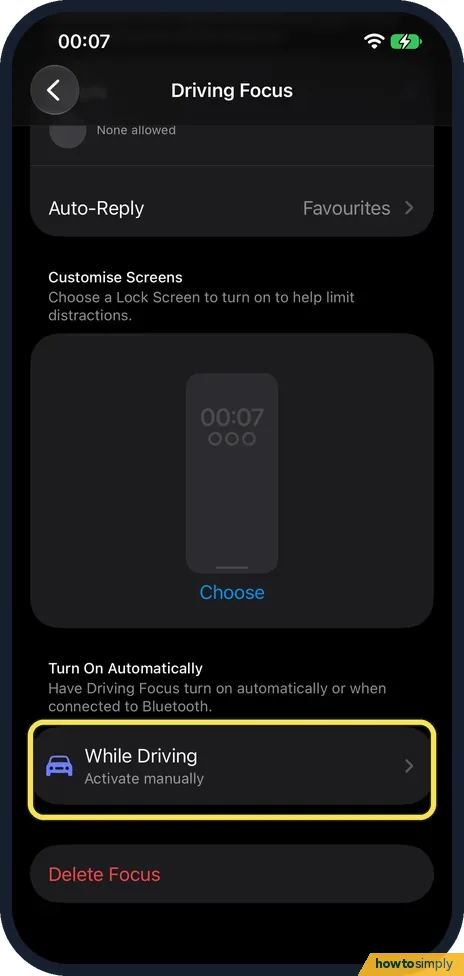
Tap While Driving
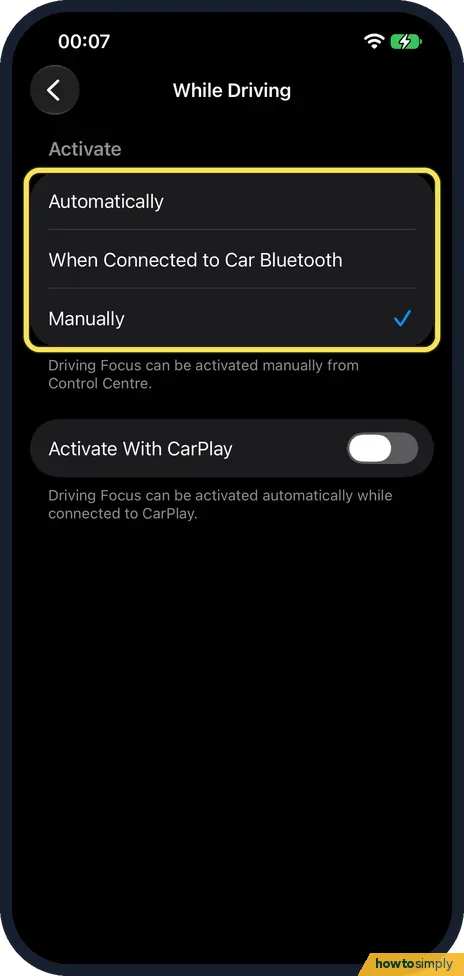
While Driving is under Turn On Automatically. Ours said Activate manually.
- 5
Choose when it starts
Pick Automatically, When Connected to Car Bluetooth or Manually. Activate With CarPlay is a separate switch below.
If you do not see this option
- Driving is not in the Focus list? That was the case on our iPhone 17e. Apple says to tap + and then Driving, as in steps 1 and 2. Source: Stay focused while driving with iPhone
- No CarPlay choice under While Driving? Apple's guide lists Activate With CarPlay as a fourth choice. On our iPhone 17e with iOS 27.0.1 it was a separate switch below Automatically, When Connected to Car Bluetooth and Manually. Source: Stay focused while driving with iPhone
If this does not work
- It turns on as a passenger? Automatically switches it on when the iPhone thinks you could be driving. When Connected to Car Bluetooth switches it on once the iPhone links to a car's Bluetooth, and Manually only when you switch it on from Control Centre.
- Calls still come through? Apple says calls only come through when the iPhone is linked to CarPlay, a car's Bluetooth or a hands-free accessory.
- It does not start in your car? When Connected to Car Bluetooth needs the iPhone to join the car over Bluetooth. If your car uses CarPlay, check the separate Activate With CarPlay switch below the While Driving choices as well.
- Nothing happens with Manually? With Manually, Apple says Driving turns on when you turn it on in Control Centre. Turn it on before you set off, from Control Centre as described below, or pick one of the automatic choices instead.
- An important person cannot reach you? Apple says a Focus can allow only specific notifications. For a Focus, Apple says to open Settings, tap Focus, tap the Focus, then tap People or Apps to choose who and what may notify you.
Good to know
To turn it on by hand with Manually, Apple says to use Control Centre.
The Driving Focus page also has Auto-Reply; ours was set to Favourites. Apple says you can choose who gets it and change the message.
For other Focus types, see how to create a custom Focus on an iPhone.
With the Focus on, texts and other notifications are muted or cut back. To turn it on yourself, set While Driving to Manually. Apple says Activate With CarPlay turns it on automatically when iPhone is connected to CarPlay. To remove it completely, open the Driving Focus page and delete it, as we did after taking the screenshots. For a Focus you use outside the car, see how to turn on Do Not Disturb on an iPhone.
About this guide
The Driving Focus silences or limits text messages and other notifications on the road. It can start by itself when the phone thinks you are driving or when it joins your car by Bluetooth.
- Device
- iPhone
- Shown on
- iOS 27.0.1 (iPhone 17e)
- App
- Settings
- Path
- Settings › Focus › + › Driving › While Driving
- Real screenshots
- 5 of 5 steps
- Checked
- October 2026
- Sources
- 2 official, linked below
The screenshots are from our iPhone 17e with iOS 27.0.1, in Dark mode. Driving was not set up on ours, so we added it, looked at the choices and deleted it again.
Sources
Links checked October 2026. Menus and features can change with updates.Did this guide work for you?
Sorry about that. What happened?
Get new guides by email
Our newest guides, sent to your inbox. Free, and you can unsubscribe in one click.
We'll email you to confirm. How we use your email
Follow howtosimply on Facebook
We share our new guides on our Facebook page, so the next fix turns up in your feed.
Follow on Facebook