How to turn on Eye comfort shield on a Samsung Galaxy phone
- Shown on
- Galaxy A57 5G (One UI 8.5) and Galaxy S26 (One UI 9.0)
- Checked
- November 2026
- Real screenshots
- 4 of 4 steps
- Where it is
- Settings › Display
Quick answer
Open Settings, Display and tap the switch next to Eye comfort shield. Tap the words to open its page and choose Adaptive or Custom. You can also turn it on or off with the Eye comfort shield button in the quick panel.
Watch these steps
Video: on our Galaxy S26 (One UI 9) we open Settings, then Display, then Eye comfort shield, switch it on with Adaptive chosen, then switch it off again. No sound.
Steps
- 1
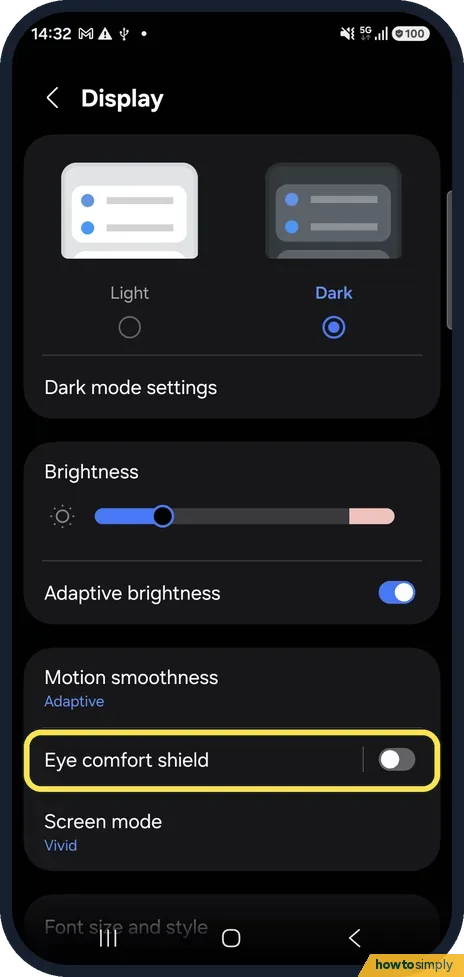
Open Display settings
Open Settings, then Display.
On our Galaxy, Eye comfort shield sits between Motion smoothness and Screen mode, with its switch off.
- 2
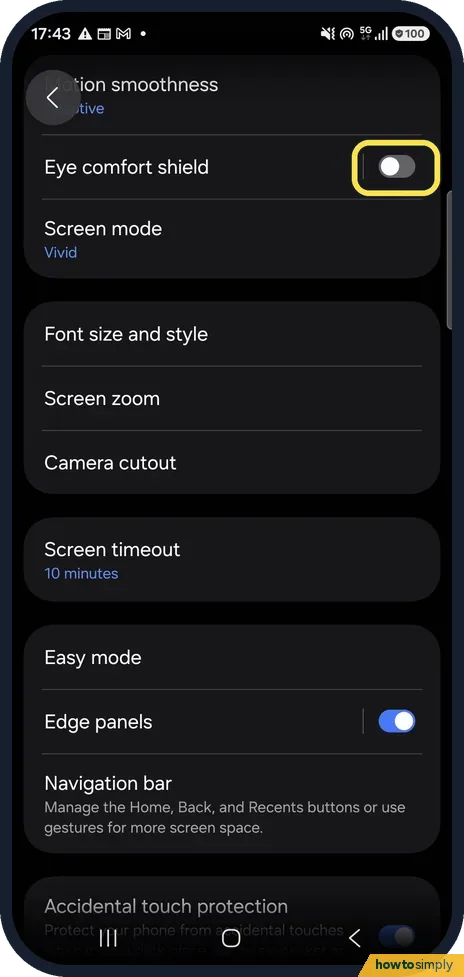
Switch it on
Tap the switch next to Eye comfort shield so it turns blue.
On our Galaxy, the row then shows Adaptive underneath. Tapping the words instead opens the Eye comfort shield page.
- 3
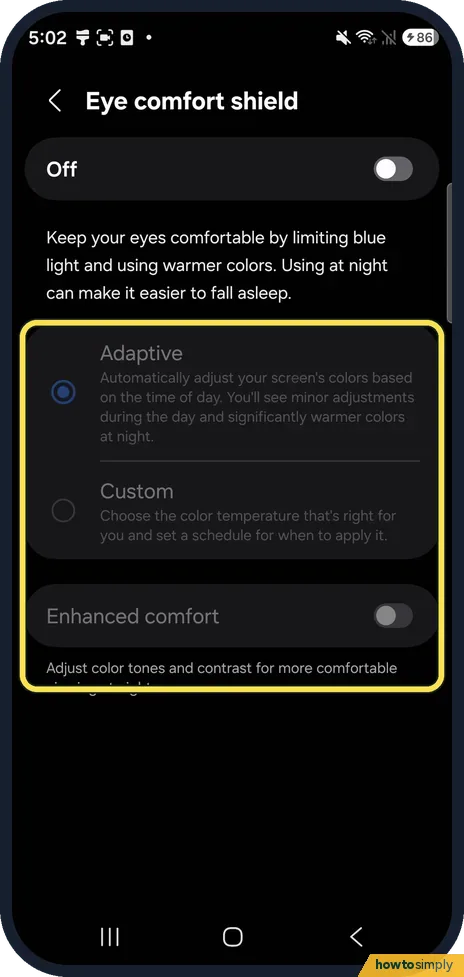
Choose Adaptive or Custom
Tap the words Eye comfort shield to open its page.
On our Galaxy S26 the page had the switch at the top, Off, and two options, Adaptive and Custom, with Enhanced comfort below them. Adaptive changes the colours with the time of day; Custom lets you choose the colour temperature and set a schedule. Enhanced comfort adjusts colour tones and contrast for more comfortable viewing at night.
- 4
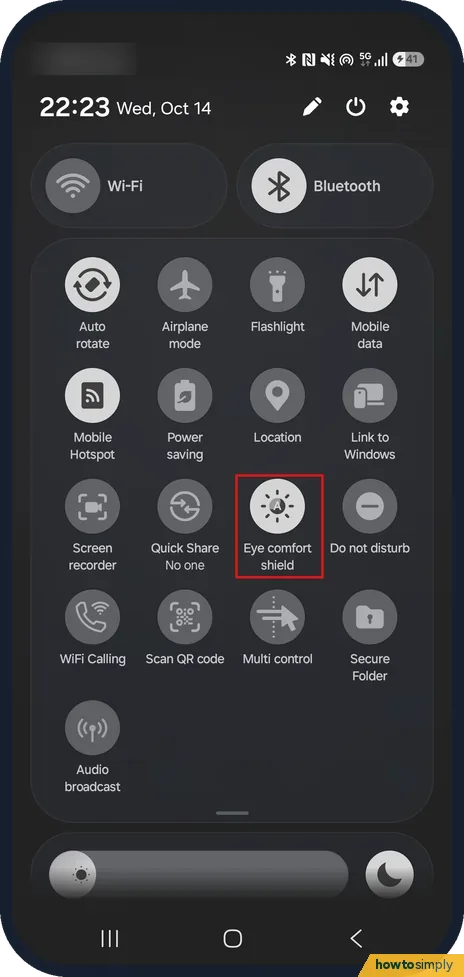
Use the quick panel
Drag two fingers down from the top edge so the full quick panel opens.
Tap Eye comfort shield to switch it on or off. On our Galaxy, it sits between Quick Share and Do not disturb.
Where we checked these steps
- Galaxy A57 5G, One UI 8.5 (Android 16)
- Galaxy S26, One UI 9.0 (Android 17)
We have not checked other phones or older versions. If a menu looks different on yours, the notes under each step and the fixes further down cover the differences we found.
If you do not see this option
- Eye comfort shield is not in the Display list On our Galaxy, it is in the third group of Display, between Motion smoothness and Screen mode. Scroll back up if you have moved past it.
- Adaptive and Custom do not appear Tap the words Eye comfort shield rather than the switch. The two options are on its own page, below the On switch.
- The button is not in the quick panel Open the full quick panel. On our Galaxy, Eye comfort shield is in the third row, between Quick Share and Do not disturb.
- No Eye comfort shield at all? Samsung says it needs One UI 3.1 or newer, and some models don't have it. Older phones may have a simpler blue light filter instead. Source: Reduce eye strain on your Galaxy phone or tablet
If this does not work
- A screenshot looks no warmer That is normal. The warmer tint does not show in screenshots. Look at the screen itself to check it is working.
- The screen barely changes during the day With Adaptive, the page says you'll see minor adjustments during the day and significantly warmer colours at night. Choose Custom to set the colour temperature yourself.
- You only want it at certain times Choose Custom on the Eye comfort shield page. Its description says you can set a schedule for when to apply it.
- Colours look washed out? That is the filter at work, not a fault with your screen. Samsung says the Enhanced comfort switch in Custom adds colour and contrast changes and reduces saturation. Turn Enhanced comfort off if colours look dull.
Good to know
It works together with dark mode: how to turn on dark mode on a Samsung Galaxy phone.
The setting only changes colour temperature, so battery use, apps and notifications are not affected, and other people see the same tint on your screen. When you share or save a screenshot, the warmer colours are not part of it. Turning it off with the switch or the quick panel brings back normal colours at once, so there is nothing to lose by trying it tonight! In Custom, Samsung says you can adjust the Color temperature slider to change the screen's colour tone. For a darker screen in a dark room, combine it with Extra dim.
About this guide
A bright, cold screen late at night can feel like staring into a torch. Eye comfort shield is Samsung's blue-light filter. It limits the screen's blue light and gives the screen a slightly yellow tint that changes over time.
- Device
- Android
- Shown on
- Samsung Galaxy A57 5G (SM-A576B), One UI 8.5, Android 16, Samsung Galaxy S26 (SM-S942N, Korean model), One UI 9.0, Android 17 (build CP2A.260605.016.S942NKSU5BZJB)
- App
- Settings
- Path
- Settings › Display
- Real screenshots
- 4 of 4 steps
- Checked
- November 2026
- Sources
- 1 official, linked below
The screenshots are from a Samsung Galaxy S26 with One UI 9.0 and Android 17, in Dark mode, apart from steps 1, 2 and 4, from our Galaxy A57 with One UI 8.5. Other Galaxy phones on One UI 8.5 and 9 use similar menus; on older One UI versions a few names and positions differ.
Sources
Links checked October 2026. Menus and features can change with updates.Did this guide work for you?
Sorry about that. What happened?
Get new guides by email
Our newest guides, sent to your inbox. Free, and you can unsubscribe in one click.
We'll email you to confirm. How we use your email
Follow howtosimply on Facebook
We share our new guides on our Facebook page, so the next fix turns up in your feed.
Follow on Facebook