How to turn on Live Caption on a Samsung Galaxy
- Shown on
- Galaxy A57 5G (One UI 8.5) and Galaxy S26 (One UI 9.0)
- Checked
- November 2026
- Real screenshots
- 8 of 8 steps
- Where it is
- Settings › Accessibility › Hearing enhancements › Live Caption
Quick answer
Open Settings, Accessibility, Hearing enhancements, Live Caption and switch on Use Live Caption. Your Galaxy then writes captions for speech in videos, podcasts and other media. Live Caption in calls can caption phone calls too.
Watch these steps
Video: on our Galaxy S26 (One UI 9) we open Accessibility, then Hearing enhancements, then Live Caption (steps 1 to 3). On ours the Use Live Caption switch was greyed out and asked for a software download, so we did not switch it on. No sound.
Steps
- 1
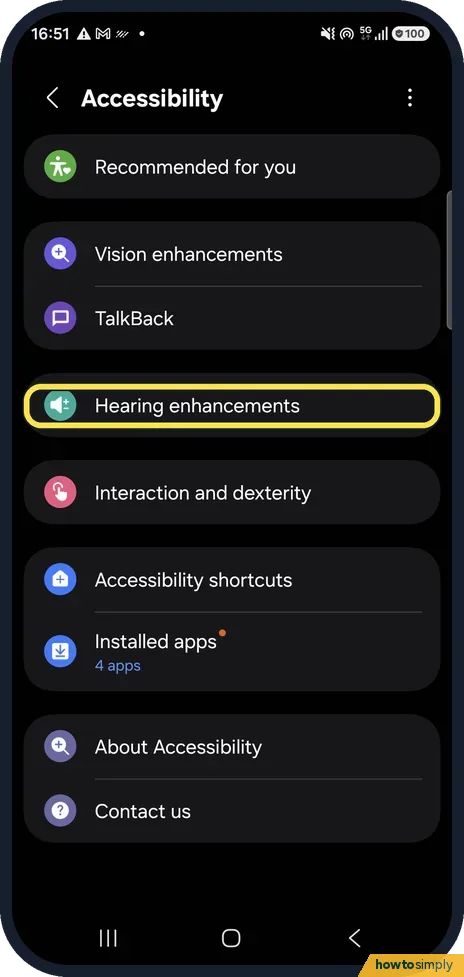
Open Hearing enhancements
Open Settings, Accessibility and tap Hearing enhancements.
- 2
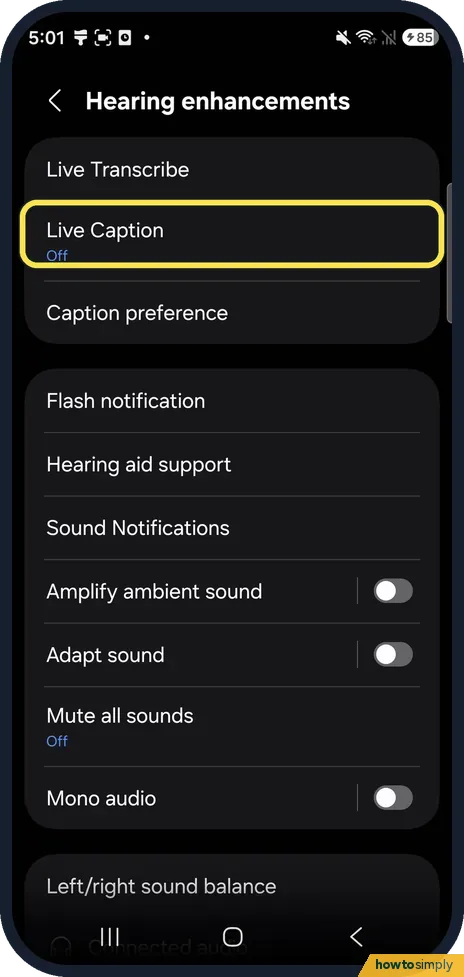
Tap Live Caption
Live Caption is near the top. Ours says Off underneath.
- 3
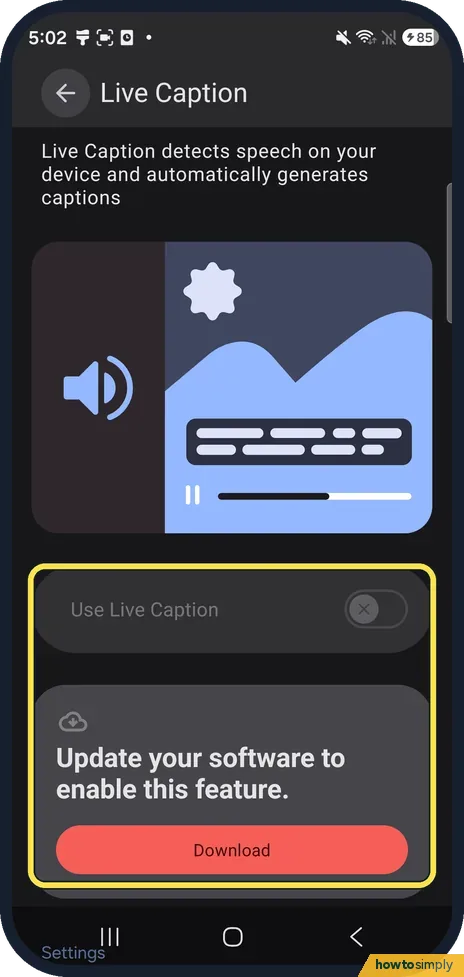
Switch on Use Live Caption
Tap the Use Live Caption switch under the picture. Captions now appear in a box whenever media with speech plays.
On our Galaxy S26 the switch was greyed out, with Update your software to enable this feature and a Download button below it. In that case tap Download first and switch it on when the download has finished. We did not tap it.
- 4
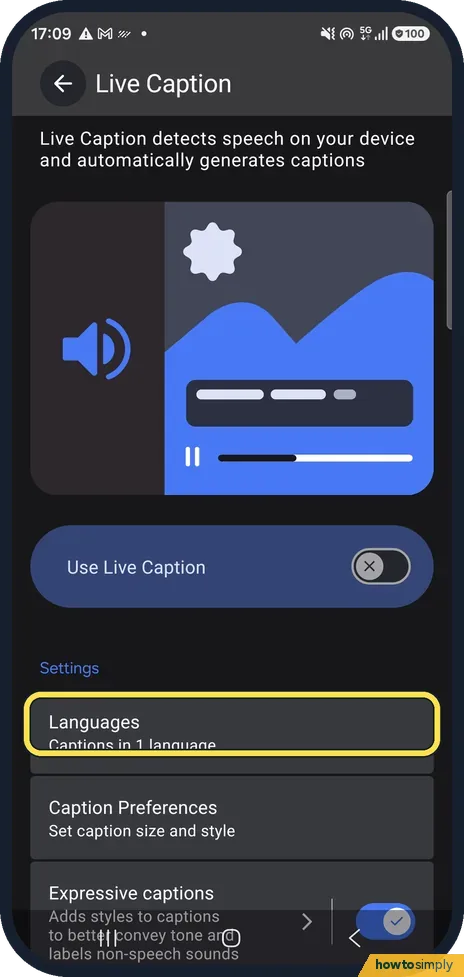
Check the language
Languages shows which languages it can caption. Ours says Captions in 1 language; tap it to add another.
- 5
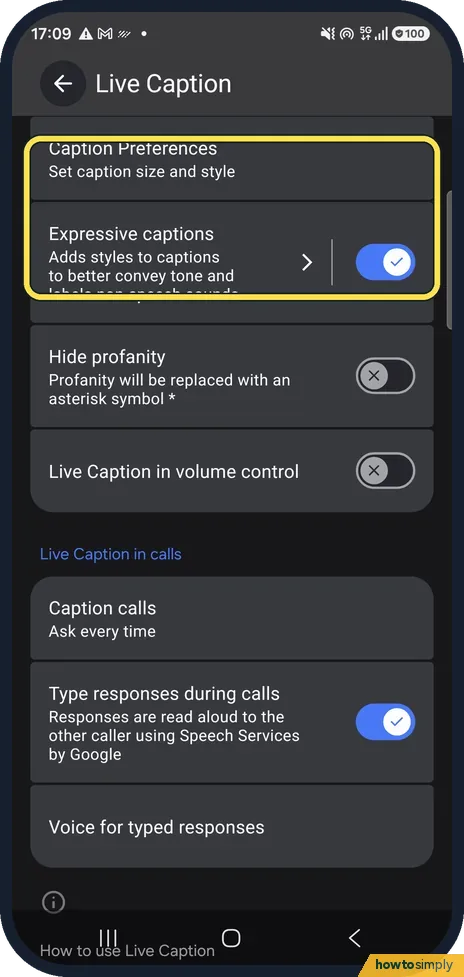
Change the caption look
Caption Preferences sets the size and style of the text. Expressive captions, on by default on ours, adds styles to show tone and labels sounds that are not speech.
- 6
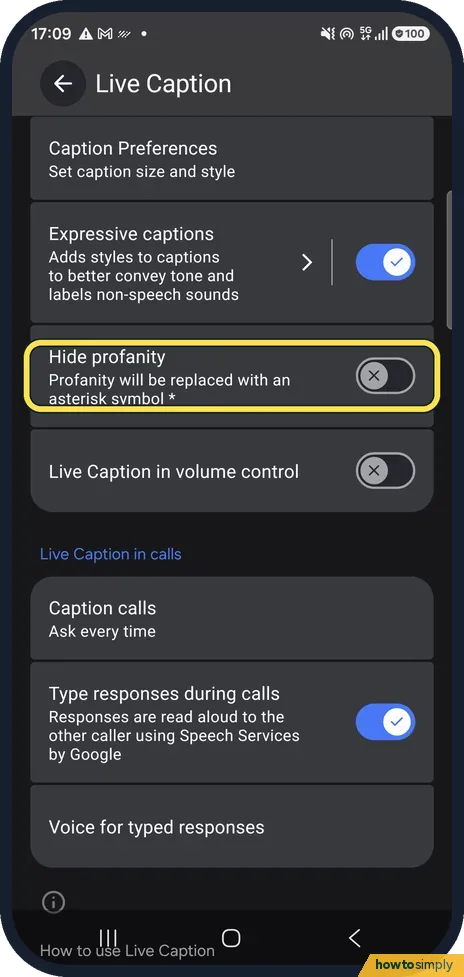
Hide swear words
Hide profanity replaces swear words with an asterisk.
- 7
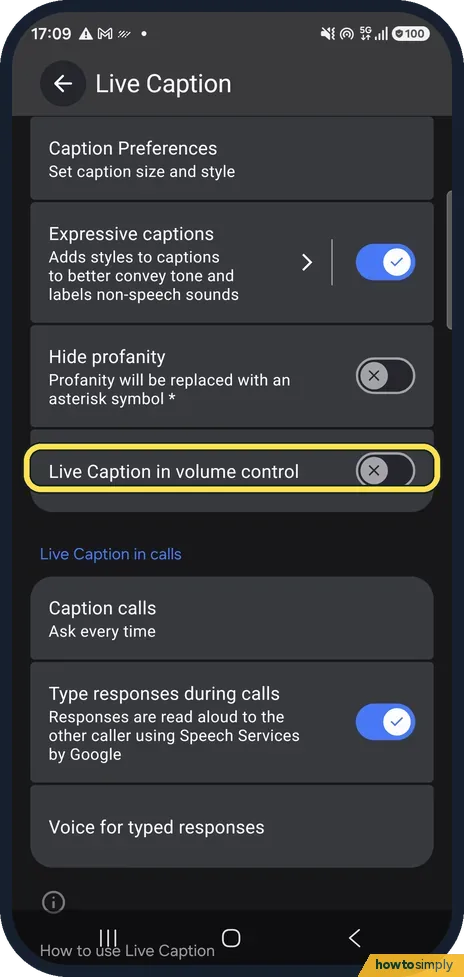
Quick switch in the volume panel
Live Caption in volume control adds a Live Caption button under the volume slider, so you can switch it on and off with the volume keys.
- 8
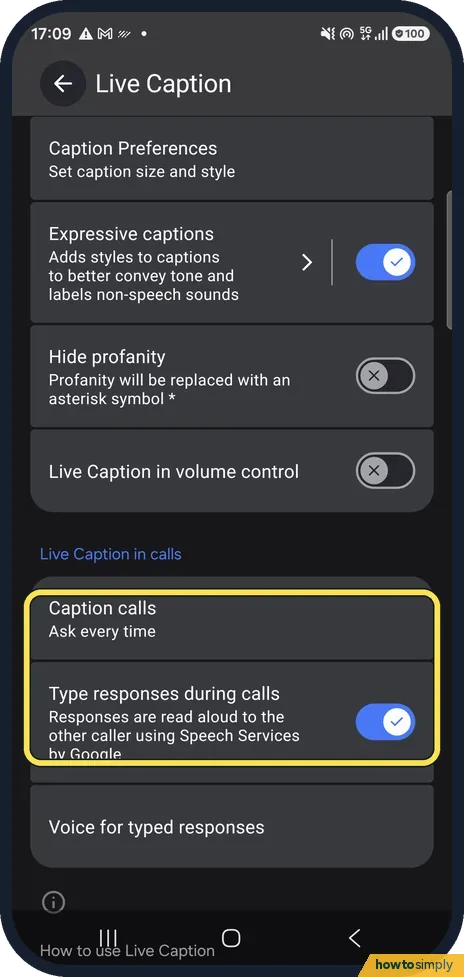
Caption phone calls
Under Live Caption in calls, Caption calls is set to Ask every time on ours. Type responses during calls lets you type a reply that is read aloud to the caller.
Where we checked these steps
- Galaxy A57 5G, One UI 8.5 (Android 16)
- Galaxy S26, One UI 9.0 (Android 17)
We have not checked other phones or older versions. If a menu looks different on yours, the notes under each step and the fixes further down cover the differences we found.
If you do not see this option
- There is no Live Caption on your phone Google says Live Caption works only on selected phones, and that if it is missing you should check with the phone maker. Source: Live Caption: Caption media & calls on your device
- Your language is not offered Google lists the caption languages by phone: on Pixel 4 and 5 and selected Android phones they are English, French, German, Italian, Japanese, Hindi and Spanish; newer phones add more. The language pack has to download over Wi-Fi before the first use. Source: Live Caption: Caption media & calls on your device
If this does not work
- Captions stopped by themselves Google says battery saver switches Live Caption off by itself.
- One app or a song shows no captions Google says some media and calling apps may not get captions, and Live Caption doesn't caption music, so a blank box during a song is expected, not a fault.
- The caption box covers the video? Google says you can touch and hold the box and drag it elsewhere, double-tap it to expand it from 2 to 12 lines, or drag the bar at its bottom to resize it.
- Captions vanished after you moved the box? Google says dragging the caption box off the bottom of the screen hides the captions and turns Live Caption off. Switch it on again from the volume control or in Settings.
Good to know
Google explains which languages Live Caption supports on its accessibility help page.
Live Caption puts words on screen for any speech playing on your phone.
Google says all captions are processed on the phone and never leave it. Live Caption does not use mobile data, but it does use more battery while it captions media or calls. To turn it off for good, switch off Use Live Caption on the same page. If you often miss alerts, see flash notifications.
About this guide
Say someone sends you a video while you are on a noisy train, or you are in a quiet room where you cannot play the sound out loud. That is where Live Caption earns its place: it turns speech playing on your phone into on-screen text, without an internet connection. It helps just as much if you are hard of hearing.
- Device
- Android
- Shown on
- Samsung Galaxy A57 5G (SM-A576B), One UI 8.5, Android 16, Samsung Galaxy S26 (SM-S942N, Korean model), One UI 9.0, Android 17 (build CP2A.260605.016.S942NKSU5BZJB)
- App
- Settings
- Path
- Settings › Accessibility › Hearing enhancements › Live Caption
- Real screenshots
- 8 of 8 steps
- What we did
- Observed: looked at each screen, changed nothing
- Checked
- November 2026
- Sources
- 1 official, linked below
The screenshots are from a Samsung Galaxy S26 with One UI 9.0 and Android 17, in Dark mode, apart from steps 1 and 4 to 8, from our Galaxy A57 with One UI 8.5. Google points out that a few of these steps may look different on your phone. Live Caption was ready to use on the A57; on the S26 it first needed a download (step 3).
Sources
Links checked October 2026. Menus and features can change with updates.Did this guide work for you?
Sorry about that. What happened?
Get new guides by email
Our newest guides, sent to your inbox. Free, and you can unsubscribe in one click.
We'll email you to confirm. How we use your email
Follow howtosimply on Facebook
We share our new guides on our Facebook page, so the next fix turns up in your feed.
Follow on Facebook