How to turn off TalkBack on a Samsung Galaxy
- Shown on
- Galaxy S26SM-S942N
- Software
- One UI 9.0Android 17More One UI 9 guides
- Checked
- November 2026
- Real screenshots
- 5 of 6 steps
- Where it is
- Settings › Accessibility › TalkBack
Quick answer
If the TalkBack shortcut is on, press and hold volume up and volume down together for 3 seconds. Or open Settings, Accessibility, TalkBack and switch it off. While TalkBack is on, tap once to select, double-tap to activate and scroll with two fingers.
Steps
- 1
Use the TalkBack gestures
While TalkBack is on, a single tap only selects an item and reads it aloud. Double-tap anywhere to open it, and scroll with two fingers.
Illustration - 2
Try the volume-key shortcut
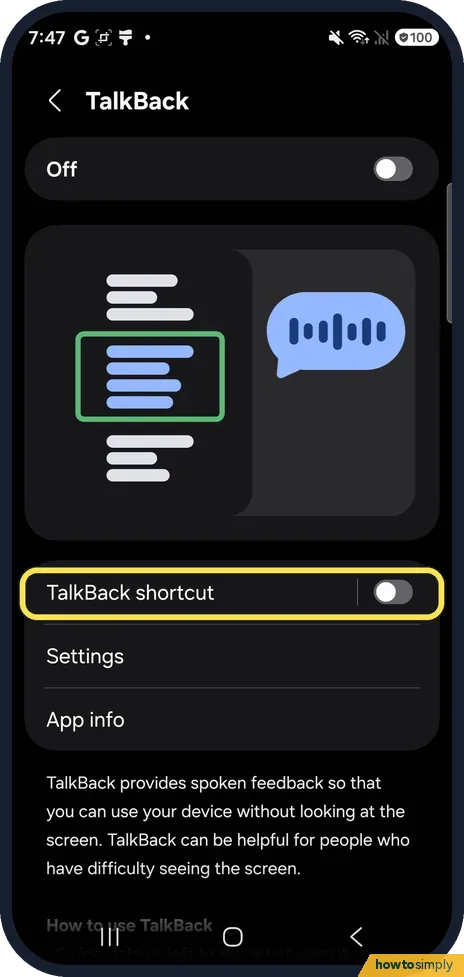
If the shortcut is set up, press and hold volume up and volume down together for 3 seconds. This is often how TalkBack gets switched on by accident.
The TalkBack shortcut switch on the TalkBack page shows whether a button combination can start it. Ours was off.
- 3
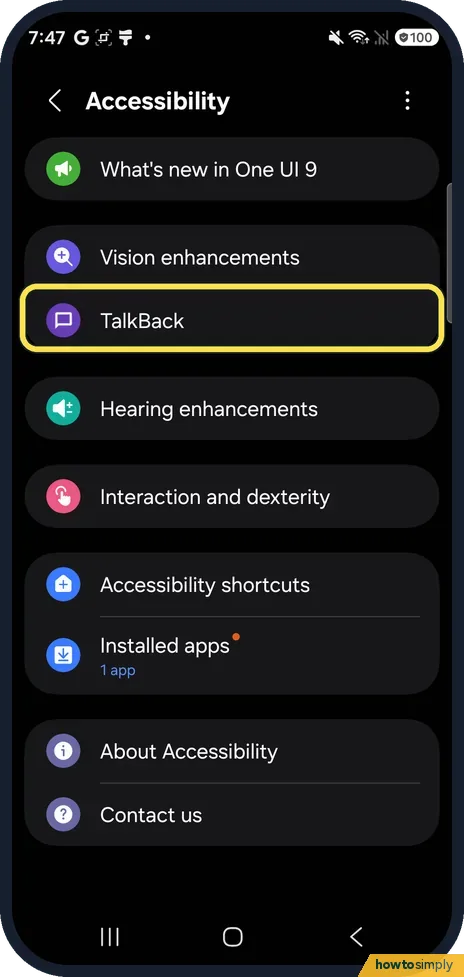
Open TalkBack in Accessibility
Settings, Accessibility. On One UI 9 TalkBack has its own row, below Vision enhancements.
- 4
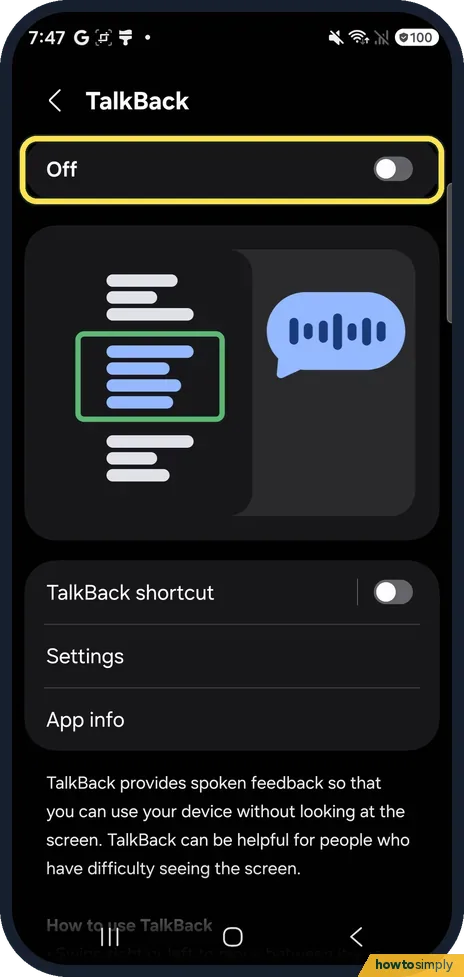
Switch it off
The switch at the top turns TalkBack on and off. With TalkBack on, select it and double-tap.
- 5
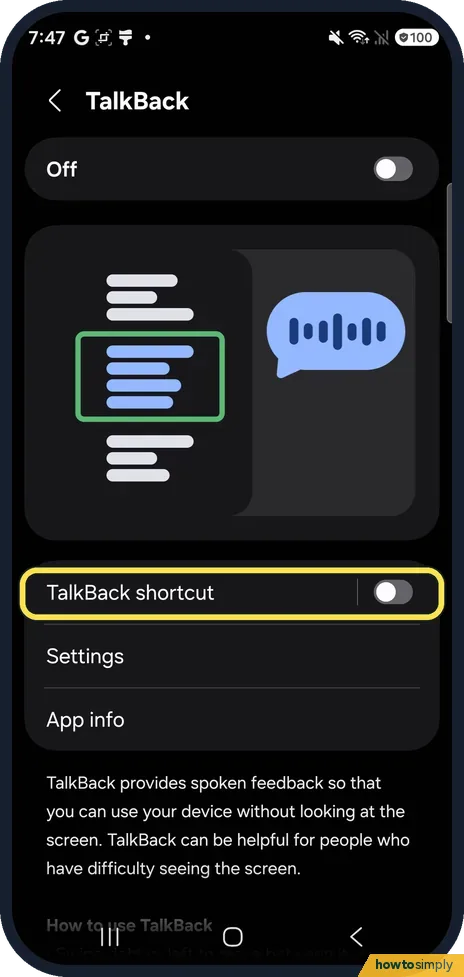
Turn off the shortcut
TalkBack shortcut lets a button combination start TalkBack. Switch it off so it cannot come back by accident. Ours was off.
- 6
Check Accessibility shortcuts
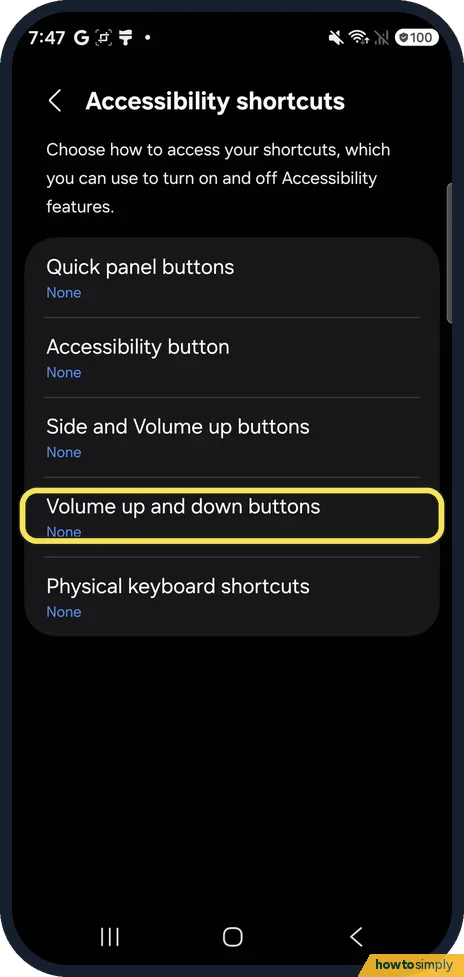
Accessibility, Accessibility shortcuts lists which buttons start an accessibility feature. On ours, Volume up and down buttons was set to None, and so were Side and Volume up buttons. Samsung's older guide calls this Advanced settings.
If you do not see this option
- Your phone says Screen reader, not TalkBack Samsung says that before One UI 3.1 it is called Voice Assistant: Accessibility, Screen reader, then the switch next to Voice Assistant. Source: Use TalkBack or Voice Assistant on your Galaxy device
- You cannot tap the Settings icon Samsung says to swipe down from the top with two fingers, tap the Settings icon and double-tap it. Then swipe with two fingers to reach Accessibility. Source: Use TalkBack or Voice Assistant on your Galaxy device
- Phone locked and you can't type the PIN? Samsung says that if the TalkBack shortcut is on, you can turn TalkBack off by pressing and holding Volume up and Volume down together for at least 3 seconds. Source: Turn off TalkBack
If this does not work
- The volume keys did nothing That does not mean anything is wrong. Samsung says the keys only work if the TalkBack shortcut is on. The first time, tap Use in the pop-up, then press both keys again for 3 seconds.
- Your phone says Voice Assistant Samsung says it is called Voice Assistant before One UI 3.1: Accessibility, Screen reader, then the Voice Assistant switch.
- TalkBack confirms nothing you tap Samsung says that with TalkBack on, you tap the switch and then double-tap it, then tap Turn off and double-tap that too.
- Can't get through the menus at all? Then let your voice do the work. Google says you can also say "Hey Google, turn off TalkBack" and wait to hear it confirm. This only works if Google Assistant is set up on the phone.
- A floating button is on the screen? Google says that if a shortcut button or floating button shows, you can select it and double-tap to turn TalkBack off.
Good to know
Screen not reacting to touch at all? Samsung Galaxy touchscreen not responding? 6 fixes.
If you turn TalkBack on again later on purpose, Samsung says you are taken to a tutorial about using your device with it. That is a gentle way to learn the gestures before you need them, whether for yourself or to help someone who relies on TalkBack.
About this guide
If your Galaxy has suddenly started reading everything aloud and ignoring your swipes, it is an unsettling moment, so take a breath. TalkBack is a screen reader: it gives spoken feedback so you can use your Galaxy without looking at the screen. With it on, you tap an item and then double-tap it, and you use two fingers to swipe through menus. It is not: it is simply listening for different gestures.
- Device
- Android
- Shown on
- Samsung Galaxy S26 (SM-S942N, Korean model), One UI 9.0, Android 17 (build CP2A.260605.016.S942NKSU5BZJB)
- App
- Settings
- Path
- Settings › Accessibility › TalkBack
- Real screenshots
- 5 of 6 steps
- What we did
- Observed: looked at each screen, changed nothing
- Checked
- November 2026
- Sources
- 1 official, linked below
The screenshots are from a Samsung Galaxy S26 with One UI 9.0 and Android 17, in Dark mode. Samsung says the feature goes by different names in different software versions, but it works the same way. We only looked at these screens on our phones and changed nothing. TalkBack was off on our phone and we never switched it on.
Sources
Links checked October 2026. Menus and features can change with updates.Did this guide work for you?
Sorry about that. What happened?
Get new guides by email
Our newest guides, sent to your inbox. Free, and you can unsubscribe in one click.
We'll email you to confirm. How we use your email
Follow howtosimply on Facebook
We share our new guides on our Facebook page, so the next fix turns up in your feed.
Follow on Facebook