How to turn Always On Display on or off on a Samsung Galaxy phone
- Shown on
- Galaxy S26 (One UI 9.0) and Galaxy A57 5G (One UI 8.5)
- Checked
- November 2026
- Real screenshots
- 5 of 5 steps
- Where it is
- Settings › Lock screen and AOD
Quick answer
Open Settings, Lock screen and AOD, Always On Display and tap the switch. When to show sets whether it appears always, only when you tap the screen, on a schedule, or for new notifications. Samsung says you can't use it while any Power saving mode is switched on.
Watch these steps
 Watch on YouTubeThe same task, recorded on our Galaxy A57 · opens YouTube
Steps
- 1
Open Always On Display
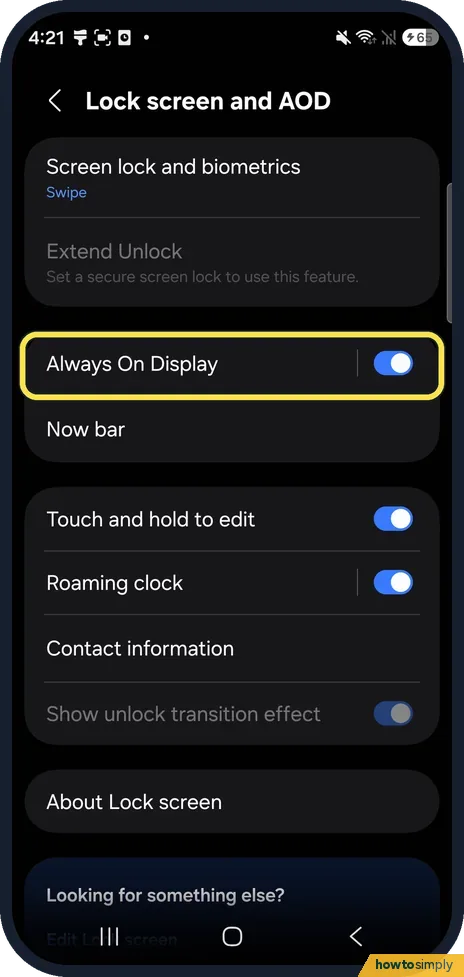
Open Settings, tap Lock screen and AOD, then Always On Display. Samsung also gives a second way: search Settings for Always On Display.
- 2
Switch it on or off
Tap the switch next to Always On Display. On means the clock shows on the dark screen. On our Galaxy S26 it was on.
- 3
Open When to show
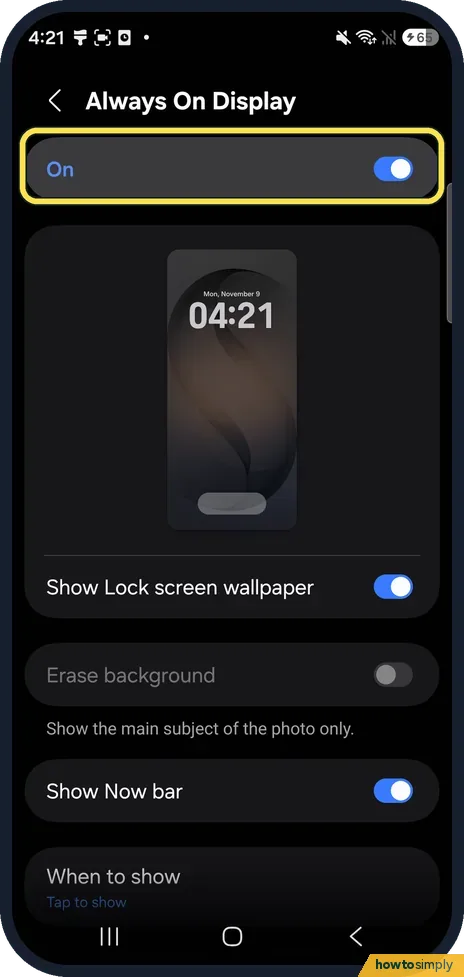
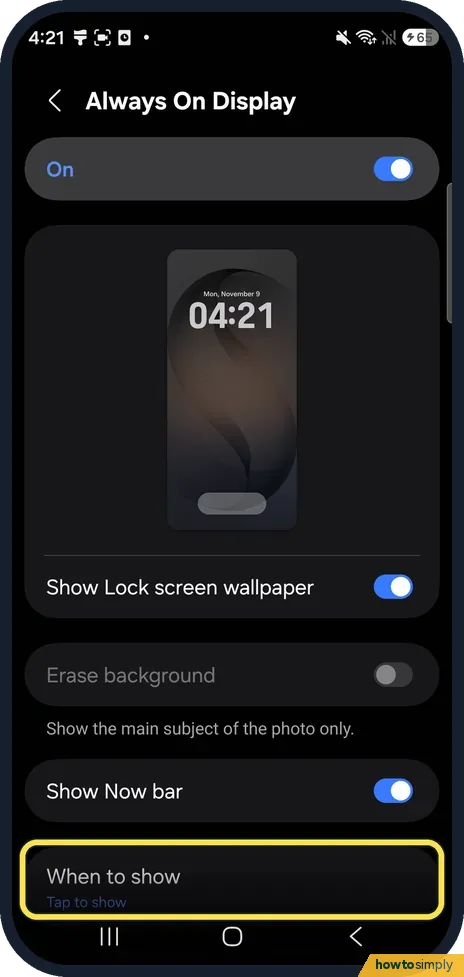
Tap Always On Display itself to open its page. On our Galaxy S26 the page has the switch at the top, a preview of the clock, then Show Lock screen wallpaper, Erase background, Show Now bar and When to show, which read Tap to show. Tap When to show.
- 4
Choose when to show it
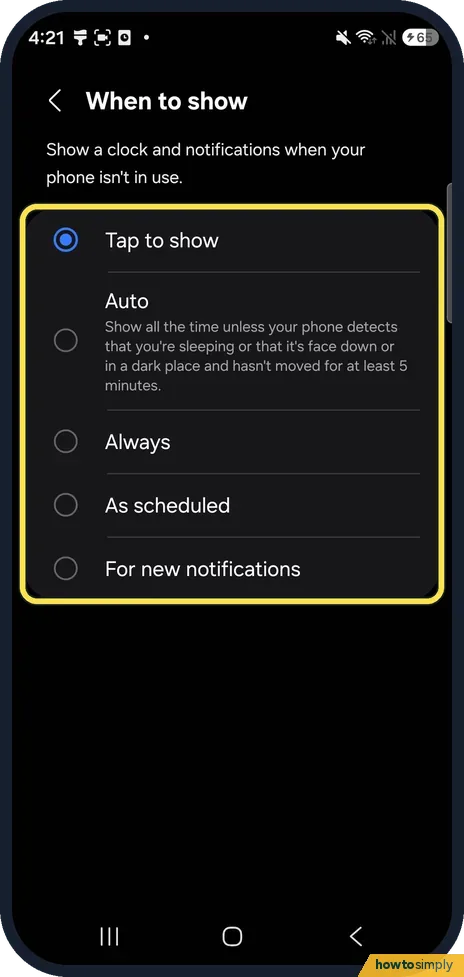
On our Galaxy S26 it was set to Tap to show. The other choices are Auto, Always, As scheduled and For new notifications. Under Auto, the phone says it shows all the time unless it detects that you are sleeping, that it is face down, or that it is in a dark place and has not moved for at least 5 minutes.
- 5
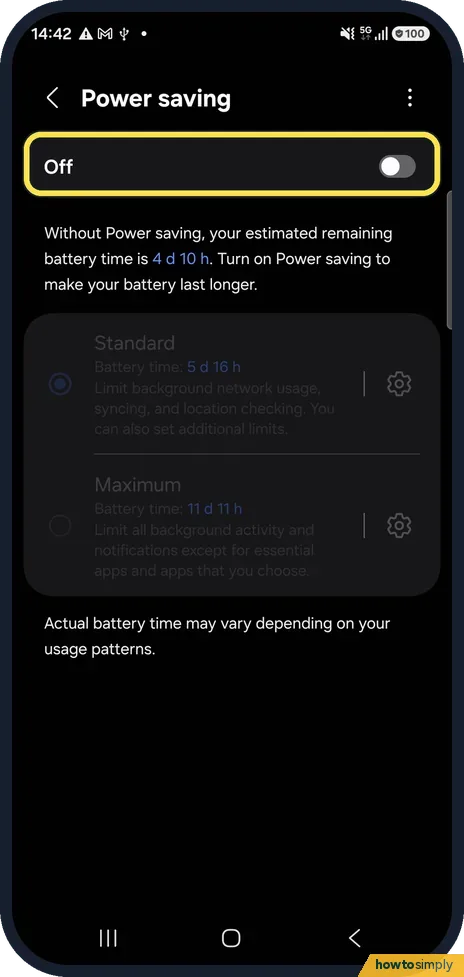
Check Power saving
Samsung says Always On Display can't be used while a Power saving mode is switched on. Check Settings, Battery, Power saving. On our Galaxy A57 it was Off, and the Power saving page itself does not mention the Always On Display.
Where we checked these steps
- Galaxy S26, One UI 9.0 (Android 17)
- Galaxy A57 5G, One UI 8.5 (Android 16)
We have not checked other phones or older versions. If a menu looks different on yours, the notes under each step and the fixes further down cover the differences we found.
If you do not see this option
- No When to show row Samsung lists When to show for Galaxy devices with One UI 6.1. On our Galaxy A57 with One UI 8.5 it is on the Always On Display settings page, below Show Now bar. Source: Always On Display on your Galaxy phone or tablet
- The settings page does not open Samsung says that if the Always On Display has been switched off, you must turn it back on to reach its settings. Source: Always On Display on your Galaxy phone or tablet
If this does not work
- Not on the Cover screen of a Z Flip Samsung says the Always On Display is not available on the Cover screen of the Galaxy Z Flip series.
- The switch has no effect Turn off Power saving first, because Samsung says the Always On Display is not available in a Power saving mode.
- It disappears in your pocket? If When to show is set to Auto, that is expected. Samsung says Auto hides the display when the phone is in a purse or pocket. Choose Always if you want it on all the time.
- Cannot find Clock style? Samsung says that from One UI 6, the Always On Display simply borrows the Lock screen's clock style. Extra Always On Display styles can be downloaded from Themes, AODs.
Good to know
To stretch the battery further: how to turn on Power saving on a Samsung Galaxy phone.
Samsung notes you can turn the Always On Display off if you want to save some battery power. Tap to show or As scheduled are a middle way, because the screen stays fully dark most of the time. To change what it looks like rather than when it shows, see how to customise the Always On Display.
About this guide
You glance at the phone and the time is just there. That is Always On Display: it shows the time, date and notifications on the dark screen while the phone is locked.
- Device
- Android
- Shown on
- Samsung Galaxy S26 (SM-S942N, Korean model), One UI 9.0, Android 17 (build CP2A.260605.016.S942NKSU5BZJB), Samsung Galaxy A57 5G (SM-A576B), One UI 8.5, Android 16
- App
- Settings
- Path
- Settings › Lock screen and AOD
- Real screenshots
- 5 of 5 steps
- Checked
- November 2026
- Sources
- 1 official, linked below
The screenshots are from a Samsung Galaxy S26 with One UI 9.0 and Android 17, apart from the last, from our Galaxy A57 with One UI 8.5. Samsung says which screens and settings you see can depend on your network, software version and phone model.
Sources
Links checked October 2026. Menus and features can change with updates.Did this guide work for you?
Sorry about that. What happened?
Get new guides by email
Our newest guides, sent to your inbox. Free, and you can unsubscribe in one click.
We'll email you to confirm. How we use your email
Follow howtosimply on Facebook
We share our new guides on our Facebook page, so the next fix turns up in your feed.
Follow on Facebook