How to set default alert times for calendar events on an iPhone
- Shown on
- iPhone 14 Pro
- Software
- iOS 27.0.1More iOS 27 guides
- Checked
- October 2026
- Real screenshots
- 3 of 5 steps
- Where it is
- Settings › Apps › Calendar › Default Alert Times
Quick answer
Open Settings, tap Apps, then Calendar, scroll down and tap Default Alert Times. Choose Birthdays, Events or All-Day Events and set when the alert should come. All three are set to None at first, so new events have no alert unless you add one by hand.
Steps
- 1
Open Settings and tap Apps
Apps is near the bottom of the main Settings list.
- 2
Tap Calendar
The apps are in alphabetical order, so Calendar is near the top, under C.
- 3
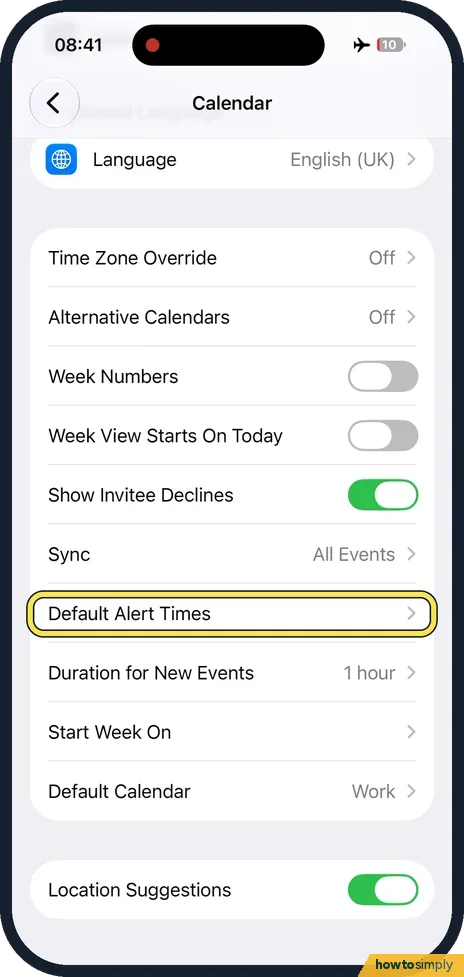
Scroll down and tap Default Alert Times
It is in the lower half of the page, below Sync.
- 4
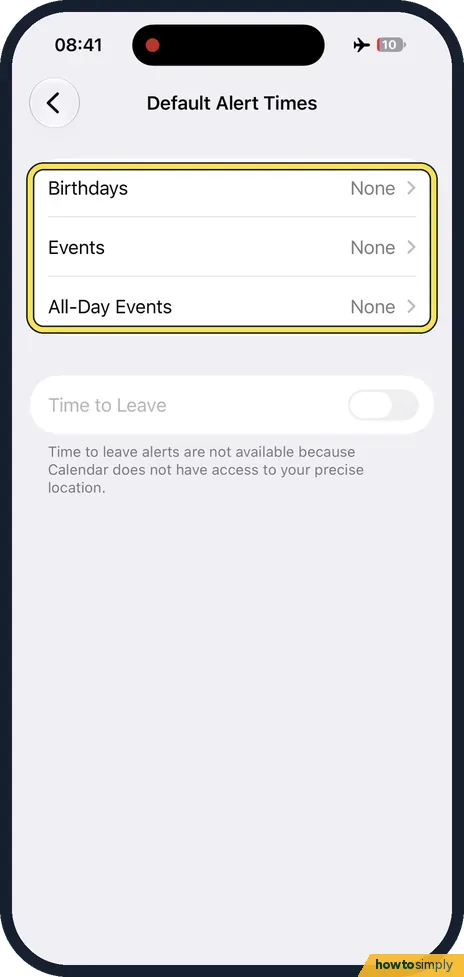
Tap Birthdays, Events or All-Day Events
Each kind has its own default. The word at the right shows the current one. Tap a row and pick a time from the list.
- 5
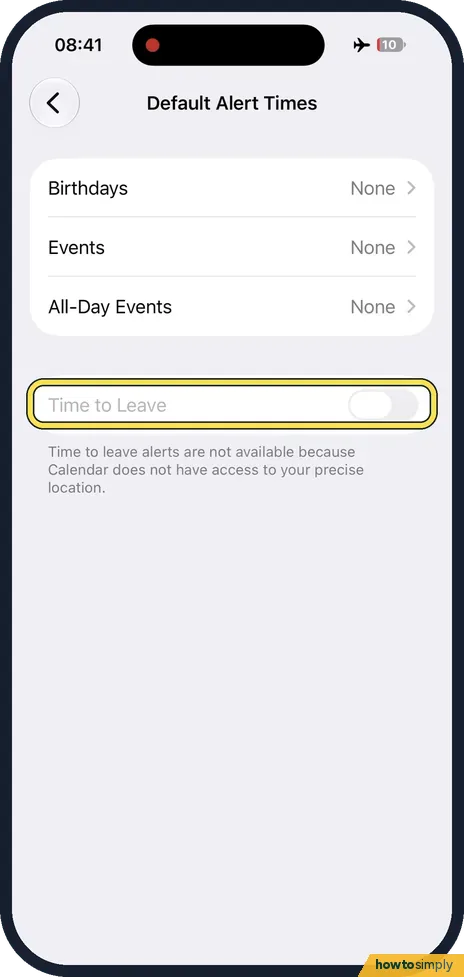
Check Time to Leave
Time to Leave is a switch on the same page. The note below explains why: these alerts are not available because Calendar does not have access to the precise location.
If this does not work
- Old events still have no alert? Nothing is broken. Apple says an alert can remind you before an event starts. To add one, open the event in Calendar, tap Edit, tap Alert and choose a time.
- One calendar never sends alerts? Each calendar has its own Event Alerts switch. In the Calendar app, tap the calendars button, tap the info button next to that calendar and check that Event Alerts is on. Event alerts can be switched on for calendars you've made or subscribed to.
- The alert time is set but nothing appears? Check that notifications for Calendar are allowed in Settings, Notifications, and that a Focus is not holding them back. Apple notes that sounds do not play while the iPhone is silenced or the volume is fully down. For a full checklist, see iPhone notifications not showing.
Good to know
The row below Default Alert Times, Duration for New Events, sets how long a new event lasts. It is 1 hour at first.
You can still change the alert on any single event: tap the event, tap Edit, then tap Alert. To change it later, head back to Default Alert Times, tap Birthdays, Events or All-Day Events, and pick an option. Existing alerts stay where they are until you edit the events themselves.
Time to Leave works out when to set off using the event's address. Apple says that if an event has an address, Calendar checks Apple Maps for the place, the traffic and public transport, and tells you when you need to set off. If you have multiple calendars, the same settings page lets you pick a Default Calendar for new events. To add public holidays as all-day events, see add a holiday calendar on an iPhone.
About this guide
Well, it is a horrible feeling to spot a meeting in your calendar only after it has started. Default Alert Times, in Settings, is where you decide when each kind of event alerts you.
- Device
- iPhone
- Shown on
- iOS 27.0.1 (iPhone 14 Pro)
- App
- Settings
- Path
- Settings › Apps › Calendar › Default Alert Times
- Real screenshots
- 3 of 5 steps
- Checked
- October 2026
- Sources
- 3 official, linked below
What changed: steps that look different now show our own iPhone 14 Pro on iOS 27.0.1, with the wording checked against that screen.
Sources
Links checked October 2026. Menus and features can change with updates.Did this guide work for you?
Sorry about that. What happened?
Get new guides by email
Our newest guides, sent to your inbox. Free, and you can unsubscribe in one click.
We'll email you to confirm. How we use your email
Follow howtosimply on Facebook
We share our new guides on our Facebook page, so the next fix turns up in your feed.
Follow on Facebook