How to set or change the screen lock on an Android phone
- Shown on
- Pixel 10a
- Software
- Android 17More Android 17 guides
- Checked
- October 2026
- Real screenshots
- 5 of 6 steps
Quick answer
On a Google Pixel, open Settings, Security and privacy, Device unlock, Screen lock. On a Samsung Galaxy, open Settings, Lock screen and AOD, Screen lock and biometrics. Enter any current lock, choose PIN, Password or Pattern and enter it twice. The PIN screen on our Pixel recommended six digits.
Watch these steps
Video: on our Pixel 10a (Android 17) we open Settings, then Security and privacy, then Device unlock, then Screen lock, where you choose None, Swipe, Pattern, PIN or Password. We did not change ours. No sound.
Steps
- 1
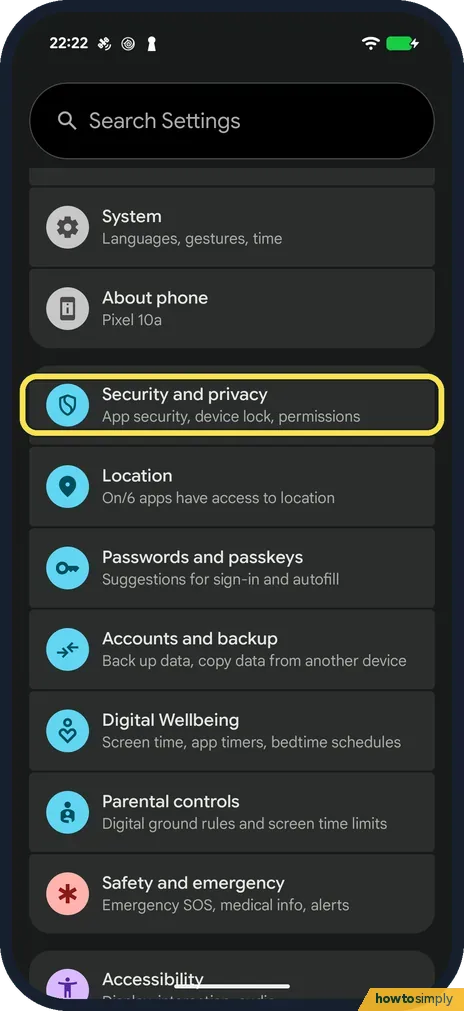
Open Settings and tap Security and privacy
On our Pixel it is below About phone. If you cannot find it, search the settings for Screen lock.
- 2
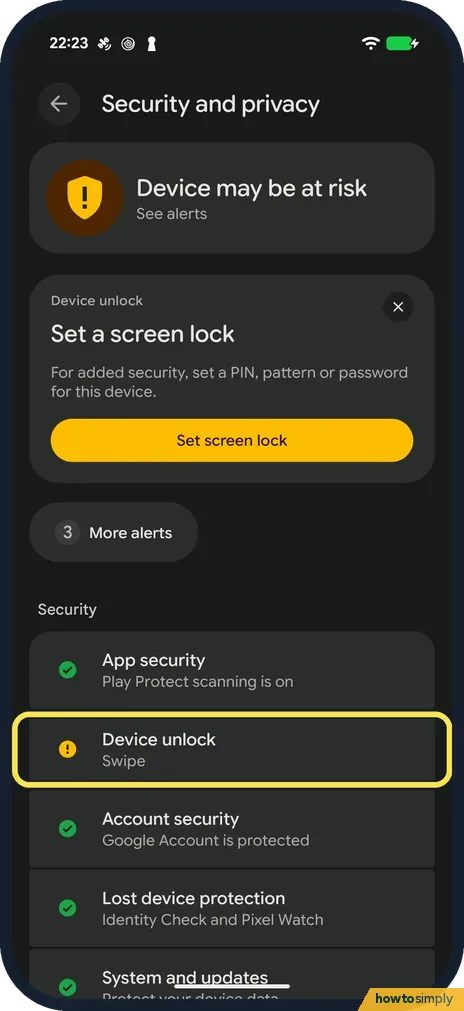
Tap Device unlock
Under Security, Device unlock shows the current lock; ours said Swipe, with a warning sign. The Set a screen lock card at the top leads to the same place.
- 3
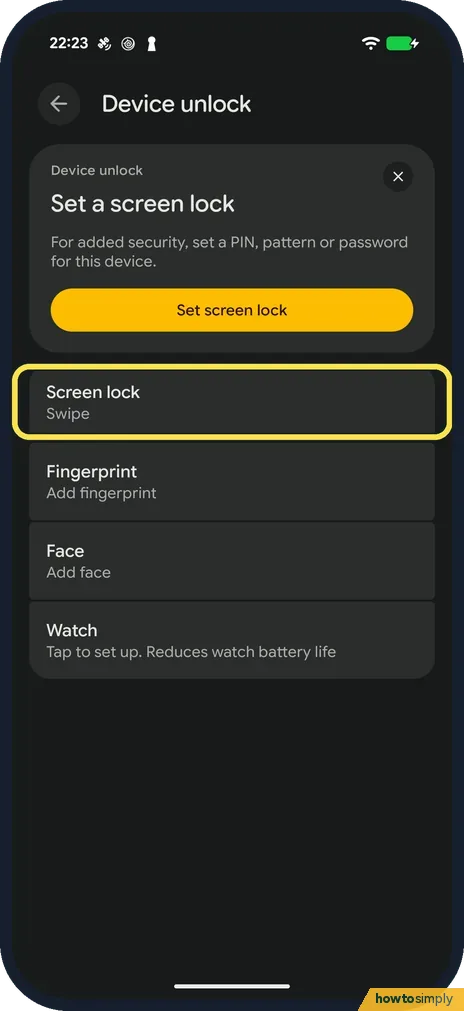
Tap Screen lock
The line under it shows the current type, Swipe on ours. If a PIN, pattern or password is already set, the phone asks for it first.
- 4
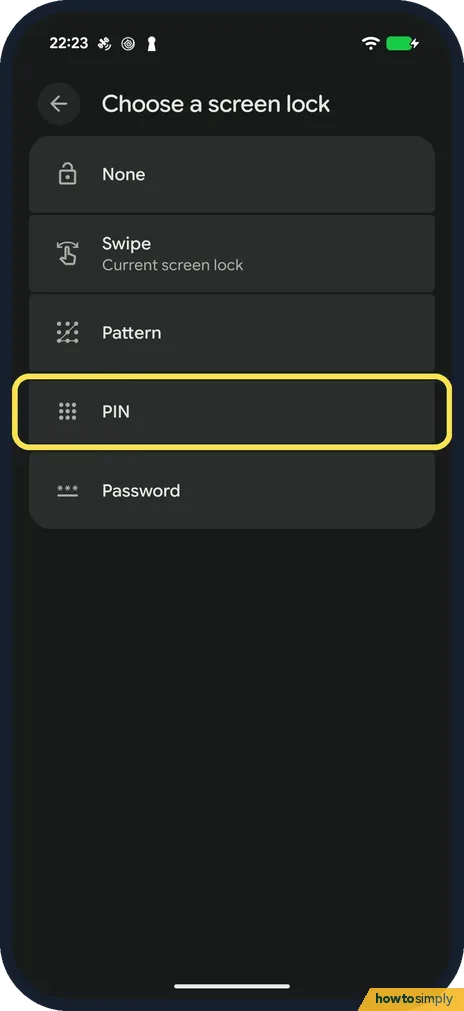
Choose the type
Ours offered None, Swipe (marked Current screen lock), Pattern, PIN and Password. A PIN is four or more digits. A password is the most secure choice. A pattern is the easiest to watch over your shoulder.
- 5
Enter it twice
Type the PIN, pattern or password, then type it again to confirm. Android blocks screenshots of this screen, so ours came out black. It read: PIN must be at least 4 digits, but a 6-digit PIN is recommended. We typed nothing and backed out.
- 6
Add a fingerprint or face
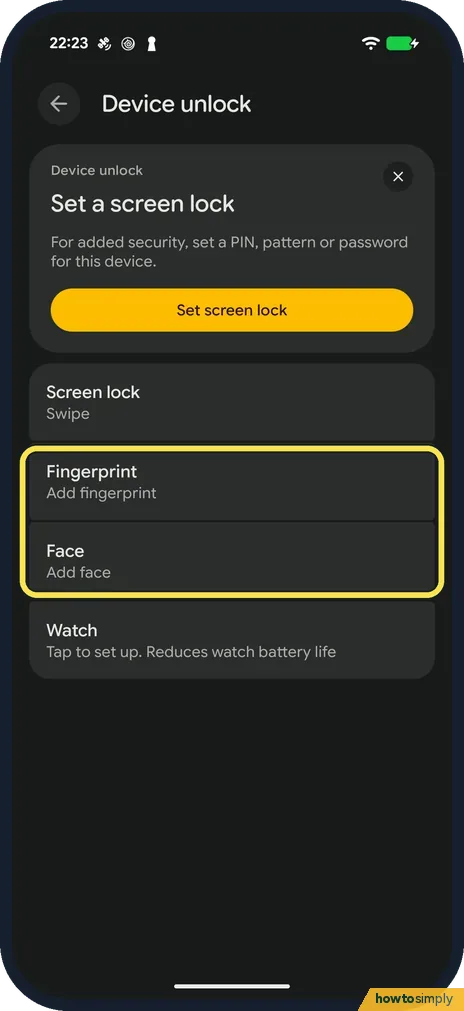
Back on Device unlock, Fingerprint and Face are below Screen lock; ours said Add fingerprint and Add face. They make unlocking quick. The PIN stays as the fallback and is asked for after a restart.
If you do not see this option
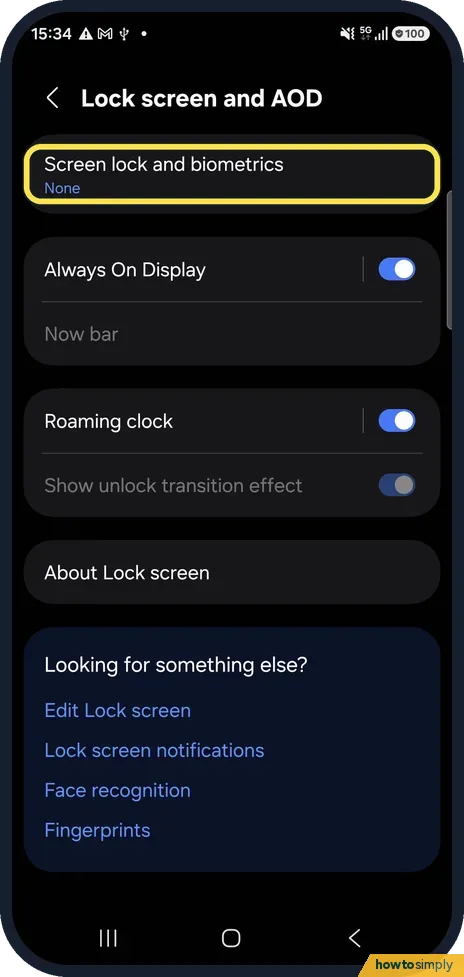
- You have a Samsung Galaxy Open Settings, Lock screen and AOD, Screen lock and biometrics. On our Galaxy A57 with One UI 8.5 the same page also has Lock screen notifications.
- Your phone has other menu names Android Help gives Settings, Security as the general route and says to check the phone maker's support site if there is no Security entry. Source: Set screen lock on an Android device
If this does not work
- The PIN screen is black in a screenshot That is Android protecting the screen, not a fault on your phone; ours did the same.
- The phone asks for a lock you forgot You need the current lock to change it. Without it, the only way back in is to erase the phone; see the guide linked below.
- None or Swipe not on offer? That is not your phone being stubborn. A work profile or a school or company account can require a screen lock on the phone. Ask whoever manages that account; you can still change which PIN, pattern or password you use.
Good to know
None and Swipe give no protection at all. Anyone who picks up the phone can open it, whether they found it on a café table or took it from a coat pocket.
With a PIN of six or more digits you can switch on auto-confirm, so the phone unlocks without tapping Enter. Google notes that this may decrease the security of your phone.
Pick something you will remember, because if you forget the lock, the only way back in is to erase the phone: forgot your Android PIN or pattern: how to get back in.
More protection against theft: how to turn on theft protection on Android.
Google says that to encrypt your phone's automatic and manual backups with your screen lock, the lock has to be a PIN, pattern or password. A password needs at least four letters or numbers.
About this guide
Of all the settings on an Android phone, this is the one I would never leave on Swipe. A screen lock helps secure your phone from unauthorized access. It also encrypts your data and is needed for fingerprint unlock, Google Wallet and theft protection.
- Device
- Android
- Shown on
- Google Pixel 10a, Android 17 (build CP3A.261005.005)
- App
- Settings
- Real screenshots
- 5 of 6 steps
- Checked
- October 2026
- Sources
- 1 official, linked below
The screenshots are from our Google Pixel 10a with Android 17 (build CP3A.261005.005), in dark mode. Its screen lock was Swipe, so Security and privacy warned that the device may be at risk. The Samsung route is under If you do not see this option.
Sources
Links checked October 2026. Menus and features can change with updates.Did this guide work for you?
Sorry about that. What happened?
Get new guides by email
Our newest guides, sent to your inbox. Free, and you can unsubscribe in one click.
We'll email you to confirm. How we use your email
Follow howtosimply on Facebook
We share our new guides on our Facebook page, so the next fix turns up in your feed.
Follow on Facebook