How to add a second user or a guest on Android
- Shown on
- Pixel 10a (Android 17) and Galaxy A57 5G (One UI 8.5)
- Checked
- October 2026
- Real screenshots
- 8 of 8 steps
- Where it is
- Settings › System › Users
Quick answer
Open Settings, tap System, then Users. Tap Add user to give someone their own space, or Add guest and then Switch to Guest to lend the phone briefly. Switch users from the user icon in Quick Settings.
Steps
- 1
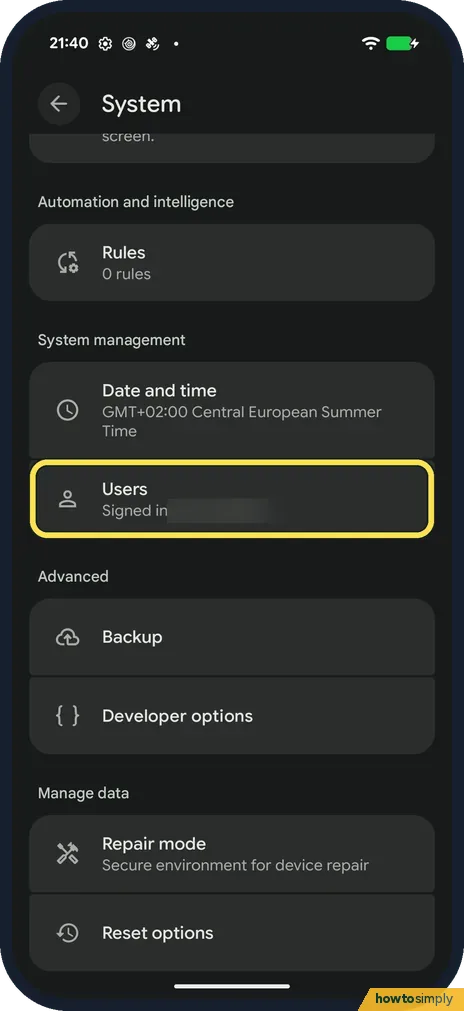
Open Settings, System, Users
Open Settings and tap System, then scroll down and tap Users.
On our Pixel 10a, Users sits under System management, below Date and time.
- 2
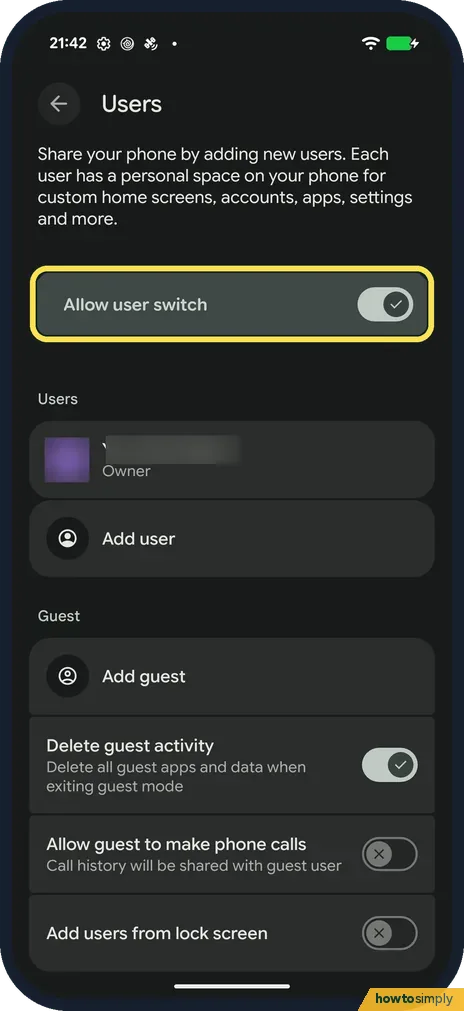
Switch on Allow user switch
The switch is at the top of the Users page.
On our Pixel 10a, Add user and Add guest were shown even with the switch off.
- 3
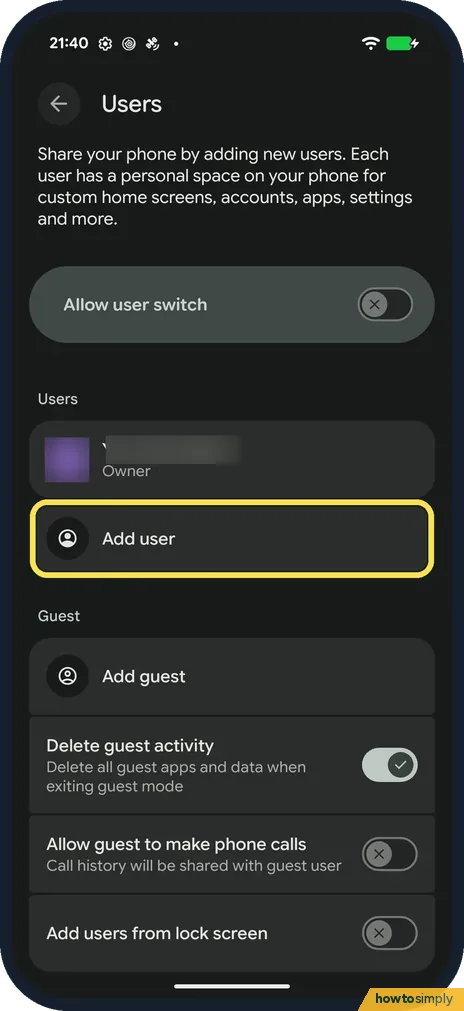
Tap Add user
Add user is below the owner in the Users list.
Google's Pixel Help says the new person then sets up their space with a Google Account of their own, like a new phone.
- 4
Add a guest and switch to it
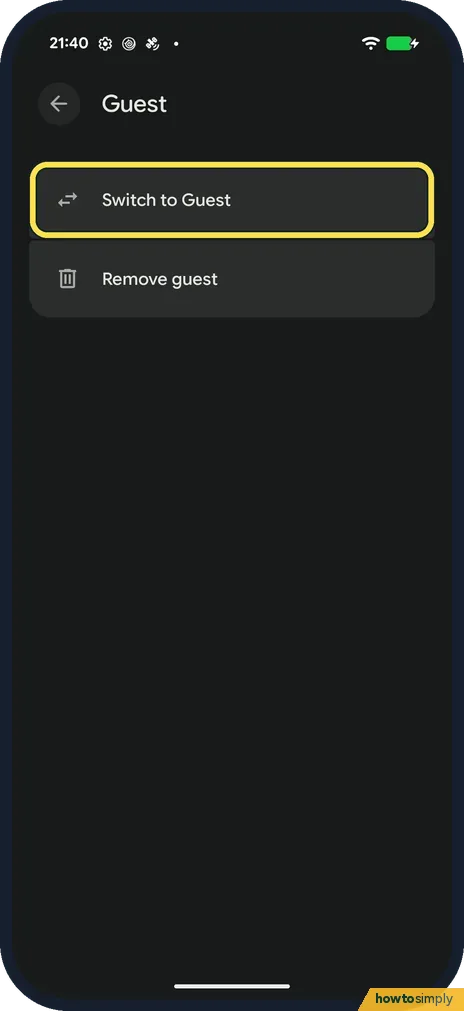
To lend the phone briefly, tap Add guest on the Users page.
On the Guest page, tap Switch to Guest. A Switching to Guest… screen appears while the phone changes over.
- 5
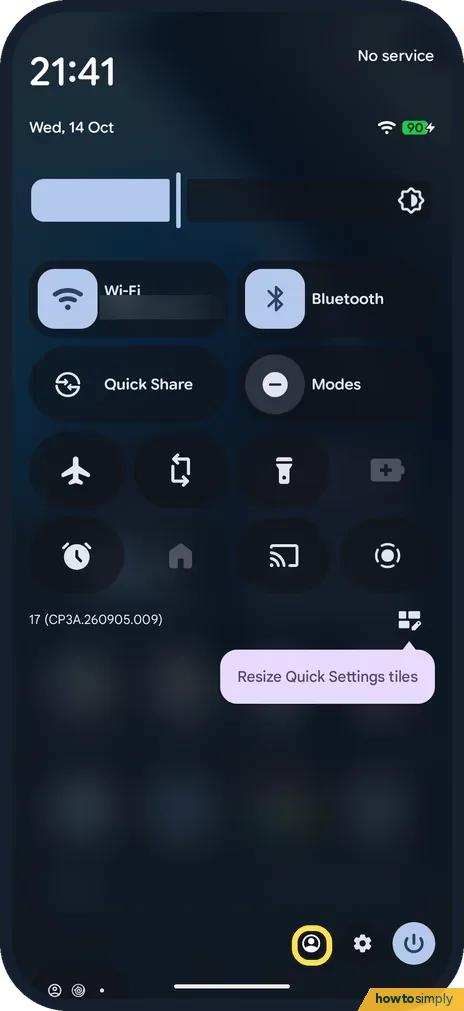
Open the user icon
Swipe down twice from the top of the screen.
Tap the user icon at the bottom right, next to the settings cog.
- 6
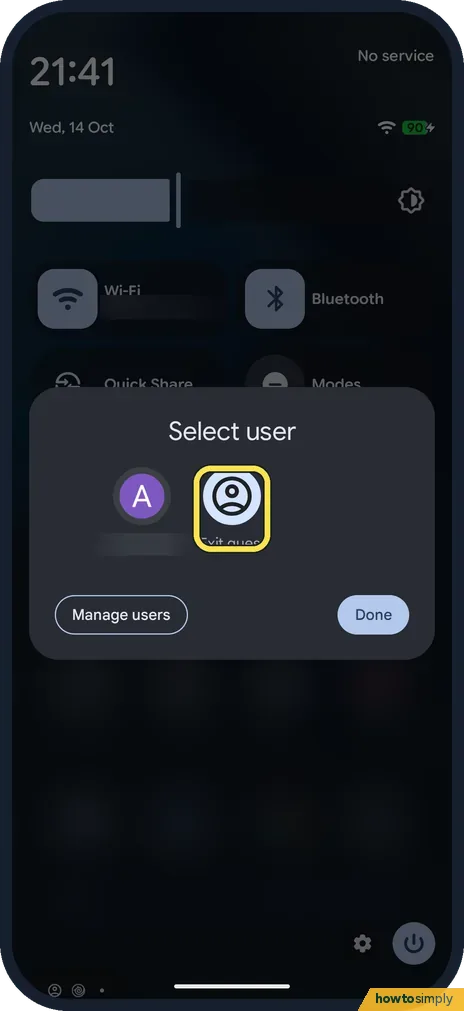
Tap Exit guest
The Select user sheet opens. Tap Exit guest to go back, or tap another user to switch to them.
- 7
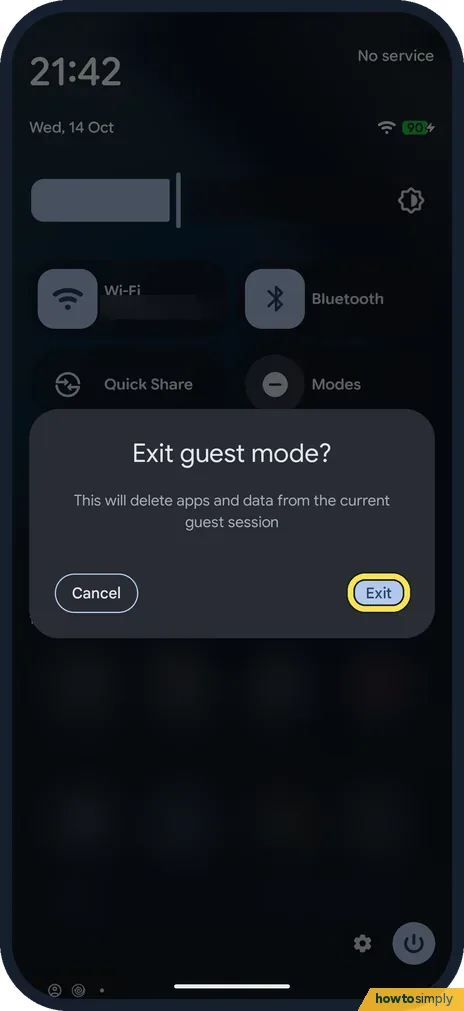
Tap Exit
Exit guest mode? warns that this will delete apps and data from the current guest session. Tap Exit to return to your own space.
- 8
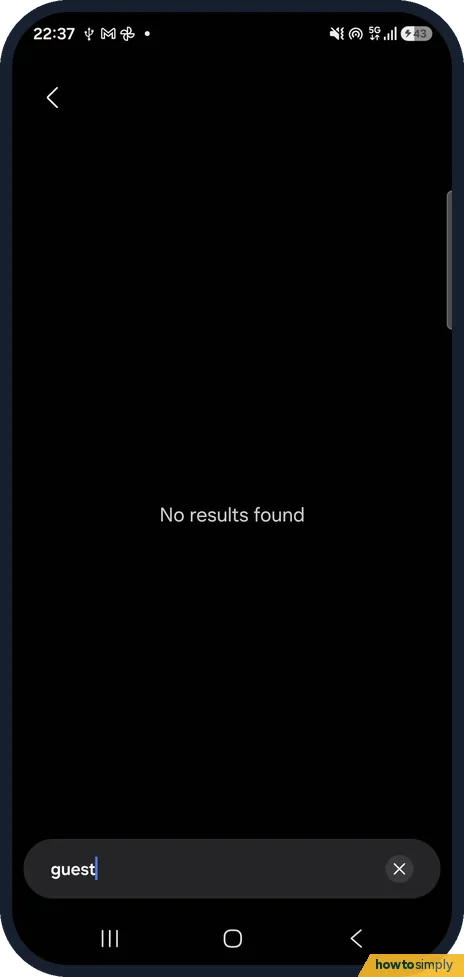
Samsung Galaxy: search Settings for guest
Our Samsung Galaxy A57 has no Users page. Searching Settings for guest found nothing. Other Galaxy models may differ. For lending this phone, use app pinning (see Good to know).
Where we checked these steps
- Pixel 10a, Android 17
- Galaxy A57 5G, One UI 8.5 (Android 16)
We have not checked other phones or older versions. If a menu looks different on yours, the notes under each step and the fixes further down cover the differences we found.
If you do not see this option
- Multiple users is not listed On our Pixel 10a the menu is called Users and sits under System management on the System page.
- Allow multiple users is not listed On our Pixel 10a the switch at the top of the Users page is called Allow user switch.
- No user icon in Quick Settings Swipe down from the top edge a second time. On our Pixel 10a the user icon sits at the bottom right, beside the settings cog and the power button.
- No Users on a Samsung Galaxy Our Galaxy A57 offers neither a second user nor a guest (step 8). This is what we saw on our A57, not a rule for every Galaxy.
If this does not work
- Allow user switch turned on by itself On our Pixel 10a, adding a guest switched Allow user switch on. It is easy to miss, so take a quick look after adding a guest. Turn it off again on the Users page if you do not want it.
- The guest's apps and data have gone That is guest mode doing its job, not a fault. Delete guest activity is on by default, which deletes all guest apps and data when exiting guest mode. Switch it off on the Users page to keep them.
- The guest cannot make calls Allow guest to make phone calls is off by default. Switch it on in Users if the guest really needs to call. However, call history will then be shared with the guest, so think about who you are lending the phone to.
Good to know
Files and messages are not shared between users. A few settings, like Wi-Fi and Bluetooth, are shared by everyone, so if one person changes them, the whole phone changes.
On our Pixel 10a, Allow guest to make phone calls was off by default. The Users page notes that call history will be shared with the guest if you switch it on.
To remove a guest: Settings, System, Users, open the Guest page and tap Remove guest.
To hand over the phone for one app only, app pinning is quicker than a guest, and far more relaxing than hovering over someone's shoulder: how to let someone use one app only on Android with app pinning.
About this guide
Well, sharing a phone or tablet with a child or partner is lovely right up until your apps get rearranged or the wrong account gets used. That is where a second user helps: it keeps their apps and accounts apart from yours. A guest is for lending the phone briefly: the guest sees none of your messages, photos or files.
- Device
- Android
- Shown on
- Google Pixel 10a, Android 17 (build CP3A.260905.009), Samsung Galaxy A57 5G (SM-A576B), One UI 8.5, Android 16
- App
- Settings
- Path
- Settings › System › Users
- Real screenshots
- 8 of 8 steps
- Checked
- October 2026
- Sources
- 1 official, linked below
Sources
Links checked October 2026. Menus and features can change with updates.Did this guide work for you?
Sorry about that. What happened?
Get new guides by email
Our newest guides, sent to your inbox. Free, and you can unsubscribe in one click.
We'll email you to confirm. How we use your email
Follow howtosimply on Facebook
We share our new guides on our Facebook page, so the next fix turns up in your feed.
Follow on Facebook