How to turn off Sticky Keys on Windows 11
- Shown on
- Microsoft Cloud PC
- Software
- Windows 11
- Checked
- October 2026
- Real screenshots
- 6 of 6 steps
- Where it is
- Settings › Accessibility › Keyboard
 Real screenshot · Microsoft Cloud PC, Windows 11
Quick answer
Open Settings, Accessibility, Keyboard and switch Sticky keys off. To stop it coming back, open the Sticky keys entry and switch off Keyboard shortcut for Sticky keys. Otherwise pressing Shift five times turns it on again.
Steps
- 1
Open the keyboard settings
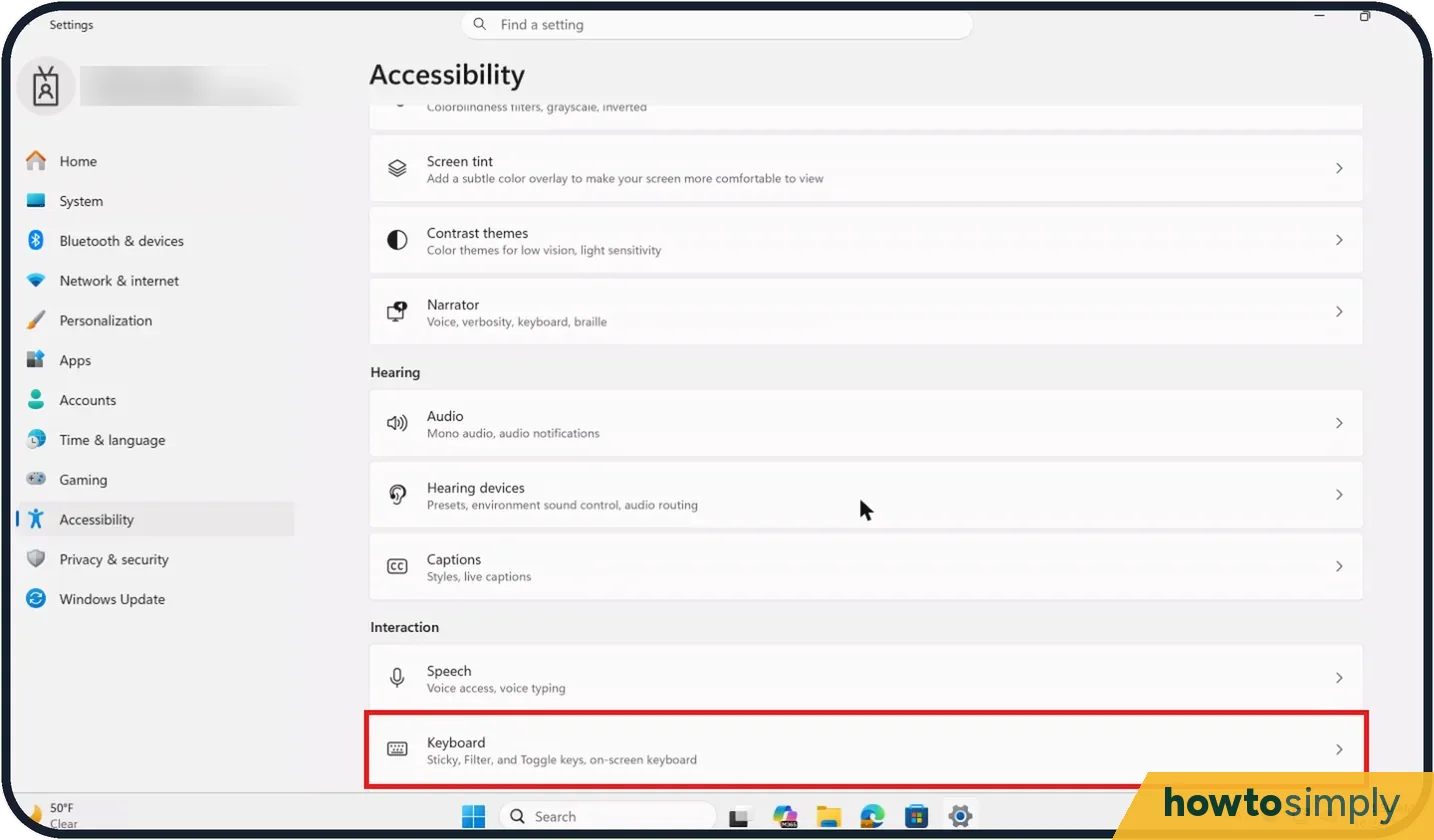
Open Start, Settings and select Accessibility in the list on the left.
Scroll down to Interaction and select Keyboard. On our Cloud PC its description reads Sticky, Filter, and Toggle keys, on-screen keyboard.
- 2
Switch Sticky keys off
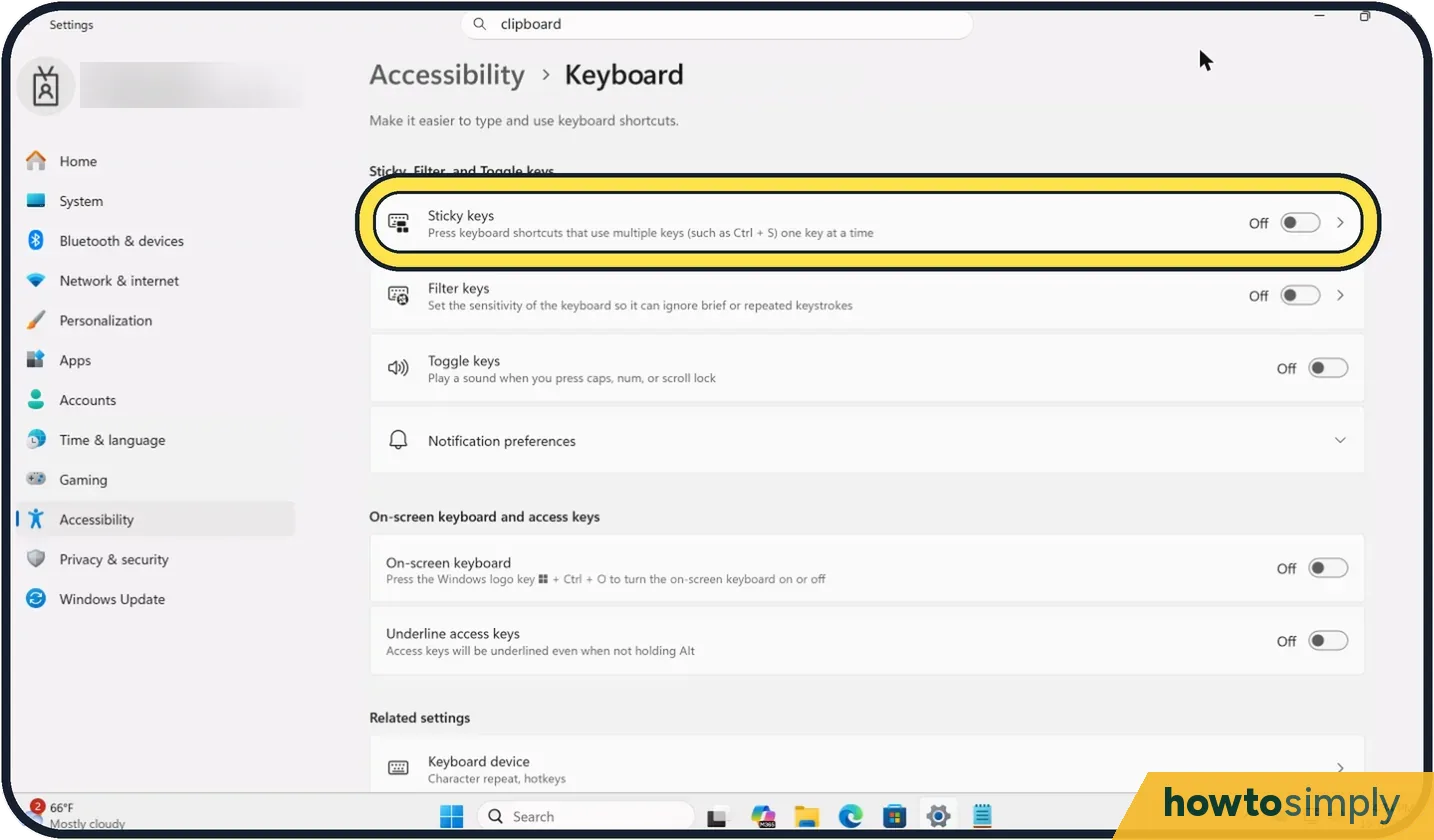
At the top, under Sticky, Filter, and Toggle keys, turn the Sticky keys switch off.
On our Cloud PC Sticky keys, Filter keys and Toggle keys were all Off.
- 3
Switch off the shortcut
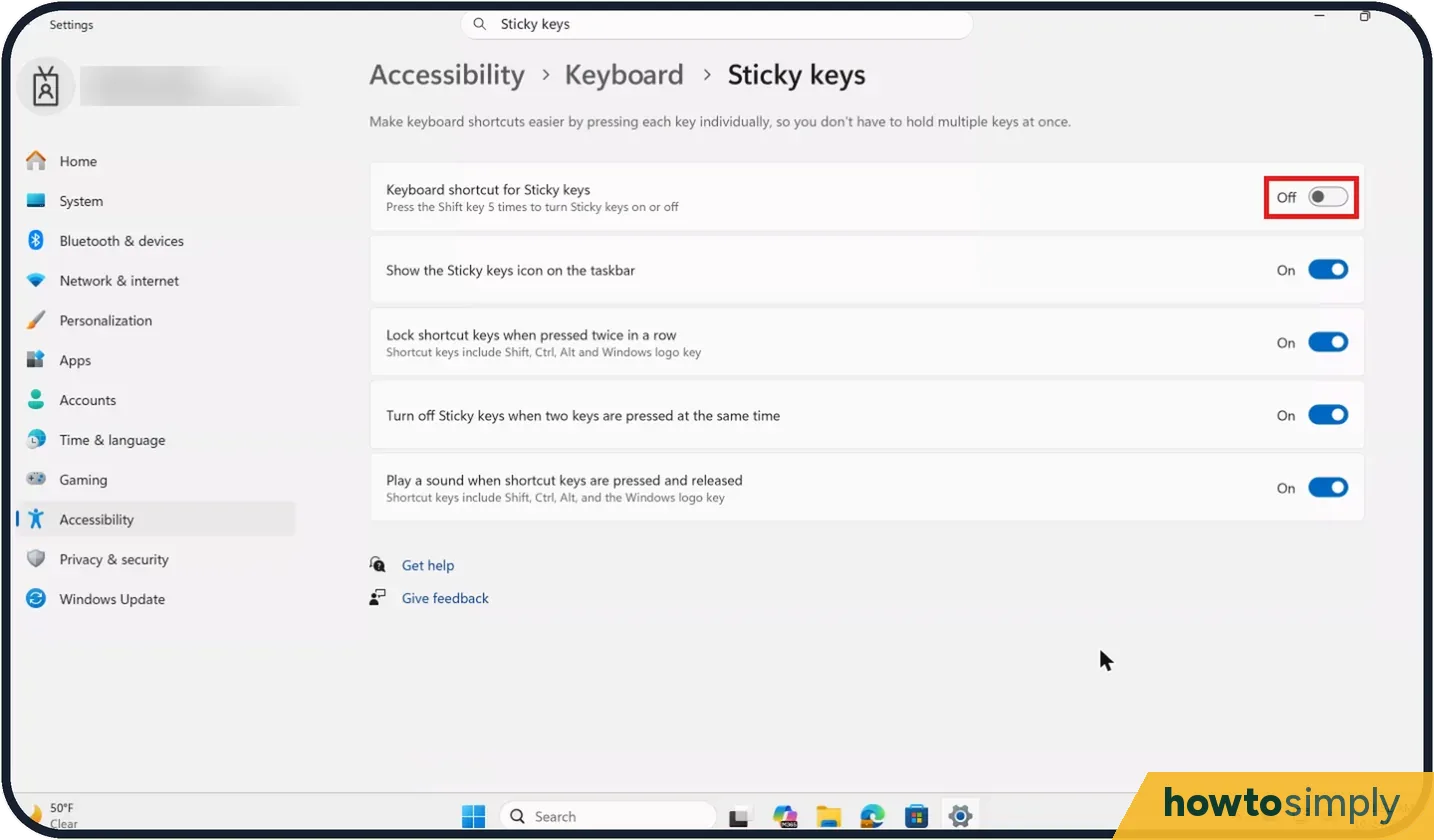
Click the arrow at the end of the Sticky keys row, not the switch. Turn off Keyboard shortcut for Sticky keys.
It says Press the Shift key 5 times to turn Sticky keys on or off; once it is Off, pressing Shift five times does nothing.
On our Cloud PC the other four switches on this page were On.
- 4
Switch Filter keys off
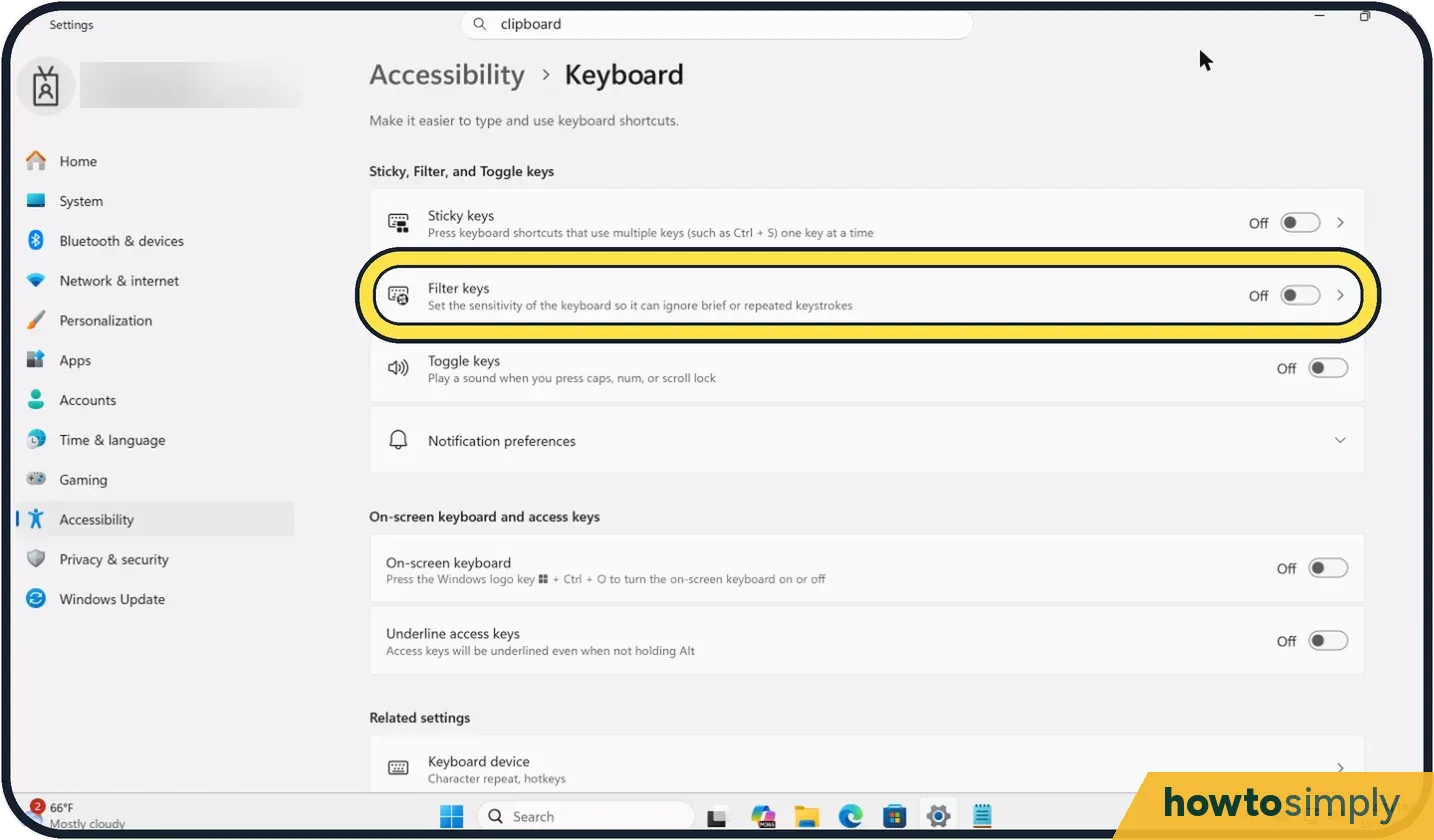
Go back to Keyboard. Filter keys can make the keyboard ignore brief or repeated keystrokes, which feels like a keyboard that has stopped working.
Turn the Filter keys switch off on this page.
- 5
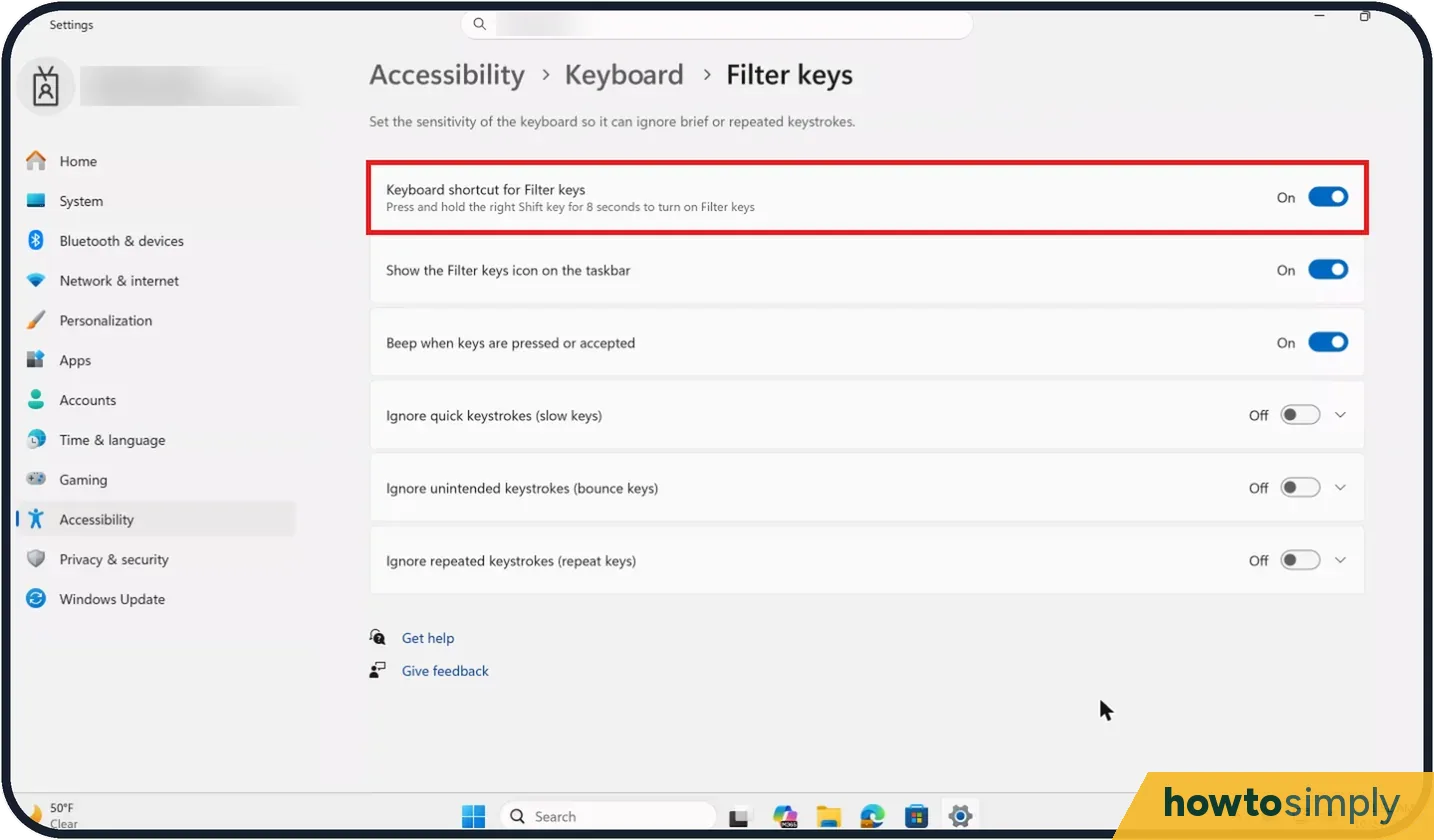
Switch off the Filter keys shortcut
Click the arrow at the end of the Filter keys row and turn off Keyboard shortcut for Filter keys.
Its description reads Press and hold the right Shift key for 8 seconds to turn on Filter keys. On our Cloud PC it was On.
- 6
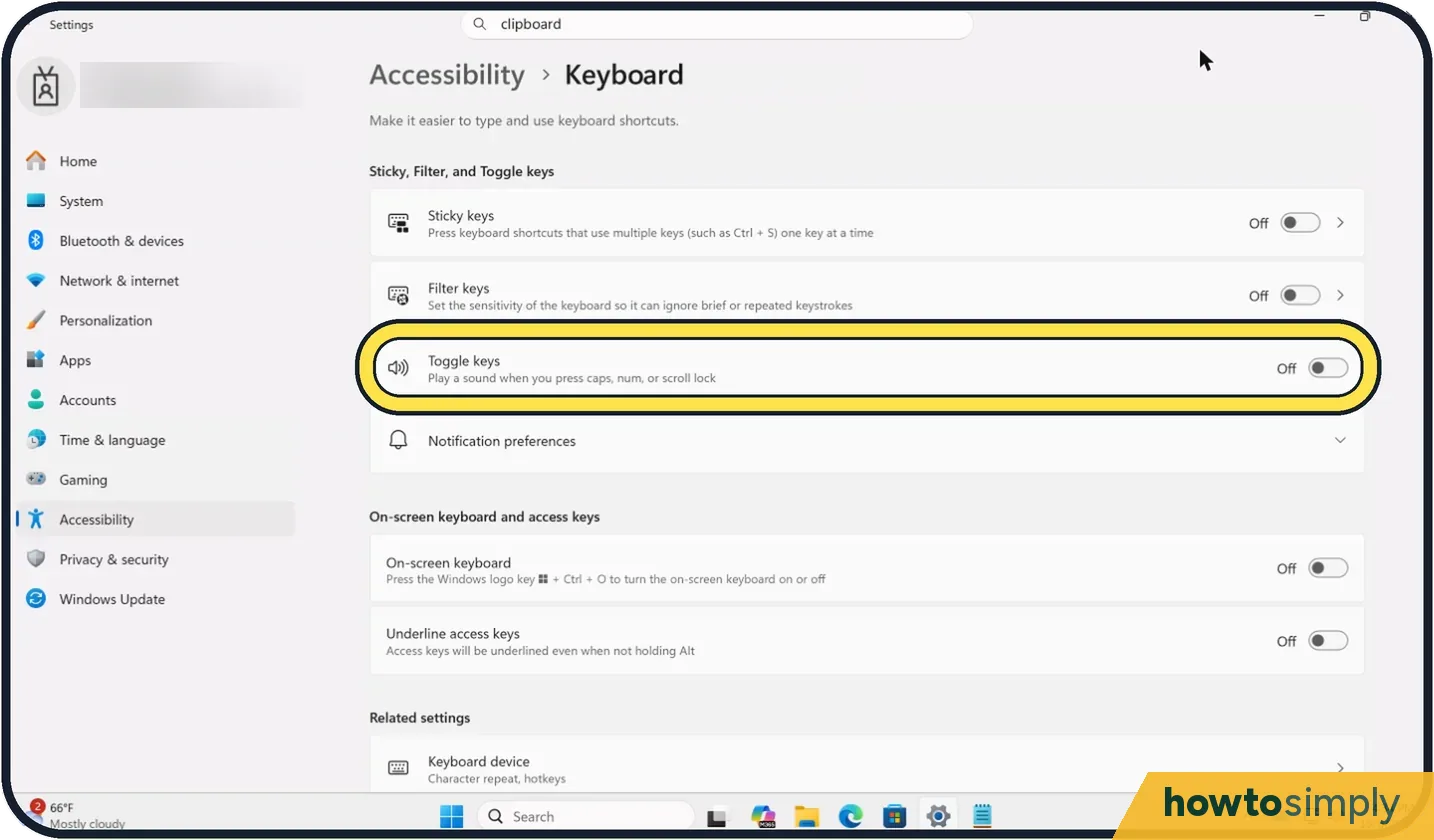
And for Toggle keys
Toggle keys plays a sound when you press caps, num, or scroll lock.
Switch it off on the same Keyboard page if the beeps bother you.
If you do not see this option
- On Windows 10 the setting is in a different place. Microsoft gives the path Start, Settings, Ease of Access, Keyboard, where the toggle under Sticky Keys is; switch it off there. Sources: Make your mouse, keyboard, and other input devices easier to use, Windows keyboard shortcuts for accessibility
- A Sticky keys icon stays on the taskbar That is Show the Sticky keys icon on the taskbar, on the Sticky keys page behind the arrow. It was On on our Cloud PC.
- A Filter keys icon stays on the taskbar That is Show the Filter keys icon on the taskbar, on the Filter keys page behind the arrow. It was On on our Cloud PC.
If this does not work
- Key presses are ignored unless you hold them down. That is Filter keys, which Microsoft describes as setting the keyboard to ignore brief or repeated keystrokes. Switch it off on the same Keyboard page.
- A sound plays when you press Caps Lock. That is Toggle keys, which plays a sound when you press caps, num, or scroll lock. Switch it off on the same Keyboard page.
- Shift or Ctrl stays held down On our Sticky keys page, Lock shortcut keys when pressed twice in a row was On. Switching Sticky keys off ends this, and Shift lets go again.
- The pointer moves when you press number keys That is Mouse keys, which lets you control your mouse with a numeric keypad. Microsoft says Left Alt + left Shift + Num Lock turns it on or off.
Good to know
If the pop-up Do you want to turn on Sticky Keys? appears, choose No. The link in that pop-up leads straight to the setting for the shortcut, so at least the pop-up shows you how to stop it.
If keys still behave oddly afterwards, the keyboard itself may be the cause: Windows 11 keyboard or mouse not working: 7 fixes to try.
An alternative when a key is broken: how to use the on-screen keyboard on Windows 11.
About this guide
Sticky Keys lets you press shortcuts like Ctrl + S one key at a time rather than together, a big help if pressing two keys at once is hard for you. For everyone else it can switch on when Shift gets pressed five times.
- Device
- Windows
- Shown on
- Windows 11 Enterprise 25H2 (build 26200.9457), Microsoft Cloud PC
- App
- Settings
- Path
- Settings › Accessibility › Keyboard
- Real screenshots
- 6 of 6 steps
- Checked
- October 2026
- Sources
- 2 official, linked below
The screenshots are our own, taken on Windows 11 Enterprise 25H2 running as a Microsoft Cloud PC, a Windows PC that runs in the cloud. Where the Cloud PC shows something specific, the step says so.
Sources
Links checked October 2026. Menus and features can change with updates.Did this guide work for you?
Sorry about that. What happened?
Get new guides by email
Our newest guides, sent to your inbox. Free, and you can unsubscribe in one click.
We'll email you to confirm. How we use your email
Follow howtosimply on Facebook
We share our new guides on our Facebook page, so the next fix turns up in your feed.
Follow on Facebook